Google Sheets Automation: A Practical Step-by-Step Guide for 2026
A practical, step-by-step guide to automating repetitive tasks in Google Sheets using macros, Apps Script, and templates. Perfect for students, professionals, and small businesses seeking time savings.


This guide will show you practical steps to automate repetitive tasks in Google Sheets using built-in features like macros, Apps Script, and templates. You will identify common automation patterns, select the right tools, and outline a plan to implement them in your workflow. The result is faster, more reliable spreadsheets that free time for analysis and decision-making.
What is Google Sheets automation and why it matters
In today’s data-driven environment, Google Sheets automation helps teams save time by letting spreadsheets perform the repetitive work. Automation in Google Sheets uses built-in features like macros, Apps Script, and templates to streamline data entry, calculations, and reporting. With a clear plan, you can standardize processes, reduce human error, and scale the same workflow across multiple projects.
According to How To Sheets, the most effective automations start with a simple problem and a repeatable solution. That means identifying a task you do often, mapping the steps, and choosing the right tool for each part of the workflow. For example, formatting data consistently across dozens of rows is a great candidate for a macro; pulling data from another sheet or a service via IMPORTRANGE or an Apps Script function can dramatically cut manual copy-paste. Google Sheets automation isn’t about replacing human insight; it’s about freeing time for analysis, synthesis, and decision making. If you’re new to this, begin with a small, non-critical process and track the time saved after implementing each improvement. This approach aligns with practical, incremental gains and reduces risk as you learn what works best in your environment.
Core tools for automation in Google Sheets
There are three primary avenues for automation in Google Sheets: macros (recorded actions), built-in formulas and features, and Google Apps Script (custom code). Macros are ideal for straightforward, repetitive tasks like formatting or simple data entry; they generate Apps Script behind the scenes and can be edited later for more flexibility. Built-in features such as QUERY, FILTER, VLOOKUP, and IMPORTRANGE enable powerful, rule-based automation without writing code. Apps Script offers a full programming environment to build custom workflows, triggers, and integrations with other Google services like Drive and Gmail. When choosing a tool, consider complexity, maintenance, and collaboration. For quick wins, start with macros or functions; for scalable automation, add Apps Script and modular templates. How To Sheets analysis shows that teams that blend approaches often achieve the best balance of speed, reliability, and maintainability rather than relying on a single method alone.
Planning your automation project
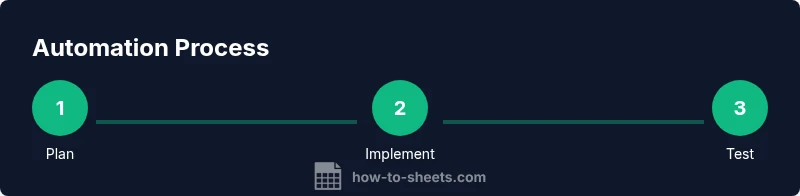
Successful automation begins with a plan. First, document the tasks you want to automate, the data sources involved, and the expected outputs. Then map the end-to-end flow: trigger (when the automation starts), actions (what happens in Sheets), and outputs (where results go). Define success metrics (time saved, error reduction) and set a realistic scope to avoid scope creep. Create a lightweight prototype using a copy of your data, so you can test risk-free. Finally, establish a maintenance plan that includes version history, change logs, and a schedule for reviews.
Build a starter automation: auto-fill summary from a data entry sheet
Imagine a form-like sheet where sales reps enter data; a separate summary sheet should automatically pull totals and status. This starter workflow demonstrates how to keep data consistent while reducing manual entry. Step-by-step actions include creating a Data Entry sheet, a Summary sheet, and a simple Apps Script function that updates the summary when new rows are added. Pair this with a macro for consistent formatting and a nightly trigger to refresh data. Test with sample data, then monitor the results to ensure calculations remain accurate as data grows. The goal is a reliable baseline you can scale to more complex processes over time.
Common pitfalls and how to test automations
Automation projects often stumble when inputs change, data sources move, or permissions shift. To avoid these issues, start by testing on copies of data and keep a separate testing sheet for edge cases. Use version history to rollback if something breaks, and add error handling within Apps Script (try/catch blocks) to surface problems clearly. Maintain detailed documentation of what each automation does, its inputs, outputs, and triggers. Finally, plan a staged rollout: validate on a small dataset first, then expand to real data once you confirm stability.
Advanced topics and next steps
As you gain comfort, you can explore advanced topics such as multi-sheet dashboards, cross-file automation with IMPORT/EXPORT, and integration with external data sources via Google Apps Script. Consider building a library of reusable components: small scripts and templates that you can plug into multiple projects. Establish a governance framework to manage access, versioning, and security. By keeping a modular mindset, you’ll reduce duplication and accelerate future automations across teams.
Quick-start checklist for Google Sheets automation
- Identify a high-volume, low-risk task to automate.
- Map inputs, actions, and outputs for the workflow.
- Choose macros, built-in formulas, or Apps Script based on complexity.
- Create a safe test environment (copy of data).
- Implement with clear naming, comments, and documentation.
- Test extensively and monitor results over time.
- Scale gradually by reusing components and templates.
Tools & Materials
- Computer with internet access(Chrome preferred; ensure you can access Google Sheets and Apps Script)
- Google account(Required to use Sheets, Apps Script, and Drive)
- Sample spreadsheets for practice(Copy of data used for testing automation)
- Backup plan (data copies)(Create backups before implementing automation on real data)
- Stable internet connection(Broadband recommended for syncing and cloud operations)
Steps
Estimated time: 45-60 minutes
- 1
Identify repetitive tasks to automate
Audit your daily sheet activity to find tasks that repeat with consistent inputs. Prioritize those with the highest time savings and lowest risk of data loss.
Tip: Start with a non-critical task to validate your approach. - 2
Map the workflow and data flow
Create a simple map of inputs, transformations, and outputs. Include triggers, actions, and end results to guide tool selection.
Tip: Use a one-page diagram or a table to keep things crystal clear. - 3
Choose the right tool for each part
Pick macros for simple formatting, built-in formulas for data shaping, and Apps Script for complex workflows or cross-service automation.
Tip: Avoid over-engineering; start with the simplest effective solution. - 4
Record or write the automation
If using a macro, record the actions and save. If coding, write a compact Apps Script function and bind triggers where appropriate.
Tip: Comment code and name functions intuitively for future maintenance. - 5
Test thoroughly on copy data
Run the automation on a test dataset to verify results, edge cases, and error handling. Adjust logic as needed.
Tip: Enable logs to capture what happened during execution. - 6
Monitor, iterate, and scale
After successful tests, monitor production use and refine. Expand automation to additional sheets or tasks as you gain confidence.
Tip: Maintain a changelog and schedule periodic reviews.
FAQ
What is Google Sheets automation?
Google Sheets automation involves using built-in features, macros, and Apps Script to perform repetitive tasks automatically. It helps standardize data, reduce errors, and save time. Start with simple tasks and gradually expand to more complex workflows.
Automation in Google Sheets uses built-in tools, macros, and scripts to run repetitive tasks automatically.
Do I need to code to automate in Google Sheets?
No, you can automate many tasks with macros and built-in functions. For more complex workflows or cross-service automation, Apps Script provides a flexible coding option.
You can start with macros and formulas; coding is optional for advanced tasks.
What are the best tools for automation in Google Sheets?
Macros are great for simple repetition, built-in formulas for data manipulation, and Apps Script for custom workflows and triggers. A blended approach often delivers the best balance of speed and maintainability.
Macros, formulas, and Apps Script together cover most needs.
How safe is Google Sheets automation with sensitive data?
Automation operates within Google permissions. Use restricted access, enable version history, and avoid embedding credentials in scripts. Review sharing settings regularly.
Use proper access controls and keep credentials out of scripts.
How do I test and debug automations?
Test with copies of data, enable logs, and verify outputs across edge cases. Use the Apps Script debugger or console logs to diagnose issues.
Test with copies and use logs to debug.
Where can I learn more about Google Sheets automation?
Consult official Google documentation, tutorials, and trusted guides like How To Sheets for practical, up-to-date techniques.
Check official docs and trusted tutorials.
Watch Video
The Essentials
- Define a clear automation goal.
- Choose the right mix of macros, formulas, and Apps Script.
- Test thoroughly on copy data before rolling out.
- Monitor performance and iterate to scale.
- Document automations and maintain backups.