Google Drive and Excel: A Practical Guide to Using Excel Files with Google Sheets
Learn how to work with Excel files in Google Drive using Google Sheets. Convert, import, and collaborate effectively while preserving data and formulas for students, professionals, and small business owners.


Learn to work with Excel files in Google Drive using Google Sheets. This guide covers when to import versus convert, how to preserve data and formulas, and how to collaborate in real time across devices. According to How To Sheets, mastering this workflow helps students, professionals, and small business owners streamline Excel tasks in a cloud-based environment.
What Google Drive and Excel mean for you
In today’s digital workflow, many teams store and share Excel workbooks inside Google Drive so that data can be accessed and edited by multiple people from anywhere. The synergy between Drive and Sheets creates a bridge between traditional Excel workbooks and cloud-based collaboration. This How To Sheets guide explains how to handle Excel files in Drive, when to convert to Google Sheets, and how to preserve data, formulas, and formatting while enabling real-time collaboration. Whether you’re a student, a professional, or a small business owner, understanding how to integrate Excel into Google Drive can reduce version chaos and speed up decision cycles. The How To Sheets team found that decisions about import versus conversion often hinge on data complexity, macro usage, and the need for simultaneous editing. With the right approach, you can unlock a smoother, cloud-powered workflow that keeps critical spreadsheets accessible across devices.
How Google Drive handles Excel files: compatibility and formats
Google Drive treats Excel files in two main ways: you can open them directly in Google Sheets (which creates a Sheets version of the file) or you can convert the workbook to Google Sheets format (.gsheet). Importing typically preserves data, formulas, and formatting to the extent that Sheets supports them, but some advanced features—such as VBA macros, complex pivot tables, and certain Excel-only functions—may not translate perfectly. Based on How To Sheets Analysis, 2026, most users can work with common formulas after import, but macro-heavy workbooks or very advanced features may require re-creation in Sheets or a move back to Excel for specific tasks. When deciding whether to convert or keep the file as Excel, factor in collaboration needs, macro usage, and whether advanced Excel features are essential for the task. This section helps you pick the right path for your file.
Quick-start: Opening and importing Excel files in Google Drive
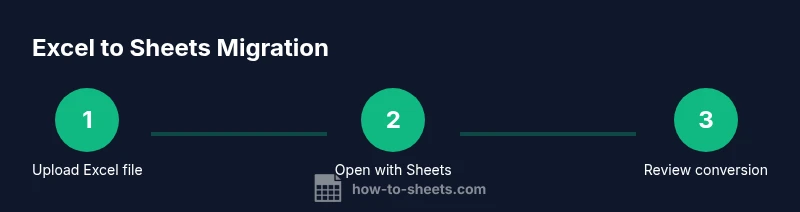
Getting started is simple. Upload or drag-and-drop your .xlsx or .xls file into Google Drive. You can either open the file with Google Sheets to convert on the fly or right-click to import it as a Google Sheets document. Opening in Sheets converts the workbook automatically, while importing creates a Sheets version linked to the original Excel file. For students and professionals who need quick access, this is the fastest way to view and edit. If offline access is required, enable offline editing in Google Drive settings and ensure your devices are configured to synchronize when you’re back online. After import, verify fonts, borders, conditional formatting, and any country-local formats, since some appearance aspects may shift during the conversion. This upfront check helps avoid surprises later in the project.
Step-by-step: Convert Excel to Google Sheets and preserve data
Note: The detailed, step-by-step instructions are provided in the dedicated Step-by-Step block below, but this section summarizes the high-level decisions you’ll make during the conversion process. You’ll evaluate which features translate smoothly, which require adjustments, and how to maintain data integrity across rows and columns. Planning the migration in advance reduces rework and ensures a smoother transition for teams relying on shared spreadsheets for reporting and analytics. Remember to re-check critical ranges, named ranges, and cross-workbook references after conversion to prevent broken formulas.
Advanced topics: macros, scripts, and Excel compatibility in Google Sheets
When you migrate from Excel to Google Sheets, you’ll notice that some advanced features—most notably VBA macros—don’t run in Sheets. Google Sheets relies on Google Apps Script for automation, which means you may need to rewrite macro logic as Apps Script functions. Some complex Excel features (like certain chart types or specialized array formulas) may also render differently or require alternative approaches. A practical strategy is to isolate macros or automation in a separate workbook, then plan a migration path that uses Apps Script for equivalent workflows. This approach preserves automation while leveraging Sheets’ collaboration features. If you must retain Excel-level automation, consider keeping the workbook in Excel on Drive and sharing it with collaborators who need editing in Excel, rather than attempting to run all automation in Sheets.
Collaboration, offline access, and best practices for Google Drive Excel files
Collaboration is one of the strongest benefits of Google Drive paired with Sheets. When you convert, you gain real-time editing, comments, and activity history that make teamwork more transparent. However, you should manage permissions carefully to avoid accidental edits or data loss. For offline access, enable Drive offline and use the Offline option in the Google Docs Editors suite, so changes sync when you reconnect. A best practice is to keep a clear version trail: name versions with date stamps, add comments for major changes, and periodically export a backup copy of critical spreadsheets. This practice helps preserve data fidelity and gives you a fallback if you need to revert to an earlier state.
Tools & Materials
- Computer or mobile device with internet access(Any device—Windows, macOS, iOS, or Android; sign in to your Google account)
- Excel file (.xlsx or .xls)(Prepare a representative workbook to test formulas and formatting)
- Google account with Google Drive access(Ensure you have permission to upload and edit in the target Drive folder)
- Google Sheets access(Optional: Enable offline editing if you will work without internet)
- A test copy for macros(If you rely on VBA, have a separate workbook ready for Apps Script migration)
Steps
Estimated time: 60-90 minutes
- 1
Prepare your Excel file
Back up the original workbook to prevent data loss during migration. Review critical formulas, named ranges, and any macros that may affect how the data behaves after conversion. If practical, simplify complex sheets before migrating to reduce conversion issues.
Tip: Create a test copy of the workbook for trial runs before migrating the entire file. - 2
Decide on import vs convert
Choose whether you want to import the file as a Google Sheet (conversion occurs automatically) or keep it as an Excel workbook in Drive. Importing yields a Google Sheets version with a link to the original Excel file; converting creates a fully native Sheets file with Sheets features.
Tip: If you rely on Excel macros, keep the file in Excel or plan to rewrite automation in Apps Script. - 3
Open or import in Google Sheets
Upload the file to Drive, then either open with Google Sheets to convert on the fly or right-click and choose 'Open with > Google Sheets' for a direct conversion. Compare the two results to ensure data fidelity and formatting accuracy.
Tip: Test a small subset of data first to spot any translation issues early. - 4
Verify data accuracy after import
Check key formulas, date formats, and number precision after the migration. Look for conditional formatting changes and chart renderings to ensure visuals remain correct. Correct any discrepancies by editing formulas or formatting rules in Sheets.
Tip: Use Find and Replace to quickly adjust common issues like date formats or locale-specific separators. - 5
Handle formulas and functions
Be aware that some Excel functions differ in Sheets. Replace unsupported functions with Sheets equivalents (e.g., ARRAYFORMULA, IF, VLOOKUP with XLOOKUP equivalents as needed). Rebuild complex logic in a way that aligns with Sheets’ calculation engine.
Tip: Keep a mapping document that notes which functions migrated without changes and which required adjustments. - 6
Preserve or rewrite macros
VBA macros do not run in Google Sheets. If automation is essential, rewrite logic in Google Apps Script or create a parallel sheet with Apps Script-driven workflows. Consider modularizing the automation so parts can run in Sheets while leaving Excel as the source of truth when needed.
Tip: Place new automation in a separate Apps Script project and test on a copy before rolling out.
FAQ
Can I edit Excel files directly in Google Drive?
Yes, you can open and edit Excel files in Google Sheets after conversion, but some features may not transfer perfectly. Always verify critical formulas and formatting after conversion.
Yes, you can edit Excel files in Google Sheets after conversion, but some features may not transfer perfectly.
Will formulas and functions survive the migration?
Most common formulas transfer, but complex functions may require tweaks or replacements. Consider testing a subset of formulas first to identify any issues.
Most formulas transfer, but some complex ones may need tweaks.
What about VBA macros?
VBA macros do not run in Google Sheets. You should rewrite automation in Google Apps Script or keep the workbook in Excel for macro-heavy tasks.
Macros won’t run in Sheets; rewrite in Apps Script or keep Excel for those tasks.
Should I convert to Sheets or keep as Excel in Drive?
If collaboration and simultaneous editing are priorities, convert to Sheets. If you rely on Excel-specific features or macros, keep the file in Excel on Drive and share as needed.
Convert for collaboration; keep as Excel if you need advanced Excel features.
Can I work offline with Excel files in Drive?
Yes. Enable offline access in Drive settings and the Docs Editors suite to work on files without internet, syncing changes when you’re back online.
Yes, enable offline access to work offline and sync later.
Where can I find official guidance on Drive and Sheets compatibility?
Refer to authoritative sources such as government or university publications for context, and consult major publications for best practices. See the links listed in the Authority Sources section of this article.
Check official guides and reputable publications for guidance.
Watch Video
The Essentials
- Convert Excel files when collaboration is required.
- Expect feature differences; macros require Apps Script rewrites.
- Verify data fidelity after migration to avoid errors.
- Use offline mode to access files while syncing.