Fix Circular Dependency in Google Sheets: A Practical Troubleshooting Guide
Discover how to diagnose and fix circular dependencies in Google Sheets with a practical, step-by-step troubleshooting guide, including a diagnostic flow and prevention strategies.


If you see 'circular dependency detected google sheets' errors, it's usually because a formula references another cell that ends up referencing the first cell, forming a loop. The quickest fix is to break the cycle by changing one reference to a constant or moving logic to a dedicated helper cell. If needed, enable iterative calculation with a cap on iterations.
Why Circular Dependencies Happen in Google Sheets
Circular dependencies in Google Sheets occur when a formula ends up referencing itself directly or through a chain of other formulas. This creates a loop where cells continually depend on each other for a value, preventing any single calculation from stabilizing. Common patterns include a formula in A1 that references B1, which in turn references A1 or another cell that ultimately circles back. When working across multiple tabs, cross-sheet references can also form cycles. In practice, these cycles often sneak in during quick edits or when combining data from multiple sources. The term circular dependency detected google sheets is a clear signal that one or more cells are locked in a loop, and breaking the cycle is essential for accurate results.
- Direct self-reference (A1 = A1) is the simplest form of a cycle.
- Indirect cycles occur when A depends on B and B depends on C, which depends on A.
- Cross-sheet cycles add complexity by weaving references across tabs.
- Iterative calculations can complicate cycles if not configured properly.
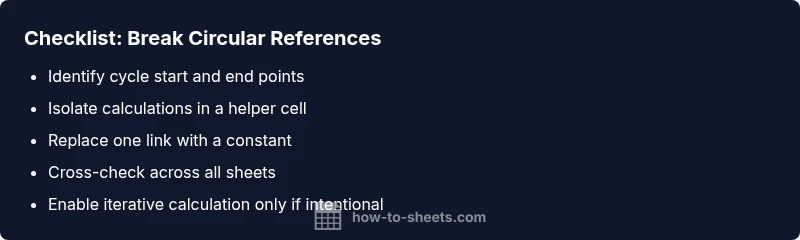
Practical takeaway: start by identifying where the cycle originates, then isolate the calculation to a one-way path. This approach reduces debugging time and protects data integrity.
Steps
Estimated time: Total 25-40 minutes
- 1
Identify the cycle
Scan formulas in suspected cells and map out dependencies. Use Find (Ctrl/Cmd+F) to search for references to the same cells and note any cross-sheet links that may loop.
Tip: Start with cells that throw errors or are part of the largest data flow. - 2
Map the dependency chain
Create a quick diagram of dependencies (A -> B -> C) to visualize where the loop starts and ends. This helps reveal indirect cycles.
Tip: Focus on the path that returns to the origin cell. - 3
Break the loop with a one-way path
Replace one link in the cycle with a constant value or move the calculation to a helper cell that doesn’t feed back into the cycle.
Tip: One-way data flow is the safest fix. - 4
Test with sample data
After adjustments, input controlled sample data to verify the loop is gone and results are stable.
Tip: If results vary, revisit the cycle path. - 5
Enable iterative calculation if needed
If a cyclic model is intentional (e.g., certain financial models), enable iterative calculation with conservative limits and monitor impact on performance.
Tip: Use a low convergence threshold and a small max iteration count. - 6
Document and prevent future cycles
Add notes in a separate sheet or comment framework describing dependencies. Consider using helper columns to isolate calculations.
Tip: Documenting dependencies helps future debugging.
Diagnosis: Sheet shows error: circular dependency detected google sheets
Possible Causes
- highTwo or more cells reference each other directly
- highA cell references another cell that eventually references the first cell (indirect cycle)
- mediumCross-sheet references forming a loop
- lowIterative calculations used without clear boundaries
Fixes
- easyIdentify cycle boundaries by tracing dependents and reviewing formula chains, then break the loop by removing or redirecting a reference
- easyMove complex logic to a dedicated helper cell or a separate tab to enforce a one-way data flow
- easyReplace dynamic references with constants where appropriate to prevent propagation of a loop
- mediumIf a cycle is intentional, enable iterative calculation with sensible max iterations and monitor performance
FAQ
What is a circular dependency in Google Sheets?
A circular dependency occurs when formulas create a loop of references that never settles on a single value. This prevents Sheets from completing a calculation and triggers an error. The loop can be direct or indirect and may cross multiple sheets.
A circular dependency is when formulas reference each other in a way that creates a loop, preventing calculations from finishing.
How do I identify where the circular reference starts?
Start by scanning formulas in the cells reported in the error. Trace dependencies outward, and check for chains that loop back to the origin. Cross-check across sheets if needed.
Look for the starting cell with the error, then trace where its value comes from and where that source goes next.
Can I use iterative calculation to handle a circle?
Yes, iterative calculation can allow certain cyclic calculations to converge to a value. Use it only when a cycle is intentional, and set reasonable max iterations and a convergence threshold.
Iterative calculation is helpful for intentional cycles, but tune it carefully.
What precautions should I take before fixing cycles?
Work on a copy of the sheet, document changes, and test with varied data. Avoid making permanent changes without confirming the fix resolves all loops.
Always test on a duplicate and document changes before applying fixes to live data.
Is there a best practice to prevent circular references?
Yes. Use a clear data flow, dedicated helper cells, and avoid back-references. Review formulas after major edits and consider simplifying complex chains.
Design with a one-way data flow to prevent cycles.
Does Google Sheets provide a built-in tool to audit dependencies?
Sheets provides error messages and formula inspection ideas, but there isn't a dedicated, step-by-step dependency auditor like some other tools. Use manual tracing and consistent naming conventions instead.
Google Sheets helps with error messages, but you’ll often trace dependencies manually.
Watch Video
The Essentials
- Break cycles with one-way references
- Isolate calculations in helper cells
- Enable iterative calc cautiously if cycle is intentional
- Document dependencies to prevent future issues