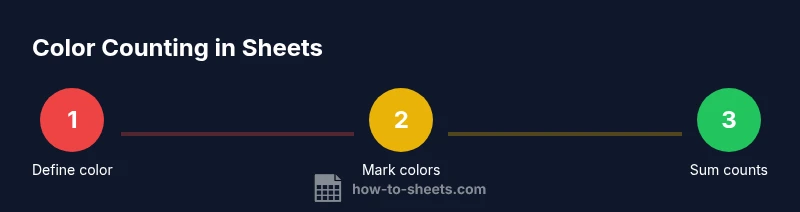
Can Google Sheets Count Colored Cells? A Practical Guide
Learn how to count colored cells in Google Sheets using scripts, helper columns, and built-in formulas. This educational guide covers methods, limitations, and best practices for color-based counts in grading, budgeting, and dashboards.


You can count colored cells in Google Sheets by using a custom Apps Script function, or by leveraging a helper column and built-in formulas. Sheets doesn't expose a native color-count function, so these approaches provide reliable results for color-based counts in tasks like grading or budgeting. This quick answer previews what you'll learn in depth ahead.
Understanding color counts in Google Sheets
If you ask can google sheets count colored cells, the answer is that Sheets lacks a built-in color counter. However, you can count by background color using a small Apps Script function, a helper column, or a combination of FILTER and COUNTIF. This section outlines why color-based counts matter and when to choose each method. The goal is to provide reliable, repeatable results for everyday tasks such as grading, project tracking, or budget dashboards.
Methods at a glance
There are multiple approaches, each with its own trade-offs. Choose based on dataset size, update frequency, and comfort with scripting:
- Apps Script custom function: Create a user-defined function that counts cells by a specified color. Pros: precise, flexible. Cons: requires script permissions and maintenance.
- Helper column with COUNTIF: Tag colored cells in an adjacent column and then sum markers. Pros: no scripting; Cons: needs additional columns.
- SUMPRODUCT with color index: Convert colors to numeric indices and tally matches. Pros: powerful for large ranges; Cons: more complex setup.
- Conditional formatting-based workflows: Use color-coding rules and corresponding markers to simplify counting. Pros: visual consistency; Cons: color changes may require rework.
Method 1: Apps Script custom function
To count colored cells with Apps Script, you create a small function that reads the background color of each cell in a range and returns how many cells match the target color. This requires opening Extensions > Apps Script and pasting a script that iterates through the range with getBackgrounds(), then compares to your color code. You can then call the function in your sheet like =countByColor(A2:A100, "#ff0000"). Practical notes:
- Ensure you have permission to run scripts in your Google Workspace account.
- Test on a small subset before applying to larger datasets to verify results.
- Document the color codes you count to keep workflows consistent.
Pros: highly accurate for specific colors; Cons: needs script maintenance and permissions. Weaknesses: script changes may affect existing sheets if ranges shift.
Method 2: Helper column with COUNTIF
A no-script approach uses a helper column that marks cells by color. For each data cell in column A, you place a marker in column B if the corresponding A cell has the target color. Then you sum the markers with =SUMIF(B2:B100, 1, 1) or simply =SUM(B2:B100). The marker can be set with a simple formula that checks the background color via a script-wrapped function or via a manual legend.
Implementation steps:
- Create a legend that maps colors to markers.
- In the helper column, set a formula or a manual input to place 1 when color matches.
- Use SUM or COUNTIF to tally the total.
Pros: no scripting required; Cons: requires extra column and careful maintenance when colors change.
Method 3: Using FILTER and ARRAYFORMULA
If your color-coding follows a repeatable rule (for example, cells with a specific value under a conditional format), you can count by leveraging FILTER and ARRAYFORMULA. First, you set a helper condition that represents the color rule (like a conditional formatting outcome or a value indicator). Then you apply a formula such as =SUM(ARRAYFORMULA(--(your_condition_range))) to count matching rows. This method is scalable and works well when colors are tied to data values.
Tip: combine with a named range for readability and to reduce formula repetition.
Real-world scenarios and templates
Scenario A: Grading sheet where red indicates failed, green indicates passed. Use a helper column to mark red/green, then sum the markers for counts per student or assignment. Scenario B: Project dashboard where colors reflect status. Create a color legend and a summary cell that counts all 'On Track' colors. Scenario C: Budget tracker with color bands for expense intensity. Use a color-to-count mapping and a summary row that counts cells in each color group. In all cases, document the color legend and ensure colors stay consistent across sheets.
Pitfalls and limitations
Color counting in Google Sheets is convenient but comes with caveats. Background color is a formatting attribute that can be changed, so counts may shift if colors are updated without updating the counting logic. There is no universal color index in Sheets—different color palettes can complicate cross-sheet consistency. Also, mobile support can be limited for scripts, so plan for desktop or the web app when using Apps Script. Finally, if sheets are copied or renamed, ensure the counting formulas reference the correct ranges.
Best practices and trade-offs
To minimize errors, establish a stable color legend before counting and keep it in a dedicated sheet. Prefer a script-based approach for large datasets where manual markers would be impractical. When possible, anchor your color logic to data values (e.g., a status column) rather than color alone. Regularly audit counts by spot-checking a sample of cells to ensure accuracy after edits. Consider building a small dashboard that displays color-based counts alongside raw data for clarity.
Quick-start template and checklist
- Define a single color palette for counting and document it in a legend.
- Decide between Apps Script and a no-code approach based on dataset size and permission constraints.
- Create a test range to validate your counting method before applying to full data.
- If using Apps Script, run a dry run on a copy of your sheet to avoid data loss.
- Maintain a color-count log to track changes and updates over time.
Next steps and resources
With color counting in Google Sheets, you have several viable paths depending on your needs. Start with a small test dataset to compare script-based and no-script approaches, then choose the method that best fits your workflow. Keep your color legend consistent, document rules, and verify results periodically to avoid drift.
Tools & Materials
- Google account with Sheets access(Needed to create formulas and scripts)
- Sample colored dataset in Google Sheets(Use a range colored by background color for testing)
- Apps Script editor access (optional)(Required if you implement a custom function)
- Color legend or palette reference(Helpful for consistency across sheets)
- Reference data for testing(A small dataset to validate counts)
Steps
Estimated time: 25-45 minutes
- 1
Choose counting method
Assess dataset size, whether you can use Apps Script, and how colors are applied. This sets the direction for your workflow and helps avoid unnecessary complexity.
Tip: If you're new to scripting, start with a helper column to learn the logic first. - 2
Document your color legend
Create a legend mapping each color to its meaning or category. Consistency here prevents miscounts when colors evolve.
Tip: Use a dedicated sheet tab for the legend and pin it near your data range. - 3
Set up Apps Script (optional)
If you choose a script, open Extensions > Apps Script and prepare a function that reads cell backgrounds and counts matches. Test on a small range first.
Tip: Name the function clearly (e.g., countByColor) and document its limitations. - 4
Create a helper column (no script needed)
In a column beside your data, mark a 1 when the cell color matches your target color. Use a manual approach or a simple formula that references a color marker.
Tip: Lock the color reference cell so your formulas don’t drift when you copy down. - 5
Summarize the counts
Use SUM or COUNTIF to total the markers from your helper column, or call your custom function directly in a summary cell.
Tip: Apply absolute references to avoid accidental range changes during edits. - 6
Validate results
Spot-check a sample of colored cells to ensure the counts reflect the actual colors. Re-run after any color changes.
Tip: If counts drift, revisit your legend and color codes.
FAQ
Is there a built-in function to count colored cells in Google Sheets?
No. Google Sheets does not include a native color-count function. You must use Apps Script or a no-code helper approach.
There isn't a built-in color counter in Sheets; you’ll need a script or a helper column.
Can I count by font color or conditional formatting colors?
Typically, counting by background color is the standard approach. Font color and conditional formatting do not expose a direct color state for counting in the same way.
Color counting focuses on background color, not font color.
Does this work on mobile devices?
Some script-based approaches may not run reliably on mobile apps. For full functionality, test on the web or desktop version of Sheets.
Scripts may not run reliably on mobile; test on the web version.
What is the simplest method for a small dataset?
A helper column with a marker and a SUM/COUNTIF is typically the simplest method for small datasets without scripts.
For small datasets, use a helper column and a SUM.
How can I ensure colors stay consistent over time?
Lock the color legend, avoid changing colors mid-work, and document the color rules so future edits don’t break counts.
Keep a color legend and document the color rules to stay consistent.
Watch Video
The Essentials
- Choose a method based on dataset size and update frequency
- Apps Script offers precise color counting for large sheets
- Helper columns provide a no-script alternative for small to medium datasets
- Document a color legend to ensure long-term consistency