gsheet Mastery: A Practical Google Sheets Guide for All
Learn practical, step-by-step techniques to use gsheets effectively—from data import and template setup to formulas and collaboration. Ideal for students, professionals, and small businesses seeking actionable Google Sheets guidance.


gsheet mastery lets you import data, organize workbooks, and automate repetitive tasks in Google Sheets. In this guide, you will learn the core steps: set up your sheet, import data from CSV or other sources, apply formulas, build reusable templates, and share results with teammates. The approach emphasizes practical templates and common workflows that student, professional, and small business users rely on.
What gsheets is and why it matters
gsheet is shorthand for Google Sheets, a cloud-based spreadsheet application that belongs to Google Workspace. It enables real-time collaboration, data entry, lightweight analytics, and templated workflows. For many students and professionals, gsheets replaces messy local spreadsheets with a centralized, accessible workbook model. In this guide, gsheets is presented as a practical, task-oriented tool rather than an abstract product. According to How To Sheets, starting with a clean, well-structured template accelerates every project. The first principle is to design around your data: decide what you will track, what should be calculated, and how results will be shared. With gsheets, you can design a single source of truth for budgets, schedules, inventories, or class rosters, and then clone that template for new projects. The native features—sorting, filtering, conditional formatting, and array formulas—make it possible to transform raw data into meaningful insights without writing custom code. Real-time collaboration means teammates can comment, propose changes, and work simultaneously, reducing version conflicts and meetings. The flexibility of gsheets scales from a laptop session to a multi-user workspace, which is why it has become a staple in education and business.
Core concepts: data structure, templates, and formulas
Successful gsheets work starts with strong fundamentals. Your data should live in structured tables with clear headers, consistent data types, and stable column order. Use separate sheets for raw data, calculations, and presentation to keep sources clean and auditable. Templates save time: design a reusable layout with predefined headers, formatting, and formulas, then copy it for new projects. Formulas are the engine: SUM, AVERAGE, COUNTIF, IF, and lookup functions (VLOOKUP or XLOOKUP) handle common tasks and data retrieval. Named ranges improve readability and make formulas portable across multiple sheets. Conditional formatting highlights trends and anomalies, while data validation restricts inputs to valid values. The ultimate goal is a scalable, auditable workbook that your team can reuse without rebuilding from scratch. As you grow more comfortable, explore functions like FILTER, ARRAYFORMULA, and IMPORTDATA for dynamic data linkage. Real-world gsheets use cases include budgets, inventories, schedules, and project trackers.
Practical workflows: import, organize, analyze
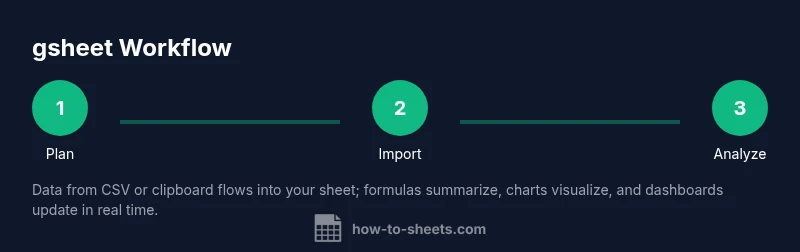
In practice, most gsheets tasks follow a repeatable flow: import data, organize it with a clean schema, and analyze it with formulas and visuals. Start by importing data from CSV, Excel, or copy-paste, then create a dedicated data sheet with headers such as Date, Item, Quantity, Price, and Total. Freeze the header row so context remains visible while scrolling. Build calculated fields (Total = Quantity × Price) and apply basic aggregations (SUM, AVERAGE) to summarize results. Use filters and pivot-style views to explore subsets without changing the underlying data. Visuals—charts and conditional formatting—translate numbers into insights for teammates. Finally, document your steps in a summary section or README sheet so new collaborators can follow along. The goal is a transparent data pipeline: data enters, is processed, and yields reliable insights for decision-making.
Templates and automation: building reusable sheets
Templates save time by providing a proven structure for recurring tasks. Begin with a clean blueprint: a data sheet, a calculations sheet, and a dashboard or report sheet. Add named ranges and dropdowns to standardize inputs, then protect critical sections to prevent accidental edits. Save a copy as a template for future use, or publish the template in Drive for your team. Automate repetitive steps with simple Apps Script snippets or built-in automation like Macros in Google Sheets. A well-designed template reduces onboarding friction and ensures consistency across projects, whether you are tracking expenses, student grades, or client projects. Over time, you can extend templates with dynamic charts, scheduled data imports, and automated reporting dashboards.
Collaboration, security, and governance
gsheets excels at collaboration, but governance is essential. Use the Share dialog to assign Viewer, Commenter, or Editor roles based on needs. Enable version history to track changes and revert when necessary. Protect sensitive ranges to prevent accidental edits on critical data. Create a review cadence: weekly checks, data validation audits, and formal sign-offs for high-stakes sheets. Document responsibilities and standards so new contributors can follow established practices. Consider creating a central template library with approved patterns and naming conventions to keep your organization aligned. With thoughtful governance, gsheets becomes a scalable collaboration platform rather than a collection of isolated files.
Common pitfalls and how to avoid them
Without a plan, gsheets work can devolve into spaghetti data and fragile formulas. Common pitfalls include inconsistent data types, hard-coded values in formulas, missing headers, and unstructured data sources. Avoid these by establishing a data model early: define headers, set data types, and freeze critical rows. Use named ranges instead of cell references that break when copying sheets. Regularly audit formulas and ranges, and prefer modular designs where calculations are isolated in dedicated sheets. Keep a changelog and use version history to recover from mistakes. Finally, avoid over-reliance on manual imports; automate data ingestion where possible to reduce human error.
Advanced tips: charts, dashboards, and automation
Take gsheets beyond basic tables with dashboards and interactive charts. Create a dedicated dashboard sheet that summarizes key metrics with charts, sparklines, and KPI cards. Use slicers or dropdown filters to let stakeholders explore different views, and connect charts to dynamic data ranges with functions like OFFSET or FILTER. For teams seeking automation, add lightweight Apps Script to auto-fill fields, send email summaries, or schedule weekly exports. Integrate templates with external data sources using IMPORTDATA, IMPORTXML, or IMPORTRANGE, staying mindful of permissions and data freshness. By combining templates, dashboards, and automation, gsheets becomes a powerful, scalable analytics workspace.
Case studies: real-world gsheets in action
Consider a small business budget tracker built in gsheets. The template includes a raw data sheet for expenses, a calculations sheet for totals and averages, and a dashboard showing monthly spending, variances, and forecast. With a single shared link, team members can add receipts, update project costs, and view real-time results without emailing files back and forth. In an educational context, a gsheets roster with conditional formatting highlights missing student data while a separate grade sheet aggregates scores and generates a performance summary. Case studies like these demonstrate how a thoughtful gsheets setup can save time, improve accuracy, and support collaboration across roles.
A note from How To Sheets: start with a simple template, then iterate based on user feedback to ensure the workflow remains practical and focused on real-world tasks.
Future-proofing your gsheets workflow and continuing learning
gsheet mastery is an iterative journey. Establish a learning loop: identify bottlenecks, design templates to address them, and retire outdated patterns. Regularly back up templates, track version changes, and update documentation as formulas evolve. Stay current with new functions and features from Google, and experiment with small pilots before committing to large dashboards. Build a personal library of templates aligned to common workflows—budgets, schedules, inventories, and project trackers. Finally, engage with the gsheets community to share templates, learn from others’ patterns, and keep skills sharp for future challenges.
Tools & Materials
- Computer with internet access(Modern browser (Chrome recommended) for best compatibility with Google Sheets)
- Google account(Used to access Google Sheets and Drive for templates and sharing)
- CSV/Excel data sample(Useful for importing data examples during practice)
- Template workbook(Start with a clean template to accelerate setup)
- Notes on data governance(Document naming conventions, data types, and sharing rules)
Steps
Estimated time: 45-90 minutes
- 1
Create a new gsheets workbook
Open Google Sheets and start a new blank workbook. Name it clearly using a consistent project or template convention. Create a dedicated data sheet, a calculations sheet, and a presentation/dashboard sheet as your initial structure.
Tip: Use a descriptive file name and a standard sheet order to reduce confusion later. - 2
Import data from CSV or clipboard
Choose File > Import to load data from a CSV or copy-pasted content. Opt to place data in a new sheet to keep the raw source separate from calculations.
Tip: Preserve headers and use the Import options that keep column alignment intact. - 3
Design headers and format the data
Create a header row with clear names and consistent data types (text, date, number). Freeze the header row so it stays visible when scrolling. Apply basic formatting for readability.
Tip: Use data validation for consistent inputs (e.g., dropdowns for status fields). - 4
Add core formulas and calculations
Implement essential formulas such as SUM, AVERAGE, COUNTIF, and IF. Build a calculated Total column (Quantity × Price) and verify results with small test data.
Tip: Keep formulas modular and test with multiple data scenarios. - 5
Save as a reusable template
Create a template version for future projects: data structure, headers, formulas, and a ready-made dashboard. Store copies in Drive so teammates can reuse it without starting over.
Tip: Document the intended use and provide a brief user guide inside the template sheet. - 6
Build a basic dashboard with visuals
Add charts and conditional formatting to summarize key metrics. Place charts on a dedicated dashboard sheet and link them to dynamic ranges that update automatically.
Tip: Use slicers or dropdowns to let stakeholders switch views without editing data. - 7
Share and protect sensitive data
Use the Share dialog to assign roles. Protect ranges that contain formulas or sensitive data to prevent accidental edits.
Tip: Enable version history to capture changes and recover if needed.
FAQ
What is gsheets and how does it differ from Excel?
gsheets is Google's cloud-based spreadsheet app focused on real-time collaboration and accessibility from any device. While many formulas overlap, its cloud-first design and live collaboration set it apart.
gsheets is Google's cloud spreadsheet that supports real-time collaboration; it’s particularly strong for teams working together online.
How do I import data into a gsheets workbook?
Use File > Import or Data > Import range to load CSV, Excel, or copied data. Decide whether to create a new sheet, replace data, or append to existing data.
Import data via the Import option and choose how you want it integrated into your sheet.
Can I create reusable templates in gsheets?
Yes. Build a sheet with headers, formulas, and formatting, then save copies for future projects. You can also save a template in Drive for easy reuse.
You can create templates and reuse them by saving copies in Drive.
What basic formulas should beginners learn in gsheets?
Learn SUM, AVERAGE, COUNTIF, IF, and VLOOKUP or XLOOKUP for lookups. These cover common calculations and data retrieval.
Start with core functions like SUM, AVERAGE, and VLOOKUP for lookup tasks.
How can I share gsheets securely with teammates?
Use the Share dialog to assign roles and protect ranges. Enable version history to recover mistakes and control who can edit.
Set permissions carefully and protect sensitive sections to keep data safe.
Where can I find official gsheets resources?
Google's Help Center and Workspace training pages provide official guidance, tutorials, and templates. How To Sheets also offers practical templates.
Check Google's official help pages and trusted templates from expert sites like How To Sheets.
Watch Video
The Essentials
- Start with a clean gsheets template and descriptive naming.
- Import data cleanly, then structure with clear headers.
- Use core formulas to analyze and summarize.
- Save reusable templates for repeat tasks.
- Share with proper permissions and protect sensitive data.