How to Download Google Sheets with All Tabs
Learn step-by-step how to download Google Sheets so every tab (sheet) is preserved. Compare Excel and PDF exports, troubleshoot issues, and choose the best option for your workflow.


You can download a Google Sheets file with all its tabs by exporting to Excel (.xlsx) or exporting as PDF with All sheets selected. The Excel export preserves every sheet in the workbook, while CSV exports only the active sheet. For most users needing all tabs, choose File > Download > Microsoft Excel (.xlsx) and verify the workbook contains every tab after download.
Understanding the request: how to download google docs with all tabs
When readers search for how to download google docs with all tabs, they’re usually referring to Google Sheets, not Google Docs. Google Sheets uses multiple tabs (sheets) within a single workbook, and exporting options differ in whether those tabs are preserved. According to How To Sheets, the most reliable way to keep every tab intact is to export to a format that supports multi-sheet workbooks, such as Excel (.xlsx) or a PDF with the workbook option selected. This guide explains both pathways and helps you choose the option that best fits your needs, all while keeping the keyword in mind for search clarity.
Why every tab matters in a multi-sheet workbook
A Google Sheets file can contain many tabs, each with its own data, formulas, and formatting. When you export or share, losing tabs means losing context, linked data, or calculations across sheets. Preserving all tabs is essential for collaboration, audits, and accurate reporting. The ability to export all sheets at once saves time and ensures your recipients see the complete workbook without asking for a resend. This consistency is especially important for small businesses and students who rely on intact multi-tab workbooks.
Quick comparison of download options
- Excel (.xlsx): Preserves all sheets (tabs) in the workbook and maintains formulas and formatting. Ideal when you need to continue editing offline.
- PDF Document (.pdf): Can export the entire workbook, with each sheet appearing as consecutive pages. Great for printing or sharing a static view.
- CSV (.csv): Exports only the active sheet, discarding other tabs. Use this only if you need a single flat data file.
- OpenDocument Spreadsheet (.ods): Preserves all sheets and is compatible with many office suites. Useful if you’re avoiding Microsoft formats.
Note: If you truly need every tab to move across platforms, Excel (.xlsx) is the most compatible, cross-application option.
Step-by-step: download as Excel to preserve all sheets
Opening a Google Sheets file and exporting to Excel is straightforward and preserves the entire workbook. Start by ensuring you’re viewing the correct file with all relevant tabs visible. The export process transfers your sheets, formulas, and basic formatting into a single .xlsx workbook. If you maintain a consistent sheet order or naming convention, Excel will reflect that order in the exported file, making post-export navigation intuitive. Remember, keeping tabs organized before export helps prevent misalignment during review.
Step-by-step: download as PDF with all sheets
Exporting to PDF is a strong option when you need a read-only, print-friendly version of your workbook. Choose File > Download > PDF Document (.pdf) and select the Workbook option (All sheets). Adjust orientation, scale, and margins as needed to fit content onto the pages. PDF exports preserve the visual layout of each sheet but do not preserve live formulas. This makes PDFs ideal for audits, handouts, or static sharing while preventing accidental edits.
When to choose Excel vs PDF
If you anticipate editing after download or sharing files that will be reopened in spreadsheet software, Excel (.xlsx) is usually the best choice because it preserves formulas, filters, and sheet order. If your goal is a static, printable record or a version-safe document for distribution, PDF with All sheets offers a clean, universally viewable format. Consider your recipients' needs and your intended use when deciding between Excel and PDF.
Common pitfalls and troubleshooting
- CSV exports lose all but the active sheet; avoid CSV if you need multiple tabs.
- Large workbooks may generate large .xlsx or PDF files; ensure you have enough disk space.
- If some formats fail to import correctly, try exporting first a single tab to verify the process works, then export the full workbook.
- Hidden sheets are not shown by default in exports; unhide them before exporting if you need those tabs included.
If you encounter issues, re-check which option you chose (Excel vs PDF) and retry with the appropriate settings. This reduces back-and-forth and ensures the export meets your needs.
Practical tips for organizing and naming tabs
- Keep a consistent naming convention for all sheets (e.g., 01_Inventory, 02_Sales, 03_Analytics).
- Arrange tabs in a logical order that mirrors your workflow to preserve meaningful sequence in the exported file.
- Use descriptive headers and freeze top rows to ensure readability after export.
- Before exporting, review formulas across sheets to prevent cross-sheet reference errors during download.
- If sharing with teammates who use Excel, consider performing a quick cross-check in Excel after export to ensure formula compatibility.
Real-world example and verification
Imagine a small business using a 6-tab Google Sheet to track inventory, sales, expenses, payroll, customers, and a dashboard. They need a single, portable file for quarterly reporting. They choose Excel (.xlsx) because it preserves all six tabs and keeps formulas intact for the new quarter. After download, they open the file in Excel, confirm all tabs appear in the expected order, verify key formulas, and share the workbook with stakeholders. This verification step is essential to ensure nothing was lost in translation during the export. The How To Sheets approach emphasizes checking a real-world example to ensure reliability across platforms.
Tools & Materials
- Device with internet access(Laptop, desktop, or mobile device)
- Web browser (Chrome recommended)(Enable JavaScript for smooth export)
- Google Sheets file with multiple tabs(Ensure all tabs you want exported are visible)
- Microsoft Excel or a compatible viewer(Needed to open .xlsx exports and verify tabs)
- PDF viewer (optional for PDFs)(Useful for verifying printed/exported PDFs)
Steps
Estimated time: 2-5 minutes
- 1
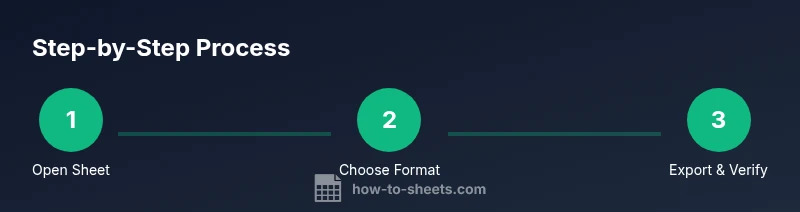
Open the Google Sheets workbook
Access the file containing the tabs you want to export. Make sure all necessary tabs are visible and named clearly. Reason: Starting from the correct file prevents missing sheets in the export.
Tip: If you plan to export many tabs, consider arranging them in a logical order first. - 2
Choose your export format
Decide between Excel (.xlsx) and PDF (All sheets). Excel is best for editing; PDF is best for sharing a static version. Other formats like CSV export only the active sheet.
Tip: Think about how recipients will use the file to pick the right format. - 3
Export to Excel (.xlsx) or PDF (All sheets)
For Excel: File > Download > Microsoft Excel (.xlsx). For PDF: File > Download > PDF Document (.pdf) and select All sheets. Confirm the target location for saving the file.
Tip: If exporting to PDF, adjust scale and orientation to maintain readability. - 4
Open and verify the downloaded file
Open the .xlsx or PDF and verify that all tabs/sheets appear as expected. Check key formulas in the Excel file and confirm visible tabs match the original workbook.
Tip: Use the sheet tab bar to navigate quickly and verify the order aligns with your source. - 5
Share, store, or archive
Move the downloaded file to the appropriate folder, update version naming if needed, and share with collaborators as required.
Tip: Keep a versioned naming convention like Project_Report_Q1_v1 to track updates. - 6
Optional: automate a repeat export (advanced)
If you export sheets regularly, consider a lightweight Apps Script or a third-party add-on to automate the process and ensure consistency across exports.
Tip: Automations save time on quarterly or monthly reporting cycles.
FAQ
Does downloading as CSV include all tabs?
No. CSV exports only the active sheet, so any additional tabs are not included. Use Excel or PDF exports to retain all tabs.
CSV exports only the active sheet; to keep all tabs, choose Excel or PDF.
Will formulas be preserved when exporting to Excel?
Most common formulas are preserved when exporting to Excel. It's a good practice to reopen the .xlsx in Excel and verify cross-sheet references after export.
Most formulas survive the export to Excel; verify cross-sheet references after download.
Can I export all sheets to PDF for printing?
Yes. You can export the entire workbook to PDF and choose All sheets. This creates a multi-page document where each sheet is a separate section.
Yes, you can export all sheets to a single PDF document for printing.
What if some sheets are hidden when exporting?
Hidden sheets are not included in the export unless you unhide them first. Make sure all sheets you want are visible before exporting.
Hidden sheets won't export unless you unhide them first.
If I meant Google Docs, does this apply to tabs there?
Google Docs does not have tabs like Sheets. The steps here apply to Google Sheets. If you’re working with a document, you’ll need a different approach.
Docs don’t have tabs; this guide covers Sheets only.
Is there a way to automate this export?
Yes. You can use Google Apps Script or third-party tools to automate exports on a schedule, ensuring every tab is saved in the chosen format.
Automation is possible with Apps Script for scheduled exports.
Which format should I choose for collaboration?
If collaborators will edit the file, choose Excel (.xlsx). If they only need to view, PDF can be suitable. For broad compatibility, PDF is often the easiest for non-editors.
If edits are needed, pick Excel; for view-only, PDF works well.
Watch Video
The Essentials
- Export to Excel (.xlsx) to preserve all tabs
- CSV exports only the active sheet—avoid for multi-tab workbooks
- PDF exports provide a static, printable version of all sheets
- Verify the export by opening the downloaded file and checking all tabs
- Organize and name tabs for predictable export results