How to Get Out of Google Docs Full Screen
Learn how to exit Google Docs full-screen mode using keyboard shortcuts and on-screen controls. Clear steps for Windows, macOS, and major browsers.


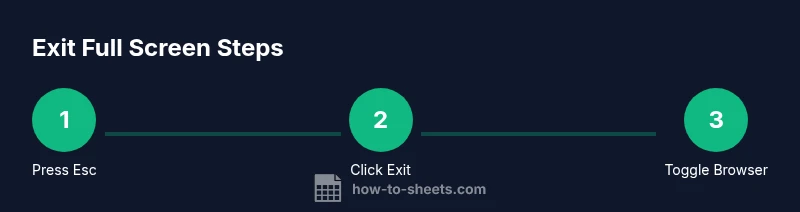
Exit Google Docs full screen by pressing Esc or clicking Exit Full Screen in the top-right corner. You can also toggle the browser’s fullscreen off with F11 on Windows/Linux, or Cmd+Ctrl+F on macOS. If needed, hover to reveal the document toolbar and choose Exit.
How to get out of google docs full screen
Full-screen mode in Google Docs hides most of the UI to maximize document space. It can be convenient for reading, but most editing tasks require returning to the standard view. According to How To Sheets, exiting fullscreen is quick and consistent across platforms. The process relies on a simple keyboard shortcut (Esc) or an on-screen control that appears when you move your cursor to the document edge. Whether you’re on Windows, macOS, or Linux, the basic exit method remains the same: get the document back to its normal view and restore access to menus, formatting tools, and collaboration features. The goal is to switch from distraction-free reading to interactive editing without losing your place.
Quick keyboard and UI methods
The fastest way to exit is usually the Esc key. If the keyboard shortcut is working, you’ll leave fullscreen immediately and return to the standard editing interface. Another reliable option is the on-screen Exit Full Screen control that appears when you move your cursor toward the top edge of the document. In many cases, you’ll see a small banner or button labeled Exit full screen; click it to restore the toolbar, menus, and editing features. If you don’t see an Exit button, hover near the top-right corner again or try one of the browser-based methods below. This section emphasizes practical, low-friction methods you can rely on in daily use.
Browser-specific tips and shortcuts
In Windows and Linux, the browser fullscreen toggle (often F11) can override Google Docs’ own fullscreen mode. On macOS, Cmd+Ctrl+F is a common shortcut in major browsers to toggle fullscreen, which will also exit the Google Docs distraction-free view if it’s active. If you use Chrome, Edge, or Safari, the exact shortcut might differ slightly; consult your browser’s help menu if F11 or Cmd+Ctrl+F doesn’t work. The key idea is to separate the document’s fullscreen state from your browser’s window state so you can re-access the document controls quickly.
Troubleshooting when exit fails
If Esc and the on-screen Exit option don’t return you to the normal view, try a browser refresh of the current tab. If that fails, close the tab and re-open the document in a new tab to reset the UI state. Clearing your browser cache or disabling extensions that affect page layout can also help. As a last resort, try a different browser to determine whether the issue is browser-specific. These steps help recover editing comfort without losing your content.
Desktop vs mobile: what to expect
Full-screen behavior can differ between desktop and mobile experiences. On phones and tablets, many apps automatically constrain full-screen behavior to fit the screen, which can make the Exit option less visible. If you’re using Google Docs in a mobile browser, switch back to the standard view by tapping the document edge to reveal the toolbar and then tapping Exit Full Screen or closing the browser tab. Always ensure you’re not in a separate app’s own fullscreen mode, which would require its own exit action.
Best practices for editing in non-fullscreen mode
Editing while not in full-screen keeps the document toolbar and formatting options accessible, which reduces interruptions during work. Before you start a long edit, consider exiting fullscreen to layout your content, adjust margins, and use editing shortcuts. If you frequently alternate between reading and editing, pin the Exit Full Screen action in your workflow—it's usually near the top edge or in the document menu. Finally, keep browser zoom at 100% so elements don’t shift when toggling view modes.
How to present and collaborate without fullscreen distraction
When presenting or collaborating, you might still need fullscreen mode for focused reading, but you can plan a quick exit before sharing. Communicate to teammates that you’ll switch out of fullscreen to access comments and formatting, then return as needed. In practice, a short pause to exit fullscreen, respond to comments, and then re-enter fullscreen can improve collaboration without derailing the workflow.
Tools & Materials
- Computer with internet access(Stable connection to load Google Docs.)
- Web browser (Chrome recommended)(Ensure the browser is up to date.)
- Keyboard for shortcuts(Esc key and standard shortcuts handy.)
- Optional second monitor(Helpful for editing while viewing reference docs.)
Steps
Estimated time: 5-10 minutes
- 1
Try Esc to exit fullscreen
Press the Escape key once. If focus is inside a dialog, press Esc again or click outside the dialog to return focus to the document UI.
Tip: Esc is the fastest universal exit; keep your focus on the document area. - 2
Use the on-screen Exit Full Screen control
Move your cursor to the top edge of the document to reveal the browser controls and the Exit Full Screen button. Click Exit Full Screen to restore the normal view.
Tip: If the button isn’t visible, ensure your window isn’t too narrow or in a pop-out mode. - 3
Toggle browser fullscreen off
If you are in the browser’s fullscreen state, press F11 (Windows/Linux) or use the browser menu to exit fullscreen. This returns you to a standard window with Google Docs still open.
Tip: Remember F11 is a browser toggle, not a Google Docs-specific command. - 4
Check for focused modes and toolbars
Some edits hide parts of the toolbar. Hover near the top edge to reveal the editing controls and confirm you are in the regular view.
Tip: If you still see a minimal toolbar, try resizing the window or refreshing the tab. - 5
Open a new tab to verify normal view
Open a new Google Docs tab to verify you can access all menus and editing tools. If the new tab shows the full UI, your original tab likely just needed a refresh.
Tip: This helps confirm the exit without affecting your current document. - 6
Return to editing flow
Continue editing or presenting in the standard view, and note the Exit Full Screen option for quick access next time.
Tip: Keeping a mental note of the exit action speeds up future toggles.
FAQ
How do I exit Google Docs fullscreen on Windows?
Press Esc or use the top-right Exit Full Screen control. If you don’t see the button, try the browser’s fullscreen toggle (F11).
Press Esc to exit, or use the on-screen Exit Full Screen control. If needed, toggle the browser fullscreen off with F11.
What should I do if Esc doesn’t exit fullscreen?
Try clicking Exit Full Screen on the screen edge or toggle the browser’s fullscreen off (F11 or browser menu). If still stuck, refresh the tab.
If Esc doesn’t work, use the on-screen Exit Full Screen button or browser toggle to leave fullscreen.
Does exiting fullscreen affect my document content?
No. Exiting fullscreen only changes the display mode; your text, formatting, and collaboration data remain intact.
Exiting fullscreen won’t change your content at all.
Can I customize keyboard shortcuts to exit fullscreen?
Google Docs doesn’t allow changing the built-in fullscreen shortcut; use Esc or your browser’s shortcut instead.
You can’t customize the exit shortcut; rely on Esc or your browser shortcut.
Is fullscreen the same as focus or reading modes in Docs?
No. Fullscreen hides UI for distraction-free reading; focus or reading modes are separate features with different controls.
Fullscreen is not the same as focus mode.
Which browser works best for exiting fullscreen?
Chrome, Edge, and Firefox all support exiting fullscreen reliably; use Esc or the Exit button regardless of browser.
Most major browsers support exiting fullscreen; use Esc or the Exit button.
Watch Video
The Essentials
- Escape is the quickest exit from full screen
- Use the on-screen Exit Full Screen control when available
- Know browser shortcuts to toggle fullscreen off
- Always verify you’re back in normal editing view