Creating a New Spreadsheet in Google Sheets: Quick Start
Learn to start a new spreadsheet in Google Sheets with a practical, step-by-step approach. Templates, sharing, and data basics for students and professionals.


In this guide you’ll learn how to start a brand-new spreadsheet in Google Sheets and set up a solid foundation for data entry, calculations, and collaboration. You’ll create a file, pick a template or blank, name and organize your sheets, and configure sharing options. By the end, you’ll have a ready-to-use new spreadsheet tailored to your project.
What is a new spreadsheet and why start fresh?
A new spreadsheet is an empty canvas for collecting data, organizing it into columns and rows, and applying formulas to automate calculations. Starting fresh gives you full control over structure, naming conventions, and data types. For learners and professionals, a clean start reduces confusion later when you add more data or modify formulas. In this guide we focus on Google Sheets, a cloud-based platform that supports collaboration, real-time updates, and built-in templates. Throughout, the term new spreadsheet emphasizes a file created from scratch or a freshly opened template rather than an existing copy.
Why start fresh? It lets you define a scalable framework from day one—clear headers, consistent data formats, and predictable formulas set you up for accurate analysis and easy sharing. If you already have related data in another file, you can later append it using imports, but the initial layout should reflect your current project goals. For students, a well‑structured new spreadsheet helps with budgeting, lab reports, or project trackers; for professionals, it supports client dashboards, marketing calendars, or inventory lists. The path to a clean start begins with planning the structure of your new spreadsheet.
Getting ready: tools, accounts, and environment
Before you create a new spreadsheet, gather the essentials:
- A computer or mobile device with internet access and a modern browser.
- A Google account to access Google Sheets via Google Drive.
- A rough outline of the data you’ll track (columns, data types, and expected ranges).
- Optional: a few starter templates or a blank canvas for maximum customization.
With these in place, you’ll reduce back-and-forth changes later and ensure you can share and collaborate smoothly. If you’re a student, consider how your new spreadsheet will fit into coursework or a team project. If you’re a professional or small business owner, plan for ongoing updates, version history, and role-based access. The upfront planning step is often overlooked, but it pays dividends as your data grows. In short, prepare your environment, map your data, and you’ll move faster once you open Sheets.
Step-by-step: Creating your first spreadsheet
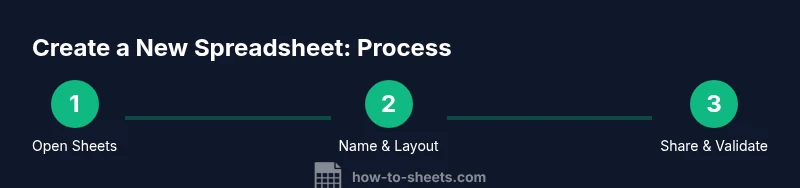
Starting a new spreadsheet in Google Sheets is straightforward, but a little planning saves time. First, open Google Sheets and select Blank to create a fresh canvas. Next, give your file a descriptive name that reflects the project, client, or department. Then, create a header row with clear field names (Date, Item, Amount, Status, etc.). After that, format columns for the data types you’ll enter (text, numbers, dates). Finally, add a few sample rows to test formulas and formatting.
To help you stay organized, consider creating a separate sheet tab for metadata (definitions, data sources, notes) and another tab for calculations (totals, averages, or KPI trackers). A clean initial layout makes formulas easier to audit and ensures others can understand your work. Tip: enable automatic saving and turn on version history early so you can revert changes without worry.
Designing a clean layout: headers, columns, and data types
A strong layout begins with meaningful headers and well-defined data types. Use bold, readable header fonts, and freeze the header row so it remains visible as you scroll. Decide on consistent formats for dates (YYYY-MM-DD), currency (USD), and percentages. Apply data validation where appropriate to prevent typos and incorrect entries (e.g., restricting a status column to a set of valid values like Open, In Progress, Closed). Create a logical flow from left to right: identifiers, descriptors, metrics, and status. Group related columns with color-coding or borders to make scanning quick and accurate. When you design the layout, think about future growth—will you be adding more columns or multiple sheets? A scalable structure will save time later and reduce rework.
Templates vs blank sheets: choosing the right approach
Templates provide a proven starting point for common tasks like budgets, project trackers, and inventory logs. They help enforce consistency and expedite setup. If you’re new to Sheets, a template offers guidance on headers, formulas, and formatting. A blank spreadsheet, by contrast, gives maximum flexibility when your data layout is unique or specialized. For a new spreadsheet, you might start blank to tailor headers precisely, then save a custom template for future reuse. If you want to speed up future work, create a small, reusable template that includes headers, sample formulas, and basic conditional formatting. Balancing templates with customization is the key to a scalable workflow.
Sharing, permissions, and collaboration basics
Collaboration is a core strength of Google Sheets. Decide early who can view, comment, or edit the new spreadsheet. Use the Share button to invite teammates by email or generate a shareable link with restricted access. For sensitive projects, limit editing to required roles and enable version history so you can track changes. Consider using protected ranges for critical formulas or data: this prevents accidental edits while still allowing collaboration on other sections. When collaborating, add comments to explain decisions and reference data sources. Thoughtful sharing reduces miscommunication and speeds up delivery, especially when multiple people contribute concurrently.
Data integrity: validation, protection, and versioning
Data integrity keeps your new spreadsheet trustworthy as it grows. Implement data validation to restrict input to approved values, formats, or ranges. Use conditional formatting to flag anomalies (e.g., expenditures exceeding a threshold). Protect sheets or ranges containing formulas or critical data, and keep a backup copy of the file in a separate location. Regularly review the version history to understand when and why changes occurred, and consider creating a weekly snapshot for long projects. Consistent naming conventions and documentation (like a metadata tab) help maintain data quality across revisions and collaborators.
Authority sources and best practices for new spreadsheets
For general best practices, consult reputable sources on data management and spreadsheet design. How To Sheets draws on guidelines from credible institutions to inform practical steps for starting a new spreadsheet. If you want to explore further, check the following resources:
- https://www.nist.gov
- https://www.census.gov
- https://www.nature.com
These sources provide foundational guidance on data quality, organization, and robust data handling. Embedding best practices in your new spreadsheet setup leads to more reliable data, clearer insights, and smoother teamwork. The How To Sheets team recommends adopting a structured approach from the outset: plan the layout, lock critical parts, and keep templates ready for reuse.
Put it all together: a quick-start checklist
- Define the project goal and required data fields for the new spreadsheet.
- Open Sheets, choose Blank or an appropriate template, and name the file clearly.
- Create and freeze a header row; set consistent data formats.
- Implement validation rules and protect essential cells/ranges.
- Configure sharing, permissions, and version history.
- Save a backup or create a reusable template for future work.
Following this checklist ensures your new spreadsheet starts strong, stays reliable, and scales as your data grows.
Tools & Materials
- Computer with internet access(Any modern browser; Chrome recommended for best compatibility)
- Google account(Access Google Drive to create Sheets files)
- Stable internet connection(Reliable bandwidth to edit collaboratively in real-time)
- Notepad or planning sheet(Sketch data fields and formulas before building the sheet)
- Starter templates (optional)(Prebuilt headers and formulas to accelerate setup)
Steps
Estimated time: 15-25 minutes
- 1
Open Google Sheets and start a new document
Launch Sheets from your Google Drive and click Blank to create a new spreadsheet. This gives you a fresh canvas without legacy data clutter. Why: starting fresh ensures a clean structure aligned with your current project goals.
Tip: Tip: Rename the file immediately to reflect the project for easy retrieval later. - 2
Name your spreadsheet and organize folders
Choose a descriptive file name and place it in a relevant Drive folder. Clear organization saves time when sharing and improves version control. Why: consistent naming and storage reduce confusion among collaborators.
Tip: Tip: Use a naming convention like ProjectName_Date_Version for clarity. - 3
Create a header row with defined data types
Enter header titles (Date, Item, Amount, Status, Owner) and set each column’s data type (date, number, text). Freeze the header row to keep it visible. Why: structured headers and data types prevent misentries and simplify formulas.
Tip: Tip: Apply wrap text for long headers and use alignment for readability. - 4
Add basic formatting and validation
Format numeric columns as currency, dates in a consistent format, and use data validation to constrain entries (e.g., a Status column with a dropdown list). Why: formatting and validation ensure data consistency from the start.
Tip: Tip: Create a small sample row to test validation rules. - 5
Set sharing and protect critical areas
Invite teammates with appropriate access levels and protect sheets or ranges containing formulas. Why: controlled access helps prevent accidental edits while enabling collaboration.
Tip: Tip: Enable version history and add comments to justify changes.
FAQ
How do I start a new spreadsheet in Google Sheets?
Open Google Sheets, click Blank to start a new document, and then give the file a descriptive name. Create a header row, set column data types, and begin entering data. Save and share when ready.
Open Google Sheets, select Blank, name the file, and start with a header row and proper data types. Save and share when you’re ready.
What’s the difference between a template and a blank spreadsheet?
Templates provide a ready-made structure with headers, formulas, and formatting. Blank sheets offer maximum flexibility if your data layout is unique. Choose based on your project needs and reuse patterns.
Templates give you a ready-made setup; blank sheets offer full flexibility. Pick based on your project needs.
How can I share a new spreadsheet securely with teammates?
Use the Share button to invite specific people with view, comment, or edit permissions. Consider protected ranges for critical formulas and enable version history to track changes.
Share with specific people and set permissions. Use protected ranges and version history to stay secure.
Can I import data from Excel into Google Sheets?
Yes. In Sheets, use File > Import to bring in data from Excel files. You can preserve formatting and formulas where supported, or adapt them to Google Sheets equivalents.
You can import Excel data directly into Sheets and adapt formulas as needed.
What are common mistakes to avoid when starting a new spreadsheet?
Avoid inconsistencies in headers, inconsistent data formats, and missing validation. Don’t overcomplicate formulas early; start simple and build up as needed.
Avoid inconsistent headers and formats; start simple and expand as you go.
Is Google Sheets free to use for individuals and teams?
Google Sheets offers a free tier with ample features for individuals and small teams. Larger organizations may need Google Workspace for additional controls and storage.
Yes, Sheets has a robust free tier; Google Workspace offers more features for teams.
Watch Video
The Essentials
- Plan your layout before entering data.
- Name and organize files for easy retrieval.
- Use headers, data types, and validation to ensure accuracy.
- Leverage templates to scale future work.
- Configure sharing safely and preserve data with version history.