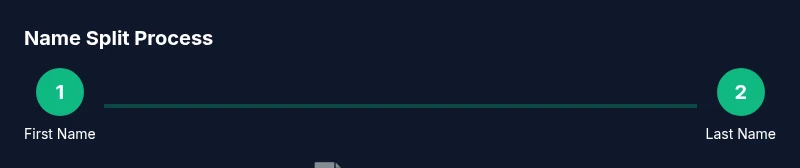
Separate First and Last Name in Google Sheets: A Step-by-Step Guide
Learn practical, step-by-step methods to separate first and last names in Google Sheets using SPLIT, REGEXEXTRACT, and templates. This guide helps students, professionals, and small business owners keep data clean and consistent.


By the end of this guide, you will be able to reliably separate first and last names in Google Sheets using robust formulas and templates. You’ll learn simple SPLIT-based methods for two-word names, as well as regex-driven approaches that handle middle names, suffixes, and hyphenated surnames. You’ll also create reusable worksheets that work across large datasets with minimal manual cleaning.
Why separating first and last names in google sheets matters
Accurate name parsing is foundational for clean data in any project. When first and last names are stored as a single string, sorting, filtering, mail merges, and personalized communications become error prone. According to How To Sheets, clean name data makes downstream tasks like form prefill and customer segmentation far more reliable. The How To Sheets team found that many teams end up with inconsistent name formats across departments, which complicates reporting and analytics. This section explains why a deliberate split improves data integrity, reduces manual cleanup, and enables consistent downstream workflows for students, professionals, and small business owners.
Key benefits:
- Consistent sorting and matching across lists
- Reliable mail merge and outreach
- Easier integration with CRM and marketing tools
Before you begin, confirm the goal of your split: do you want a strict first and last name pair, or a more flexible approach that also captures middle names or suffixes? Your data context determines the method and outputs you should target.
We will keep the intro here aligned with the How To Sheets brand voice while acknowledging the practical need for reliable name parsing in Google Sheets.
Tools & Materials
- Google Sheets account with edit access(Open a sheet that contains a column with full names to process.)
- Column containing full names(Typically A2:A; adjust outputs to your sheet structure.)
- Output columns for First and Last name(Create headers like B1 = First Name, C1 = Last Name)
- Optional: a sample dataset for testing(Useful for practice and validation.)
- Optional: data-cleaning step checklist(TRIM, CLEAN, and SUBSTITUTE as needed)
Steps
Estimated time: 15-25 minutes
- 1
Identify the input data column
Locate the column that contains the full name strings. Ensure there are no empty cells in the region you plan to process, or decide how you will handle blanks.
Tip: If your data has leading or trailing spaces, run a quick trim step to standardize before parsing. - 2
Create output headers
Insert headers for the output columns, e.g., First Name in B1 and Last Name in C1. This helps keep formulas readable and results organized.
Tip: Labeling outputs makes it easier to audit results later. - 3
Split simple two-word names
For straightforward cases like John Doe, use a split-on-space approach and take the first token as the first name and the last token as the last name.
Tip: This works best when most names are exactly two words. - 4
Handle names with a middle name
For names like Mary Ann Smith, use a robust method that captures the first and last tokens while noting the middle part as an optional column if you need it.
Tip: Decide early if you will keep middle names as a separate field. - 5
Apply a single array-wide solution
If you want to fill multiple rows at once, consider wrapping your approach in an ARRAYFORMULA or equivalent to auto-fill when the source data grows.
Tip: Test on a subset before applying to the entire range. - 6
Validate results and handle edge cases
Check for hyphenated surnames, suffixes like Jr. or III, and unusual inputs. Decide how to treat these consistently across your dataset.
Tip: Document your rules to avoid ambiguity later. - 7
Document and reuse your template
Create a small workbook or sheet template with named ranges and comments so future users can reuse the approach without starting from scratch.
Tip: Include a short notes section describing assumptions.
FAQ
What if a name has no clearly defined last name?
If there is no last name, the last name field may be left blank or filled with a default value based on your data policy. Use IF or IFERROR to handle these cases gracefully.
If there is no last name, leave the field blank or set a default value and guard the formula with an error check.
How do I extract a middle name if I want one separate column?
If you want a middle name column, split on spaces and join the middle tokens as needed. A simple approach is to detect extra tokens beyond the first and last and then concatenate the middle tokens.
To capture a middle name, identify any tokens between the first and last and combine them into a middle name column.
Can I do this with a single formula?
Yes, you can construct a single formula to return either the first or last name based on token position. However, readability and maintenance may be better with separate fields. Start with a two-output approach and expand as needed.
You can use one formula per output column to keep things simple and maintainable.
How can I apply this to thousands of rows efficiently?
Use ARRAYFORMULA or equivalent to apply the parsing logic across many rows at once. Always test on a subset first and monitor performance.
Apply the logic to a whole column with array-enabled formulas and verify results in batches.
What about hyphenated or compound last names?
Hyphenated or compound last names are treated as a single last name token by extracting the final token. If needed, adjust patterns to include hyphens.
Hyphenated last names are usually treated as one token at the end of the string.
Watch Video
The Essentials
- Parse names with consistent rules
- Use first/last token logic for common cases
- Plan for middle names and suffixes upfront
- Test on representative samples before scaling