What Size in Google Docs Is Short Bond Paper? A Practical Guide
Learn the exact page size for short bond paper in Google Docs. This guide covers setting 8.5 x 11 inches, margins, printing tips, and choosing between Letter and A4 for different regions.


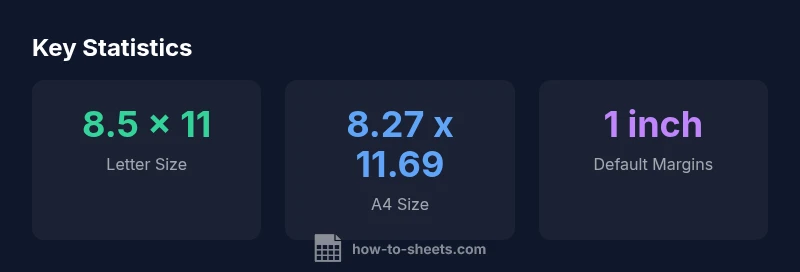
The size you should use in Google Docs for short bond paper is 8.5 by 11 inches, commonly called US Letter. In metric terms this equals about 216 by 279 millimeters. This size is widely supported by printers and copiers, making it the practical choice for US documents. If you print internationally, you may opt for A4 (8.27 x 11.69 inches) to reduce margins and alignment issues. What size in google docs is short bond paper is answered by selecting Letter when you’re printing for US audiences, or A4 for many international contexts.
What is Short Bond Paper and Where It's Used
Short bond paper is the commonly referenced 8.5 x 11 inch size used primarily in the United States for everyday documents such as letters, forms, and school papers. The term “short bond” historically distinguishes it from larger formats used for ledgers or tabloid-sized printing. In Google Docs, this size is often the default, which reduces the need for constant page-size adjustments when preparing standard documents. According to How To Sheets, starting with the correct page size helps ensure that margins, line lengths, and overall layout print as expected, minimizing surprises on paper or in PDF exports. For students and professionals, this size supports readable fonts and comfortable paragraph lengths, especially when printed on typical office printers.
If you’ve ever wondered what size in google docs is short bond paper, the answer is that you’ll most commonly select 8.5 by 11 inches. This aligns with the US Letter standard and is well-supported by modern printers, copiers, and binding equipment. The How To Sheets team emphasizes consistency: pick the size first, then format margins and fonts around that choice to maintain predictable results across devices and printers.
Google Docs Page Sizes: Defaults, Variants, and Regional Differences
Google Docs offers several page sizes, but for short bond paper the Letter size (8.5 x 11 inches) remains the de facto standard in the US, while A4 (8.27 x 11.69 inches) dominates many other regions. In the Google Docs Page setup dialog, you’ll typically see a list of preset sizes, and you can opt for a custom size if you ever need a non-standard document. The interplay between page size, margins, and orientation (portrait vs. landscape) becomes especially important when documents are intended for professional printing, bindings, or school submissions. The How To Sheets analysis notes that most users benefit from sticking to Letter for US contexts and switching to A4 when collaborating with teammates or printers in other countries.
Step-by-Step: Set Your Document to 8.5 x 11 (Short Bond) in Google Docs
- Open your Google Docs document and go to File > Page setup. 2) In the Paper size dropdown, select Letter (8.5 x 11 inches). 3) Confirm the Orientation (Portrait by default) and adjust Margins to 1 inch or your preferred setting. 4) Click OK to apply to the current document, or set as default for new documents. 5) If you anticipate international distribution, consider creating a second document with A4 (8.27 x 11.69 inches) to avoid surprises during printing. This workflow aligns with the guidance from the How To Sheets team and makes your documents portable across printers and devices.
Short Bond Paper vs A4 and Letter: When to Use Which
In the US, short bond paper (US Letter) is the standard for most documents, so aligning your Google Docs page to 8.5 x 11 keeps margins and line lengths consistent with printed output. In many regions outside the US, A4 serves as the default. When collaborating globally or submitting international forms, A4 can reduce unnecessary white space and improve readability on standard office printers. The How To Sheets analysis highlights the value of matching your document size to your audience and printer capabilities to minimize rescaling or cropping.
Printing Considerations: Margins, Orientation, and Bleeds
Margins influence line length, readability, and how a document sits on a page. The default 1 inch margin is common, but you may adjust to 0.75 inches for a denser page, or 1.25 inches for more breathing room. Orientation typically remains portrait for most reports, but landscape is useful for wide tables or charts. Bleeds are rarely used in standard Google Docs printouts; most printers cut off slightly at the edges, so plan margins with that in mind. The key is to preview before printing and export to PDF to verify alignment.
Practical Tips for Students and Professionals
Here is a quick checklist: verify that the page size matches your target print format (Letter or A4), adjust margins to fit content, utilize consistent font sizes and line spacing, and use the Print Preview to confirm a clean page break. For templates you reuse, save two versions—Letter and A4—to avoid repetitive setup. As highlighted by the How To Sheets team, starting with the right page size helps you focus on content quality rather than layout fixes.
Common Pitfalls and How to Fix Them
A common mistake is editing content in a document sized for Letter but sharing a file intended for A4 printing. This can crop content or alter margins when printed. Another pitfall is not updating the page size after inserting wide tables, which can push text onto extra pages. A practical fix is to check Page Setup after adding large visuals and use Page break inserts to maintain clean pagination.
Quick Reference: Page Size Cheatsheet for Quick Workflows
- Default in Google Docs: 8.5 x 11 inches (Letter) for US workflows.
- International option: 8.27 x 11.69 inches (A4).
- Margins: commonly 1 inch; adjust as needed for readability.
- Printing: preview first, export to PDF to check for shifts or crops.
- Workflow tip: save two templates—Letter and A4—for quick switching when collaborating across regions.
Sizes and dimensions for common document printing.
| Paper Size | Dimensions (inches) | Typical Use |
|---|---|---|
| Short Bond Paper (Bond) | 8.5 x 11 | US Letter standard for everyday documents |
| A4 | 8.27 x 11.69 | International standard documents |
| Legal | 8.5 x 14 | Legal documents and contracts |
| Tabloid | 11 x 17 | Large-format proofs and spreads |
FAQ
What is the standard size for short bond paper in Google Docs?
Short bond paper standard size is 8.5 x 11 inches, known as US Letter. In Google Docs, this is the typical default for documents intended for US printers. If you’re working with international collaborators, you may switch to A4 to align with regional printing standards.
The standard size is 8.5 by 11 inches, US Letter. Switch to A4 if you’re printing for international audiences.
Can I change page size to A4 in Google Docs?
Yes. Go to File > Page setup and choose A4 (8.27 x 11.69 inches). This updates the document’s printable area and is useful when collaborating with non-US teams or printers.
Yes. In Page setup, select A4 to match international standards.
How do I set margins to 1 inch in Google Docs?
Open Page setup and adjust all four margins to 1 inch. Save as default if you want future documents to use the same margins.
In Page setup, set all margins to 1 inch and save as default if desired.
Is short bond paper used outside the United States?
Short bond paper specifically refers to the 8.5 x 11 inch size common in the US. Outside the US, A4 is more prevalent, so align your document size with your audience.
Yes, mostly in the US; elsewhere, A4 is common.
Does Google Docs support printing on Legal or Tabloid sizes?
Google Docs supports a range of sizes in Page setup, including Legal and Tabloid. However, these options may be less commonly used for standard documents and can affect margins when printing.
Yes, you can choose Legal or Tabloid, but margins might shift.
Will changing the page size affect existing content?
Yes, changing page size can reflow text and alter pagination. It’s best to adjust margins and re-check line breaks after switching sizes.
Switching sizes can reflow content; review layout afterward.
“Choosing the right page size isn't just about printing; it affects layout, readability, and how content fits on the page.”
The Essentials
- Start with the correct page size to ensure printing accuracy.
- US audiences: use 8.5 x 11 inches (Letter).
- International audiences: consider A4 to minimize reflow.
- Always preview before printing or exporting to PDF.
- Keep templates for Letter and A4 to streamline workflows.