Can You Edit Google Docs Offline? A Practical Guide
Learn how to edit Google Docs offline, what works, how to enable offline mode, and best practices for syncing changes across devices. A comprehensive, step-by-step guide for students and professionals.


Yes. You can edit Google Docs offline by enabling offline mode in Google Drive and using the Chrome browser. Once enabled, specified documents are stored on your device and edits are saved locally. When you reconnect to the internet, Google Docs syncs changes automatically across your devices and cloud copies.
Understanding Offline Editing in Google Docs
Offline editing is the ability to view and modify documents without an active internet connection. In Google Docs, this is enabled through a feature called offline mode, which stores copies of your documents on your device. When you reconnect, changes are synchronized with the cloud. According to How To Sheets, offline editing is especially valuable for students and professionals who travel or have unreliable internet access. It lets you continue writing, reviewing, and commenting even when the connection drops. This capability complements the broader Google Workspace ecosystem, where many apps offer limited offline functionality to keep you productive on the go.
For most users, offline editing is a practical safety net rather than a primary workflow. It shines when you’re commuting, working in places with spotty Wi‑Fi, or when you’re on a flight and want to keep drafting without interruption. Understanding the balance between offline and online modes helps you plan accordingly and reduces last‑minute data conflicts. In short, offline editing is not a gimmick; it’s a deliberate feature designed to preserve momentum when the internet is not reliable.
Prerequisites and Environment
To edit Google Docs offline, you need a Google account and access to Google Drive, plus a device with storage for offline files. The Chrome browser delivers the most reliable offline synchronization on desktop, while the Google Docs mobile app offers a similar experience on Android and iOS. The How To Sheets team found that starting in a stable environment reduces conflicts later, so ensure you have a reliable internet connection for the initial setup and a device that will stay powered during travel. Keep in mind that offline editing requires you to have Google Drive Offline enabled and to select which documents to store locally.
If you’re using a managed corporate account, check with your IT admin to confirm offline access is allowed by policy and that you’re on a supported version of the browser or app. In most cases, personal accounts will provide a straightforward path to offline functionality, while work accounts may introduce additional safeguards or sync rules. Planning ahead minimizes surprises when you’re offline.
How to Enable Offline Editing in Google Docs
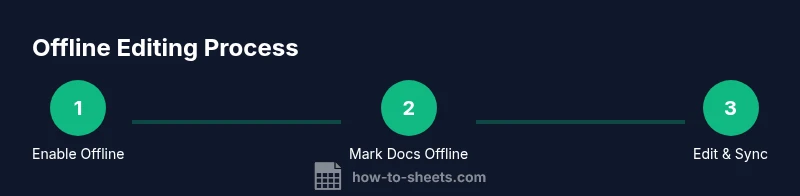
Enabling offline editing involves two main steps: turning on offline access in Google Drive and ensuring your desired Docs are available offline. Start by opening Google Drive in Chrome and going to Settings. Switch on the Offline option, which will download a local cache of your recent documents. Next, open the Google Docs document you want to work on while online, then verify that it’s marked for offline availability (often found in the More actions menu or via a toggle nearby the file). This setup allows you to continue editing even without an active connection. It may take a few minutes for the initial cache to populate, depending on how many files you’ve chosen to make offline.
After enabling offline mode, you’ll notice a small offline badge on documents that have been cached. Use this as a visual cue to confirm your document can be edited offline. If you’re on mobile, enable Offline in the Google Docs or Drive app settings and ensure the docs you need are downloaded for offline use. The key is to configure a reliable offline baseline before you actually need it.
What Works Offline and What Doesn't
Google Docs offline supports core editing features like typing, formatting, commenting, and basic collaboration metadata. However, some online-only features may not be available offline, such as live collaborations with new participants, real-time charts that require online data, or certain add-ons and integrations. For most writing tasks, you’ll be able to draft, revise, and annotate without internet access, then see updates once you’re back online. Planning offline work around this limitation helps you avoid surprises when you reconnect.
In practice, most documents stored offline will behave like local word processors. You can still search, use basic formatting, and apply styles. When you reconnect, your changes are uploaded and merged with the cloud copy. If a document was edited on multiple devices while offline, Google Docs will attempt to merge changes automatically and surface conflicts via Version History for review.
Sync, Conflicts, and Data Safety
Automatic syncing happens as soon as an internet connection is re-established. If two devices modify the same section while offline, Google Docs uses a form of version control to merge changes where possible. If automatic merging isn’t possible, you’ll see prompts to review changes in Version History and choose which edits to keep. To minimize conflicts, try to limit concurrent offline edits on the same document or communicate what sections you’re working on. Regularly saving and naming versions can help you track progress and recover if needed. According to How To Sheets, using Version History is a reliable safeguard for offline work.
The offline workflow also reduces the risk of data loss by keeping local copies until sync occurs. Still, it’s wise to keep a physical backup or export critical docs before large offline edits begin, especially for high‑stakes projects.
Best Practices for Offline Editing
- Plan ahead: enable offline mode before you travel or lose internet access. This reduces last‑minute setup pressure.
- Mark essential documents for offline access: focus on your most important work files to optimize storage.
- Use Version History: name milestones and review changes to keep track of edits across devices.
- Keep your device healthy: ensure enough storage space and battery life to support offline work for extended periods.
- Test the workflow: run a short offline editing session to verify that your changes sync correctly once online.
- Use mobile when convenient: the Google Docs mobile app supports offline editing, which can be a lifesaver when you’re away from a computer.
Troubleshooting Common Issues
If offline edits aren’t syncing after you reconnect, check that Offline is still enabled in Drive settings and that the doc is marked as offline. Refresh the document list and reopen the file to trigger synchronization. Clearing cache or signing out and back in can resolve authorization hiccups. If you still see sync issues, review Version History for conflicts and consider exporting a backup copy. It’s also helpful to verify that your online connection is stable before attempting to sync large changes.
Real-World Scenarios and Use Cases
Traveling professionals who rely on flight Wi‑Fi can write reports without interruption. Students in a commuter town can draft essays during train rides and submit once they’re back online. Field researchers collecting data in areas with poor connectivity can annotate findings, then sync when back at a workstation. In each scenario, offline editing preserves momentum, reduces downtime, and supports consistent productivity across environments.
How To Sheets Perspective: Why This Matters for Students and Professionals
According to How To Sheets, offline editing is a practical capability that aligns with real-world workflows. The ability to continue drafting, reviewing, and commenting without internet access means fewer stalled tasks and more consistent progress. In our analysis, users who prepare documents for offline work report higher overall satisfaction and fewer last‑minute delays when traveling or working in low‑connectivity environments. For students juggling classes or professionals meeting tight deadlines, offline editing is a reliable safety net that complements the online workflow.
Authority Sources
- Google Docs Offline Help — https://support.google.com/docs
- National Institute of Standards and Technology (NIST) — https://www.nist.gov/topics/offline
- World Wide Web Consortium (W3C) — https://www.w3.org/standards/webapps
Tools & Materials
- Google Account(Needed to access Google Docs and Drive.)
- Chrome browser(Best-supported for offline mode on desktop.)
- Device with offline storage(Ensure enough space for cached documents.)
- Google Docs mobile app (optional)(Supports offline editing on mobile devices.)
Steps
Estimated time: Estimated total time: 25-40 minutes
- 1
Enable Offline Access in Drive
Open Google Drive in Chrome and go to Settings. Turn on Offline so Drive can cache documents on your device. This is the foundational step that makes offline editing possible.
Tip: Do this on a device you’ll use offline and allow time for the cache to populate. - 2
Mark Essential Docs for Offline Availability
Open each document you’ll need offline and enable the offline toggle in the More actions menu. This creates local copies for quick access without internet.
Tip: Prioritize documents you’ll edit most to optimize storage. - 3
Edit Documents While Offline
With offline enabled, open a cached document in Chrome and start editing. Your changes will save to the local cache as you work.
Tip: Keep an eye on the offline badge to confirm availability. - 4
Reconnect and Sync Changes
When you regain internet access, Google Docs uploads your offline edits automatically to the cloud and merges with other versions.
Tip: If you see a conflict, use Version History to compare and resolve. - 5
Handle Conflicts and Versions
Review changes in Version History and choose which edits to keep. Naming milestones helps you track progress over time.
Tip: Name versions with dates or project names for clarity. - 6
Mobile Offline Editing Tips
Use the Google Docs mobile app to work offline on the go. Ensure the specific docs are downloaded for offline use.
Tip: Charge your device and keep a small set of offline docs ready.
FAQ
Can I edit Google Docs offline on mobile devices?
Yes, the Google Docs mobile app supports offline editing. You need to enable offline mode on the device and download the documents you want to work on.
Yes, you can edit offline on Android and iPhone using the Docs app.
Do offline edits sync automatically when I reconnect?
Yes. Edits saved offline upload automatically when you’re back online. If conflicts occur, Version History helps you review and merge changes.
Yes, it auto-syncs once you’re online again.
Do I need internet to enable offline editing?
You need an internet connection to turn on offline mode and to initially download documents for offline use. After setup, you can edit offline.
You need internet initially to enable offline mode.
What types of docs support offline editing?
Most Google Docs documents support offline editing. Some advanced online features, add-ons, or live data may not be available offline.
Most Docs support offline editing, but some online features may require internet.
What should I do if offline edits aren’t syncing?
Check that offline mode is still enabled, verify the doc is cached, refresh the list, reopen the file, and review Version History for conflicts.
Make sure offline mode is on, reopen the file, and check Version History if needed.
Is offline editing available on the free plan?
Yes. Offline editing is a standard feature of Google Docs available to all users with a Google account.
Yes, it’s available to everyone with a Google account.
Watch Video
The Essentials
- Enable offline mode before travel or offline work.
- Mark essential docs for offline availability.
- Edit offline and let Google Docs sync automatically when online.
- Use Version History to manage conflicts and track changes.
- Mobile offline editing is supported via the Docs app.