Balance Sheet Template Google Sheets: A Practical Guide
Learn how to build and customize a balance sheet template in Google Sheets for assets, liabilities, and equity with practical steps, formulas, and best practices.


A balance sheet template google sheets helps you capture assets, liabilities, and equity in a single, live workbook. You’ll learn setup basics, how to tailor accounts, and how formulas keep totals auto-updating. This practical guide from How To Sheets is designed for students, professionals, and small business owners seeking a repeatable, audit-friendly workflow.
What a balance sheet template in Google Sheets does and who benefits
A balance sheet template google sheets is a ready-made layout that captures a company’s financial position by listing assets, liabilities, and equity in a single, organized worksheet. It’s designed to be live and collaborative, so changes made by teammates appear instantly for everyone with access. According to How To Sheets, using this template approach unlocks three core benefits: consistency across periods, ease of sharing with stakeholders, and built-in calculations that reduce manual errors. For students, it clarifies how balance sheets reflect resources owned and debts owed; for professionals, it speeds month-end reporting; for small business owners, it provides a scalable snapshot you can build upon month after month. A well-constructed template can also support audit readiness, since the layout enforces standard categories, documented formulas, and a clear chain of data inputs. In practice, you’ll see assets on the left, liabilities in the middle, and equity on the right, with subtotals and totals automatically updating as numbers are entered. The real power comes from knowing where to place items, which accounts to create, and how to format the sheet so that it remains readable even as you expand it over time. This section sets the stage for a practical, repeatable workflow you can rely on in any business context.
Key components you must include in a balance sheet template
A robust balance sheet template must clearly separate three core sections: assets, liabilities, and equity. Within assets, you’ll typically have current assets (cash, receivables, inventory) and non-current assets (property, equipment, long-term investments). Liabilities are commonly split into current liabilities (accounts payable, short-term loans) and non-current liabilities (long-term debt). Equity captures retained earnings, contributed capital, and owner’s equity. To ensure accuracy, each category should have a consistent naming convention and a supported sub-ledger where you can drill down for detail without cluttering the main sheet. You should also include a top header with the company name, the reporting period, and the currency. A reliable template includes subtotals for each account group, a balance check line that validates that Total Assets equals Total Liabilities plus Equity, and clear formatting to distinguish sections. Finally, build in a simple navigation or index so readers can quickly locate sections, and consider using named ranges to simplify formulas and future updates.
How Google Sheets templates support accuracy and collaboration
Google Sheets enables real-time collaboration, version history, and optional permissions, which are essential for a balance sheet template used by multiple team members. How To Sheets analysis shows templates benefit teams by reducing scattered inputs and promoting consistent account naming. When teams co-author a balance sheet, you’ll see color-coded sections, protected cells for formulas, and data validation rules that catch common entry errors before they become problems. With a template, you can also standardize the reporting period (monthly, quarterly, or yearly) and ensure that everyone uses the same currencies and date formats. The live formulas keep totals up to date as transactions flow in, so the balance check line remains a reliable indicator of data integrity. If you’re preparing for a meeting or audit, you can share a single link with view or edit permissions, rather than exporting multiple copies. This section highlights why Google Sheets is a practical platform for ongoing financial tracking and reporting, while also pointing out the need for disciplined data entry and regular reviews.
How to customize and extend a template with formulas
A strong template relies on a few core formulas and thoughtful organization. Start by naming ranges for each account group (Assets, Liabilities, Equity) and create a row for each account under the respective section. Typical formulas include: Total Assets: =SUM(Assets!B2:B100); Total Liabilities: =SUM(Liabilities!B2:B100); Total Equity: =SUM(Equity!B2:B100). A balance check line should display: =IF(TotalAssets=TotalLiabilities+TotalEquity,
Mismatch: check accounts”). You can also incorporate depreciation and amortization by creating a separate sub-ledger and linking a depreciation expense line to the asset values. Use SUMIF or VLOOKUP to reconcile accounts when you add new items, and employ conditional formatting to highlight negative numbers or inconsistent totals. Finally, add a period-over-period section to show changes over time and a simple note column to explain major movements. This approach keeps the sheet scalable and easier to audit while enabling quick updates during busy periods.
Common mistakes and how to avoid them
Common mistakes include inconsistent account naming, mixing currencies, and failing to lock formulas when sharing. To avoid these, lock critical cells or protect sheets that contain formulas, use a single currency format, and adopt a standardized Chart of Accounts. Avoid hard-coding numbers; instead, link inputs to other cells or ranges to preserve dynamic updates. Regularly review the balance check line to ensure it reflects the actual data inputs and test a scenario where you add or remove a few accounts to see how totals respond. Finally, keep a clean version history and document any structural changes so readers understand the template’s evolution over time.
Practical use cases for balance sheet templates
Templates are useful for students learning accounting concepts, professionals preparing monthly financials, and small business owners managing cash flow and compliance. For students, the balance sheet demonstrates the double-entry accounting principle in a tangible, familiar document. For startups and small businesses, an online template in Google Sheets provides a lightweight, shareable solution that scales as the company grows. Nonprofits can adapt the template to reflect restricted and unrestricted funds, ensuring transparency for donors and grant administrators. In every case, the template acts as a living record that can be filtered by date, department, or project, enabling quick snapshots for stakeholders. The ability to duplicate templates for different periods or entities also makes it a repeatable tool rather than a one-off worksheet.
Keeping templates future-ready: versioning, audit trails, and automation
Future-proofing a balance sheet template means embracing version control, audit trails, and automation where appropriate. Maintain a clear naming convention for each version, archive old sheets, and use Google Sheets’ version history to compare changes over time. Add simple automation, like array formulas to pull data from linked ledgers, or integration with accounting software via imports when suited. Implement data validation to prevent invalid entries (e.g., negative cash balances where not allowed) and protect formulas so accidental edits don’t break the model. Finally, plan periodic reviews with your team to refine categories, update accounts, and ensure the template remains aligned with regulatory or internal policy changes. A well-maintained template becomes a dependable backbone for financial reporting and strategic decision-making.
Tools & Materials
- Google account with Google Sheets access(Essential for creating, editing, and sharing the template online.)
- Stable internet connection(Needed to collaborate in real time and save changes.)
- Balance sheet template Google Sheets file(Start with a clean template or copy a proven layout to avoid reinventing the wheel.)
- Optional: multiple-period templates(Keep templates for monthly, quarterly, and yearly reporting.)
- Source documents (invoices, bank statements)(Helpful for data entry and reconciliation.)
- Formatting tools (conditional formatting, borders, colors)(Enhances readability and error spotting.)
Steps
Estimated time: 30-50 minutes
- 1
Define scope and chart of accounts
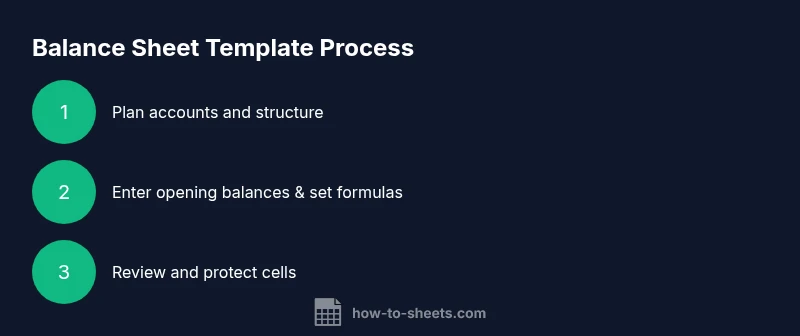
Decide which assets, liabilities, and equity accounts you will track and set a clear scope for the initial template. Assign consistent account names and categorize them as assets, liabilities, or equity to support straightforward totals.
Tip: Create a simple one-page list of accounts before entering data to avoid scope creep. - 2
Create header and structure
Add a header with company name, reporting period, and currency. Layout the three main sections (Assets, Liabilities, Equity) with subcategories for current and non-current items.
Tip: Use bold headings and shaded rows to improve readability at a glance. - 3
List accounts under Assets
Enter all asset accounts under the Assets section, grouped by current and non-current. Leave space for new accounts and add a brief description where needed.
Tip: Keep a running list so you can add items without disrupting formulas. - 4
List accounts under Liabilities and Equity
Populate Liabilities and Equity categories with current and non-current items. Ensure that each item has an input cell for balances.
Tip: Maintain a consistent order across all periods for easier comparison. - 5
Enter opening balances
Input opening balances for all accounts at the period start. If you’re starting from scratch, base balances on prior records or a trial balance.
Tip: Double-check opening balances against existing ledgers for accuracy. - 6
Add core formulas for totals
Create total rows for Assets, Liabilities, and Equity using standard SUM formulas. Add a balance check line to verify that Total Assets equals Total Liabilities plus Total Equity.
Tip: Test the balance check with a few fake entries to ensure it flags mismatches properly. - 7
Incorporate time-period presentation
Add a column or section for the current period and, if desired, a previous period for comparison. This supports trend analysis and variance calculations.
Tip: Label periods clearly to avoid confusion during reviews. - 8
Review, protect, and share
Review the template for accuracy, protect cells containing formulas, and share with stakeholders using appropriate permissions.
Tip: Enable comment-only access for reviewers to prevent accidental edits.
FAQ
What is a balance sheet template and why use Google Sheets?
A balance sheet template provides a structured layout to record assets, liabilities, and equity in a single document. Using Google Sheets enables real-time collaboration, version history, and easy sharing, which is especially helpful for teams and small businesses.
A balance sheet template is a ready-made layout for assets, liabilities, and equity. Google Sheets makes it easy for teams to work together and keep versions in one place.
How do I customize accounts in a balance sheet template?
Start by listing all accounts you need under Assets, Liabilities, and Equity. Use consistent naming, group related items, and add a few extra placeholders for future growth. Link these accounts to totals with clear formulas so adding or removing items doesn’t break calculations.
List and name each account under its category, keep names consistent, and link them to totals so updates stay accurate.
How often should the balance sheet be updated?
Update the balance sheet at a frequency that matches your reporting needs—monthly for most small businesses, quarterly for nonprofits, or align with your financial close process. Regular updates help maintain an accurate picture of financial health.
Most teams update monthly or quarterly to stay current with finances.
How can I handle depreciation in a template?
Create a depreciation sub-ledger or line items under Assets. Link depreciation expense to the asset values and keep cumulative depreciation updated. This keeps asset values aligned with physical and accounting reality.
Add a depreciation line under assets and connect it to total asset value.
Can I share and protect my balance sheet template with others?
Yes. Use Google Sheets sharing settings to grant view or edit access as needed. Protect cells with formulas to prevent accidental changes, and provide separate sheets for reviewers if necessary.
You can share with permissions and lock important cells to protect formulas.
Is it possible to export the balance sheet to PDF or Excel?
Google Sheets allows exporting to PDF or Excel formats. This makes it easy to share a static version for meetings while preserving the live template for ongoing updates.
You can export to PDF or Excel for easy sharing.
Watch Video
The Essentials
- Build a clear Chart of Accounts for consistency
- Use live formulas to keep totals automatic
- Protect critical cells to prevent accidental edits
- Document changes to maintain audit readiness