How to Change Currency in Google Sheets
Master currency formatting in Google Sheets with locale, currency formats, and conversion formulas. Step-by-step guidance for budgeting templates and multi-currency data.


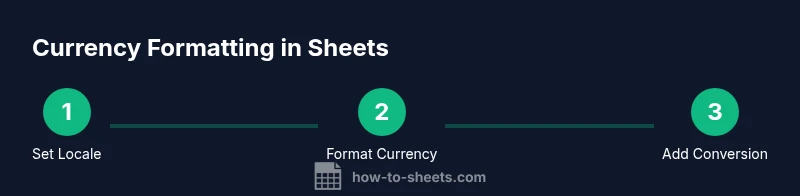
To change currency in Google Sheets, first set the correct locale for your sheet to match the target currency. Then apply the Currency format to the relevant cells, choosing the appropriate symbol and decimal places. For mixed data, use the FORMAT option or custom number formats to ensure consistency across rows and columns, and consider a default currency in a header row.
Why currency formatting matters in budgeting and reporting
Accurate currency formatting is essential for clear budgets, invoices, and financial dashboards. When currencies look inconsistent, totals can be misinterpreted, and collaborators may misread values. According to How To Sheets, the foundation of reliable currency display in Google Sheets starts with the right locale. Locale determines decimal separators, thousand separators, and the default currency symbol, so aligning it with your primary market reduces confusion across teams. In multi-currency projects, uniform formatting helps stakeholders quickly compare figures, spot anomalies, and maintain professional templates. This approach also supports scalable budgeting across departments and regions, ensuring that everyone reads numbers the same way. By standardizing currency formatting early, you create templates that are easier to audit and share with colleagues who rely on precise financial data.
Pro tip: Keep a master currency layout in a hidden sheet to prevent accidental edits while others work on the visible budget view.
Setting the locale for currency in Google Sheets
Setting the correct locale is the first step in ensuring currency appears with the right symbols and separators. Open your Google Sheet, go to File > Settings, and choose the Locale that matches your target market (for example, United States for USD or European country formats for EUR). The locale choice affects decimal and thousands separators, the default currency symbol, and date formats, which helps keep your financial data consistent across all sheets in the workbook. After selecting the locale, save changes and reload the sheet to apply the new formatting rules. If you share the document, confirm teammates use the same locale to avoid mismatches.
How To Sheets notes that locale consistency reduces confusion when collaborating on budgets and expense reports.
Applying the built-in Currency format
With the correct locale in place, you can apply Google Sheets’ built-in Currency format to your currency columns. Select the cells containing monetary values, then go to Format > Number > Currency. Choose the appropriate currency symbol and decimal places to reflect your budgeting needs. If you have mixed currencies in the same column, consider applying Currency to separate columns or using conditional formatting to keep them visually distinct. Keyboard shortcuts can speed this up: for many users, Ctrl/Cmd + Shift + 4 toggles currency formatting in the selected range. This step makes totals easier to read and prevents misinterpretation during reviews.
Tip: If you work with a template that uses a specific currency symbol, copy formatting from the template rather than re-creating it from scratch.
Custom currency formats for non-standard symbols
Some datasets require non-standard symbols or specific formatting. In this case, use Custom number formats. Go to Format > Number > More Formats > Custom number formats and enter a pattern like $#,##0.00 or €#,##0.00 depending on your currency. You can place the symbol before or after the number and control decimals, thousands separators, and negative value display. Custom formats are especially useful for dashboards that show both base currency and local currencies side by side. Remember to test one cell first to ensure the symbol and separators render correctly across devices and locales.
When in doubt, start with a standard format and gradually add a custom layer for edge cases.
Handling multi-currency datasets with conversion formulas
If your sheet contains amounts in different currencies, create a simple conversion workflow. Maintain a dedicated table with exchange rates (e.g., A1:B10) and use formulas to convert all values to a single base currency. A common approach is to use =A2 * VLOOKUP(B2, RatesTable, 2, FALSE) where A2 is the amount and B2 is the currency code. This approach keeps your data intact while producing a unified view for totals and graphs. For dynamic rates, you can pull live data using GOOGLEFINANCE, then refresh your conversions when you update rates. Always document the base currency and rate source in a notes section of your template.
How To Sheets emphasizes keeping a clear data lineage so conversions are auditable.
Fetching live exchange rates with GOOGLEFINANCE
GOOGLEFINANCE can fetch real-time exchange rates with a formula like =GOOGLEFINANCE("CURRENCY:USDEUR"). You can place these results in a rates table and reference them in your conversion formulas. Be mindful of potential delays or limitations in data refresh frequency, and consider locking the rates sheet to prevent accidental changes in shared workspaces. Use a named range for the rates table to simplify formulas and updates across multiple sheets. If you need multiple pairs, create a helper column that constructs dynamic pairs (e.g., "USDEUR" from currency codes in separate cells).
This live-data approach supports up-to-date budgeting without manual rate updates.
Maintaining consistency across dashboards and templates
Consistency across dashboards requires a single source of truth for currency formatting and conversion rules. Establish a dedicated currency template that all reports inherit from, with defined locale, default currency, and rate sources. Use named ranges for currency columns and conversion factors, so updating one cell or range propagates automatically. Protect key sections to prevent accidental edits, and use data validation to ensure currency codes stay within a predefined list. Document your workflow in a readme within the workbook so new teammates can adopt the standard quickly. This practice reduces manual errors and keeps your sheets scalable as your project grows.
Common pitfalls and how to avoid them
Common mistakes include mixing currencies in a single column without clear conversion logic, changing locale after formats are applied, and relying on static rates without updating them. Avoid these by defining a single base currency, using a rates table, and clearly labeling currency columns. Also watch for locale incompatibilities: if a sheet is viewed in a different locale, separators and symbols may render differently. Regularly audit a sample of cells to verify that numbers display as intended, and keep a changelog when major updates occur.
Best practices for budgeting templates in Sheets
To optimize budgeting workflows, standardize currency across all templates, maintain a central rates sheet, and build templates that auto-apply formatting based on the base currency. Use conditional formatting to highlight currency-related anomalies, and keep a separate tab for notes detailing rate sources and conversion rules. Share templates with clear usage instructions and set permissions to protect formulas and rate tables. A well-structured approach reduces errors and makes it easier to generate accurate financial reports for stakeholders.
Tools & Materials
- Google Sheets access (web or mobile app)(Sign in with a Google account)
- Device with internet connection(Needed for live data and updates)
- Locale-aware data(Define the target currency region upfront)
- Optional: conversion-rate table(If not using GOOGLEFINANCE, supply your own rates)
Steps
Estimated time: 25-35 minutes
- 1
Open the sheet and set locale
Open the Google Sheet that will house currency data, then set the locale to your target country via File > Settings > Locale. This ensures the correct decimal and thousands separators and the default currency symbol appear consistently across the workbook.
Tip: Choose a locale that matches the majority of your data to minimize formatting mismatches. - 2
Select currency cells
Highlight the cells that contain monetary values you want to display in the chosen currency. If you have multiple currency areas, select each region separately to apply appropriate formatting.
Tip: Use Ctrl/Cmd to multi-select non-adjacent ranges for efficiency. - 3
Apply Currency format
Go to Format > Number > Currency and choose the symbol and decimals that match your base currency. If necessary, apply the format to additional adjacent columns to maintain consistency.
Tip: Verify the symbol aligns with the sheet's locale; mismatches can be confusing in shared workbooks. - 4
Create a conversion framework for multi-currency data
If your sheet contains multiple currencies, set up a rates table (e.g., A1:B10) and use a formula like =Amount * VLOOKUP(CurrencyCode, RatesTable, 2, FALSE) to convert to your base currency.
Tip: Place the base currency column adjacent to the converted values for easy comparison. - 5
Fetch live rates with GOOGLEFINANCE
Enter a formula such as =GOOGLEFINANCE("CURRENCY:USDEUR") to pull live rates into a dedicated Rates tab. Reference these rates in your conversion formulas for dynamic updates.
Tip: If you share the sheet, consider locking the Rates tab to prevent edits. - 6
Audit and finalize
Review a subset of totals to ensure all conversions align. Confirm that headers clearly indicate currency, base currency, and rate sources. Save a backup before large changes and document any assumptions in a README tab.
Tip: Keep a changelog for currency-related updates to aid future audits.
FAQ
Can I change currency symbol without changing locale?
Yes, you can customize the currency symbol using a custom number format, but locale still influences decimal and thousands separators. Tests should confirm the display across devices.
You can change the symbol with a custom format, but locale affects separators, so test across devices.
Can I convert currencies automatically in Google Sheets?
Yes, you can pull live rates with GOOGLEFINANCE and apply formulas to convert values to a base currency. Be aware that rates may update with market delays.
You can fetch rates with GOOGLEFINANCE and convert automatically, but rates update with a delay.
Is there a risk converting currencies in a shared sheet?
Yes. Protect critical rate tables and clearly label sources. Use protected ranges and documented rules to prevent accidental edits.
Yes—protect rate tables and document rules to reduce risk when sharing.
What if I need to convert across multiple currencies?
Set up a conversion table with currency pairs and use VLOOKUP or INDEX/MATCH to apply the correct rate for each row.
Create a conversion table and reference it with VLOOKUP to handle many currencies.
Does currency formatting affect the underlying values?
Formatting only changes how numbers are displayed; it does not alter the underlying numeric value.
Formatting changes display, not the actual numbers.
Watch Video
The Essentials
- Set locale first to ensure correct formatting.
- Use built-in Currency format for clean presentation.
- For multi-currency data, implement a conversion framework.
- Leverage GOOGLEFINANCE for live rates with caution.