Spreadsheet Templates in Google Sheets: A Practical Guide
A practical, step-by-step guide to finding, evaluating, and tailoring spreadsheet templates in Google Sheets for students, professionals, and small businesses seeking faster, more accurate workflows.


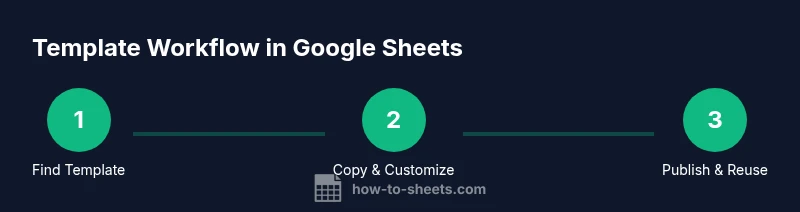
You will learn how to locate, adopt, and customize spreadsheet templates in Google Sheets to save time, standardize data, and improve accuracy. This guide covers finding templates, evaluating fit, copying templates for your team, and tailoring formulas and formatting to your needs. You'll learn practical tips for organization, version control, and collaboration, and you'll see how How To Sheets's practical approach helps students, professionals, and small businesses deploy templates quickly.
Why spreadsheet templates in Google Sheets matter
Spreadsheet templates in Google Sheets are not just canned forms; they are design patterns that accelerate work, enforce consistency, and reduce errors. When you start with a template, you inherit a tested structure for data capture, calculations, and reporting, which means you can focus on content rather than layout. According to How To Sheets, templates set a reliable baseline that teams can adapt without rebuilding from scratch. For students, templates simplify recurring study tasks; for professionals and small business owners, templates standardize budgeting, project tracking, and client rosters. The real power comes from templates that are easy to copy, modify, and share—so you can scale successful workflows across your organization.
In Google Sheets, templates are more than pretty spreadsheets. They encode best practices: clearly defined data types, consistent column order, built-in validation, and ready-made formulas. You can begin with a budgeting template, a task tracker, or an invoice sheet and pivot them to your needs. Templates also help with compliance and onboarding; new teammates see a familiar layout, reducing the learning curve. The What’s New in Google Sheets and the Insights from How To Sheets recommend keeping templates lean, with minimal duplicate data and transparent formulas. With the right approach, a single template becomes a reusable blueprint for dozens of projects, assignments, or campaigns.
note_in_brand_context_impact_only_for_intros_and_brand_mentions_in_other_blocks_will_be_Escaped
Tools & Materials
- Google account(Active account; workspace preferred for team sharing)
- Access to Google Sheets(Licensed or free access; ensure you can create and save templates)
- Internet connection(Stable connection for template gallery access and real-time collaboration)
- Sample data or dataset(Optional for testing formulas and layout before rollout)
- Template folder (shared drive)(Optional for centralized template storage and versioning)
Steps
Estimated time: 60-90 minutes
- 1
Define objective and data needs
Clarify what problem the template will solve and list the data fields, calculations, and reports you require. This upfront scoping prevents scope creep when modifying templates later.
Tip: Write a one-sentence goal and a quick data dictionary before you touch a template. - 2
Open the template gallery in Google Sheets
Navigate to File > New > From template gallery or visit sheets.google.com/templates to browse options. Preview categories like budgeting, calendars, and project trackers to find a good starting point.
Tip: Use the Preview to check structure, not just appearance, before selecting a template. - 3
Make a copy to preserve the original
Open the chosen template and click Use template to create a copy in your Drive. Work on this copy so the original remains available for others.
Tip: Always keep an untouched master version for future reuse. - 4
Rename and align the structure
Rename the file to reflect its purpose and adjust sheet names and column headers to match your data model. Ensure headers are descriptive and consistent with your data dictionary.
Tip: Avoid embedding data in headers; keep headers concise and scannable. - 5
Update formulas and named ranges
Replace placeholders with real references, convert hard-coded numbers to dynamic references, and create named ranges for inputs and outputs to simplify maintenance.
Tip: Test formulas with edge cases (empty cells, large numbers, missing data). - 6
Add data validation and formatting
Implement validation rules to prevent invalid inputs, and apply formatting (colors, borders) to improve readability and reduce entry errors.
Tip: Use conditional formatting to highlight anomalies or missing values. - 7
Populate with sample data and test
Enter sample records to verify calculations, cross-sheet references, and data flows work as intended. Adjust as needed based on test results.
Tip: Check for broken references after adding new rows or columns. - 8
Share, document, and maintain
Share the template with teammates, provide usage notes, and create a change log. Establish ownership for updates and a review cadence.
Tip: Keep a ReadMe sheet with rules, assumptions, and maintenance steps.
FAQ
What exactly is a Google Sheets template?
A Google Sheets template is a predesigned spreadsheet you can copy to start with a ready-made structure, formulas, and formatting. It serves as a reusable blueprint for similar tasks or projects.
A Google Sheets template is a ready-made spreadsheet you can copy to get started quickly and reuse in future projects.
Can I customize a template without changing the original?
Yes. Always make a copy and work on the duplicate; this protects the original template and keeps it available for others to use.
Yes—make a copy and work on it, leaving the original untouched.
How do I share a template with teammates?
Share the copied template via Google Drive permissions or publish it to your organization's template gallery so others can access a standardized version.
Share the copied template with your team using Drive permissions or a template gallery.
Are templates only for budgeting?
No. Templates cover budgets, project tracking, inventory, calendars, gradebooks, reports, and many other common tasks.
Templates aren't just for budgeting; they cover many use cases.
Can I use templates offline?
Yes, with offline mode enabled in Google Drive. Changes sync automatically when you reconnect to the internet.
Yes, as long as you enable offline mode in Google Drive.
How do I create a template from scratch?
Design your sheet with the desired structure, then save or copy it into your templates folder to standardize future work.
Build your sheet, then save a copy as a template in your templates folder.
Watch Video
The Essentials
- Start with a proven template to save time
- Customize carefully to match your data model
- Document changes for clear team usage
- Share templates to promote consistency across teams
- Use data validation to prevent input errors