Google Sheets to Go High Level: A Step-by-Step Migration Guide
Learn how to migrate data from Google Sheets to Go High Level with CSV imports or API automation. This step-by-step guide covers mapping, cleaning data, and validating results for a reliable CRM sync.


Goal: migrate data from google sheets to go high level to centralize contacts, deals, and tasks. This guide covers prep, header mapping, and two practical paths: CSV import and API automation. Align Sheet headers with Go High Level fields, clean duplicates, and validate IDs before import for a smooth, repeatable workflow.
Why migrating from google sheets to go high level matters
Data scattered across Google Sheets often delays CRM updates, slows marketing campaigns, and creates inconsistent records. Migrating from google sheets to go high level centralizes contacts, deals, and tasks in a single system, enabling consistent field definitions and automation. When teams unify data, it's easier to create standardized lead capture forms, automated follow-ups, and pipeline views. The How To Sheets team has observed that organizations that move critical records into Go High Level reduce manual entry, minimize duplicates, and speed up outreach. This transition is especially valuable for small businesses and teams that operate with shared spreadsheets across departments. By planning a clean mapping of headers to CRM fields, you can preserve data integrity and unlock automation opportunities like drip campaigns and task reminders. The end result is not just data migration; it's a foundation for scalable customer workflows, improved reporting, and a more predictable sales cycle. This guide uses practical steps you can follow today.
Prerequisites and setup
Before you begin, make sure you have a Go High Level account with admin access and a Google Workspace account for Sheets. Create a simple data map that lists each Sheet column and the corresponding Go High Level field (for example: Email, First Name, Last Name, Phone, Status). Export a test sheet as CSV and confirm that there are no formulas or merged cells that could confuse imports. Decide which records to migrate first (e.g., active leads) and set up a safe test environment to verify results. If you plan to automate updates, ensure you have API access or a third‑party automation tool connected. Back up your Sheets data, and consider creating a migration template to reuse for future transfers. Finally, review privacy considerations and ensure that sensitive data (PII) is handled in accordance with your policies.
Understanding data mapping: headers, fields, and formats
Sheet headers are not the same as CRM fields. Map each header to a target field in Go High Level, keeping the data type in mind (text, date, boolean). Use consistent header naming (no special characters) to minimize import errors. If a field is required in Go High Level, ensure you provide a value for every migrated row. For date fields, standardize on ISO 8601 (YYYY-MM-DD) or your CRM's preferred format. Email addresses must pass basic validation (no spaces, proper domain). Phone numbers should be stored in an international format if possible. Create a small sample row to test mapping before migrating the full dataset. This step reduces surprises and helps you catch mismatched fields early.
Prepare your Sheet for migration
Clean the data: remove blank rows, trim whitespace, and unify date formats. Remove formulas and convert calculated cells to static values to prevent errors during import. Ensure you have a single header row and consistent column order. If you must split a single field into multiple CRM fields (e.g., Full Name into First and Last), create separate columns for each target field. Save an updated copy of the sheet as CSV and keep a backup in case you need to revert.
Path A: CSV import workflow
CSV import is the most common non‑technical path. Export your Sheet as CSV, confirm headers align with per‑field mapping, and upload the file to Go High Level's import tool. Use a test batch first (e.g., 50 records) to verify results. If errors appear, adjust the CSV (fix headers, remove extra columns, correct data types) and re-import. When done, run a post‑import verification: count records, sample a few, and check that field values match the source. If you rely on duplicates, enable de-dup rules and assign a unique external ID for each row.
Path B: API/automation workflow
Automation via API or an integration tool like Zapier enables ongoing syncing. Generate an API key from Go High Level, set up read/write permissions, and create a mapping layer that converts Sheet rows into API payloads. Consider batch processing to respect rate limits. Build a small automation that reads newly added rows in Sheets and pushes them to Go High Level, skipping duplicates and updating existing records. If you use Zapier, configure two steps: 'New Spreadsheet Row' trigger and 'Create/Update Contact' action, with field mappings to match the pairings you defined earlier. Always test the end-to-end flow with a limited dataset before scaling.
Field mapping templates: example mapping
Create a reusable mapping table: SheetHeader -> HighLevelField. Example: Email -> email, First Name -> first_name, Last Name -> last_name, Phone -> phone, Company -> company, Status -> lifecycle_stage. For custom fields, use the exact field slug defined in Go High Level.
Deduplication and data quality checks
Deduplication is essential. Before import, identify records by a unique key (email or external_id). After migration, run a check to detect duplicates and merge or delete as appropriate. Keep a back‑out plan and maintain a changelog. For API-based imports, implement idempotency so repeated runs don't create duplicates.
Handling dates, emails, and phone fields
Dates should be consistent; use YYYY-MM-DD. Emails must be valid; phone numbers normalized to E.164 format if possible. Validate addresses and ensure there are no trailing spaces.
Security, access, and compliance considerations
Limit who can export and import data; use role-based access control; encrypt files when storing; ensure compliance with data protection policies. Review data retention rules and audit trails to ensure you can track who changed what and when.
Validating success: test records and rollback plan
Perform end‑to‑end validation with a sample dataset. Check a subset of records in Go High Level for field accuracy, status, and assignments. Maintain a rollback plan: keep the original CSV, document changes, and have a quick way to re-import a clean copy if needed.
Maintaining ongoing data sync and future migrations
Set up a repeatable workflow for future migrations. Create a migration template, document every mapping, and schedule periodic cleanups. If you anticipate frequent updates, implement an automation that polls Sheets and syncs Go High Level on a routine cadence (e.g., nightly or weekly).
Tools & Materials
- Go High Level account with admin access(Needed to configure fields and perform imports/APIs)
- Google Sheets data ready for export(Cleaned data with a single header row)
- CSV export capability(Used for the CSV import path)
- API access credentials or API key (optional)(Needed for automation pathway)
- Automation tool (e.g., Zapier) (optional)(For bridging Sheets to Go High Level)
- CSV editor or text editor(To adjust headers and data types if needed)
- Data backup copy of Sheets(Always keep a backup before migration)
Steps
Estimated time: Total: 60-120 minutes for simple migrations; more complex setups with API/automation may run 2-4 hours
- 1
Define scope & backup
Identify which sheets and fields will migrate, and create a backup copy of the raw data. This protects you from data loss if something goes wrong.
Tip: Always keep an immutable backup before changing data formats. - 2
Plan field mapping
List each Sheet header and map it to a Go High Level field. Include required fields and note any custom fields.
Tip: Use a mapping template to keep consistency across migrations. - 3
Prepare data quality
Clean blank rows, trim spaces, normalize formats (dates, emails, phones). Ensure headers are plain alphanumeric text.
Tip: Run a quick data quality check on a sample of records. - 4
Export as CSV
Export the cleaned sheet to CSV format, ensuring UTF-8 encoding if available.
Tip: Verify that the CSV uses commas and no stray separators. - 5
Import via CSV
Upload the CSV to Go High Level’s import tool and apply the header mappings.
Tip: Start with a small test batch before full import. - 6
Validate import
Check totals, spot-check records, and confirm key fields match source data.
Tip: Look for misassigned fields or truncated values. - 7
Handle duplicates
Activate de-dup rules based on email or external IDs; decide when to merge vs. skip.
Tip: Document your deduplication policy. - 8
Set up API pathway
If using API, generate the API key, configure permissions, and test payloads against a small batch.
Tip: Use idempotent requests to avoid duplicates on retry. - 9
Configure automation
If using Zapier or similar, map fields and create triggers for ongoing sync.
Tip: Limit polling frequency to respect rate limits. - 10
Security & privacy check
Review access controls, encrypt sensitive data, and document compliance steps.
Tip: Limit who can trigger or run migrations. - 11
Roll out & monitor
Gradually roll out to production users and monitor for any discrepancies.
Tip: Keep a changelog of changes and fixes. - 12
Document a repeatable template
Create a reusable migration template for future sheets or campaigns.
Tip: Store mapping sheets and checklists in a shared drive.
FAQ
Can I migrate using only CSV?
Yes. CSV import is the simplest path to bring data into Go High Level. Start with a test batch to validate field mappings and data quality before a full import.
Yes. You can migrate with a CSV import by first testing a small batch to validate mappings and data quality.
Can I automate ongoing updates from Sheets to Go High Level?
Yes. Use the API or an automation tool to push new rows or updates from Sheets to Go High Level on a scheduled cadence. Ensure idempotent operations to avoid duplicates.
Absolutely. An API or automation tool can keep Go High Level in sync with Sheets on a schedule.
What formats should I use for dates and phone numbers?
Use ISO date format (YYYY-MM-DD) and E.164 for phone numbers when possible to ensure consistent imports.
Date should be YYYY-MM-DD and phone numbers in E.164 format for consistency.
How do I handle duplicates during migration?
Identify a unique key (email or external_id) before import, then merge or discard duplicates according to your policy.
Identify a unique key first, then merge or discard duplicates according to your policy.
What if the import fails?
Restore from backup, fix the data issue (headers, types, or missing fields), and re-run the import with a smaller batch.
If it fails, restore from backup, fix the issue, and re-run with a smaller batch.
Is API access required for migration?
Not required for CSV imports, but API access enables ongoing synchronization and automation beyond the initial migration.
API access is optional for CSV imports but enables ongoing automation.
Watch Video
The Essentials
- Plan and backup before migrating
- Map headers to CRM fields precisely
- Test with small batches first
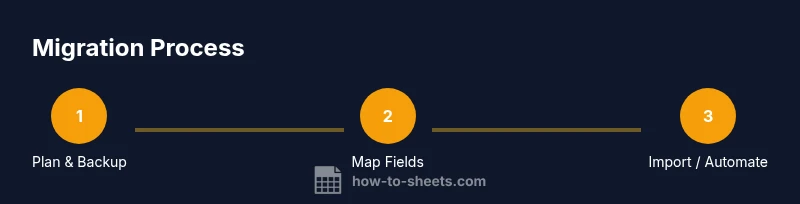
- Choose CSV import for simplicity or API for automation
- Validate data and monitor post-migration