How to Use AI in Google Sheets: A Practical Guide
Learn practical steps to use AI in Google Sheets to clean data, generate insights, and automate tasks with Explore, Smart Fill, AI formulas, and Apps Script.


You’ll learn how to use AI features in Google Sheets to clean data, generate insights, and automate repetitive tasks. You’ll need a Google account with Sheets access and a sample dataset. We’ll cover enabling AI tools, crafting practical prompts, and best practices for reliable results in real-world workflows. This quick guide also shows exact prompts, how to verify AI suggestions, and common pitfalls to avoid.
Why AI in Google Sheets matters
Modern teams rely on data-driven decisions, and Google Sheets remains a workhorse for collecting, cleaning, and sharing information. AI features in Sheets help accelerate routine tasks, surface insights, and reduce human error. By leveraging pattern recognition, natural-language prompts, and automation, you can transform a messy dataset into a trustworthy report in minutes rather than hours. According to How To Sheets, AI-powered capabilities are not a replacement for your judgment but a force multiplier that makes you more productive while maintaining control over results. In practice, you’ll use AI to standardize text, detect anomalies, summarize large blocks of data, and generate draft formulas that you can quickly tailor. The payoff comes when you can shift focus from repetitive chores to analysis and decision-making. In short, AI in Sheets helps you go from raw data to actionable outcomes with less drudgery and more consistency across projects.
Getting started: enabling AI features in Google Sheets
To begin with AI in Google Sheets, you’ll need a Google account and a Sheets file. Open a new or existing spreadsheet and look for the Explore panel, Smart Fill, and AI-assisted formula suggestions. These features are designed to assist with patterns in your data, not replace human judgment. Make sure you’re using a compatible browser and that your Google account has access to the latest Sheets updates. If you’re part of a team, confirm that the organization’s settings allow AI features. Once enabled, you can prompt AI to perform simple tasks like cleaning text, standardizing dates, or deriving new columns from existing data. Always start with a small test dataset to see how the prompts perform before applying them to large, critical files.
Core AI-powered tools in Sheets
Google Sheets brings AI-assisted capabilities in several forms. The Explore panel can summarize data and suggest charts or pivot tables based on natural-language questions. Smart Fill recognizes patterns across rows and columns to autofill data consistently. AI-powered formula suggestions propose common constructs like VLOOKUP, FILTER, and a few creative alternatives when you describe your goal. You can also leverage built-in data cleanup prompts that identify duplicates, trim whitespace, and standardize text formats. For advanced users, Apps Script can connect AI results with custom automations, enabling repeatable workflows and dashboards that continuously adapt to new data.
Step-by-step: clean data with AI-assisted prompts
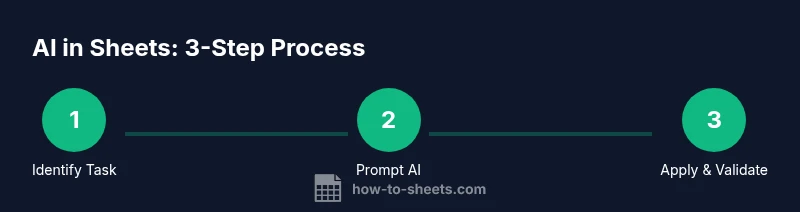
Start with a clean dataset. Remove obvious duplicates and standardize text fields (uppercase for codes, title case for names). Prompt AI to suggest a clean-up plan, for example: “Clean and standardize customer names, fix dates to YYYY-MM-DD, and remove trailing spaces.” Review the suggested changes line-by-line in a temporary column, then copy the final results back to your main data. Validate the results with simple checks (e.g., counts, unique value counts) to ensure nothing unintended was altered. Keep a backup copy before applying mass changes. Regularly document your prompts for future reuse and auditability.
Step-by-step: generate insights with AI
Ask natural-language questions in the Explore panel or a dedicated prompt cell, such as: “Summarize sales by region for last quarter and show key trends.” AI will suggest charts, pivot tables, or summary rows. Refine prompts to include date ranges, categories, or thresholds. Use AI to draft a quick hypothesis, then test it with standard formulas (SUMIFS, AVERAGEIF, etc.). Visualize results with charts recommended by AI, then add notes explaining the insights. Always cross-verify AI-generated summaries with your own calculations to ensure accuracy.
Step-by-step: build AI-powered automation with Apps Script
For scalable AI workflows, connect Sheets to Apps Script. Start by exporting AI-derived data to a new sheet or range, then write a small script that updates prompts and reruns AI tasks on a schedule. Use SpreadsheetApp to access data ranges, Logger for debugging, and PropertiesService to store prompts or configurations. If you’re comfortable, create a library of AI prompts and a single entry point function that refreshes data and outputs results to dashboards. Document dependencies and permissions to prevent unexpected failures when data sources change.
Best practices and guardrails
Treat AI outputs as guidance, not gospel. Always validate results with traditional checks and maintain data hygiene by preserving raw data somewhere safe. Protect sensitive information by avoiding prompts that expose private data to external services. Version control is essential—keep old copies of data before applying AI-driven changes. Use descriptive prompts and include data scope, date ranges, and expected outcomes to reduce misinterpretation. Remember that AI is a tool, not a replacement for domain knowledge and professional skepticism.
Real-world use cases
Students can use AI in Sheets to summarize research data, clean citation lists, and organize study schedules. Professionals might automate report preparation with AI-generated summaries and trend analyses that feed dashboards. Small business owners can combine AI prompts with budgeting templates to forecast expenses and identify outliers. Across all users, AI helps you move from raw data to actionable insights more quickly, while keeping a clear log of prompts and results for accountability.
Troubleshooting common AI prompts in Sheets
If prompts don’t yield expected results, narrow the scope. Include explicit ranges, clear date formats, and concrete outputs (e.g., “Summarize sales by month for 2025 with total and average”). Check for data type inconsistencies, and rerun prompts on a small subset before applying to the entire dataset. If AI suggestions seem off, try rephrasing with more concrete examples or providing a sample of the desired output. Finally, review sheet permissions and ensure the AI features are up to date with the latest Google Sheets version.
Tools & Materials
- Google account with access to Google Sheets(Ensure you are signed in and have editing rights on at least one sheet.)
- Active internet connection(AI features run in the cloud; a stable connection is essential.)
- Sample dataset for testing(Include headers and representative data to test AI prompts.)
- Prompts library or cheat sheet(Optional, helps standardize prompts for reuse.)
- Google Apps Script editor (optional)(Use for automating AI-driven tasks and workflows.)
- Versioned backup of data(Always keep a backup before applying AI changes.)
Steps
Estimated time: 45-60 minutes
- 1
Prepare your dataset
Open a Google Sheet with your data. Ensure headers are present and data types are consistent. Create a backup copy before proceeding to AI tasks.
Tip: Label columns clearly and keep a separate raw data tab for auditability. - 2
Enable AI features
Open the Explore panel and verify AI-enabled options such as Smart Fill and formula suggestions appear. If not visible, check your account settings or regional availability.
Tip: Test features on non-critical data first to gauge behavior. - 3
Prompt AI to clean or derive fields
Describe the desired outcome with explicit ranges and formats, e.g., 'Standardize dates to YYYY-MM-DD and trim spaces in customer names.' Review AI outputs in a staging area.
Tip: Be specific about data ranges and expected results for reliability. - 4
Validate AI outputs
Cross-check AI-generated results with trusted formulas (SUMIF, VLOOKUP, etc.). Use filters and pivot tables to spot anomalies quickly.
Tip: Keep a log of prompts and outcomes for future reference. - 5
Automate the workflow
If the task repeats, implement Apps Script to automate data feeding, AI prompts, and output updates to dashboards or reports.
Tip: Document the automation, including data sources and prompts.
FAQ
What AI features does Google Sheets offer?
Google Sheets offers an Explore panel for insights, Smart Fill for pattern-based autofill, and AI-assisted formula recommendations. These tools help you move from data to insights faster while you review results.
Sheets has Explore, Smart Fill, and AI formula suggestions to speed up data work.
Can I use AI to clean data automatically?
Yes. You can prompt AI to standardize text, fix date formats, remove duplicates, and trim whitespace. Always verify results with standard formulas before applying changes.
AI can clean data, but always verify before applying.
Is AI in Sheets secure for sensitive data?
Be mindful of data privacy. Avoid prompts that expose private information to external services. Use anonymized samples for testing and keep raw data in controlled sheets.
Use anonymized data and avoid exposing sensitive info in prompts.
How do I save AI prompts for reuse?
Create a prompts library within your organization or in a template sheet. You can also store prompts in Apps Script or predefined templates for consistent use.
Create a prompts library for reuse.
What are common pitfalls when using AI in Sheets?
Relying too heavily on AI without validation, misinterpreting outputs, or applying changes to critical data without backups can lead to errors.
Validate results and back up data before applying changes.
Where can I learn more about AI features in Sheets?
Consult official Google support docs and practical guides from trusted sources like How To Sheets for best practices and examples.
Check official docs and trusted guides for best practices.
The Essentials
- Enable Explore and Smart Fill to start using AI.
- Describe prompts clearly with ranges and formats.
- Always validate AI outputs before applying changes.
- Pilot automation with Apps Script on non-critical data.