Google Sheets Stock Price Guide: Pull Live Data into Sheets
Learn to pull google sheets stock price data into Sheets with GOOGLEFINANCE, IMPORTXML, and APIs. Build a simple dashboard, manage updates, and avoid common data issues.


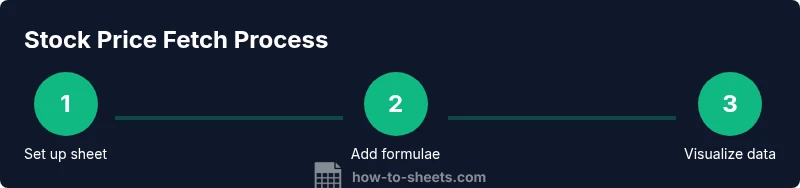
Goal: Pull reliable Google Sheets stock price data into a live dashboard. You’ll learn how to use GOOGLEFINANCE for ticker quotes and historical data, when to rely on IMPORTXML or APIs, and how to build a simple, refresh-friendly sheet. This guide also covers common pitfalls and accuracy checks to keep prices current.
Why tracking stock prices in Google Sheets makes sense
Tracking stock prices directly in Google Sheets gives you a single source of truth for your portfolios, budgets, and analysis. Students, professionals, and small businesses can monitor tickers, track daily changes, and visualize trends without leaving Sheets. With the google sheets stock price workflow, you create a lightweight dashboard that updates when your sheet refreshes. This approach minimizes context switching and helps you experiment with data transformations, ratios, and charts. When you keep a clean, well-labeled sheet, you can share it with teammates and stakeholders and still maintain control over the data. In this section, we’ll explore why Sheets is a practical choice for stock price tracking and what you should prepare before pulling data.
- Key benefits: centralization, automation, and quick visualization
- Common use cases: personal portfolios, student projects, small business budgeting
- Prerequisites: access to Google Sheets, a ticker list, and a live data source
Data sources and accuracy: where price data comes from
Stock prices in Sheets come from two main sources: provider APIs and public finance feeds. GOOGLEFINANCE, the built-in Sheets function, fetches data from the same underlying feeds used by many brokers, but it has limitations on exchanges and historical depth. For more reliability or coverage, consider external APIs (with keys) or ImportXML pulls from host finance pages. Accuracy depends on update cadence, market holidays, and data latency, so always verify critical numbers with your broker or official feeds before making decisions. This block will help you understand the landscape and set expectations about refresh rates, delays, and the trade-offs between convenience and precision.
- Understand latency and what “real-time” means for your use case
- Compare GOOGLEFINANCE data vs. paid API feeds for reliability
- Plan for holidays and market closures when scheduling updates
Using GOOGLEFINANCE for live prices and history
GOOGLEFINANCE is the simplest way to pull stock price data directly into Sheets. For a single ticker, use:
=GOOGLEFINANCE("NASDAQ:GOOGL", "price") which returns the latest quote if available during market hours. For history, you can request a date range, e.g.:
=GOOGLEFINANCE("NASDAQ:GOOGL", "close", DATE(2024,1,1), DATE(2024,12,31), "DAILY") to populate a historical series. You can also fetch other attributes like high, low, and volume. Keep in mind that data granularity and refresh speed depend on Google’s data feeds and market activity.
- Use ticker prefixes like NASDAQ:, NYSE:, or ICE: to target exchanges
- Combine price with date to build a time series chart
- If data is missing, retry after a few minutes or switch to an alternative feed
Alternatives: IMPORTXML, APIs, and custom fetches
When GOOGLEFINANCE doesn’t cover a ticker or you need a broader data set, alternatives become useful. IMPORTXML can pull data from public finance pages by scraping specific XPath paths, but pages may block scraping or change layouts. APIs (free or paid) provide structured, reliable data with rate limits and authentication. If you choose an API, store keys securely and implement error handling in Sheets with IFERROR or similar constructs. For both approaches, validate the data against an official source before relying on it for decisions.
- Pros vs. cons for IMPORTXML vs. APIs
- How to handle API keys and quotas in Sheets
- Best practices for avoiding blocked pages and data inconsistencies
Building a simple price dashboard: charts and formatting
A clean dashboard makes stock price data quickly understandable. Start with a table listing tickers, current price, and last updated date. Then add a sparkline or line chart to visualize price history. Use conditional formatting to highlight large swings and create a concise legend so readers grasp the data at a glance. A dashboard in Sheets also supports filters, slicers, and simple pivot charts for aggregated views.
- How to structure the dashboard for readability
- Tips for effective chart types and color schemes
- How to refresh data without breaking charts
Common pitfalls and quality checks
Even well-constructed Sheets dashboards can suffer from stale data, misformatted tickers, or rushed formulas. Typical issues include #N/A when markets are closed, #REF! errors from moved ranges, and locale-sensitive decimal separators causing misreads. Establish a routine check: verify tickers, confirm exchange prefixes, and test a few symbols against a trusted data source. Maintain a small test ticker and a one-cell refresh timer to ensure updates flow as expected.
- How to handle #N/A and #REF! gracefully
- Ensuring consistent ticker formats across sheets
- Regularly validating data against official feeds
Authority sources
For further reading and verification, consult official docs and reputable finance references:
- https://support.google.com/docs/answer/3093281
- https://www.investopedia.com/stock-price-4689668
- https://www.sec.gov/
Tools & Materials
- Google account with access to Google Sheets(Needed to create and share the workbook.)
- Web browser (preferably Chrome)(For best compatibility with Google services.)
- Active internet connection(Data fetch requires online access.)
- Ticker list (CSV or manual entry)(Helpful for bulk imports.)
- API key (optional)(Needed if you supplement with external APIs.)
Steps
Estimated time: 30-60 minutes
- 1
Create a tracking sheet
Open a new Google Sheet and set up a clean header row. Create columns for Ticker, Current Price, Date/Time, and History, so you can easily extend the sheet later.
Tip: Use a named range (e.g., TICKERS) to simplify formula references. - 2
Enter ticker symbols
List each stock's ticker symbol in the Ticker column. Include the exchange prefix if needed (e.g., NASDAQ:GOOGL). Keep tickers in uppercase to avoid case sensitivity issues.
Tip: Validate with a quick spot check against an official quote page to ensure accuracy. - 3
Populate current price with GOOGLEFINANCE
In the first price cell, enter =GOOGLEFINANCE(A2, "price"). This pulls the latest price for the ticker in A2. If the stock is unavailable, the cell may return an error or delay.
Tip: Wrap with IFERROR to show a friendly message like "N/A" when data is missing. - 4
Copy the price formula for all tickers
Drag the fill handle from the bottom-right corner of the first price cell to apply the formula to all rows. This keeps prices aligned with their tickers.
Tip: Alternatively, use =ARRAYFORMULA(GOOGLEFINANCE(A2:A, "price")) for bulk pull, but test performance on larger lists. - 5
Add a timestamp for updates
In a timestamp column, use =NOW() or =TODAY() to reflect when the price was last refreshed. This helps you gauge data freshness at a glance.
Tip: If you want non-updating timestamps, use a static timestamp approach with a script. - 6
Fetch price history for context
To see trends, pull historical close data with =GOOGLEFINANCE(A2, "close", DATE(2024,1,1), DATE(2024,12,31), "DAILY"). Repeat for other tickers or use ARRAYFORMULA for bulk history.
Tip: Limit date ranges to keep the sheet responsive. - 7
Create a quick chart
Select the history data and insert a line chart. Customize axes and legend so trends are easy to read.
Tip: Consider sparklines in a separate column for a compact view. - 8
Apply readability and integrity checks
Add simple conditional formatting to flag price changes, verify tickers, and ensure the data range stays within expected bounds.
Tip: Set up data validation for the Ticker column to reduce typos.
FAQ
What data sources can I use to track stock prices in Google Sheets?
GOOGLEFINANCE provides real-time quotes for many exchanges and historical data. For non-supported tickers, ImportXML from finance pages or API feeds can supplement data. Always verify critical numbers with an official source.
GOOGLEFINANCE covers many major tickers, and you can supplement with ImportXML or APIs when needed.
Does GOOGLEFINANCE cover all stock exchanges?
Not all exchanges are supported by GOOGLEFINANCE. Some tickers may return errors or delayed data. Check the exchange prefix and consider alternatives for broader coverage.
GOOGLEFINANCE covers many major exchanges; for others, use ImportXML or APIs.
How often is data refreshed in Google Sheets?
Prices update during market hours and are often delayed by minutes. For critical decisions, cross-check with the official feed or perform periodic verifications.
Prices refresh during market hours, usually with a delay; confirm when needed.
Can I pull data for multiple tickers at once?
Yes, using array formulas or multiple rows. Be mindful of quota limits and potential performance issues with large lists.
Yes, array formulas help, but watch quotas.
Why do I sometimes see #N/A or #REF! in my sheet?
These often indicate data is unavailable outside trading hours or the ticker format is incorrect. Check the ticker, exchange prefix, and formula references.
N/A or REF errors usually mean data isn't available yet or the formula is misused.
Is it safe to rely on third-party APIs for prices?
For casual tracking, GOOGLEFINANCE is usually sufficient. If you rely on critical pricing, use reputable APIs with proper validation, authentication, and rate limits.
APIs are optional; validate reliability and terms before using them for decisions.
Watch Video
The Essentials
- Plan sheet structure before formulas.
- GOOGLEFINANCE handles many tickers but verify beyond critical data.
- Use historical data to inform trends and decisions.
- Validate data with multiple sources when reliability matters.