How to fix google sheets view only: a practical guide
Learn how to fix google sheets view only issues with practical steps: check sharing settings, request access, and verify domain restrictions. This How To Sheets guide walks you through the fixes from basic checks to advanced domain permissions.


To fix google sheets view only, you’ll adjust sharing settings, request edit access from the owner, or verify domain restrictions. Start by confirming your account and link permissions, then take action based on who controls the sheet. This quick path helps you regain editing capabilities without risking data loss.
Why view-only happens
When a Google Sheet opens as view-only, editing is blocked by the file owner’s permissions or organizational controls. This isn’t a flaky browser issue; it’s a permission state set on the document. According to How To Sheets, most view-only cases come from sharing configurations or domain restrictions, not from a broken link or a faulty account. Understanding the root cause helps you pick the right remedy quickly and avoid unnecessary toggling between accounts. In this section we’ll demystify the view-only state and set up a reliable path to regain editing rights while preserving data integrity.
How Google Sheets sharing works
Google Sheets uses a simple access model with three core roles: Viewer, Commenter, and Editor. Each role defines what the user can do: Viewer can read, Commenter can comment, Editor can edit. Sharing can be done via specific people (invitees), a link with restricted access, or a public link, depending on the owner’s preferences. If the link is set to Anyone with the link can view, editors cannot edit unless the owner changes permissions. This nuance matters when you’re troubleshooting a view-only state and choosing the right remedy, whether you’re the owner or a collaborator.
Common causes of view-only
Common causes include being added as a Viewer instead of an Editor, the sheet being shared via a link that restricts editing, domain-level restrictions in a Google Workspace environment, or the sheet being protected by protected ranges or a protected sheet. Sometimes a recent change by the owner or an admin can revoke edit access for some users. Recognizing these causes helps you act decisively rather than guessing and risking data loss or confusion.
Quick checks you can run first
Before requesting access or changing anything, complete a quick verification:
- Confirm you are signed into the Google account that was invited to edit the sheet.
- Check the URL sharing settings by opening the sheet and clicking the Share button to see current permissions.
- Try opening the sheet in an incognito/private window to rule out browser-side caching issues.
- Look for any message about domain restrictions or admin-imposed limitations. These can require an IT admin to modify settings. These checks often resolve or clarify the source of the view-only state without needing further steps.
How to request access from the owner
If you’re not the owner, the simplest path is to request editing rights directly from the owner. Use the Share dialog to click "Request edit access" and include a brief message explaining why you need editing rights. If the owner is slow to respond, you can ping them via email or chat with the sheet link and your rationale. In some cases, owners may prefer to grant access only to specific email addresses; be ready to provide the exact accounts that should edit.
Changing sharing settings if you are the owner
If you are the sheet owner, you can grant editing rights by opening the Share dialog and adding specific people with Editor access or by adjusting the link sharing to allow editing. Consider enabling the option to notify people of changes and choose whether the link should grant editing to anyone or only specific invitees. After saving changes, ask a trusted collaborator to confirm they can edit to ensure the permissions are applied correctly. Keep in mind that sensitive data may require additional protection through protected ranges.
Domain-wide or organization restrictions
Domain restrictions occur when a Google Workspace admin enforces rules that limit who can edit certain files or share with external domains. In this situation, you may need to contact your IT administrator to adjust permissions or approve access for specific users. If you’re collaborating across domains, consider using the “Anyone with the link can edit” option sparingly and as a temporary measure until the admin approves a more permanent arrangement. Understanding these restrictions helps prevent repeated lockouts.
Troubleshooting edge cases
Edge cases include situations where a sheet was converted to “view only” due to a temporary error, ownership changes without notifying collaborators, or the sheet being part of a larger Drive share setup with conflicting permissions. If you switch accounts and still see view-only, verify that you’re editing the same document opened in the browser and not a cached version. If a collaborator is still blocked after permissions are updated, clear browser caches and try again, or have the owner re-share the sheet. These steps cover the common and uncommon twists of view-only issues.
Best practices to avoid future view-only issues
Proactively manage access by using clear ownership and documented sharing policies. Regularly audit who has Editor rights and remove access for inactive accounts. Prefer explicit invitations to specific people rather than broad link sharing, and enable notification when permissions change. For large teams, maintain an internal guide on how to request access and whom to contact when access is needed. These practices reduce friction and keep your workflows efficient.
When to escalate to support
If you’ve exhausted owner-level changes, domain admin actions, and personal account checks without resolving the view-only state, it’s time to escalate. Contact your IT admin for domain-level checks or reach out to Google Workspace support if the sheet is critical for ongoing work. Provide a concise summary of the steps you’ve taken, the user accounts involved, and the sheet URL to speed up the investigation.
Visual aids you can use
This section provides a printable checklist and a quick-reference flow you can use in real time. The goal is to minimize back-and-forth and keep your team aligned on permissions and ownership. By documenting who can edit, who owns the sheet, and the exact link sharing settings, you can prevent future lockouts and maintain a smoother collaboration experience.
Tools & Materials
- Google account with edit access (or request to owner)(Use the account that is intended to edit the sheet; verify you’re signed into the correct account before requesting access.)
- Web browser (Chrome recommended)(A stable browser helps ensure the Share dialog and link settings render correctly.)
- Sheet URL or sheet name(Keep the exact URL handy for sharing requests or admin support if needed.)
- Optional: screenshots of error messages(Helpful when describing the issue to the sheet owner or admin.)
- Admin contact (if domain restrictions exist)(Have IT contact information ready in case domain-level adjustments are required.)
Steps
Estimated time: 20-40 minutes
- 1
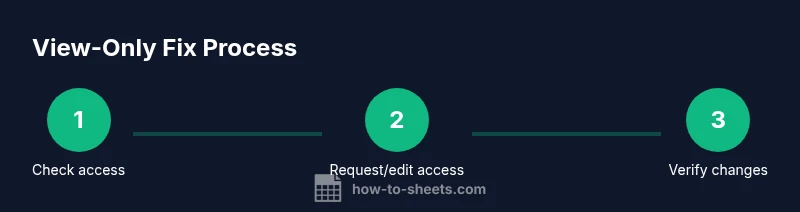
Check current access level
Open the sheet, click Share in the upper-right, and review the list of people with access. Confirm your role is Editor or that your email is invited. If you’re not listed as Editor, you’ll need to request access or have the owner adjust permissions.
Tip: If you see “Viewer,” you know the issue is permission-based, not a browser problem. - 2
Request edit access
From the Share dialog, click “Request edit access” and include a brief note about why you need editing rights. If the owner is unavailable, send a direct email with the sheet link and your rationale.
Tip: Be concise and specify deadlines if the sheet supports time-sensitive work. - 3
Verify the active account
Ensure you are signed into the Google account that was invited to edit. If you have multiple accounts, switch to the correct one before reloading the sheet.
Tip: Use your browser’s account switcher to avoid mixing sessions. - 4
Owner changes to Editor
If you own the sheet, open Share, add the required people with Editor access, and enable email notifications. Save changes and share a fresh link if necessary.
Tip: Notify affected collaborators so they can refresh and test access. - 5
Check link-sharing settings
Decide whether to use “Restricted,” “Anyone with the link,” or “Specific people.” For sensitive data, avoid “Anyone with the link” unless you intend broad access with auditing.
Tip: If you change this setting, re-test access from a different account to confirm changes propagate. - 6
Review protected ranges and sheets
If the sheet uses Protected ranges or a protected sheet, editors may still be blocked in specific sections. Remove or adjust protections as appropriate.
Tip: Document which ranges are protected to avoid accidental edits later. - 7
Check domain restrictions
In a Google Workspace environment, admins can restrict sharing. If applicable, request permission changes or a domain-wide exception.
Tip: Coordinate with your IT admin to avoid repeated permission requests. - 8
Re-test access
Close and reopen the sheet, or open in an incognito window to confirm you have the requested access. If still blocked, revisit the previous steps.
Tip: A clean session often clears stale permission caches.
FAQ
Why does my Google Sheet show as view only even after I try to edit?
View-only usually means your account lacks Editor permission or the link sharing is restricted. Start by checking your account, invited emails, and the sheet’s share settings. If needed, request access from the owner or have an admin adjust domain rules.
View-only often means you don’t have editor rights or the sharing is restricted. Start by checking your account and share settings, then request access from the owner if needed.
Who can grant editing rights on a Google Sheet?
The sheet owner or a user with Editor permissions can grant editing rights. If domain restrictions apply, an admin may need to approve access for specific accounts.
The owner or an editor can grant edits. In some domains, an admin may be required.
How do I request editing rights if the owner is unresponsive?
Send a direct email with the sheet URL and a concise explanation of why you need editing access. If the owner is unavailable, ask a team member who has editing permissions to facilitate the request.
Email the owner with the link and a brief reason for access. If they’re unavailable, ask someone with rights to help.
Can domain admins override sharing settings?
Yes. Domain admins can configure sharing rules that affect editors across the organization. If you’re blocked by domain rules, you’ll need admin approval to fix access.
Domain admins can override rules. You may need admin approval to fix access.
Is there a difference between view-only and comment permissions?
Yes. View-only grants read access, while Comment permission allows leaving comments. Editor access is required for real edits. If you need to contribute, request Editor access.
View means read-only, Comment lets you comment, Editor lets you edit.
What should I do if I am the owner but others still can’t edit?
Double-check the sharing list, re-save editor permissions, and confirm there are no protected ranges. If issues persist, test with a fresh invite or contact admin to verify domain settings.
Recheck editor permissions and protections; reshare if needed, and verify domain settings.
Watch Video
The Essentials
- Identify whether access is ownership-based or domain-restricted
- Use direct owner communication to request changes
- Verify you are using the correct Google account and re-test access
- Document permission settings to prevent future view-only issues