Google Sheets Without a Google Account: What You Need to Know
Explore what it takes to access Google Sheets without a Google account, including viewing limitations, sharing settings, and effective workarounds with alternatives for collaboration and data portability.


In most cases you cannot create or edit Google Sheets without a Google account. Viewing is possible only if the sheet is shared publicly with link access; otherwise sign-in is required. This guide clarifies the limits, when viewing is possible without login, and practical workarounds for collaboration and data portability. How To Sheets recommends verifying access rights before assuming any edits are possible.
What does 'google sheets without google account' mean?
The phrase describes scenarios where a user wants to access Google Sheets data without possessing a personal Google account. According to How To Sheets, Google Sheets is tightly integrated with the Google identity system, so most editing and saving actions require signing in. However, there are concrete cases where view-only access can be granted without signing in, depending on how the sheet is shared. This block sets the groundwork by distinguishing viewing vs. editing and by explaining why a Google account is usually essential for full functionality.
- Viewing vs editing: viewing may be possible without login when a sheet is public, while editing almost always requires a Google account.
- Ownership controls: the owner can set who can view or edit and under what conditions (link sharing, specific people, or restricted access).
- Practical implication: if you need to collaborate without a Google account, plan for alternatives or request access from the sheet owner.
Brand note: The How To Sheets team emphasizes that the most reliable path to full control is signing in with a Google account, especially for ongoing projects.
Viewing vs editing: what you can do without signed-in access
In some situations, you can open a Google Sheet in a browser without signing in if the owner has enabled public viewing via a link. This means you can read and, in some cases, download a copy, but you typically cannot make changes unless you sign in. If you attempt to edit, Google will prompt for sign-in or request access from the owner. This section explains how link sharing settings affect what you can do without an account, and what to expect during the workflow when collaboration is needed.
- Public view links: allow people to read data without a Google account, but edits are usually blocked.
- Download options: you may be able to export as CSV or Excel to work offline in another tool.
- Limits: certain features, such as real-time collaboration and comment threads, are unavailable without authentication.
Sharing settings and sign-in requirements: the access control picture
Sheet owners control access through sharing settings. The most relevant options are: Restricted (specific people only) and Anyone with the link (view or edit, depending on permission). For anyone attempting access without signing in, the system will enforce the owner’s configuration. This section breaks down the typical permissions (Viewer, Commenter, Editor) and what they mean when no Google account is used.
- Viewer: read-only access; often available without sign-in if the sheet is publicly shared.
- Commenter/Editor: usually require a Google account to ensure accountability and change tracking.
- Time-saving tip: ask the owner to prepare a CSV or Excel export if you must work without an account.
What you can do without a Google account: limitations and opportunities
Without signing in, you can typically view public sheets and download copies for offline use, but you lose interactivity, data validation, and live collaboration. If you need to update data or run live analyses, signing in with a Google account is the recommended route. This section also covers when you might choose to rely on a downloadable export versus trying to work directly in Sheets.
- Read-only work: view and copy data; no edits.
- Offline portability: export to CSV, TSV, or Excel for local work.
- Data integrity: real-time updates and comments require authentication.
- When to consider alternatives: if your workflow depends on frequent edits from multiple people.
Notes: How To Sheets underscores that moving data between tools can preserve momentum when a Google account is not available for a given user.
Alternative workflows when a Google account isn’t available
If you truly cannot use a Google account, you can still complete many tasks by relying on export-import workflows and alternative tools. This block outlines practical paths to keep work moving: exporting shared data as CSV, using desktop spreadsheet software, or leveraging other cloud-based editors that support anonymous access to public data. We also cover how to handle ongoing collaboration by distributing copies or creating shared folders in a non-Google ecosystem.
- Export-first approach: request a public link that allows export, then import into your preferred tool.
- Desktop suites: use LibreOffice Calc or Microsoft Excel for offline editing, then re-import data later if needed.
- Alternative online editors: some services offer browser-based editing without a Google login, but expect changing UI and compatibility concerns.
- Version control: maintain a simple changelog when edits happen outside Sheets to avoid data drift.
How To Sheets recommends aligning with the sheet owner to establish a smooth handoff or a time-bound access window.
Step-by-step: verifying access and planning your workflow
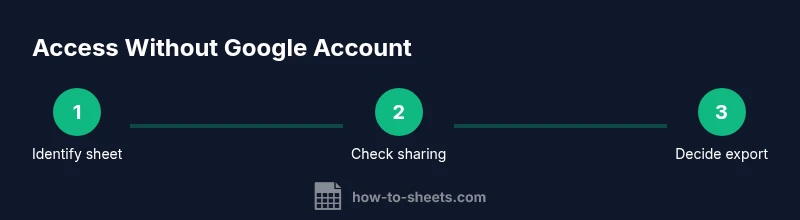
This section provides a practical, action-oriented checklist to determine what you can do without a Google account and how to plan around limitations. Start by identifying the sheet you need, confirm its sharing settings, and then decide whether you can view, export, or need to request access for editing. The steps below are designed to be followed quickly and iteratively to avoid bottlenecks in collaborative projects.
- Locate the sheet link and confirm its visibility settings.
- Test opening the link in an incognito window to see if sign-in prompts appear.
- If viewing is allowed, decide whether you need a local export for offline work.
- If editing is required, contact the owner to request access or to provide a data export.
- Document the access method you used and any file formats created for your records.
- When possible, validate data after importing into your chosen tool to ensure accuracy.
- If ongoing collaboration is needed, establish a regular export cadence and a centralized non-Google workflow.
Practical tips and warnings for working without a Google account
Getting work done without a Google account hinges on clear communication with the sheet owner and careful handling of exports. This block delivers practical tips and caveats to help you avoid common pitfalls, such as stale data after an export or loss of formatting when moving between tools. Remember that datasets may contain sensitive information; always respect privacy and permission boundaries when distributing copies.
- Pro tip: always ask for a publicly shareable export (CSV/Excel) to maintain data portability.
- Warning: avoid performing sensitive edits on data that will be re-uploaded or re-shared without access controls.
- Note: keep a changelog of any manual edits performed outside Sheets to maintain traceability.
Key considerations: security, privacy, and long-term access
Security and privacy are critical when sharing data without a Google account. This block highlights best practices like using non-sensitive test datasets for anonymous access, compartmentalizing shared data, and validating access permissions periodically. It’s important to document who has access, what level of access is granted, and how data is transferred between tools when a Google account is not involved. In short, plan for reliable handoffs and avoid exposing confidential information via public links.
- Protect sensitive data by limiting who can export or view.
- Revoke access when projects end or when data is no longer needed.
- Maintain a simple audit trail of data movement between tools for accountability.
Alternatives to Google Sheets that don’t require a Google account
If your team frequently works without Google accounts, consider using desktop or cloud-based alternatives designed for broad collaboration without Google login. This block lists viable options with their typical strengths and constraints. Each option has different levels of compatibility with Sheets data, so plan a data-mication strategy (i.e., how you will convert and re-import data) before starting.
- LibreOffice Calc / Apache OpenOffice Calc: offline-first editors that handle common Excel/CSV formats.
- Microsoft Excel (desktop): strong data features; requires a Microsoft account for online features, but many offline workflows work without one.
- Zoho Sheet or Airtable (as alternatives): offer browser-based editing with fewer Google account requirements.
- CSV/Excel ecosystems: use standard formats to move data between tools with minimal friction.
The goal is to maintain momentum while aligning with your organization’s access policies.
Final takeaway: choose the path that minimizes friction while preserving data integrity
Ultimately, the decision to work with or without a Google account depends on project needs, collaboration requirements, and data sensitivity. This concluding block helps you choose a practical path, balancing accessibility, security, and continuity. By understanding viewing permissions, export options, and compatible tools, you can maintain productivity even when a Google account isn’t available.
- Favor export-and-import workflows for cross-tool collaboration.
- Prefer secure public sharing only for non-sensitive data.
- Communicate access needs clearly with sheet owners to avoid delays.
- Always validate data after moving between tools to preserve integrity.
Tools & Materials
- Device with internet access(Desktop, laptop, or tablet with a modern browser)
- Web browser(Chrome, Firefox, Safari, or Edge; ensure cookies are enabled)
- Google account(Required for editing or creating Google Sheets)
- Alternative spreadsheet app (optional)(Examples: LibreOffice Calc, Microsoft Excel (desktop), or Zoho Sheet)
- Public sharing link (optional)(Only if the sheet is intended for view-only access without sign-in)
Steps
Estimated time: 45-90 minutes
- 1
Identify the sheet and its access goal
Locate the Google Sheet you need and determine whether you only need to view or also edit. Check the sharing settings if you have access to the sheet owner’s controls. If you only need data, consider exporting a copy for offline work.
Tip: Clarify whether you require ongoing edits or a one-time data pull. - 2
Test viewing without signing in
Open the link in an incognito window to see if the sheet prompts sign-in. If you can view content without login, note the version and any limitations on what you can do (copy, export, etc.).
Tip: Use incognito to avoid cached sign-in prompts that could mislead you about access. - 3
Decide on the export option
If editing isn’t possible without an account, request a public export (CSV/Excel) from the sheet owner or export what you can view for offline work.
Tip: Exported files should preserve headers and data types whenever possible. - 4
Import data into your preferred tool
Open the exported CSV/Excel in your chosen desktop or online editor and verify data integrity, formatting, and formulas after import.
Tip: Check for delimiter issues in CSV imports and adjust settings as needed. - 5
Plan for collaboration without sign-in
If ongoing collaboration is essential, coordinate with the sheet owner to establish a non-Google workflow (regular exports, shared folders, or alternative platforms).
Tip: Document agreed data intervals and update cycles to avoid drift. - 6
Secure the data after transfer
Ensure exported files don’t expose sensitive information and store them in a secure location with proper access controls.
Tip: Limit distribution to authorized teammates and monitor file permissions. - 7
Verify data integrity post-transfer
Cross-check totals, formulas, and data types after moving data between tools to confirm accuracy.
Tip: Run a quick sanity check on key fields like sums and date formats. - 8
Document the workflow
Create a short guide for teammates outlining how data moves between tools and where to find exports, in case someone else needs to follow the same process.
Tip: Keep this guide in a shared, accessible location.
FAQ
Can I create a Google Sheet without a Google account?
Generally not. Creating or editing Google Sheets requires signing in with a Google account. You can view a sheet if the owner has enabled public access, but editing and saving changes usually require authentication.
Usually, you need a Google account to create or edit sheets. Viewing can be possible without signing in if the owner makes the sheet public.
Is viewing a Google Sheet possible without sign-in?
Yes, if the sheet is shared with the link and set to 'Anyone with the link can view.' In that case you can read data and download copies, but you cannot edit directly in the sheet.
Viewing is possible without signing in if the owner allowed public view access via a shareable link.
What are the best workarounds if I must collaborate without a Google account?
Use exports (CSV/Excel) provided by the sheet owner, or switch to an alternative editor that supports your workflow. Then re-import data as needed. Coordinate with the owner to keep data consistent.
Export the data if possible, use another editor, then re-import and coordinate with the owner.
Are there privacy concerns when sharing sheets without accounts?
Sharing any data publicly raises privacy concerns. Only share non-sensitive data with public links, and restrict access to sensitive information using secure channels or controlled access.
Public sharing can expose data, so avoid sensitive info and coordinate access carefully.
What if I need ongoing updates but cannot sign in?
Create a documented workflow with the sheet owner for periodic exports or adopt a non-Google platform for collaboration that doesn’t require a Google account.
Coordinate with the owner for regular exports or use a different platform for ongoing updates.
Watch Video
The Essentials
- Verify sheet access before attempting edits
- Use public view links for read-only work only
- Export data when editing isn’t possible without a Google account
- Plan a cross-tool workflow for ongoing collaboration
- Prioritize data security when sharing exports