How to Access Google Sheets Without Logging In: A Practical Guide
Learn how to view Google Sheets without signing in, including when it’s possible, safety tips, and a step-by-step approach for public links and published sheets.


You can view Google Sheets without logging in if the owner has made the sheet public or published it to the web. This quick answer covers how login-free access works, common scenarios, and what you can and cannot do. Test accessibility in an incognito window to confirm login-free viewing, and review any permissions before interacting with data.
Understanding login-free access to Google Sheets
According to How To Sheets, the ability to view a Google Sheet without signing in depends entirely on how the owner configures sharing. If the sheet is published to the web or shared with 'Anyone with the link,' you can open it without an account. This means the sheet is accessible to the public, but not necessarily mutable unless edits are explicitly allowed. In practice, login-free access is most common for viewing data, public dashboards, or reference tables used in classrooms or small teams. As you explore, test the link in an incognito window or another browser where you are not signed in to verify the experience. The goal is to understand the boundaries between public viewing and restricted actions like commenting or editing, so you can plan your workflow accordingly. How To Sheets' guidance helps you navigate these settings safely for students, professionals, and small business owners.
Public sharing modes you should know
Public sharing in Google Sheets comes in several forms, and each has different implications for login-free access. The most straightforward is publishing the sheet to the web, which creates a stable URL that can be embedded in documents or shared widely. Another common approach is setting the share settings to 'Anyone with the link can view,' which does not require signing in but does permit anyone with the URL to see the data. Note the difference between view-only access and editing rights; login-free viewers are typically limited to viewing unless the owner explicitly grants edit permissions to anonymous users—an option rarely used due to security concerns. Additionally, some owners publish certain ranges or charts rather than the whole document, which can limit what login-free viewers see. As you explore these options, remember that the primary goal is to balance accessibility with data protection, especially when handling sensitive information in business contexts.
Privacy, security, and ethical considerations
Allowing login-free access can accelerate collaboration, but it also introduces risks. Publishing a sheet makes data exposed to anyone who finds the link, and even public view-only access can be copied, embedded, or scraped. Consider whether the data contains personal identifiers, financial information, or proprietary details before enabling login-free access. When in doubt, opt for restricted sharing or replace sensitive values with placeholders. The How To Sheets team recommends documenting who can view the sheet and periodically auditing access. If you plan to publish, provide clear labeling such as a header notice to orient readers about the content and its intended audience. Finally, avoid embedding login-free sheets in contexts where users might inadvertently disseminate the link to broader audiences. These practices help preserve privacy while still enabling broad visibility for non-sensitive data.
Practical scenarios and hands-on guidance
In educational settings, a teacher might publish a course roster or a set of public study questions to the web so students can access the information without signing in. For small teams, a dashboard summarizing project status can be shared with anyone who has the link, enabling quick checks without account friction. In a small business context, you might publish a quarterly KPI sheet for stakeholders who don’t use Google accounts. In all cases, confirm the exact sharing setting before distributing the link. If you are the sheet owner, prefer view-only sharing to avoid accidental edits, and consider embedding the published view in a company intranet or a learning portal. If collaboration is required, switch to a controlled sharing model where only specific individuals have editing rights, and keep sensitive fields off public sections. These practical scenarios highlight the balance between accessibility and responsibility when using login-free access.
Quick checks before you rely on login-free sheets
Before you rely on a login-free sheet for decision-making or distribution, perform a quick verification workflow:
- Open the link in an incognito window to confirm you don’t see a sign-in prompt.
- Check the sheet’s sharing settings with the owner or the publish-to-web status to confirm whether data is publicly viewable and whether edits are allowed.
- If you need up-to-date information, compare the sheet against a published version or a live data source to avoid stale data.
- Consider exporting the data for offline use if you require a local copy, and verify that the exported file doesn’t include any hidden or restricted data.
- Document any limitations in a brief notes section within the sheet so viewers understand what is and isn’t possible without login. These checks help ensure that login-free access remains reliable and appropriate for your use case.
Tools & Materials
- Web browser (Chrome/Firefox/Edge)(Ensure it’s up to date for the latest Google Sheets UI.)
- Internet connection(A stable connection improves loading and rendering of shared sheets.)
- Public link or published URL(Obtain from the sheet owner or publish the sheet to the web.)
- Incognito/private browsing window(Use to test login-free access without signed-in accounts.)
- Google account (optional for owners to publish to web)(Needed if you plan to publish or adjust sharing as the owner.)
Steps
Estimated time: 20-35 minutes
- 1
Find a login-free candidate
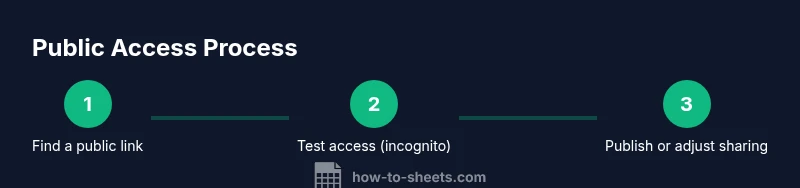
Start by locating a Google Sheet that is publicly available or published to the web. Look for a link from a reliable source, a legitimate instructor, or a team that explicitly states the sheet is public. If you don’t own the sheet, ensure you’re using a link that is intended for public viewing and not restricted to specific users.
Tip: Confirm the source before using the link to avoid phishing or misrepresented data. - 2
Test access in a private window
Open the link in an incognito or private browsing window to verify that you can view the sheet without signing in. If you’re prompted to log in, the sheet isn’t login-free in its current state.
Tip: If you see a sign-in prompt, don’t rely on that link for login-free access. - 3
Check the sharing status
If you own the sheet, review sharing settings: choose either 'Anyone with the link can view' or publish to the web. These options determine whether users outside your organization can access the content without signing in.
Tip: Prefer view-only sharing to minimize accidental edits. - 4
Publish to the web (owner only)
If you need to enable login-free access for a broader audience, publish the sheet to the web or adjust the share settings so that anonymous viewers can access it. Choose the scope (entire document vs. specific sheets) and the output format (Web page or CSV).
Tip: Publishing to the web creates a stable URL that is easy to share across documents and portals. - 5
Evaluate data interactivity
Understand what login-free viewers can do: most will have view-only access, with commenting or editing typically restricted unless explicit permissions are granted. If you require collaboration, set up controlled sharing with specific people.
Tip: Limit interactive features to trusted viewers to protect data integrity. - 6
Export if needed for offline use
If you need offline access, export the data as CSV or Excel from the login-free sheet if permitted. This gives you a local copy while preserving public visibility for ongoing viewers.
Tip: Check exported file for sensitive fields and redact as necessary.
FAQ
Can anyone view a Google Sheet without signing in?
Yes, if the sheet is published to the web or shared with Anyone with the link and set to view only. If the owner restricts access, sign-in will be required.
Yes. If the sheet is published or shared with Anyone with the link set to view, anyone can view without signing in.
What are the limitations of login-free access?
Login-free access is usually view-only. Interactivity like commenting or editing requires appropriate permissions and sign-in. Published sheets may not reflect real-time data changes in all configurations.
Most login-free access is view-only; editing needs sign-in and proper permissions.
How do I publish a Google Sheet to be accessible without login?
As the owner, you can choose File > Publish to the web and select the entire document or specific sheets. You’ll get a URL that doesn’t require sign-in for viewing.
Owners can publish to the web to create a login-free viewing URL.
Is login-free access secure for business data?
Login-free access can expose data to unintended audiences. Use it sparingly for non-sensitive information and prefer restricted sharing for confidential data.
It carries privacy risks; be cautious with sensitive data.
Can I export a login-free sheet for offline work?
Yes, if the owner allows it or if the sheet is published in a format that supports exporting. Download options include CSV or Excel, depending on the sheet’s configuration.
Yes, you can export content for offline use if permitted by the owner.
What should I do if I need edits but login-free access isn’t allowed?
You can request the sheet owner to grant view or edit access to specific people, or provide a copy of the data with appropriate permissions.
Ask the owner to grant access or share a copy with edit rights.
Watch Video
The Essentials
- Learn how login-free access works and when it’s appropriate
- Know the difference between published-to-web and link-based view access
- Test links in private mode to verify login-free behavior
- Avoid storing sensitive data in public sheets
- Use exporting as a safe way to work offline when needed