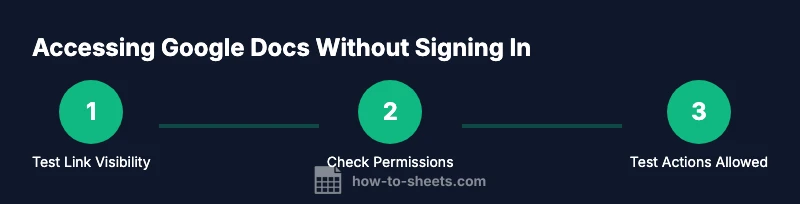
Google Docs Without Signing In: A Practical How-To Guide
Learn how to access Google Docs without signing in, when it’s possible, and how to share and test access safely with practical steps from How To Sheets.


Goal: determine when you can view or edit Google Docs without signing in. You can access documents without a login only if the owner set the link to 'anyone with the link can view' or similar public sharing. This quick answer covers when login is optional, how to verify share settings, and the practical limits you’ll encounter.
Understanding When Sign-In Is Optional
In many everyday tasks, you might want to access content in google docs without signing in. The possibility depends entirely on how the document owner configures sharing. If a doc is posted with a link that grants 'view' by anyone, you can open it in a compatible browser without signing into a Google account. However, if the owner restricts the link to specific Google accounts or requires viewers to sign in, you will be prompted to sign in to continue. For students, professionals, and small business owners, this distinction matters for urgent collaboration or quick reference. Always start by asking the owner to confirm whether the doc is public or restricted, and remember that permissions can change at any time. This guide will help you recognize when google docs without signing in is possible and how to test access safely.
How Sharing Settings Determine Access
The ability to access google docs without signing in hinges on two core concepts: the document’s general sharing settings and the specific permissions granted to those settings. Owners can choose between "Restricted" and "Anyone with the link" states. The former means only invited users can access, often requiring sign-in. The latter can allow anonymous viewing, comments, or edits depending on the chosen permission level. Before expecting access without signing in, review whether the link is published publicly (view-only) or if it requires login for higher levels of interaction. For teams, use clearly documented sharing policies to avoid accidental data exposure. Throughout this guide, you’ll see how these settings translate into concrete actions when google docs without signing in is possible.
Practical Scenarios: Viewing, Commenting, and Editing Without Sign-In
Many users encounter situations where they only need to view or annotate a document without signing in. In this scenario, a publicly shared link set to 'Anyone with the link can view' makes sign-in optional for viewing. If the owner allows comments but not edits, you can leave feedback via the comments panel without a Google account, depending on the document’s configuration. Editing usually requires an account with explicit permission. When you don’t have sign-in access, avoid attempting to impersonate a user or bypass security; instead, ask the owner for a controlled share link or direct permission. This section helps you understand the practical boundaries of access without signing in and how to request appropriate access when needed.
Security, Privacy, and Best Practices
Even when google docs without signing in is technically possible, you should protect privacy and sensitive data. Use publicly shared links sparingly and prefer links that expire or require authentication for higher-risk documents. If you must test access, do so on a device you control and avoid saving credentials in shared environments. Communicate clearly with the document owner about the scope of access you're requesting, and always respect the owner’s intended privacy settings. By following these practices, you maintain security while benefiting from accessible information.
Troubleshooting Common Access Issues
If you encounter a sign-in prompt unexpectedly, first confirm the document’s sharing settings with the owner. If the link no longer works or shows "Document not found," it may have been removed or restricted. Try opening the link in a fresh browser or an incognito window to ensure you’re testing with a clean sign-in state. If you’re blocked despite supposed public access, request access from the owner and provide a brief justification for why you need it. Remember that permissions can change, so re-checking the current sharing configuration is a good habit.
Alternatives When Sign-In Is Necessary
When strict access controls are in place, sign-in is often unavoidable for editing, saving comments, or accessing confidential documents. In those cases, consider requesting a temporary guest access or using a copy of the document with the minimum required permissions. If you frequently collaborate, establish a standard workflow: shared view links for anyone reading, and invited users for editing or sensitive content. This approach keeps collaboration efficient while maintaining control over who can access what.
Tools & Materials
- Web browser (Chrome, Firefox, Edge, or Safari)(Test access with and without login in incognito mode)
- Active internet connection(Stable connection recommended)
- Public share link to a Google Doc(Document settings must allow public access)
- Optional: Google account login(Needed to view or edit private docs)
- Note-taking app (optional)(For recording findings)
Steps
Estimated time: 5-15 minutes
- 1
Open the shared link
Click or paste the publicly shared link into a browser to begin the access test. Do not assume access state until the page fully loads.
Tip: If the page loads slowly, refresh once and try a different browser. - 2
Check the sharing settings
On the document, click the Share button to view current permissions. Look for 'Anyone with the link can view/comment/edit' and note the exact option chosen.
Tip: If you don’t see these options, the owner may have restricted access. - 3
Test access in incognito
Open the link in an incognito/private window to simulate access without any existing sign-in state.
Tip: Incognito ensures you’re testing without an active Google session. - 4
Try available actions
If you can view, attempt to leave a comment or edit, depending on permissions. If edits are blocked, you’ll know the limit.
Tip: Commenting may be allowed even when editing is disabled. - 5
Request access when needed
If access is restricted, use the 'Request access' button and provide a clear reason for the request.
Tip: Include your purpose and how you’ll use the document.
FAQ
Can I view Google Docs without signing in?
Viewing is possible without signing in if the document is shared publicly or via a link that grants view access to anyone. If the link requires login, you’ll be prompted to sign in before you can view.
Yes, you can view if the owner makes the link public; otherwise you’ll need to sign in.
Can I comment on a Google Doc without signing in?
Commenting without signing in depends on the document’s permissions. Some docs allow comments from anyone with the link, others require a Google account. If not allowed, you’ll need to sign in or request access.
Commenting may be allowed if the owner grants comment permissions publicly.
Can I edit a Google Doc without signing in?
Editing generally requires explicit permission and the owner's approval. In most cases, signing in with a Google account is necessary to edit, even if you can view the document.
Editing usually requires login or explicit permission from the owner.
What does 'Anyone with the link can view' mean for privacy?
It means anyone who has the link can view the document without signing in. This setting does not inherently grant access to edit or comment unless those options are explicitly enabled.
Public view means no sign-in needed, but edits or comments depend on permissions.
What should I do if I can't access a public document?
First verify the link is the correct one and check the owner’s sharing settings. If access remains blocked, request access from the owner and provide context for your need.
If blocked, ask the owner for access or an alternative link.
Do I need a Google account to view a publicly shared doc?
Not always. Some documents are viewable without signing in, while others require a Google account due to stricter sharing controls. Always test with the intended link.
Usually not required, but it depends on the owner’s settings.
Watch Video
The Essentials
- Verify sharing settings before assuming access without signing in.
- Public links can vary in permissions; always check exact access levels.
- Test in incognito to confirm login state requirements.
- Request access if public access is not available for your needs.
- Respect privacy and avoid exposing sensitive data via public links.