Best Way to Organize Google Sheets
Learn the best way to organize Google Sheets with a scalable structure, naming conventions, data governance, and templates. A step-by-step approach for students, professionals, and small teams to improve accuracy and collaboration.


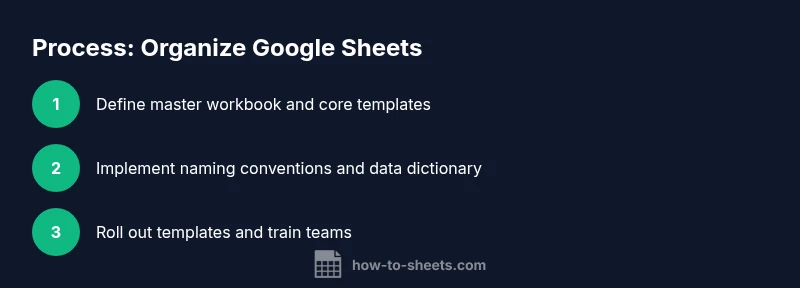
Goal: achieve a scalable, consistently organized Google Sheets workspace. The best way to organize google sheets is to create a central workbook with named sheets, reuse templates, enforce naming conventions, and apply data governance (validation, protection, and documentation). By following a repeatable process, you’ll reduce errors, save time, and make collaboration smoother across students, professionals, and small teams.
The problem with messy sheets
Messy Google Sheets waste time, invite errors, and slow collaboration. When data is scattered across files, inconsistent column orders, duplicate rows, and ad-hoc templates create friction for students, professionals, and small teams. A clear, scalable approach starts with a minimal but robust structure: a central workbook, standardized templates, and governance rules that guide every new sheet. How To Sheets Analysis, 2026, shows that teams enforcing naming conventions and data governance report faster onboarding and fewer version conflicts. The following sections explain how to implement a repeatable framework that scales from a simple personal budget to a cross-team project tracker.
Core architecture: workbook, sheets, and templates
Organize your Sheets with three layers: a master workbook, modular sheets, and a template library. The master workbook acts as the source of truth: it contains standardized templates, a data dictionary, and governance rules. Individual projects pull from the library, preserving consistency. Templates should include blank headers, data validation rules, and named ranges. Place the master workbook and templates in a shared drive or folder so every contributor uses the same baseline. This separation avoids duplicated work and keeps historical data clean. Building once and reusing often reduces setup time and errors across new projects.
Naming conventions that scale
A predictable naming system makes it easy to locate, audit, and reuse sheets. Use a consistent pattern for files (for example PROJECTNAME_DATE), sheets (for example 01_Dashboard, 02_Data_Inputs, 03_Calculations), and named ranges (for example customers_list, status_codes). Enforce kebab-case or snake_case, avoid spaces, and document the scheme in a central reference. Include versioning in filenames when applicable (v1, v2). This reduces confusion when sharing files and accelerates automation and data validation across multiple collaborators. The result is a scalable archive you can navigate in seconds.
Folder and access management
To maintain security and organization, centralize storage and set clear access rules. Create a dedicated folder for the master workbook, templates, and linked projects. Use view and edit permissions appropriate to each role; limit sharing to trusted teammates; and enable comment-only access when reviewing. Maintain an access log or audit trail so you can see who made changes and when. These practices protect data integrity while keeping collaboration efficient.
Data validation, consistency, and governance
Implement data rules at the sheet level: drop-down lists, required fields, and protected ranges to prevent accidental edits. Maintain a data dictionary that defines each field, allowed values, and data types. Use named ranges to improve readability in formulas and to make updates easier. Establish a lightweight change-control process so any modification to the master templates is recorded and reviewed. This governance layer reduces errors and makes onboarding new team members smoother. How To Sheets analysis underscores that governance improves onboarding efficiency and data trust.
Building a reusable template library
Create a starter set of templates for common scenarios: dashboards, data entry sheets, data cleaning, and outputs. Each template should include headers, sample rows, validation, and a short README explaining purpose and usage. Teach contributors to clone templates instead of editing the originals. Periodically review templates for relevance and retire outdated ones. A well-maintained library saves hours across projects and ensures consistent outputs.
Tips for sorting and organizing data with formulas
Leverage built-in functions to keep data tidy and easy to analyze. Use SORT and FILTER to present views without duplicating data. Apply UNIQUE to remove duplicates in lists; wrap with IFERROR to handle missing values gracefully. Use conditional formatting to highlight anomalies, and document formula logic in a separate sheet. These practices keep data clean, reduce manual rework, and help new teammates understand the model quickly.
Practical example: organizing a project tracker
Imagine a multi-team project tracker used by a small organization. The master workbook contains four core sheets: Dashboard, Data_Inputs, Calculations, and Outputs. A project team clones the templates for their project, fills in inputs, and relies on the library's data dictionary for consistency. Status updates feed into the dashboard through controlled data connections. This end-to-end example shows how a disciplined structure scales from one project to many while keeping reporting consistent and reliable.
Automation and maintenance routines
Set up periodic reviews of templates and data dictionaries. Schedule monthly checks to verify that data validation, protections, and naming conventions are intact. Consider lightweight automation, such as a simple Apps Script or built-in triggers, to remind owners of pending changes. Maintain a changelog documenting edits to templates, and use versioned filenames for major updates. Regular maintenance prevents drift and preserves long-term organization.
Common mistakes and how to avoid them
Common pitfalls include duplicating templates, ignoring data governance, and allowing ad-hoc edits that break consistency. Avoid over-architecting; start with a minimal core and expand as needed. Document decisions and provide onboarding notes for new collaborators. Finally, resist the urge to keep dozens of undocumented templates; a small, well-maintained library beats a large, chaotic collection every time.
Tools & Materials
- Google account with Google Sheets access(Ensure you have access to Google Drive for central workbooks.)
- Central master workbook in a shared drive(One source of truth used by all projects.)
- Template library Google Sheets(Base templates for data entry, dashboards, and outputs.)
- Data dictionary / schema document(Defines fields, types, and allowed values.)
- Naming convention document(Live reference for team usage and onboarding.)
- Access guidelines & audit log(Tracks who edits what and when.)
Steps
Estimated time: 90-120 minutes
- 1
Define scope and create the master workbook
Decide the scope of the organization project and set up a clean master workbook. Establish core sheets (Dashboard, Data Inputs, Calculations, Outputs) and configure initial governance rules. Lock core sheets to prevent accidental edits and define who can modify templates.
Tip: Lock critical sheets and assign edit rights to template owners only. - 2
Create a template library and initial templates
Build a small set of templates that cover common tasks (data entry, dashboard, and basic calculations). Include headers, validation, and a README with usage notes. Clone templates for new projects instead of editing originals.
Tip: Prefix templates (e.g., T-Dashboard, T-Inputs) for quick recognition. - 3
Establish naming conventions
Define consistent file, sheet, and range naming rules. Use formats like PROJECTNAME_DATE and 01_SheetName. Document the scheme in a centralized reference and enforce it across all projects.
Tip: Include versioning in filenames (v1, v2) to track changes. - 4
Set up data governance rules
Create a data dictionary, standard data types, and validation rules. Use protected ranges for critical fields and named ranges to simplify formula maintenance. Create a change-control process for template updates.
Tip: Use IFERROR with clean error messages to guide users. - 5
Build core sheets
Create Dashboard, Data Inputs, Calculations, and Outputs templates. Ensure each sheet has clear headers, validation, and links back to the data dictionary. Use named ranges to improve readability.
Tip: Document the purpose of each sheet in a single reference sheet. - 6
Populate sample data and test
Fill in representative data in a test project to validate the workflow. Check that dashboards update correctly and that calculations reflect inputs. Verify that data validation prevents invalid entries.
Tip: Test edge cases (empty fields, unexpected data) to ensure resilience. - 7
Document usage and train contributors
Create onboarding notes and a quick-start guide for new collaborators. Explain how to clone templates, where to store data, and how to report issues. Offer a brief training session if possible.
Tip: Keep the documentation lightweight but clear; avoid information overload. - 8
Create a maintenance schedule
Set recurring checks (monthly or quarterly) to review templates, dictionary accuracy, and naming conventions. Adjust templates as processes evolve to prevent drift.
Tip: Automate reminders for maintenance checks when possible. - 9
Roll out and monitor
Distribute the master workbook and templates to teams. Monitor usage, collect feedback, and iterate on the structure. Ensure version control is in place for major updates.
Tip: Encourage teams to document deviations from the standard to inform improvements.
FAQ
What is the best way to organize google sheets?
A practical approach combines a central master workbook, a reusable template library, standardized naming, and data governance. This structure reduces errors, speeds onboarding, and makes collaboration smoother across teams.
A practical approach combines a central master workbook, a template library, and naming conventions to keep data clean and collaboration smooth.
How do you structure a master workbook?
Create core sheets (Dashboard, Data Inputs, Calculations, Outputs), link them to a data dictionary, and store the master workbook in a shared drive. Protect critical sheets and use templates to enforce consistency.
Create core sheets, link to a data dictionary, store in a shared drive, protect critical sheets, and use templates.
Templates or copies for new projects?
Always clone from templates rather than duplicating ad-hoc workbooks. Templates ensure consistent structure, validation, and documentation across projects.
Clone from templates to ensure consistency across projects.
How can data validation improve organization?
Data validation enforces correct data entry, reducing errors. Pair it with a data dictionary and named ranges to keep formulas readable and updates predictable.
Validation prevents bad data and, with a data dictionary, keeps formulas reliable.
How do I maintain consistency when collaborating?
Use a single source of truth, defined naming rules, and controlled access. Regular onboarding and maintenance checks help teams stay aligned.
Stick to the master templates and governance rules, with regular check-ins.
Is automation necessary for organization?
Automation is not mandatory but highly beneficial for reminders, checks, and standard updates. Start with simple triggers or Apps Script to reduce manual drift.
Automation helps prevent drift; start with simple reminders and rules.
Watch Video
The Essentials
- Define a master structure before adding projects
- Enforce naming conventions for scalability
- Guard data quality with validation and governance
- Document decisions and educate collaborators
- Maintain a lean, well-documented template library