Google Sheets Chip vs Link — A Practical Comparison
A data-driven comparison of smart chips vs hyperlinks in Google Sheets, outlining when to use each, how to implement, and the trade-offs for collaboration and data integrity.


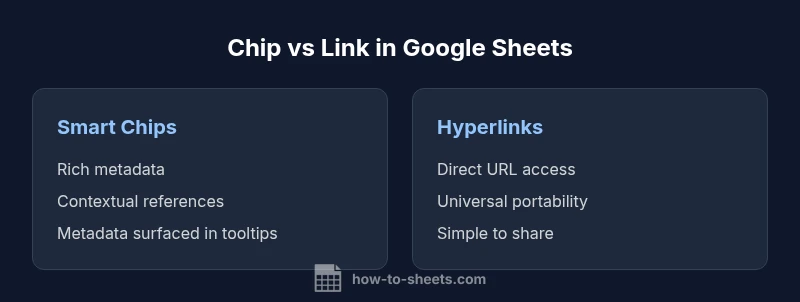
TL;DR: In Google Sheets, smart chips (chips) offer contextual references to people or files, while hyperlinks (links) provide direct URL access. Chips improve collaboration by embedding metadata, but hyperlinks deliver universal portability and simpler sharing. Choose chips for data-rich contexts and collaboration, and links for straightforward references or cross-platform compatibility. When in doubt, use both in a hybrid approach.
google sheets chip vs link: What they are and why they matter
In the world of Google Sheets, two features commonly interact with data presentation and team collaboration: smart chips (often called chips) and hyperlinks (links). The phrase google sheets chip vs link captures a central decision point for data provenance and user experience. In 2026, as remote teams rely on shared spreadsheets, understanding the differences between chips and links is essential for data integrity and productive collaboration. According to How To Sheets, chips embed metadata about a referenced entity (such as a person or file), while links point to a web URL that resolves independently of the spreadsheet. This distinction affects everything from data entry workflows to how you audit a sheet history. In this article, we compare these options in depth, with practical steps, examples, and a decision framework you can apply in real projects.
Key terms to keep in mind include smart chips, data provenance, metadata, hyperlinks, and data governance. As you read, consider how each option handles updates, permissions, and sharing across team members. The goal is to equip you with a framework to decide when a chip makes sense in google sheets chip vs link scenarios and when a simple hyperlink is more appropriate for portable references.
When to use chips vs links: guiding principles
The choice between chips and links often comes down to context, audience, and the desired level of metadata. If your workflow hinges on context-rich references—owner, file type, department, or a person’s contact information—a chip provides a compact, readable anchor with built-in metadata that travels with the cell. For projects that require universal accessibility and easy cross-application sharing, a hyperlink remains the simplest, most portable mechanism. In a practical sense, many teams blend both: chips in cells where context matters, and links in dashboards or exports where a neutral reference is preferred. This google sheets chip vs link decision is not about one being universally better; it’s about choosing the right tool for the job while keeping future maintenance in mind.
Data provenance and metadata implications
Chips excel at enriching data with metadata. When you insert a smart chip for a person, a file, or another Google asset, the cell carries structured information that can be surfaced in tooltips or side panels. This metadata supports better auditing, searchability, and onboarding for new collaborators. Hyperlinks, by contrast, are lean by design: they store a URL and optional display text. If the linked resource changes location or exits, the link can break or point to a different destination. In workloads where traceability matters—who referenced what, when a file was updated—chips offer a meaningful advantage in google sheets chip vs link debates and should be evaluated for governance requirements.
Insertion workflows and editing habits
Inserting a chip usually requires selecting Insert > Smart chips and choosing a type (person, file, or date, depending on context). The chip renders inline, with metadata accessible on hover or via a side panel. Hyperlinks are inserted with Insert > Link or Ctrl/Cmd K, and they display as clickable URLs or friendly display text. While chips lock in contextual data, links rely on the stability of the destination URL. Consider your audience: teams that frequently navigate back to the same assets benefit from chips, whereas teams sharing spreadsheets across apps may prefer hyperlinks for their simplicity and interoperability.
Formulas and data referencing: what changes in practice
Formulas can reference cells containing chips just like any other cell, but extracting or listing the embedded metadata requires additional steps or scripts. Hyperlinks, when used in formulas, behave like typical text or URL values and can be parsed via functions like HYPERLINK or REGEXEXTRACT in clever ways. In the google sheets chip vs link context, chips can deliver richer data when you pull in metadata in tooltips or scripts, while links excel at straightforward URL-based lookups. If you rely on automated reporting, weigh how often you need metadata-driven outputs versus simple URL-based results.
Step-by-step: implementing chips in a real workbook
- Place the cursor in the target cell. 2) Go to Insert > Smart chips. 3) Choose the chip type (Person, File, or other available asset types). 4) Select or search for the item, then insert. 5) Verify that the chip shows metadata on hover and that any dependent cells update correctly. If you’re a power user, enable chips to surface in comments or notes for easy discovery. The google sheets chip vs link workflow here emphasizes maintaining data context without sacrificing readability.
Step-by-step: implementing hyperlinks
- Select a cell and press Ctrl/Cmd K or choose Insert > Link. 2) Enter the URL and optionally a display text. 3) Save, then test the link by clicking it in preview mode. 4) Consider adding a column of descriptive link text to improve accessibility and clarity. For cross-project sharing, hyperlinks remain a straightforward option that doesn’t require asset-specific permissions to render in basic viewers.
Collaboration and governance: balancing access and visibility
Chips expose metadata that can reveal sensitive information about individuals or assets. Apply governance controls to limit chip visibility in shared sheets, especially when assets have restricted access. Hyperlinks, while simpler, pose different risks: broken links or access-denied pages can frustrate teammates. A robust policy often prescribes chips for internal collaboration and links for external sharing, with periodic audits to ensure metadata remains accurate and links remain valid. The google sheets chip vs link decision thus intersects with data privacy, asset governance, and onboarding efficiency.
Performance, compatibility, and cross-platform considerations
Both chips and links have performance implications. Chips can add rendering overhead in large sheets and across many cells with metadata. Hyperlinks are lightweight but may introduce breaks if external resources change or become unavailable. In cross-platform contexts, chips generally render best within Google Workspace apps; some third-party tools may not display chips identically, whereas hyperlinks tend to be more universally supported. When planning a large workbook, test both approaches in your typical environment to gauge impact on load times and readability.
Hybrid patterns: when to combine chips and links
A common winning pattern is a hybrid approach: use chips where context matters and links for portability. For instance, a project dashboard might show chips in the team roster column (to surface roles, contact links, or assigned files) and provide hyperlinks in a separate Resources column for external documents. This pattern keeps data context strong where it matters while preserving cross-application accessibility for broader teams. In the google sheets chip vs link decision, a blended strategy often delivers the best balance of clarity and resilience.
Comparison
| Feature | Smart Chips | Hyperlinks |
|---|---|---|
| Insertion flow | One-click via Insert > Smart chips | Ctrl+K or Insert > Link |
| Data retention and changes | Reflects changes to linked assets automatically (metadata updates) | Remains static unless the URL changes |
| Metadata and context | Rich in-cell metadata (entity type, owner, file details) | No built-in metadata beyond the URL or display text |
| Collaboration impact | Enhances context for teammates with embedded data | Offers universal, straightforward references for sharing |
| Compatibility and persistence | Best with Google assets and internal workflows | Generally portable across apps but can break if URLs relocate |
The Good
- Enhances readability by embedding context directly in cells
- Improves data provenance and auditability with metadata
- Fosters better collaboration within teams that use Google assets
- Links provide universal accessibility and simplicity when sharing externally
- Chips can surface metadata in tooltips or side panels for quick reference
The Bad
- Chips add a learning curve and can feel heavier to insert
- Chips rely on asset availability; some chips may require permissions
- Hyperlinks can break if the destination URL changes or expires
- Not all third-party tools render chips consistently across platforms
Chips are generally preferable for collaboration and data context; hyperlinks excel in portability and simplicity.
Use chips when contextual metadata improves workflow and auditing. Use hyperlinks when you need reliable, cross-platform access. A hybrid approach often delivers the best of both worlds, depending on audience and asset governance.
FAQ
What is a smart chip in Google Sheets?
A smart chip is an interactive in-cell element that embeds metadata about an entity, such as a person or a file. Chips provide contextual information and can surface details without leaving the sheet. They improve data provenance and collaboration by making references richer and more navigable.
A smart chip is an in-cell element that adds context by attaching metadata to people or files, helping teammates see more information without leaving the sheet.
How do you insert a smart chip in Google Sheets?
Place the cursor in a target cell, choose Insert > Smart chips, and select the type of chip (person, file, etc.). The chip appears inline with metadata accessible on hover. Save and confirm that dependent references update as needed.
Click Insert, choose Smart chips, pick the type, and insert. The chip shows metadata when you hover over it.
Can chips be used in formulas or exported data?
Chips can participate in formulas like any other cell, but extracting their metadata for reporting may require extra steps or scripting. Hyperlinks behave as standard URLs and are easier to parse in basic formulas.
Chips work in formulas, but metadata extraction might need extra steps; links are easier to handle in simple calculations.
Are chips available in Google Docs or Slides?
Smart chips are primarily a Sheets feature, with limited cross-application support. Hyperlinks, however, tend to work consistently across Google Docs, Sheets, and Slides.
Chips are mainly for Sheets; hyperlinks work the same across Docs, Sheets, and Slides.
How do hyperlinks interact with chips in a shared sheet?
Hyperlinks provide portable references alongside chips that offer context. In shared sheets, use chips for in-depth metadata and links for external resources to avoid dependency issues and maintain accessibility.
Use chips for metadata and links for external references in shared sheets.
What’s the best practice to migrate from links to chips?
Start by identifying high-value references that benefit from metadata, then replace those links with chips in a staged rollout. Maintain a fallback list of critical links for external resources that must remain portable.
Plan a staged rollout, replacing valuable links with chips while keeping essential external links accessible.
The Essentials
- Assess use-case first: chips for context, links for portability
- Prefer chips to enhance data provenance in collaborative sheets
- Guard sensitive chip metadata with governance controls
- Test rendering and-link reliability across devices and apps
- Adopt a hybrid strategy for best overall outcome