Importrange vs Query in Google Sheets: A Practical Guide
A rigorous, practical comparison of IMPORTRANGE and QUERY in Google Sheets, focusing on when to import across files, how to filter and transform data, performance considerations, and best practices for reliable dashboards.


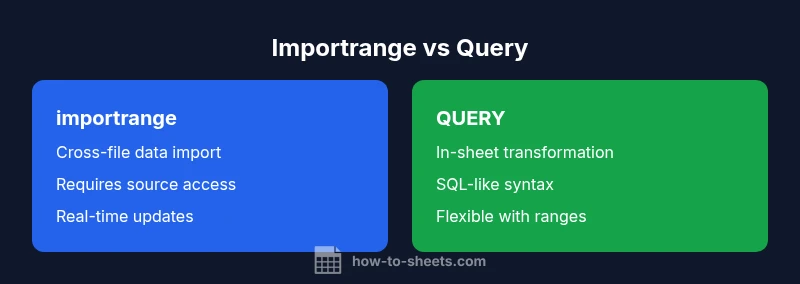
google sheets importrange vs query: According to How To Sheets, IMPORTRANGE pulls data from another spreadsheet while QUERY reshapes and filters data within the sheet. For many workflows, combining IMPORTRANGE with QUERY offers a powerful pattern: import the data from a source file and apply SQL-like filtering and aggregation in one step. This guide compares their strengths, limitations, and best use cases.
What this comparison covers
The central question behind this guide is when to use IMPORTRANGE versus when to rely on QUERY to shape data inside Google Sheets. IMPORTRANGE is designed to bring in data from a separate spreadsheet, preserving links to the source and updating when that source changes. QUERY, by contrast, operates on data that already exists in your current sheet, enabling SQL-like filtering, aggregation, and transformation without leaving the sheet. The two functions are often combined to create lightweight data pipelines: you import a dataset from another file and then apply a series of filters, sorts, and calculations to present a focused view. This section clarifies typical workloads, limitations, error modes, and performance considerations you’ll encounter. By keeping a clear distinction between cross-file access and in-workspace data processing, you can choose the right tool for the task and avoid common misconfigurations that slow dashboards and reports.
How IMPORTRANGE works in practice
IMPORTRANGE requires two arguments: the URL (or key) of the source spreadsheet and a range string indicating what to import, for example 'Sheet1!A1:D100'. When you first reference a new spreadsheet, Google Sheets prompts you to grant permission; without that authorization, the formula returns #REF!. Once access is granted, Sheets pulls data in real-time, but the import is subject to cross-file latency and recalculation limits. A common pattern is to import a static range to avoid excessive requests, or to pull a dynamic range using a named range in the source file. From a reliability perspective, you should be mindful of the possibility that the source file is moved, renamed, or restricted, which would break the link. If you’re sharing the sheet widely, consider restricting direct cross-file references or using a middleman sheet to manage access.
How QUERY works and when to use it
QUERY is a flexible data-processing tool built into Google Sheets. It accepts a range (or an array) and a SQL-like query string to perform selections, filters, sorting, aggregation, and grouping. This makes it ideal for transforming data within a single sheet or a combined range that includes imported data. Use QUERY when your goal is to present a refined dataset, compute aggregates, or perform multi-condition filtering without altering the source files. Keep in mind that QUERY assumes well-structured headers and data types; mislabeling columns can lead to confusing results. When data formats are inconsistent, you may need to normalize first or employ safer query patterns.
Core differences at a glance
- Data source: IMPORTRANGE pulls from another spreadsheet; QUERY operates on data already in the current sheet or an imported array.
- Transformation scope: IMPORTRANGE brings raw data; QUERY reshapes it (filters, sorts, groups) after import or on a local range.
- Update behavior: IMPORTRANGE refreshes when the source changes; QUERY refreshes as part of the sheet calculation.
- Error modes: IMPORTRANGE can fail if source access is denied or the range is invalid; QUERY can fail on malformed queries or mismatched headers.
- Complexity and readability: IMPORTRANGE is straightforward for cross-file access; combining with QUERY creates powerful, compact data pipelines but adds a layer of complexity.
When IMPORTRANGE shines
IMPORTRANGE shines when your workflow requires cross-file data access without duplicating sources or when multiple users rely on a single source file. For example, dashboards that pull daily metrics from a central spreadsheet benefit from IMPORTRANGE because you maintain a single source of truth. It’s also valuable when you want to automate data imports from external teams who maintain separate sheets. In addition, IMPORTRANGE can simplify access control: you grant a single permission to the source file, and the import consumes that data wherever needed. The approach pairs well with lightweight filtering done downstream via QUERY or standard sheet filters.
When to use QUERY for data processing
QUERY excels when you need to transform locally-held data or a combined array from multiple sources. It enables sophisticated filtering, aggregation, and grouping with a familiar SQL-like syntax. QUERY makes it easy to derive insights such as top customers, trend lines, or cohort analyses from a single dataset, and it scales well as you add calculated columns. When imported data is already in your sheet, QUERY can often replace multiple helper columns and manual filtering steps with a single, readable expression. Complexity increases with nested queries or dynamic ranges, so plan for maintainability.
Practical examples: side-by-side formulas
- Import-only example:
=IMPORTRANGE("https://docs.google.com/spreadsheets/d/ABC123","Sheet1!A1:E200")— brings in data from another file. - Filtered data using QUERY on imported data:
=QUERY(IMPORTRANGE("https://docs.google.com/spreadsheets/d/ABC123","Sheet1!A1:E200"), "select Col1, Col3, Col5 where Col2 > 100", 1)— combines import with on-the-fly filtering. - Pure in-sheet QUERY:
=QUERY(A1:E200, "select A, B, sum(E) where D contains 'Active' group by A, B label sum(E) 'Total'", 1)— processes data already in the sheet. - Hybrid pattern: import a range with a header row and then apply a second QUERY to refine results, e.g.,
=QUERY(IMPORTRANGE("https://docs.google.com/spreadsheets/d/ABC123","Sheet1!A1:E200"), "select Col1, sum(Col5) where Col4 = 'Yes' group by Col1", 1).
Common pitfalls and troubleshooting
- Permission prompts: The first use of IMPORTRANGE often requires user authorization; if multiple users report #REF!, ask them to authorize access to the source file.
- Mismatched headers: Ensure the headers parameter in QUERY aligns with the actual data range; misalignment can cause incorrect column references.
- Range volatility: Narrow the imported range to what you actually need to minimize recalculation, and avoid referencing entire columns when not necessary.
- Cross-file changes: If the source spreadsheet is renamed, moved, or permissioned differently, links can break; monitor source stability and maintain a backup data flow.
- Performance considerations: Both functions incur network latency; pairing with smaller ranges or caching results with helper sheets can improve responsiveness.
Best practices for performance and reliability
- Limit the imported range to only what you need, and consider naming a stable range in the source file for consistent references.
- Use IFERROR around formulas to handle intermittent availability and keep dashboards stable.
- Favor QUERY over multiple FILTER/SORT steps when you can consolidate operations into a single expression for readability and efficiency.
- Document your data dependencies (which source URLs, which sheet names, and which queries) so team members understand the pipeline.
- Combine IMPORTRANGE with QUERY in a single cell when possible to reduce intermediate steps and simplify maintenance.
Practical decision framework and next steps
- Define the data source: Do you need cross-file access (IMPORTRANGE) or on-sheet processing (QUERY)? 2) List the filters you need: simple vs complex. 3) Test both approaches on a subset of data to measure latency and accuracy. 4) Document the chosen approach and create a plan for updating permissions and ranges as your workbook evolves. 5) Review periodically to ensure you’re still using the most efficient pattern for your dashboards and reports.
Comparison
| Feature | importrange | QUERY |
|---|---|---|
| Syntax | =IMPORTRANGE(url, range) | =QUERY(range, 'query', headers) |
| Data scope | Imports data from another spreadsheet | Operates on an in-sheet range or imported array |
| Transformation | Minimal transformation at import | Extensive filtering, grouping, and calculations |
| Updates | Real-time with source changes (subject to permissions) | Recalculates with sheet changes or data updates |
| Error handling | #REF! if permission denied or bad range | #ERROR or wrong results if query or headers are misconfigured |
| Best use case | Cross-file dashboards, centralized data | On-sheet analysis and complex filtering |
The Good
- Enables cross-file data access without duplicating files
- Simple for basic imports and dashboards
- Combines with QUERY to form powerful pipelines
- Keeps source data centralized for governance
The Bad
- Requires source access permissions, which can fail for some users
- Can introduce latency due to cross-file fetching
- Mixing two functions increases formula complexity
- Not ideal for extremely large or volatile datasets
Combine IMPORTRANGE for cross-file data import with QUERY for on-sheet transformation; use each tool where it excels.
IMPORTRANGE is best for bringing in data from other spreadsheets, while QUERY excels at shaping and filtering that data. When appropriate, nesting IMPORTRANGE inside QUERY yields powerful, maintainable data pipelines. Prioritize clarity and maintainability in dashboards.
FAQ
What is the key difference between IMPORTRANGE and QUERY?
IMPORTRANGE imports data from another spreadsheet, while QUERY filters and transforms data already present in your sheet. They can be combined to import and refine data in one step.
IMPORTRANGE pulls data from another file, and QUERY shapes that data inside your current sheet.
Can I use IMPORTRANGE with QUERY to filter imported data?
Yes. A common pattern is to wrap an IMPORTRANGE call with a QUERY to filter and summarize the imported data in a single formula.
Yes—nest IMPORTRANGE inside QUERY to filter what's imported.
Does either function refresh automatically when source data changes?
IMPORTRANGE refreshes when the source file updates, subject to Google Sheets recalculation. QUERY refreshes as part of the sheet’s normal update cycle.
They both refresh as data changes, but IMPORTRANGE depends on the source file permissions and updates.
What are common errors and how can I fix them?
Common issues include permission prompts (#REF!), incorrect range syntax, and misaligned headers in QUERY. Fix by reauthorizing access, verifying ranges, and ensuring headers match data.
Watch for permissions and header mismatches to avoid #REF! or #NAME? errors.
When should I avoid IMPORTRANGE entirely?
If the source file is unstable or access permissions are restricted, IMPORTRANGE can cause broken links. In such cases, import data manually or use a shared, static dataset within the same file.
Avoid IMPORTRANGE if you can’t guarantee access to the source file.
Are there security concerns with cross-file imports?
Cross-file imports require access to the source file. Manage permissions carefully and consider using intermediary sheets to control what data is exposed.
Be mindful of who has access to the source data and the destination workbook.
The Essentials
- Use IMPORTRANGE for cross-file data access
- Leverage QUERY for in-sheet data processing
- Nest IMPORTRANGE inside QUERY for powerful pipelines
- Limit ranges to improve performance
- Document data dependencies for team clarity