Google Sheets Alphabet Filter: Keep A-Z Only
Learn how to keep only letters A-Z in Google Sheets using REGEXREPLACE and ARRAYFORMULA. This practical guide covers formulas, step-by-step examples, and common pitfalls to ensure clean, consistent data.


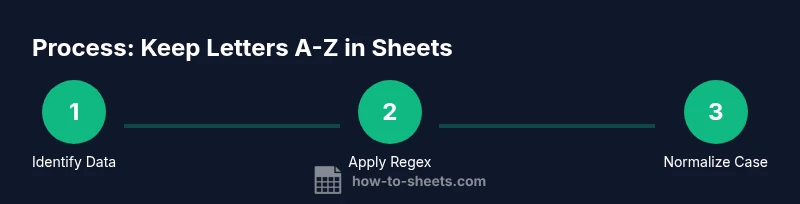
Google Sheets until z only refers to filtering a dataset so that each cell contains only alphabetic characters from A to Z. This quick answer previews the method: strip non-letter characters with REGEXREPLACE, optionally convert to a consistent case, and apply to an entire column with ARRAYFORMULA. It’s a repeatable, scalable approach for clean data in Sheets.
Why this matters for data cleanliness and consistency in Google Sheets
Clean, consistent data is the backbone of reliable analysis, dashboards, and reporting. When you repeatedly gather inputs from forms, surveys, or manual entries, stray characters—numbers, punctuation, or symbols—can creep in. The idea of google sheets until z only helps teams enforce a strict alphabetic standard, ensuring that downstream tasks like sorting, deduping, and joining datasets behave predictably. By focusing on letters A through Z, you simplify validation and improve the quality of lookup tables, lists, and names. This approach is especially valuable for student assignments, small business inventories, and collaboration-heavy projects where data integrity is essential for accurate calculations and reporting.
The alphabet constraint: understanding A-Z and what "until z only" implies
The phrase until z only means you want to exclude any characters outside the ASCII letter range A–Z, both uppercase and lowercase. This constraint does not automatically remove accented letters or non-Latin scripts unless you explicitly expand the pattern. For most everyday data—names, IDs, codes—restricting to A–Z provides a clean baseline. When dealing with international data, you may need a broader pattern or a separate normalization step. The key is to lay out a consistent rule before building formulas, so downstream formulas like MATCH, VLOOKUP, or FILTER operate on predictable inputs. In practice, you’ll implement a pattern like [^A-Za-z] to identify characters to remove.
Core techniques: regex-based approach to remove non-letter characters
The most reliable way to enforce the A–Z alphabet rule in Sheets is with REGEXREPLACE. A common pattern is REGEXREPLACE(text, "[^A-Za-z]", ""), which removes any character that is not a letter. If you want to keep spaces, you can adjust to REGEXREPLACE(text, "[^A-Za-z ]", ""). For case consistency, wrap the result with UPPER(...) or LOWER(...). These functions work well in isolation or chained inside ARRAYFORMULA for whole ranges. Always test on a representative sample to confirm edge cases like hyphens or apostrophes are handled as intended.
Case handling: uppercase vs lowercase and spaces
Deciding on upper or lower case depends on downstream needs. UPPER(REGEXREPLACE(...)) standardizes to uppercase letters, which simplifies comparisons and deduping. If you need to preserve spaces for readability, include the space in the allowed set. Be mindful that this approach strips out diacritics and accented letters. If your data include accented characters (é, ö, å), those will be removed unless you use a broader pattern that targets only digits and symbols.
Applying to the entire dataset with ARRAYFORMULA
To apply the rule across an entire column without copying formulas row by row, use ARRAYFORMULA. Example: =ARRAYFORMULA(IF(A2:A="",,UPPER(REGEXREPLACE(A2:A, "[^A-Za-z]", "")))). This formula processes every non-empty cell in column A and outputs a cleaned version in the corresponding row of the target column. You can place this in B2 (or your chosen output column) and leave the rest of the range to expand automatically. ARRAYFORMULA keeps your sheet dynamic when new data is added.
Step-by-step example: clean a names column
Consider a dataset where column A contains raw names like "Ana María", "Björn", "O'Connor", and "Lúcia-11". The goal is A-Z only, uppercase. Put in B2: =ARRAYFORMULA(IF(A2:A="", "", UPPER(REGEXREPLACE(A2:A, "[^A-Za-z]", "")))). The output becomes a clean, uppercase list: ANA MARA? Note that non-ASCII letters are removed, so names with accents will be altered. If you need to preserve accent letters, you’ll need a broader pattern and possibly a script.
Validating and testing results
Validation is essential. Start by testing on a small sample: compare original vs cleaned values for a handful of cells and verify that digits, punctuation, and spaces are stripped as intended. Use COUNTIFs to verify the count of non-letter characters before and after cleaning. For large ranges, check performance and ensure the formula recalculates efficiently. Create a secondary sheet to compare and log anomalies, which helps maintain data integrity over time.
Pitfalls and limitations
Common pitfalls include removing accented characters unintentionally, misinterpreting spaces as non-letters, and performance issues on very large datasets. If your data frequently include non-Latin characters or you need to preserve certain symbols (like apostrophes in names), you’ll need to tailor the pattern or consider a two-step approach. Always back up before applying a mass transformation and document the rule so collaborators understand the logical constraints.
Advanced: combining with data validation and conditional formatting
You can reinforce the rule by using data validation that restricts inputs to letters A–Z, or by applying conditional formatting to flag cells that violate the rule. For example, IF(REGEXMATCH(A2, "[^A-Za-z]"), TRUE, FALSE) can identify violations, and you can format those cells in a warning color. This approach makes the rule visible during data entry, reducing the chance of inconsistent data entering the sheet.
Real-world use cases: student data, inventory, and forms
In student rosters, keeping only letters helps normalize names for mailing and sorting. For inventory, alphanumeric codes may not be ideal for this rule, so you’d selectively apply the cleaning to name fields rather than SKUs. For form responses, applying a column-wide alphabetic filter helps standardize free-text fields that should contain only alphabetic content, improving downstream processing and analytics.
Alternative methods and performance considerations
If REGEXREPLACE becomes a bottleneck on very large sheets, consider a two-stage approach: first copy the data to a staging area and perform the REGEX operation there, then pull results into the main sheet. Apps Script can also implement a custom function for larger datasets, but keep it simple initially. Remember that simple, well-documented formulas typically outperform complex scripts for routine tasks.
Tools & Materials
- Google account with Sheets access(Needed to access Google Sheets online)
- Google Sheets document with target data(Include headers if you have them)
- Sample data containing letters, numbers, and symbols(To demonstrate cleanup to A-Z only)
- Output column for cleaned data(Could be a new column in the same sheet)
- Optional: Apps Script editor for automation(For repeatable, large-scale cleans)
Steps
Estimated time: 25-40 minutes
- 1
Identify data range
Scan the column that contains raw data to determine the exact range (e.g., A2:A100) and confirm header presence. This helps you design the formula input and prevents overwriting headers.
Tip: Include a blank row at the end of the data to avoid truncation when new data is added. - 2
Choose the output column
Decide where cleaned results will appear. Use a separate column so you can compare originals vs cleaned values and adjust if needed.
Tip: Label the header clearly, e.g., "Name (A-Z)" to avoid confusion later. - 3
Enter the regex-based cleaning formula
In B2, enter the core formula: =ARRAYFORMULA(IF(A2:A="", "", UPPER(REGEXREPLACE(A2:A, "[^A-Za-z]", "")))) to convert to upper-case and remove non-letters.
Tip: If you need spaces, modify to REGEXREPLACE(A2:A, "[^A-Za-z ]", ""). - 4
Extend to the entire column
Because you used ARRAYFORMULA, results fill automatically as A2:A grows. No copy-paste needed for new rows.
Tip: If you later insert rows, ensure the formula remains in place; ARRAYFORMULA handles dynamic ranges. - 5
Validate cleaned data
Check a sample of rows to ensure only A-Z letters appear. Use COUNTIF with a non-letter pattern to confirm zero violations.
Tip: Add a helper column with REGEXMATCH to flag non-letter occurrences for quick review. - 6
Document and test
Add notes to your sheet detailing the rule and its scope. Run a few test cases with known outcomes to verify reliability before rolling out.
Tip: Keep a changelog for data-cleaning rules to help future collaborators.
FAQ
What does 'google sheets until z only' mean?
It means filtering or transforming data so each cell contains only alphabetic characters from A to Z, excluding digits and most symbols.
It means keeping only letters A to Z in each cell and removing other characters.
Which function helps strip non-letter characters?
REGEXREPLACE(text, "[^A-Za-z]", "") removes anything not a letter. For upper-case results, wrap with UPPER().
REGEXREPLACE with a pattern that excludes letters removes non-letters.
Can I apply this to an entire column automatically?
Yes. Use ARRAYFORMULA to process a full column, so new rows are automatically cleaned without manual copying.
Yes, use ARRAYFORMULA to handle whole columns at once.
How do I handle spaces or keep certain symbols?
If you want to preserve spaces, adjust the pattern to include the space, e.g., REGEXREPLACE(A2:A, "[^A-Za-z ]", "").
Include spaces in the allowed characters if you want them kept.
Will accented characters be preserved?
No. The basic A-Z pattern removes accented letters. To preserve them, you need a broader character class or a custom script.
Accents aren’t covered by A-Z pattern; you’d need a broader approach.
Is there a performance issue on large datasets?
REGEX-based cleaning is computationally heavier on very large sheets. For massive datasets, consider staged processing or a script-based approach.
Large datasets can be slower; consider staged processing if performance drops.
Watch Video
The Essentials
- Use REGEXREPLACE('[^A-Za-z]','') to strip non-letters.
- Apply with ARRAYFORMULA for whole-column consistency.
- Choose UPPER or LOWER to standardize case.
- Validate results with quick checks and logs.
- Document the rule for future collaborators.