How to Clean Data in Google Sheets: A Practical Guide
A step-by-step, practical guide to clean data in Google Sheets, covering deduplication, whitespace removal, text normalization, date/number standardization, and automation.


By following a repeatable workflow, you can clean data in Google Sheets effectively. Start by auditing your dataset, then remove duplicates, trim spaces, standardize text case, and fix formats with built-in tools like TRIM, CLEAN, UPPER/LOWER, and REGEXREPLACE. Validate results with spot checks and keep a rollback plan. This approach minimizes errors and scales across datasets.
Data quality issues in Google Sheets
Many datasets in Sheets suffer from common quality problems that degrade analysis results. Duplicates, trailing spaces, inconsistent capitalization, misformatted dates, and mixed data types can derail filters and formulas. If you’re wondering how to clean data in google sheets, you’ll encounter these patterns first. A clear view of issues helps you create targeted rules and avoid over-processing real values. According to How To Sheets, recognizing the root causes is the foundation of a reliable cleaning process.
Building a cleaning plan
Before touching data, outline a plan: list the data quality issues, decide on standard formats, and set validation rules. This repeatable framework helps you scale cleaning across multiple datasets. Steps include identifying typical errors, choosing a fixed set of corrections, applying them consistently, validating outcomes, and preserving a changelog for future audits. A well-documented plan reduces rework and makes quality assurance straightforward.
Core tools and functions for cleaning data
Google Sheets offers a rich toolkit for data cleaning. Core functions include TRIM to remove leading/trailing spaces, CLEAN to strip nonprintable characters, REGEXREPLACE for pattern-based fixes, and VALUE or DATEVALUE to normalize numbers and dates. ARRAYFORMULA lets you apply changes across entire columns. When composing formulas, start simple, then expand using nested functions to handle edge cases. Pair these with Data Validation to enforce rules at entry.
Handling text and numbers reliably
Text data often contains inconsistent case, extra spaces, and punctuation that hinders analysis. Use LOWER, UPPER, or PROPER to standardize case, and wrap REGEXREPLACE to remove unwanted characters. For numbers, convert text values with VALUE or NUMBERVALUE and standardize date formats using DATEVALUE. Dates should be parsed with appropriate date functions, paying attention to locale. A disciplined approach prevents mistyped entries from leaking into analyses.
Cleaning workflows: dedup, normalization, validation
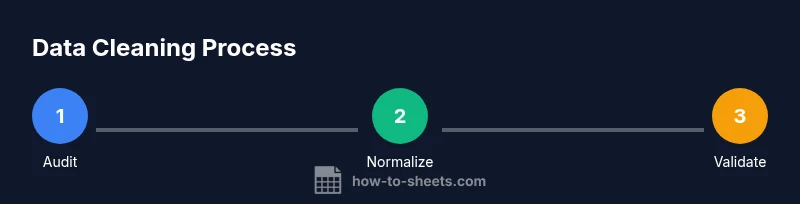
A practical workflow separates concerns: first, deduplicate to remove exact repeats; second, normalize text and numbers to a common format; third, validate entries to catch anomalies. Use Data -> Remove duplicates for columns that define identity, then apply TRIM/CLEAN, then enforce formats with data validation rules. Finally, create a workbook-level note that explains the rules and links to a data dictionary.
Common pitfalls and testing
Common mistakes include over-cleaning (renaming values that should stay distinct), overwriting formulas, and ignoring nuances in data types. Always test on a copy and compare results with the original. Use Google Sheets’ Version History to restore if needed. Run spot checks on random rows and document any deviations from expected results.
Automating cleaning with formulas and scripts
Automations save time and ensure consistency. Build cleaning formulas that you can copy across datasets, and consider a small Apps Script to apply a standard cleaning routine to new imports. Use triggers or onEdit to run the cleanup on new data, but beware performance with large sheets. Keep automation modular so you can adjust rules without rewriting everything.
Best practices and governance
Adopt governance practices like a data dictionary, naming conventions, and versioned templates. Maintain a changelog of cleaning steps, and store cleaned snapshots separately from raw imports. Schedule regular reviews of rules as your data evolves, and train teammates to follow the same standards. A disciplined approach reduces errors and makes sheets more trustworthy.
Tools & Materials
- Google Sheets access (via Google account)(Open the sheet you will clean or work on a duplicate for testing)
- Original dataset (CSV, Excel, or Google Sheets)(Source data to clean)
- Data dictionary or column definitions(Helps standardize formatting and validation rules)
- Sample clean dataset (optional)(Use for testing cleaning steps before applying to the full dataset)
- Regex tester or editor (optional)(Helpful for crafting robust patterns)
- Version history enabled in Google Sheets(Facilitates rollback if cleaning introduces issues)
Steps
Estimated time: 60-90 minutes
- 1
Audit data and define rules
Scan the dataset to identify duplicates, trailing spaces, inconsistent capitalization, and misformatted dates. Define a concise rule set to address each issue, such as 'trim all whitespace' or 'standardize dates to YYYY-MM-DD'. Why: a clear set of rules prevents ad-hoc edits and keeps cleaning reproducible.
Tip: Document the rules in a dedicated sheet named 'Data Cleaning Rules' for quick reference. - 2
Create a clean workspace copy
Make a copy of the original sheet to avoid data loss. Rename the copy clearly and, if possible, create a separate tab for intermediate steps to track progress without touching the raw data.
Tip: Always work on a duplicate when testing new cleaning steps. - 3
Remove duplicates
Select the relevant range, navigate to Data > Data cleanup > Remove duplicates, and choose the identity-defining columns. Check the 'Data has header row' option if needed to avoid removing headers. Review the results before finalizing.
Tip: Keep a backup copy of the original data before deduplication. - 4
Trim spaces and normalize text
Apply TRIM and CLEAN to the target columns with ARRAYFORMULA, then standardize case using UPPER, LOWER, or PROPER as appropriate. Preview changes in a helper column before replacing originals.
Tip: Use a helper column to verify results before overwriting data. - 5
Standardize numbers and dates
Convert text numbers to real numbers with VALUE or NUMBERVALUE; normalize dates with DATEVALUE and consistent date formatting (YYYY-MM-DD). Verify locale influences on decimal separators.
Tip: Set a dedicated date column to confirm correct interpretation of dates. - 6
Split, merge, and reassemble data
If needed, use SPLIT to separate fields, then CONCAT or TEXTJOIN to reassemble cleanly. This helps reorganize data into consistent columns and reduces cross-column errors.
Tip: Be mindful of delimiters that may appear inside actual data. - 7
Validate with REGEX and data validation
Apply REGEXREPLACE and REGEXMATCH to enforce patterns (emails, phone numbers, IDs). Set up data validation rules to prevent invalid entries at the point of data entry.
Tip: Test regex patterns on a subset before applying broadly. - 8
Document, automate, and review
Create a reusable template that encapsulates the cleaning logic and, if appropriate, add Apps Script or array formulas to automate future cleans. Schedule periodic reviews and maintain a changelog.
Tip: Link the cleaning template to a data dictionary and version history.
FAQ
What is the first step to clean data in Google Sheets?
Begin with a quick data audit to identify duplicates, spaces, and inconsistencies. This helps you tailor a precise cleaning plan rather than applying broad edits.
Start with a quick data audit to identify duplicates and inconsistencies.
How do I remove duplicates in Google Sheets?
Select the data range, go to Data > Data cleanup > Remove duplicates, choose the columns that define identity, and apply. Always review results and keep a backup.
Use the Remove duplicates tool under the Data menu and check your columns.
Which formulas help clean text data?
Key formulas include TRIM, CLEAN, LOWER, UPPER, PROPER, REGEXREPLACE, and REGEXMATCH. Combine them to standardize and validate text across cells.
Use TRIM, CLEAN, and REGEXREPLACE for text normalization.
Can cleaning data be automated in Sheets?
Yes. You can automate with ARRAYFORMULA-based cleaning, and with Apps Script triggers for new data imports. Start with a modular approach so rules can be updated without rewriting everything.
Automation is possible with formulas and Apps Script triggers.
What safety steps protect data during cleaning?
Work on a copy, enable version history, and maintain a changelog. This protects the original data and allows you to revert if needed.
Always work on a copy and leverage version history.
How do you validate cleaned data?
Use data validation rules and conditional formatting to flag anomalies. Run spot checks and compare pre/post-clean results to ensure accuracy.
Apply data validation and spot-check results after cleaning.
Watch Video
The Essentials
- Plan your cleaning rules before edits.
- Use built-in functions for reproducible results.
- Test on a copy and verify with spot checks.
- Document changes and maintain a data dictionary.