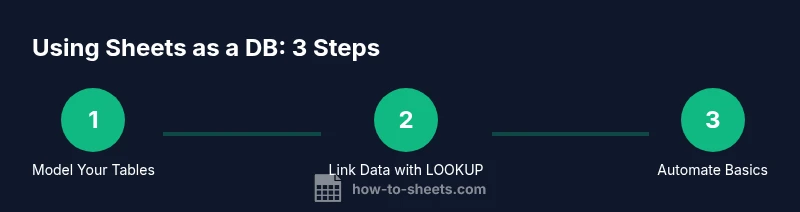
Use Google Sheets as a Lightweight Database
A practical, step-by-step guide to treating Google Sheets as a lightweight database for small teams. Learn data modeling, validation, lookups, and automations in 2026.


Goal: use google sheets as database for lightweight data storage, lookups, and simple reports. You’ll learn data modeling, lookup formulas, data validation, and basic automation with Apps Script. Essential prerequisites are a Google account and access to Google Sheets, plus a plan for how you’ll separate data into tables and sheets. This approach fits small teams and prototyping.
Why teams consider use google sheets as database
In many small projects, stakeholders favor a familiar, zero-install solution for storing, indexing, and querying data. The phrase use google sheets as database captures a common pattern: treat a sheet like a lightweight data store for quick lookups, dashboards, and simple reports. This approach shines when your data volume is modest, your team collaborates in real time, and you don’t need full ACID transactions. Remember, this is a pragmatic starting point, not a replacement for a dedicated database in mission-critical apps. According to How To Sheets, many teams begin with Sheets to validate ideas before investing in more robust systems. The goal is speed and clarity: a single source of truth that non-developers can access without friction. As data grows, you’ll layer structure, automation, and governance to keep the sheet healthy and usable for everyone involved.
Data modeling basics for a Sheets-backed database
Modeling data in Sheets starts with defining the entities and their relationships. A practical approach is to create separate sheets for each table (e.g., Customers, Products, Orders) and to use a dedicated header row for field names. Think in terms of rows as records and columns as attributes. Use a stable primary key (like a numeric id) to uniquely identify each record and to enable reliable lookups. Keep data types consistent across sheets (text, numbers, dates) and avoid storing complex nested structures in a single cell. Named ranges help formulas stay readable and portable. This modeling discipline makes formulas easier to maintain and reduces the chance of mislinked data when multiple people edit the sheet.
Recommended layouts and schemas
A three-sheet schema is a solid starting point for many use cases: 1) Customers with fields like customer_id, name, email, and region; 2) Products with product_id, name, category, price; 3) Orders with order_id, customer_id, product_id, date, quantity, and status. Use data validation to restrict fields (e.g., valid email formats, status options) and set up lookups to join data across sheets. For example, you can show a customer’s name in the Orders sheet by looking up customer_id in the Customers sheet. If your needs grow, consider splitting into additional sheets for inventory, payments, or shipments and keep a separate “References” sheet for static lookup data to avoid duplication.
Data validation and integrity techniques
Data integrity begins with constraints. Apply data validation to critical fields to prevent invalid entries (e.g., a status dropdown that only accepts preset values). Enforce unique keys by creating a custom formula that flags duplicates, and use conditional formatting to highlight anomalies. Protect important sheets or ranges to limit accidental edits, especially for the raw data tables. Regularly enable version history and consider creating a change-tracking sheet that logs edits for accountability. These practices help maintain reliability as multiple people update the data.
Adding search and retrieval features
Sheets supports lookups and queries to retrieve records efficiently. Popular options include VLOOKUP, INDEX-MATCH, and FILTER for dynamic views. The QUERY function is a powerful tool to filter, sort, and join data across sheets, mimicking basic database views. For cross-sheet references, IMPORTRANGE can pull data from other spreadsheets, while named ranges keep formulas readable. Build a small “Search” tab that exposes a single input field and returns matching records, then expand to multi-field filters as confidence grows.
Automation and workflows with Apps Script
Automation helps keep data consistent with minimal manual effort. Apps Script can validate inputs on edit, auto-fill related fields, or push confirmations via email or chat when new records are added. Start with simple triggers (onEdit, time-driven) and small functions that enforce business rules (e.g., deny duplicate order entries or auto-calculate totals). As you grow, modularize scripts to separate data access, validation, and notifications. Always test in a copy of the sheet to avoid disrupting live data.
Limitations and pitfalls
Do not treat a Sheet-backed database as a production-grade database for high-concurrency workloads. Simultaneous edits can cause race conditions, and very large datasets can slow down formulas. Be mindful of Google’s quotas (like daily script limits) and plan for backups and archiving. Rely on the sheet’s built-in permissions to control who can view or edit critical data. If data integrity requirements exceed Sheets’ capabilities, plan a staged migration path to a relational database or a cloud-based database service.
Best practices and deployment checklist
- Start with a clear data model and minimal tables. - Use consistent data types and a defined primary key. - Implement data validation and protected ranges. - Build lookup-based views for reporting rather than raw tables. - Schedule regular backups and monitor sheet performance. - Document conventions in a dedicated Reference sheet for new collaborators.
Real-world examples and case studies
Teams employ Sheets as a quick CRM-lite, inventory tracker, or event RSVP log. A typical setup includes Customers, Events, and Attendees sheets with cross-sheet lookups to show attendee status and event capacity. How To Sheets analysis shows that many small businesses save time by starting with Sheets and migrating only when requirements grow in volume, security, or multi-region access. The practical value lies in rapid iteration and shared access rather than perfection in the first draft.
Taking the next step with templates and templates library
Once you have a dependable structure, convert your setup into templates that can be reused across projects. Create a baseline schema, predefined validation rules, and a simple reporting view that new teams can copy and customize. Templates accelerate onboarding for students, professionals, and small business owners, and help ensure consistency across deployments. Pair templates with simple Apps Script automations to jumpstart workflows.
Tools & Materials
- Computer or laptop with internet access(Any modern device with a web browser; sign in to Google account)
- Google account(Gmail or work/school account; enables Google Sheets access)
- Google Sheets access(Open in Sheets; no software installation required)
- Sample data templates (CSV/Excel)(Useful for populating test data and validating schema)
- Apps Script editor (optional)(For building automation and custom rules)
- Backup/Version history practices(Regular snapshots and documented changes)
Steps
Estimated time: 60-90 minutes
- 1
Define your data model
Identify the core entities (e.g., Customers, Products, Orders) and determine key fields and relationships. This upfront design minimizes circular references and formula confusion later.
Tip: Start with three tables and a simple ID system (numeric IDs). - 2
Create sheets and headers
Create dedicated sheets for each table and add a header row with consistent field names. Use the first row as the source of truth for column metadata.
Tip: Use clear, stable column names and avoid changing headers mid-project. - 3
Add primary keys and constraints
Add a unique id column for each table and implement data validation to restrict formats (e.g., emails, dates). This helps maintain data integrity across lookups.
Tip: Prefix IDs (e.g., CUST-001) if you want human-friendly keys. - 4
Populate sample data
Enter a small, representative dataset to test relationships and formulas. Use sample records to validate join logic and reporting views.
Tip: Keep a separate test sheet to avoid contaminating production data. - 5
Build lookup mechanisms
Set up VLOOKUP, INDEX-MATCH, or FILTER/QUERY views to pull related data across sheets (e.g., show customer names on orders).
Tip: Prefer INDEX-MATCH or FILTER for more robust performance with dynamic ranges. - 6
Implement data validation
Create dropdowns for status, category, and other enums. Add a rule to flag out-of-range values and ensure consistency.
Tip: Apply validation to the entire column, not just the header row. - 7
Set up basic automation
Use Apps Script to enforce rules on edit, auto-fill related fields, or notify teammates when new records are added.
Tip: Start with small, testable scripts and iterate in a copy of your sheet. - 8
Test, backup, and iterate
Run data-entry tests, verify lookups across tables, and back up periodically. Iterate based on user feedback.
Tip: Document changes in a Change Log tab for traceability.
FAQ
Can I really treat Google Sheets as a database for multiple users?
Yes, for lightweight tasks and smaller teams Sheets can function as a collaborative data store. Use protected ranges and view-only sharing for raw data. For heavy concurrent edits, consider a database solution or a backend service.
Yes, for small teams Sheets can work as a shared data store, but use protections to avoid conflicts and plan for a future migration if workloads grow.
What are the main limitations I should know?
Sheets isn’t designed for high-volume, multi-user transactions. Large datasets can slow down formulas, and there are script quotas. Always back up data and plan for a migration when data needs exceed Sheets.
Limitations include performance with big datasets, concurrency limits, and script quotas; plan a migration if needed.
How do I ensure data integrity in Sheets?
Use data validation, unique keys, and protected ranges. Regularly audit records and keep a Change Log. Rely on clear naming conventions and separate raw data from derived views.
Enforce rules with validation and protections, and track changes to keep data trustworthy.
Which formulas are best for retrieval?
INDEX-MATCH and FILTER are preferred for robust lookups. QUERY provides SQL-like capabilities to summarize data. Combine with named ranges for readability.
INDEX-MATCH and FILTER are great for lookups; QUERY helps summarize data efficiently.
When should I migrate to a real database?
When data volume, concurrency, security, or audit requirements exceed Sheets’ capabilities, plan a migration path to a relational or cloud database.
If you hit performance, security, or audit limits, consider migrating to a real database.
Are there best practices for sharing?
Share with the right permissions: provide editors for those who update data, viewers for those who only need to see it. Use a dedicated template or documentation sheet for user guidance.
Set appropriate permissions and maintain a guidance sheet to help users.
Watch Video
The Essentials
- Model data with separate tables and a stable key.
- Use validations and protection to preserve data integrity.
- Leverage lookup formulas for relational views across sheets.
- Automate routine checks with Apps Script.
- Plan a migration path to a dedicated database if needs grow.