Google Sheets as a Database: A Practical Comparison
Explore how Google Sheets can function like a database, compare it with Airtable for lightweight data management, and learn practical guidelines for data modeling, validation, and scalable usage.


A practical quick answer: Google Sheets can function as a lightweight, spreadsheet-centric database for small projects with simple schemas, solid validation, and clear data governance. For teams facing growth, complex relationships, or concurrency, consider Airtable or a SQL-based solution. This comparison helps you decide when Sheets suffices and when a dedicated database tool is the better long-term choice.
Foundations: What a google sheets like database Really Means
A "google sheets like database" describes using Sheets as a structured data store rather than a full-fledged database engine. In practice, teams layer on schemas through headers, data validation, named ranges, and cross-sheet references to create a usable data layer. The How To Sheets team notes that this approach is popular for rapid prototyping, dashboards, and lightweight record-keeping because it preserves the familiar spreadsheet interface while enabling basic querying and reporting. For students, professionals, and small business owners, this can be a practical starting point when requirements are modest and deployment speed matters. However, it also introduces tradeoffs around data integrity, concurrency, and long-term scalability that warrant careful planning. This article uses the concept of a google sheets like database to frame practical guidance, not to replace purpose-built solutions.
Data Modeling in Google Sheets
Effective data modeling in Sheets means thinking in tables, not columns alone. Treat each sheet as a table and each row as a record. Define a fixed schema with a Header row, and keep field types consistent across records. Use an ID column to uniquely identify rows, then create lookup tables for related data (e.g., customers, products) in separate sheets. Data validation rules help prevent bad input, while named ranges make formulas easier to read. When a project starts small, this model is approachable; as data grows, you’ll appreciate defining data types, constraints, and clear naming conventions to minimize drift.
Schema and Validation: Keeping Data Honest
A robust Sheets-based data store relies on disciplined validation. Use data validation rules to constrain inputs—for example, dropdown lists for status fields, numeric constraints for counts, and text length limits for notes. Protect critical sheets or ranges to prevent accidental edits, and maintain a simple audit trail by leveraging Version History or a dedicated log sheet. Establish a core set of required fields, enforce consistent date formats, and standardize codes for status or categories. These steps improve data integrity without sacrificing the speed and accessibility that Sheets provides.
Relational Thinking Without a Relational DB
Relational data structures can be simulated in Google Sheets by coordinating multiple sheets and using lookup patterns. Use a primary key (ID) in the main table and create separate reference sheets (for example, a Customers sheet) that other tables can join via VLOOKUP, INDEX/MATCH, or XLOOKUP. While this approach enables lightweight joins, it lacks formal foreign key constraints and cascading updates. Plan for data integrity by centralizing lookups and avoiding duplication. When relationships become too complex, consider migrating to a database that supports true relations.
Automation and Workflows: Integrations and Scripting
Automation is a major strength of the Sheets-first approach when paired with Google Apps Script, built-in automation, and form-based data entry. Create triggers to enforce behavioral rules, automatically populate derived fields, or sync data with other services. Use forms to collect data cleanly, and consider add-ons for data cleansing, scheduling, or notification workflows. While automation can reduce manual work, it’s important to document scripts, limit permissions, and test changes in a staging view to avoid breaking the data model.
Performance and Scale: When Sheets Starts to Fray
Sheets excels with small to moderate datasets, but performance concerns arise as rows and formulas accumulate. Favor a modular design: split data into multiple sheets, minimize cross-sheet lookups, and batch heavy calculations. Turning formulas into scripts or moving infrequently updated data to separate storage can improve responsiveness. If you’re tracking millions of rows or need advanced querying, consider exporting to a database or using a dedicated analytics tool. Planning for scale early helps prevent disruptive migrations later.
Collaboration, Access, and Governance
Real-time collaboration is a core strength, yet governance becomes crucial as teams grow. Define access levels, protect sensitive ranges, and maintain a shared data dictionary that explains field definitions, allowed values, and data formats. Use version history to audit changes and create periodic data quality reviews. When multiple teams contribute, establish a change-control process and designate data stewards to maintain schema consistency and prevent unauthorized alterations.
Choosing Between Sheets and Airtable: Practical Scenarios
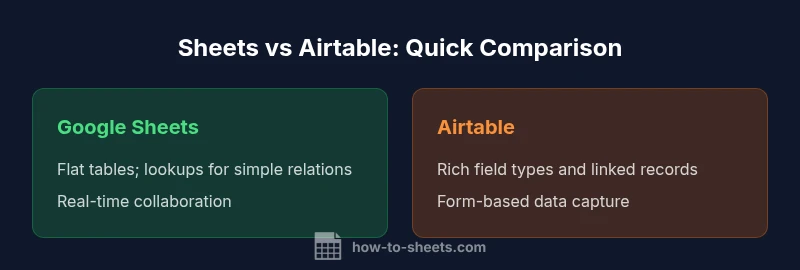
Sheets works well for lightweight data stores with fast iteration, dashboards, and broad collaboration where precise relational integrity isn’t essential. Airtable provides a more database-like experience with linked records, richer field types, and forms, making it better for structured data and workflows that require stronger data governance. For pilots or internal tools with modest data, Sheets may be the fastest path; for scalable data models, Airtable or a SQL-based solution likely offers longer-term value.
Best Practices and Pitfalls: A Practical Checklist
Best practices include: establishing a stable schema, using a separate sheet for lookups, validating inputs, and documenting field definitions. Pitfalls include data drift from ad-hoc edits, untracked changes across sheets, and overreliance on formulas that become brittle. Regularly review formulas, back up important data, and plan a migration path if data volume or complexity grows beyond a sheet’s comfortable range.
Implementation Roadmap: From Spreadsheet to Prototype
- Define the data model: identify tables, fields, and relationships. 2) Create sheets for each table with a consistent header row. 3) Add validation rules and protected ranges. 4) Build lookup sheets and test basic joins. 5) Introduce forms for clean data entry and establish a lightweight governance routine. 6) Run a pilot with a small team, collect feedback, and adjust the schema. 7) Plan a migration strategy if the data outgrows Sheets.
Comparison
| Feature | Google Sheets as database | Airtable |
|---|---|---|
| Data modeling flexibility | Moderate: tables defined in sheets with lookups | High: flexible tables, linked records, rich field types |
| Collaboration and sharing | Real-time edits with version history | Real-time collaboration with role-based access and forms |
| Automation and integrations | Apps Script, add-ons, and basic data flows | Built-in automations, API access, extensive integrations |
| Handling of large datasets | Better with smaller datasets; performance degrades with scale | Better scalability with built-in relational features |
| Data validation and integrity | Basic validation rules; simple constraints | Advanced validation and relational constraints |
| Relational data support | Flat tables; relies on lookups | Linked records and native relations |
| Offline access | Available offline in mobile app and some modes | Limited offline functionality depending on setup |
| Cost and licensing | Low to moderate; free tier with limits | Structured pricing; predictable tiers |
The Good
- Low upfront setup for quick wins
- Fast prototyping and feedback cycles
- Strong real-time collaboration and sharing
- Extensive ecosystem of add-ons and templates
The Bad
- Limited data integrity and strict relational constraints
- Scalability challenges with very large datasets
- Formula drift risk without governance
- Migration burden when data outgrows the sheet
Sheets is ideal for lightweight, collaborative data tasks; for complex, scalable relational data, migrate to Airtable or SQL.
Use Google Sheets as a database for small projects with simple schemas. Plan a migration path to a more robust data store as data volume or relational needs grow. The How To Sheets team supports starting with Sheets and evaluating upgrade points.
FAQ
What is the best use case for using Google Sheets as a database?
For small projects with simple schemas, quick iteration, and broad collaboration, Sheets can serve as a practical data store. It’s not ideal for high-concurrency environments or deeply relational data. Consider it as a fast prototype or internal tool rather than a durable, enterprise-grade database.
Best for small teams needing fast results. Use it as a prototype or internal tool, not for complex relational data.
Can Google Sheets handle relational data?
Sheets supports lightweight relational patterns through lookups and multiple tables, but it lacks enforced foreign keys and cascading updates. Use it for simple joins, and plan a future migration if relationships become critical.
Yes, but only for simple relations. It isn’t a true relational database.
How do I ensure data quality in a Sheets-based data store?
Implement data validation, standardized field definitions, and protected ranges. Maintain a data dictionary, use unique IDs for records, and regularly back up important sheets to prevent accidental loss or drift.
Use validations, an agreed schema, and backups to keep data clean.
What are the risks of using Sheets as a database?
Risks include data integrity issues from concurrent edits, formula errors, and challenges with scaling. Governance gaps can lead to inconsistent data, and true relational features are limited.
Main risks are data integrity, scaling, and governance gaps.
When should I move to Airtable or SQL?
Move to Airtable or SQL when your data model requires robust relationships, advanced permissions, or large-scale data management. If you need strong data integrity and scalable querying, upgrading is wise.
Upgrade when relationships and scale become critical.
What are best practices for data import/export?
Use ImportRange or CSV exports for clean data transfers, validate the schema after import, and consider storing raw vs. cleaned data in separate sheets to avoid overwriting. Maintain a clear version history for traceability.
Keep raw and processed data separate and validate after imports.
The Essentials
- Start with a clear data model in Sheets
- Use validation and lookups to prevent drift
- Leverage scripts for repeatable automation
- Avoid complex joins in Sheets; consider Airtable/SQL when needed
- Document schema and governance early