Google Sheets Query vs SQL: A Practical Comparison
Explore the key differences between Google Sheets QUERY and SQL, with practical guidance for students, professionals, and small business owners in 2026. Learn when in sheet queries work best and when to rely on relational databases.


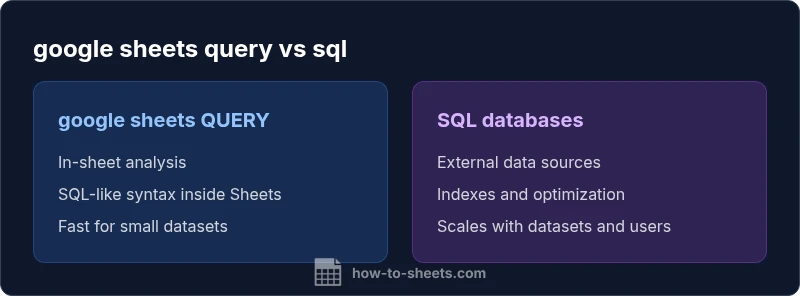
google sheets query vs sql: Google Sheets QUERY provides in-sheet data querying with a SQL-like syntax, ideal for small-to-medium datasets within spreadsheets. SQL is the standard language for relational databases, offering greater power, scalability, and external data access. This comparison helps decide when to stay in Sheets and when to move to a proper database.
google sheets query vs sql: core distinctions
In many data tasks, the question isn't whether to use Google Sheets QUERY or SQL; it's how much data you work with and where that data lives. Google Sheets QUERY offers a familiar, SQL-like syntax inside a spreadsheet, making it easy for analysts who live in a workbook to filter, aggregate, and reshape data without leaving Sheets. SQL, by contrast, is the de facto language for relational databases, designed to manage large, normalized datasets across many tables and systems. The How To Sheets team aims to clarify when each approach shines, and how to blend them for practical workflows. This distinction is important for students who are learning data literacy, professionals who need reliable dashboards, and small business owners who want fast, accurate insights without heavy IT overhead.
Data scope and sources
Understanding data scope is the first step in choosing between Sheets queries and SQL. Google Sheets QUERY operates on the data that already exists in the current sheet or in imported ranges such as Google Sheets queries or importrange from other sheets. This makes it fast for prototyping and small teams. SQL, on the other hand, can pull from entire databases, data warehouses, or external sources via connections, allowing joins across multiple tables and datasets. When data is evolving rapidly or needs governance across departments, relational databases often provide more reliable consistency and scalability. For many teams, a hybrid model is the most practical path, with canonical data in SQL and lightweight summaries mirrored in Sheets for collaboration.
Language and syntax: sql-like vs spreadsheet syntax
Query language is a primary driver of developer productivity. Google Sheets QUERY uses a SQL-like syntax (SELECT, WHERE, GROUP BY, etc.) but it exists inside a spreadsheet's own rules for data types, headers, and range references. SQL provides a standard, widely understood syntax, enabling complex joins, subqueries, and advanced analytics. If you're already fluent in SQL, you may find external database querying more natural; if you're more comfortable in a spreadsheet environment, Sheets QUERY can be learned quickly and extended with custom functions. Expect subtle differences in operators, date handling, and string manipulation across the two worlds. For many teams, building familiarity with both tools enhances overall data fluency.
Performance and scale considerations
Performance considerations differ between in-sheet queries and database-backed SQL. Google Sheets runs in a browser and stores data in a document; even well-constructed queries can slow down as the sheet grows beyond a few hundred thousand cells. In contrast, SQL databases leverage indexes, query planners, and server resources to optimize operations, making them better suited for large, normalized datasets and concurrent access. As data volume, concurrency, or update frequency increases, organizations typically shift to SQL-based pipelines or hybrid solutions, such as importing summarized results into Sheets. This is a common pattern in small businesses that start with a single workbook and gradually migrate critical workloads to a database, while keeping day-to-day reporting in Sheets for speed.
Data integrity and governance implications
Data governance is easier to enforce in structured databases than in shared spreadsheets. With SQL-based workflows, you can implement row-level security, access controls, and formal change management within a database or data warehouse. Google Sheets, even with permissions and protected ranges, relies on the human element for edits and sharing. When using Sheets QUERY for critical metrics, it's wise to implement versioning, data validation, and scheduled refreshes from reliable data sources. If your team must meet regulatory standards, a hybrid approach—keep the canonical data in SQL and mirror readable views into Sheets—reduces risk. Practically, this means documenting data lineage and establishing a clear refresh cadence.
Practical use cases by scenario
Finance teams often use Sheets QUERY for fast ad-hoc analyses of a subset of transactions, while still pulling longer-term data from a database for period-over-period comparisons. Marketing teams might use Sheets for campaign dashboards that combine internal data with lightweight external data sources. Education and research workloads benefit from in-sheet exploration and pivot-like summarization that can be shared quickly. In all these cases, clearly defined data provenance and a simple update process are essential to avoid drift between the source data and the workbook. Real-world constraints—latency, access control, and change management—shape the final decision about which tool to use.
Hybrid workflows: combining Sheets and SQL ecosystems
Hybrid workflows marry the strengths of both tools. A common pattern is to store canonical data in an SQL database or data warehouse and export lightweight summaries or metrics into Google Sheets for quick sharing. Another pattern is to use Google BigQuery (SQL-based) integrated with Sheets via built-in connectors, letting analysts run large-scale queries and push results into a collaborative workbook. Apps Script can orchestrate data movement, automate refresh schedules, and enforce governance rules across systems, reducing manual copying and inconsistent datasets. This approach supports both speed and scalability, enabling faster decision cycles without abandoning familiar spreadsheets.
Common pitfalls and how to avoid them
Pitfalls include treating Sheets as a data warehouse, underestimating the cost of late-night data refreshes, and assuming that a SQL mindset directly translates to Sheet formulas. Avoid reliance on a single source of truth; always document data lineage and refresh logic. When using the QUERY function, be mindful of date formats, text case, and locale differences that can lead to inconsistent results. For external connections, monitor latency and permissions to prevent broken dashboards. Establish guard rails for editing, keep a separate raw data layer, and schedule periodic data quality checks to maintain reliability.
Migration steps from SQL to Sheets-friendly approaches
If you need to transition from a SQL-centric workflow to Sheet-based analysis, start by identifying a canonical dataset and creating a single source of truth within Sheets. Break complex queries into smaller, composable steps using intermediate sheets or named ranges. Re-create essential joins with QUERY's capabilities or pre-join data in SQL before importing. Finally, validate results through spot checks and maintain a simple change log so users can reproduce the same results over time. A staged migration minimizes disruption and helps teams adjust to the new workflow with confidence.
Best practices and optimization strategies
Adopt clear naming conventions for ranges, headers, and named ranges to avoid misalignment. Use separate sheets for raw data, transformed data, and dashboards so changes in one layer don't break others. Optimize QUERY usage by selecting only necessary columns, filtering early, and leveraging indexed external data sources when possible. For security, apply least-privilege access, protect sensitive ranges, and document data lineage for audits. Finally, schedule regular reviews of data sources and calculations to keep the workbook relevant. These practices reduce duplication, improve accuracy, and accelerate onboarding for new team members.
Decision framework and quick-start checklist
To decide between google sheets query vs sql, start with data volume, required joins, and governance needs. If the data stays within a single sheet or imported range and requirements stay modest, Sheets QUERY is a fast, friendly option. If you demand multi-table joins, large-scale analytics, or strict governance, SQL (or a hybrid approach) will save time in the long run. Quick-start checklist: map data sources, define canonical tables, choose a single source of truth, outline refresh steps, and establish ownership.
Comparison
| Feature | google sheets QUERY function | SQL (Structured Query Language) |
|---|---|---|
| Data source scope | In-sheet data only | External databases and multi-table sources |
| Query language and syntax | SQL-like inside Sheets via QUERY | Full SQL with joins, aggregations, window functions when querying external DBs |
| Joins/relational capabilities | Limited within-sheet relations | Robust joins across multiple tables in databases |
| Performance and scalability | Best for small to medium datasets; performance depends on sheet size | Optimized for large datasets with indexing and server resources |
| Learning curve | Easier for spreadsheet users; Sheets-specific parser | Steeper for teams with SQL background; universal syntax |
| Automation and updates | Built-in automation in Sheets; simple refresh | Requires database access; robust scheduling and pipelines |
| Cost and setup | No dedicated server; minimal setup | Requires database server or cloud data warehouse |
| Best for | Ad-hoc analysis inside a workbook | Large-scale analytics and multi-table reporting |
The Good
- Low upfront cost and no separate server
- Familiar environment for most users
- Fast prototyping within Sheets
- Easy sharing and collaboration via Drive
The Bad
- Limited data volume and performance constraints in Sheets
- Less robust for complex joins and analytics than SQL
- Governance and data lineage can be harder to enforce in shared sheets
- Migration between tools can create data silos without careful planning
SQL is the better long-term choice for scalable, relational data; Google Sheets QUERY is ideal for fast, in-sheet analysis.
Choose SQL for large, multi-table datasets and governance. Use Sheets QUERY for quick insights and prototyping; combine both when appropriate to optimize speed and accuracy.
FAQ
What is the main difference between Google Sheets QUERY and SQL?
google sheets query vs sql: Google Sheets QUERY is a spreadsheet-native tool with a SQL-like syntax for in-sheet analysis; SQL is a database language designed for scalable, multi-table data operations. Each serves different data environments and needs.
The main difference is that Sheets QUERY runs inside a spreadsheet, while SQL runs on a database. Use Sheets for quick workbook analysis and SQL for scalable data work.
Can I run SQL queries directly inside Google Sheets?
Not exactly. Sheets uses the QUERY function which mimics SQL-like syntax. For true SQL, you connect to a database or data warehouse and run queries there, then pull results into Sheets if needed.
You can't run full SQL inside Sheets; you use QUERY and connect to a database for real SQL queries.
Is Google Sheets QUERY suitable for large datasets?
Sheets is best for small to medium datasets. Very large datasets can slow performance. For large-scale analytics, consider SQL or a hybrid approach with summarized data in Sheets.
Sheets can handle modest datasets, but for big data you should use SQL or hybrid solutions.
How do I connect Google Sheets to external SQL databases?
You can use built-in connectors, Apps Script, or third-party tools to pull data from SQL databases. Be mindful of authentication, latency, and security when setting up connections.
Use connectors or Apps Script to fetch SQL data, and watch out for latency and security.
Which tool is better for reporting in a small business?
For fast internal reporting, Sheets can suffice. If reporting needs grow or require multi-table analysis, a SQL-based approach or hybrid pipeline with BI tools will scale better.
For quick internal reports, Sheets is fine; for bigger needs, SQL or hybrid pipelines are better.
What are the key syntax differences between SQL and Google Sheets QUERY?
SQL uses standard SELECT FROM WHERE with explicit JOINs and many functions. Sheets QUERY uses a SQL-like SELECT, WHERE and GROUP BY style but with sheet-specific operators and date handling, so some constructs map differently.
SQL and Sheets QUERY share concepts but differ in operators and data handling; expect some mapping effort.
The Essentials
- Assess data volume and complexity before choosing
- Use Sheets for lightweight tasks and rapid prototyping
- Leverage hybrid workflows when appropriate
- Governance matters when sharing in Sheets
- Plan data provenance and refresh strategies