Mastering Averages in Google Sheets: A Practical Guide
A practical, step-by-step guide to calculating and interpreting averages in Google Sheets, covering simple means, weighted averages, blanks, and common pitfalls for reliable data.


In Google Sheets, averages help you summarize data quickly and reliably. This guide shows how to compute simple and weighted means, handle blanks and outliers, and compare datasets—so you can master average google spreadsheets. You'll learn practical formulas, examples, and best practices to keep results accurate across projects.
Why the average matters in Google Sheets
According to How To Sheets, understanding averages matters because it lets you summarize large datasets into meaningful numbers. In the context of average google spreadsheets, a few careful choices determine whether the result reflects reality or a biased snapshot. You’ll see how averages illuminate trends, spot anomalies, and support decision making across budgets, grades, sales, and project metrics. When you report results to teammates or clients, a clear grasp of what the average represents improves trust and decisions.
Key ideas include: (1) what is being averaged (values, counts, or weights), (2) whether to exclude blanks, and (3) how outliers shift the mean. By practicing with real data—tests, grades, sales figures—you’ll build intuition for when the simple mean is enough and when you should consider alternative summaries. This foundation is essential for reliable analysis in average google spreadsheets.
Note: Always document your data sources and the rules you applied when calculating averages to ensure reproducibility and auditability.
Core functions for averages in Google Sheets
Google Sheets offers a family of functions to compute averages and related summaries. The core is AVERAGE, which returns the arithmetic mean of a range. For conditions, use AVERAGEIF and AVERAGEIFS to target cells that meet criteria. In mixed data sets, AVERAGEA includes logical values and text representations of numbers. For robust central tendency, consider MEDIAN and MODE as complementary summaries. When you work with weighted data, SUMPRODUCT combined with SUM can yield a weighted mean. Together, these functions empower you to compute the right kind of average for any scenario in average google spreadsheets.
Examples you’ll actually use:
- Simple mean: =AVERAGE(B2:B100)
- Conditional mean: =AVERAGEIF(A2:A100, ">0", B2:B100)
- Weighted mean: =SUMPRODUCT(A2:A100, B2:B100)/SUM(A2:A100)
- Include blanks safely: =AVERAGEIF(B2:B100, "<>", B2:B100) to ignore blanks where appropriate
Practical tip: keep your data range dynamic with named ranges or using ARRAYFORMULA to fill formulas down a column in average google spreadsheets.
Important: When your data contains text or errors, use AVERAGEA or wrap inputs with VALUE() to ensure numerical interpretation.
Handling blanks, zeroes, and outliers in averages
Blanks can change your results depending on the function used. AVERAGE ignores blank cells, while AVERAGEA treats TRUE/FALSE as 1/0 and includes text that can be coerced into numbers. If you want to ignore blanks but include zeros, use AVERAGEIF(range, "<>", range) to exclude blanks but keep zeros. Outliers can skew the mean, so consider using MEDIAN for a more resistant central tendency or applying a trimmed mean (MANUAL approach with SORT and INDEX) for a balanced view in average google spreadsheets.
Practical guidance:
- Inspect data for missing values and decide whether to impute, ignore, or segment results.
- Use conditional formulas to separate normal values from outliers before averaging.
- When presenting results, show both mean and median to convey distribution in average google spreadsheets.
Common average scenarios: simple mean, weighted mean, moving averages
A simple mean works well for evenly distributed data, like test scores or daily sales. For population or sample weights, use a weighted mean to reflect the relative importance of each observation. Moving averages smooth short-term fluctuations to reveal trends, commonly computed over a 3- to 7-day window.
Scenario highlights:
- Simple mean: |Data| = AVERAGE(B2:B31)
- Weighted mean: |Weights| in A2:A31 and values in B2:B31, then =SUMPRODUCT(A2:A31, B2:B31)/SUM(A2:A31)
- Moving average: =AVERAGE(B2:B8) and then drag to extend the window; or use =AVERAGE(OFFSET(B2, ROW()-ROW(B$2), 0, 7)) for dynamic ranges in average google spreadsheets
These patterns are common in budgeting, performance dashboards, and academic scoring—areas where average google spreadsheets are frequently used to report central tendency.
Practical examples with sample datasets
Consider a small dataset of monthly sales (in thousands) across four regions. You’ll compute the overall mean, a weighted mean using regional significance, and a moving average to observe trends. Data:
- Region A: 120, 135, 150
- Region B: 80, 90, 100
- Region C: 60, 75, 85
- Weights (importance): 1.5, 1.2, 1.0
Formulas you’ll apply in average google spreadsheets:
- Simple mean across all values: =AVERAGE(C2:C13)
- Weighted mean (assuming weights in D2:D4 and values in C2:C4 across some aggregation): =SUMPRODUCT(D2:D4, C2:C4)/SUM(D2:D4)
- Moving average (last 3 months): =AVERAGE(C1:C3) and adapt by dragging
Real-world applications include budgeting projections, exam cohorts, or customer satisfaction metrics. This hands-on example shows how to translate raw numbers into interpretable averages within average google spreadsheets.
Best practices for clean data to ensure reliable averages
Quality data is the backbone of trustworthy averages. Start with consistent data types in every column, remove or flag non-numeric values, and standardize date formats when time-based averages are involved. Validate ranges before calculating, and use named ranges to simplify maintenance in average google spreadsheets. Document how you handle blanks, outliers, and transformation steps for auditability and reproducibility.
Practical tips:
- Use data validation to prevent non-numeric entries in numeric columns.
- Create a separate sheet for data cleaning steps and link your averages to that clean dataset.
- Include notes in cells explaining why a particular averaging method was chosen in average google spreadsheets.
Common pitfalls and how to avoid them
Averaging mistakes often arise from mixing data types, counting text as numbers, or including header rows. Another frequent pitfall is treating zeros or blanks the same way across formulas. To avoid surprises, always test formulas on a small sample, verify your ranges, and compare results from multiple methods (mean vs. median). When sharing results, clarify which data was included or excluded and why in average google spreadsheets.
Automation and templates for averaging across sheets
To scale averages, set up templates that automatically pull data from multiple sheets or external sources. Use a master sheet to pull data with IMPORTRANGE or QUERY, then compute local means per sheet and a summary mean on the master. Create named ranges for ranges you average frequently, and protect formulas so teammates don’t inadvertently edit critical parts. For ongoing dashboards, save these as templates in average google spreadsheets to speed up future projects.
Tools & Materials
- Google account with access to Google Sheets(Ensure you are signed in and have permission to create/edit the target spreadsheet.)
- Sample dataset (CSV/Excel that you can import)(Use clean data with numeric columns for averages.)
- Internet connection(Necessary for real-time data access and typical cloud-based workflow.)
- Spreadsheet templates or named ranges (optional)(Speeds up replication for future analyses.)
Steps
Estimated time: 25-40 minutes
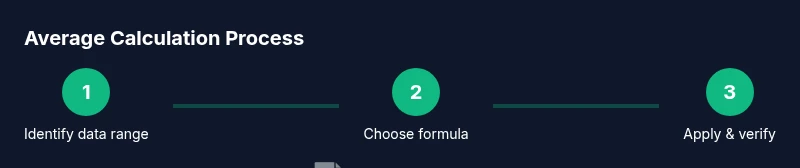
- 1
Identify the data range
Scan the dataset to determine which cells will be averaged. Note any blanks, text, or errors that should be excluded or treated specially. This step ensures your formula targets the correct values in average google spreadsheets.
Tip: Mark the start and end of your data with named ranges to keep formulas stable. - 2
Choose the right average formula
Select AVERAGE for a simple mean, AVERAGEIF/AVERAGEIFS for conditional means, or AVERAGEA when you need to include logical values and text representations. Match the function to your data scenario in average google spreadsheets.
Tip: If you’re unsure, start with AVERAGE and test with a small sample first. - 3
Enter and test the formula
Insert the formula in a dedicated cell and verify it against a manual calculation on a small subset. Confirm whether blanks are included or excluded as intended.
Tip: Use a helper column to compare results while validating. - 4
Copy across or down as needed
If you’re calculating across multiple ranges, drag the fill handle or use ARRAYFORMULA to propagate results across rows/columns without manual edits. This maintains consistency in average google spreadsheets.
Tip: Check edge cases where ranges end mid-row to avoid partial results. - 5
Validate with sanity checks
Cross-check the mean with the median or a quick count of values. If the average looks off, inspect data types and outliers that may skew results.
Tip: Add a simple note in the sheet outlining any outlier handling rules. - 6
Document and save your template
Record your approach in a README or on a separate sheet. Save the setup as a template to reuse in future projects, ensuring consistency across average google spreadsheets.
Tip: Version-control your template for changes over time.
FAQ
What is the simplest way to calculate an average in Google Sheets?
The simplest method is to use =AVERAGE(range). This returns the arithmetic mean of all numeric values in the specified range, ignoring blanks. For mixed data, first clean the range or use AVERAGEIF to exclude non-numeric entries.
Use the AVERAGE function on your numeric range; it ignores blanks and gives you the mean in one click.
How can I ignore blanks when averaging?
If you want to ignore blanks, =AVERAGE(range) already does so. If you need to exclude blanks while including zeros, use =AVERAGEIF(range, "<>", range).
Use AVERAGEIF with a non-blank criterion to ignore blanks while keeping zeros in your calculation.
What’s the difference between AVERAGE and AVERAGEA?
AVERAGE ignores text and logical values, treating them as non-numeric, while AVERAGEA includes TRUE as 1 and FALSE as 0, and converts numeric text to numbers. Choose based on how your data is stored.
AVERAGE ignores text and booleans, while AVERAGEA includes TRUE as 1 and FALSE as 0.
How do I compute a weighted average in Google Sheets?
A weighted average uses both values and their weights. A common approach is =SUMPRODUCT(weights, values)/SUM(weights). Ensure your weights align with the values being averaged.
Use SUMPRODUCT with your weights and values, then divide by the sum of weights.
Can I calculate a moving average in Sheets?
Yes. A simple moving average is the average of a sliding window of values. You can implement it with =AVERAGE(range) on a moving window, or use OFFSET to create dynamic ranges as you extend the dataset.
You can create a sliding window with AVERAGE and dynamic ranges to smooth data over time.
Why might my average change after filtering data?
Filtering can hide or show data, affecting the range used in the average. If you want the full view, compute the average on the original data or use functions that ignore filters, like SUBTOTAL with a specific function number.
Filtering hides data, so use the right function to decide whether to include hidden rows.
Watch Video
The Essentials
- Learn when to use mean vs. median for accurate summaries
- Know how to handle blanks and outliers without bias
- Master weighted averages for meaningful totals
- Automate across sheets with templates to scale analyses
- Document your averaging rules for reproducibility