Before Date in Google Sheets: A Practical Guide
Learn how to determine and act on dates that are before a target date in Google Sheets with clear formulas, filters, and templates. Ideal for students and professionals managing deadlines, schedules, and event dates.


By the end of this guide you'll be able to identify dates that are before a target date in Google Sheets, compare dates, filter results, and build reusable templates. You'll rely on built‑in date functions (like TODAY, DATE, DATEVALUE) and simple logical tests—no add-ons required. This includes using a threshold date in a cell or a dynamic date like TODAY.
What does 'before date' mean in Google Sheets?
In many workflows you need to know whether a given date occurs before another date. This concept—often called a 'before date' check—lets you flag overdue items, filter future schedules, or automate reminders. In Google Sheets, a date is any serial number that Sheets recognizes as a date. That means you can perform arithmetic, comparisons, and conditional formatting on the values as long as they are true date values, not plain text. Before-date logic typically compares a date cell to a threshold date, whether that threshold is a hard date (e.g., 2026-04-30) or a dynamic date like TODAY(). The result is usually a boolean value (TRUE if the date is before the threshold, FALSE otherwise) which you can feed into filters, conditional formatting, or data processing workflows.
Practical takeaway: ensure your date column contains real dates, not human-readable text. If you see a date like 04/30/2026 but Google Sheets treats it as text, convert it to a date first before applying before-date logic.
Essential date functions for before-date work
Google Sheets provides several date-aware functions that simplify before-date tasks. Key functions include TODAY() for the current date, DATE(year, month, day) to construct a date, and DATEVALUE(text) to convert a textual date into a date value. You can also use EDATE(start_date, months) to shift a date by a number of months, which is handy for calculating deadlines relative to a base date. For comparisons, the basic operator < or <= works directly against two date values. When you combine these tools, you can build robust, auto-updating checks that respond to the current date or a fixed threshold stored in a cell.
Tip: Keep a dedicated cell for your threshold date so you can update it without editing formulas everywhere.
Checking if a date is before a threshold
To determine whether a date in column A is before a threshold in B1, use a simple comparison: =A2 < $B$1. If A2 is a valid date, this returns TRUE when the date is earlier than the threshold. You can then drag the formula down to apply it to the whole column. If your threshold date is dynamic (e.g., today), you can set B1 to TODAY() or to a date built with DATE or DATEVALUE. Using an absolute reference ($B$1) ensures the threshold remains fixed while you fill the formula down.
Common variation: =IF(A2 < $B$1, "Before", "After") to produce a readable label instead of TRUE/FALSE.
Dynamic before-date with TODAY() and EDATE
Dynamic thresholds update automatically as time passes. For example, to mark dates that occur before 60 days from today, you can use =A2 < TODAY() + 60. To shift the threshold by months, use =A2 < EDATE(TODAY(), 2). These patterns keep your data current without manual edits. For performance, compute the threshold once in a helper cell and reference it in your formulas.
Edge case: time components can affect comparisons. If your dates include times, you may need to wrap dates with INT() or use DATEVALUE to strip time components for clean day-level comparisons.
Filtering your data to show only dates before a target
There are multiple ways to filter; two common methods are FILTER and QUERY. Example with FILTER: =FILTER(A2:C, A2:A < $D$1). Here D1 holds the threshold date. If you prefer QUERY: =QUERY(A1:C, "select * where A < date '2026-04-30'", 1). Both approaches return only rows where the date meets the before-date condition, enabling focused analysis and clean exports.
Tip: when filtering, consider whether you want to preserve original order or sort by date after filtering.
Date arithmetic pitfalls and how to avoid them
Dates can be tricky when imported from other systems. Common issues include dates stored as text, regional format mismatches (MM/DD vs DD/MM), and time components breaking clean comparisons. Always verify that dates are real date values (not text) by using ISDATE or by applying DATEVALUE. If you see #VALUE! after a formula, check that your date cells are recognized as dates. Locale settings can also affect how text dates are parsed; adjust your formula approach accordingly.
Practical templates you can reuse
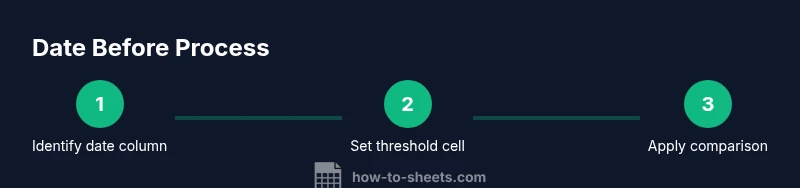
The core pattern is: (1) a date column, (2) a threshold (static or dynamic), (3) a boolean helper indicating before/after, (4) an optional filter/format step. You can turn this into a reusable template by placing the date column in A, the threshold in D1, and the helper in E. Then save a copy of the sheet as a template for future projects. This approach is ideal for students tracking assignment deadlines or professionals maintaining project schedules.
Common use cases: due dates, event planning, schedules
Before-date logic is versatile. For assignment due dates, you can auto-flag overdue items and generate reminders. In event planning, you can filter invitations by RSVP date to focus on those that arrive before the deadline. In workforce scheduling, comparing shift start dates to a cutoff helps you prepare staffing reports efficiently. The simple, copy‑paste-able formulas make these tasks quick to implement across multiple sheets.
Final tips for reliability and performance
Keep your sheets clean by normalizing date formats first. Use named ranges for thresholds to improve readability. Avoid volatile functions like NOW() in large data sets; prefer TODAY() with a cached threshold where possible. Regularly audit a sample of rows to verify that date values and comparisons remain correct after edits or imports.
Tools & Materials
- Google Sheets access(Any browser; sign-in with a Google account)
- Sample date dataset(Spreadsheet with a date column (YYYY-MM-DD or locale format))
- Threshold date cell(Optional: place the threshold date in a dedicated cell, e.g., D1)
- Date function reference(Optional: keep a quick reference for TODAY, DATE, DATEVALUE, EDATE)
Steps
Estimated time: 25-35 minutes
- 1
Identify the date column
Open your sheet and locate the column that contains the dates you want to compare. Confirm all values in this column are dates, not text labels. If you find text, plan to convert them to dates first.
Tip: Use Data > Data Cleanup > Trim whitespace and check for non-date values in the column. - 2
Normalize date formats
If some dates are stored as text, convert them to date values using DATEVALUE (or value parsing) and reformat the column to a consistent date format. This prevents incorrect comparisons.
Tip: Consider using an array formula to convert the entire column in one go: =ARRAYFORMULA(IFERROR(DATEVALUE(A2:A), A2:A)) - 3
Set a threshold date
Enter the target date in a dedicated cell (for example, D1). This becomes your before-date benchmark and can be static or dynamic. If you use TODAY(), the threshold updates daily.
Tip: Label the threshold cell clearly (e.g., 'BeforeDateThreshold') to avoid confusion. - 4
Create a helper comparison
In a new column, input a formula that compares each date to the threshold. Example: =A2 < $D$1. Copy the formula down to apply to the whole dataset.
Tip: Use absolute referencing for the threshold to keep it fixed when copying the formula. - 5
Apply a filter or view results
Filter the dataset to show only rows where the helper column is TRUE, or apply a FILTER function to return only matching rows.
Tip: Test with a small subset to confirm the filter behaves as expected before applying to the full sheet. - 6
Add optional conditional formatting
Highlight dates that are before the threshold to draw attention. Use conditional formatting rules based on the same comparison logic.
Tip: Set the formatting range to match the date column, not the entire row, unless you want row highlighting. - 7
Save as a reusable template
If you anticipate using this pattern again, remove sensitive data and save the sheet as a template. Document the threshold logic in a header row for future users.
Tip: Create a named range for the threshold to simplify reuse. - 8
Validate with real data
Run a quick validation pass by comparing a handful of dates against known outcomes to ensure the logic is correct.
Tip: Keep a small test dataset handy for future edits or new date ranges.
FAQ
How do I check if a date is before another date in Google Sheets?
Use a simple comparison like =A2 < $B$1 where A2 is your date and B1 holds the threshold. Copy the formula down to apply it to the entire column. Consider TODAY() for dynamic thresholds.
Use a simple date comparison, like A2 less than B1, to see if dates are before the threshold. Copy it down to apply to all rows.
What if dates are stored as text?
Convert them to real dates using DATEVALUE or by reformatting cells. Text dates will not compare correctly with date values, which can lead to wrong results.
If dates are text, convert them to real dates with DATEVALUE before applying the before-date logic.
Can I use TODAY() to set a dynamic threshold?
Yes. Use TODAY() or TODAY() plus an offset, like TODAY() - 7, to create a moving threshold. This keeps results up to date without manual edits.
Absolutely. TODAY() can serve as a moving threshold for dynamic checks.
Which is better for filtering: FILTER or QUERY?
FILTER is straightforward for simple criteria, while QUERY can be more powerful for complex conditions and formatting. Choose based on your needs and comfort level.
For simple checks, FILTER is fine; for complex criteria, try QUERY.
How can I visually highlight dates before the threshold?
Use conditional formatting with a rule based on the same date comparison you use in formulas. This provides an at-a-glance indication of overdue or early dates.
Apply conditional formatting using the same before-date rule to highlight those dates.
Watch Video
The Essentials
- Define your before-date threshold clearly
- Convert dates to proper date values before comparisons
- Use both filtering and conditional formatting for clarity
- Create reusable templates for consistency
- Test thoroughly with representative data