Google Sheets Absolute vs Relative Reference: Practical Guide
Master the difference between absolute and relative references in Google Sheets with clear explanations, practical examples, and templates for budgets and data models. Learn when to anchor cells, how copying formulas affects results, and tips for robust spreadsheets.


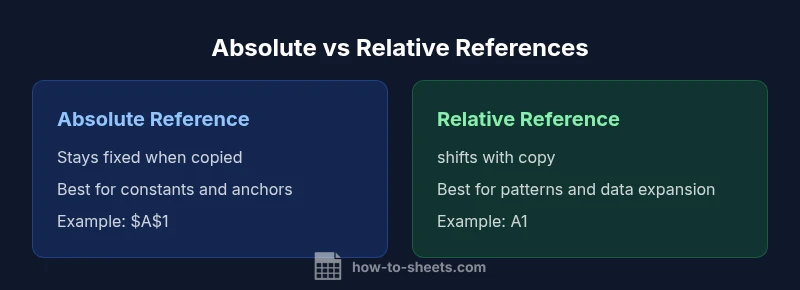
For most Sheets users, absolute references lock a cell in formulas (e.g., $A$1) while relative references adjust as you fill or copy formulas. In the google sheets absolute vs relative reference comparison, the key difference is how references behave when you copy formulas across rows or columns. Use absolute references for constants and relative references for adaptable calculations.
Core concept: anchoring and references in Google Sheets
In the realm of the google sheets absolute vs relative reference, every cell reference carries a behavior pattern when a formula is copied. Absolute references stay fixed, while relative references shift to align with the new location. This distinction matters because it determines whether a formula should repeat the same cell, or adapt to the new row or column. According to How To Sheets, understanding these anchoring rules is foundational for building reliable, scalable spreadsheets. The How To Sheets team found that using the right mix of anchors can dramatically reduce manual edits and prevent cascade errors in templates used for budgeting, scheduling, and data tracking. Readers should expect practical examples, not just theory, as real-world files rarely stay static through multiple copies or directional filling.
The mechanics: how absolute and relative references behave
Absolute references are denoted with dollar signs before the row and/or column (for example, $A$1). They lock the reference in place regardless of where the formula is copied. Relative references, by contrast, shift relative to the position of the formula (A1 becomes B1 when copied one column to the right). This fundamental difference governs most copy-paste scenarios in Google Sheets and is the core reason why some formulas behave predictably while others require careful anchoring. In practical terms, absolute references are ideal for fixed rates, tax values, or a lookup table anchor, while relative references shine when calculations should expand to new rows, columns, or data ranges.
Practical examples: anchored lookups and dynamic ranges
Consider a simple sales sheet where you calculate commission as a percentage of each sale. If the commission rate sits in cell B2, you’d use =$B$2 in every row to keep the rate fixed. If the sale amount is in column A and you want the percentage row-wise, you’d use A2 for the first row and copy down; the relative reference adjusts to A3, A4, and so on. This shows how google sheets absolute vs relative reference decisions directly impact row-by-row calculations. For a running total that should always add a fixed tax per item, anchor the tax rate with $T$5 and copy the formula across the item list to maintain a constant tax value across all lines.
Mixed references: combining anchors with flexibility
Sometimes you need a hybrid approach: anchor the column but let the row move, or vice versa. A mixed reference like $A1 anchors the column A while allowing the row to change as you copy down, which is useful in pattern-based templates such as month-by-month budgets where you want to lock the category column but allow the month row to shift. Conversely, A$1 anchors the first row while allowing columns to shift. These mixed references are a powerful tool when building flexible, scalable sheets that still rely on a stable anchor.
Copying across rows and columns: predictable versus fluid behavior
When you drag a formula horizontally, vertical anchors determine how references move. When you drag vertically, horizontal anchors affect movement. The net effect is that a carefully planned mix of absolute, relative, and mixed references yields formulas that copy with expected results across large ranges. This is particularly important in templates like budgets, timelines, and inventory sheets where formulas must adapt to new data without breaking. Always test a few drag directions on a copy of your workbook to confirm that your anchors behave as intended.
Common mistakes and how to fix them
A frequent pitfall is over-anchoring or under-anchoring a reference. Anchoring too aggressively can make formulas inflexible, forcing you to rework the sheet when the data structure changes. On the other hand, too little anchoring invites unintended shifts that propagate errors across many cells. A practical fix is to audit critical formulas by inspecting the references in the formula bar and then adjusting anchors to reflect the actual data structure. Another useful technique is to build modular templates where fixed constants live in a dedicated, clearly anchored area, and dynamic calculations pull from that anchor region.
Use cases: budgets, schedules, and data templates
Budget templates typically use absolute references for fixed rates, tax percentages, and constants, while relative references allow line items to scale automatically as rows grow. Schedule templates benefit from mixed references to keep the time unit column stable while allowing the date or task description to shift. Data models often combine both: fixed parameter values anchored in a control block and dynamic calculations pulling data from the main dataset. In every scenario, the core rule is to anchor constants and anchor structural references that must stay the same, while keeping data-driven parts flexible.
Debugging references: quick checks and validation steps
If a formula seems off after copying, first locate the references in the formula bar. Check whether each reference should be absolute, relative, or mixed for your intended outcome. Then test by duplicating a small section of the sheet and manually verifying results. If the copy output diverges from expectations, re-evaluate the anchoring strategy, and adjust accordingly. A disciplined approach to debugging saves time and reduces the risk of silent errors in larger analyses.
Conversion steps: turning relative into absolute and vice versa
To convert a relative reference into an absolute one, insert dollar signs to anchor the desired axis (e.g., A1 becomes $A$1). Conversely, removing dollars converts an absolute reference into a relative one. In practice, this means selecting the reference in the formula bar and typing the $ signs or using editor features to toggle the anchor state when available. For complex formulas, document which references must stay fixed and which should adapt; this makes future edits easier and reduces the likelihood of mistakes during sheet maintenance.
Quick tips for real-world workflows
Keep a small cheatsheet for common anchors: $A$1 (fully fixed), $A1 (fixed column), A$1 (fixed row). Apply this logic consistently across your most-used templates. When sharing sheets, communicate how anchors are used, so collaborators understand why certain references don’t change. Finally, practice with sample datasets to become fluent in google sheets absolute vs relative reference patterns so your spreadsheets remain reliable as data evolves.
Summary of best practices: anchoring for robust Sheets
anchor constants in a dedicated anchored area, keep data-driven parts flexible, test across drag directions, and document your anchoring decisions for clarity. By using absolute references where constants belong and relative references where data should adapt, you’ll create spreadsheets that are both accurate and scalable in the long term.
Comparison
| Feature | absolute reference | relative reference |
|---|---|---|
| Anchoring behavior | Stays fixed (e.g., $A$1) | Shifts with the formula (e.g., A1 becomes B1) |
| Best use case | Fixed constants, lookup table anchors, fixed tax/rate | Dynamic calculations that grow with rows/columns |
| Range handling | Can anchor single cells or fixed ranges (e.g., $A$1:$A$10) | Works best with growing ranges when copying down/across |
| Copying across rows | Reference remains the same | Reference moves to the new row |
| Copying across columns | Reference remains the same | Reference moves to the new column |
| Complexity impact | Clearer with fixed anchors | Requires careful planning to maintain flexibility |
The Good
- Improves accuracy by stabilizing constants
- Reduces errors when templates are copied
- Enables scalable, reusable spreadsheets
- Clarifies intent with explicit anchors
- Supports robust lookups and templates
The Bad
- Can be confusing for beginners
- Over-anchoring reduces flexibility
- Mistakes happen when converting references without care
- Mixed references require extra attention
Use a balanced mix of absolute and relative references for most Google Sheets workflows.
Anchors fix constants and lookup tables, while relative refs adapt to new data. The How To Sheets team recommends designing templates with anchored constants and flexible data references, then validating by copying formulas in multiple directions.
FAQ
What is the difference between absolute and relative references in Google Sheets?
Absolute references stay fixed when formulas are copied (e.g., $A$1). Relative references change based on the formula’s new location (e.g., A1 becomes B1). This distinction governs most copying behavior in Sheets.
Absolute references stay fixed; relative references adjust as you copy. This difference drives how formulas behave when you fill across rows or columns.
When should I use absolute references?
Use absolute references for constants, fixed lookup tables, tax rates, or any value that must stay constant across rows or columns. They prevent unintended changes as you copy formulas.
Anchor values that must stay the same, like tax rates or lookup tables.
How do I convert a relative reference to an absolute reference in Google Sheets?
Edit the formula and add dollar signs to lock the column, row, or both (e.g., A1 -> $A$1). Some editors offer a toggle to switch anchors; otherwise, type the dollar signs manually.
Edit the reference to add anchors like $A$1, or use your editor's toggle if available.
What happens if I copy a formula with mixed references?
Mixed references anchor one dimension (column or row) while allowing the other to move. This is useful in templates where one axis should stay fixed while the other scales.
Mixed refs let parts stay fixed while others move as you copy.
Can I use absolute references across multiple sheets?
Yes. You can reference a fixed cell on another sheet using a sheet name, then anchor as needed (e.g., ='Sheet1'!$A$1). This helps keep constants consistent across the workbook.
Yes, you can anchor across sheets by combining sheet names with $ signs.
Is there a quick way to toggle anchors while editing formulas?
Some editors provide a quick toggle to switch between absolute and relative references. If not available, manually add or remove dollar signs in the formula bar.
Some editors let you toggle anchors; otherwise, edit the formula to add or remove dollar signs.
The Essentials
- Anchor constants for stability
- Let data references move with copying
- Use mixed references for hybrid templates
- Test formulas by dragging in all directions
- Document anchoring decisions for team collaboration