Google Sheets Alternatives to Nested IF: Cleaner, Faster Formulas
Discover practical, step-by-step alternatives to nested IF in Google Sheets. Compare SWITCH, IFS, and array formulas with examples and maintenance tips.


With Google Sheets, you can replace nested IF statements using SWITCH, IFS, and array formulas. SWITCH handles multiple discrete cases, IFS simplifies multiple logical tests, and array formulas enable row-wise or column-wide evaluations without deep nesting. This guide compares these approaches, shows practical examples, and explains when each option is preferable for readability and performance.
Why replace nested IF in Google Sheets
According to How To Sheets, replacing nested IF with SWITCH or IFS often improves readability and maintainability. Nested IFs can quickly grow unwieldy as conditions pile up, increasing the risk of mistakes and broken logic. In collaborative sheets, a cleaner, declarative structure saves time for teammates and reduces onboarding effort. This section explores why teams switch away from deep IF chains and the practical benefits you can expect, including easier debugging, more straightforward auditing, and better future-proofing. We’ll also highlight common edge cases—such as default paths, undefined data, and non-numeric inputs—and how to handle them with robust substitutes. As a rule of thumb, aim for formulas that are easy to scan at a glance, not just ones that are technically short.
Core alternatives: SWITCH, IFS, and array formulas
Google Sheets provides several robust patterns to replace nested IFs. Below we highlight the three most practical options, with quick notes on when to reach for each. SWITCH is ideal for fixed, discrete categories; IFS shines when you have multiple threshold conditions; and array formulas unlock column- or row-wide evaluation without duplicating logic for every row. Each approach reduces nesting and improves maintainability over long IF chains. In many real-world sheets, teams combine these techniques with named ranges and helper columns to keep formulas readable and debuggable.
When to use SWITCH vs IFS vs arrays
Use SWITCH when you have a compact, well-defined set of exact matches (for example, mapping codes to labels). IFS is preferable when many conditions rely on thresholds or ranges (for example, score bands or date ranges). Array formulas shine for big datasets where you want to apply the same logic across entire columns without duplicating formulas. A practical rule: start with readability, then optimize for performance if you notice slow recalculation on very large sheets.
Practical examples: converting common nested IF patterns
Here are concrete conversions that show how to replace typical nested IFs. Each example includes both the old pattern and a clean, modern equivalent.
Example 1: Grade by score using IFS
Original:
=IF(A2>=90,"A",IF(A2>=80,"B",IF(A2>=70,"C","D")))
Converted:
=IFS(A2>=90,"A", A2>=80,"B", A2>=70,"C", TRUE,"D")
Example 2: Category mapping with SWITCH
Original:
=IF(B2="Blue","Sky", IF(B2="Red","Fire","Other"))
Converted:
=SWITCH(B2, "Blue","Sky", "Red","Fire", "Other")
Example 3: Thresholds with an array formula
Original:
=IF(A2>=90,"A", IF(A2>=80,"B", IF(A2>=70,"C","D")))
Converted (array-friendly):
=ArrayFormula(IFS(A2:A>=90,"A", A2:A>=80,"B", A2:A>=70,"C", TRUE,"D"))
These examples illustrate a fundamental shift: replace procedural nesting with declarative patterns. When dealing with large datasets, you can extend these patterns across entire columns using ArrayFormula while preserving readability. For teams that maintain many sheets, adopting these patterns early reduces maintenance burden and lowers the risk of logic drift over time.
Performance and readability considerations
Performance differences between SWITCH, IFS, and array formulas are usually modest for typical business datasets, but scale matters as data grows. How To Sheets analysis shows that SWITCH formulas tend to be shorter and faster to compute on common datasets, while IFS scales better when you have many conditional branches. Readability often improves the most with SWITCH or IFS because the logic is easier to trace than a long chain of IF statements. If you expect frequent updates to decision criteria, prefer a structure that’s easy to document and test. Name your ranges and add comments in your sheet to guide future editors.
Quick tips for implementing in real-world worksheets
- Start small: replace a single nested IF block first to validate behavior.
- Prefer SWITCH for discrete categories and IFS for thresholds.
- Use ArrayFormula for column-wide evaluation, but test performance on large data sets.
- Document your logic with comments and named ranges to improve maintainability.
- Consider combining approaches: SWITCH for initial classification, then IFS for finer splits, and array formulas for bulk processing.
The How To Sheets verdict
The How To Sheets team recommends adopting SWITCH, IFS, or array formulas based on data patterns and collaboration needs. In practice, start with SWITCH for fixed categories, move to IFS as conditions grow, and use array formulas when you need to evaluate entire columns consistently. Regularly audit your formulas and document decisions to keep sheets maintainable. Overall, these alternatives reduce nesting complexity and support more scalable spreadsheet design.
Tools & Materials
- Google Sheets (any plan)(Open a sheet with the nested IF examples you want to convert)
- Sample dataset(Prepare data with numeric categories and text conditions)
- Formula templates(Copy/paste sample SWITCH/IFS formulas)
- Notes or data validations(To ensure consistent inputs)
Steps
Estimated time: 20-30 minutes
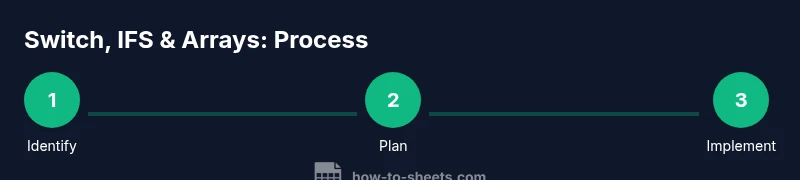
- 1
Identify the nested IF pattern
Scan your worksheet to locate where multiple IF statements would be evaluated in sequence. Note the exact conditions and the final outputs for each branch. This helps you decide whether SWITCH, IFS, or an array approach will preserve the same logic with clearer syntax.
Tip: Document each branch before rewriting to avoid missing a condition. - 2
Choose SWITCH, IFS, or an array approach
Decide which pattern best matches the data: SWITCH for fixed categories, IFS for multiple thresholds, or an array formula for column-wide evaluation. Pick one path per major decision to keep the logic consistent.
Tip: If in doubt, start with SWITCH; it’s usually the simplest conversion. - 3
Rewrite to SWITCH for discrete values
Replace a chain like IF(x=value1, a, IF(x=value2, b, c)) with SWITCH(x, value1, a, value2, b, c). This reduces nesting and makes each case explicit.
Tip: Include a final default value to handle unexpected inputs. - 4
Rewrite to IFS for thresholds
Use IFS when your conditions are based on thresholds rather than exact matches. For example, A2>=90 maps to A, A2>=80 maps to B, etc. TRUE as a catch-all keeps the default path explicit.
Tip: Order conditions from most to least restrictive to ensure correct evaluation. - 5
Apply array formulas for bulk rows
If you need to apply the same logic across many rows, wrap your chosen pattern in ArrayFormula. This avoids duplicating logic for each row and ensures consistent results.
Tip: Test on a small sample before applying to the full dataset. - 6
Test, audit, and document
Validate outputs against the original nested IF, check edge cases, and add notes or named ranges to improve future maintainability. Ensure the default path is clearly defined.
Tip: Use a separate sheet to compare old and new results during migration.
FAQ
What is the best alternative to nested IF for simple category mapping?
For fixed categories, SWITCH is typically the cleanest and easiest to audit. It keeps each case explicit and minimizes nesting.
For simple category mappings, SWITCH is usually the best choice because it keeps cases clear and the formula easy to read.
When should I use IFS instead of SWITCH?
IFS excels when you have many conditional thresholds or ranges. It avoids the need for default-valued branches and can be easier to adjust as criteria evolve.
If you have many thresholds, IFS is often more straightforward and scalable than SWITCH.
Can array formulas replace nested IFs across a whole dataset?
Yes, array formulas allow applying the same logic to entire columns or rows. They’re powerful for large datasets but require careful testing to ensure performance remains acceptable.
Array formulas let you run the same logic over many rows at once, which is great for big datasets but test performance.
Are there any risks in switching from IF to SWITCH/IFS?
The main risk is behavior change on edge cases. Always verify a few edge inputs and keep a default path so unexpected data still yields meaningful results.
The main risk is edge-case behavior. Always test with odd inputs and define a sensible default.
How do I migrate an existing large nested IF to a cleaner pattern?
Break the migration into stages: map discrete cases with SWITCH, then add thresholds with IFS, and finally implement an ArrayFormula for large columns if needed. Validate after each stage.
Migrate in stages: switch for cases, then thresholds with IFS, then bulk with an array formula, testing each stage.
Watch Video
The Essentials
- Start with SWITCH for fixed categories
- Use IFS for multiple thresholds
- Leverage ArrayFormula for bulk evaluation
- Document decisions to keep sheets maintainable