Google Sheets Days Between Dates: Step-by-Step Guide
Learn how to calculate days between dates in Google Sheets using DATEDIF, DAYS, NETWORKDAYS, and NETWORKDAYS.INTL. Includes inclusive vs. exclusive counting, holidays, and real-world templates.


Goal: show you how to calculate days between two dates in Google Sheets for everyday tasks like scheduling, invoicing, or tracking deadlines. Start with simple subtraction (=B2 - A2) for a quick day count, or use DATEDIF ( =DATEDIF(A2,B2,"D") ) for a precise result. If you need working days, apply NETWORKDAYS ( =NETWORKDAYS(A2,B2, holidays) ). We'll also cover inclusive vs exclusive counts and common pitfalls.
Understanding the concept of days between dates in Google Sheets
google sheets days between dates refers to measuring the elapsed time, in whole days, between two date values stored in a spreadsheet. In Sheets, dates are stored as serial numbers, so subtracting one date from another yields the day difference. This simple property underpins many workflows: project timelines, billing cycles, attendance logs, and deadline tracking. When you work with dates, it’s essential to ensure the cells are recognized as dates (not text) and that your locale settings use the same date format as your data. By mastering basic arithmetic and common date functions, you’ll reduce manual counting errors and automate routine scheduling tasks. According to How To Sheets, mastering date differences early in a project saves time and prevents miscalculations that ripple through budgets and deadlines.
Basic date arithmetic: subtraction and DATEDIF
The simplest way to count days between two dates is to subtract the earlier date from the later date. For example, if A2 holds 2026-02-01 and B2 holds 2026-02-10, =B2-A2 returns 9. If you prefer a dedicated function, =DATEDIF(A2,B2,"D") returns the same result. The DAYS function is another straightforward option: =DAYS(B2,A2) also yields the difference in days. These approaches assume both cells are true dates; if either is text, convert with DATEVALUE or ensure your locale matches the date format. For consistency, you can wrap your formula in IFERROR to handle blanks or non-date entries gracefully.
Inclusive vs exclusive counting: when to add 1
By default, date subtraction counts exclusive days—the start date is not included. To count both start and end dates (inclusive counting), add 1 to the difference: =B2-A2+1. If you need to count only full days between dates while time values are present, you may prefer =INT(B2)-INT(A2). The choice depends on your use case: deadlines, durations, or elapsed days in a report. Being explicit about inclusivity prevents off-by-one errors in dashboards and summaries.
Counting only working days with NETWORKDAYS
If your goal is to count working days between two dates, use NETWORKDAYS. The basic syntax is =NETWORKDAYS(start_date, end_date, [holidays]). This excludes Saturdays and Sundays by default. If your work week differs, switch to NETWORKDAYS.INTL to define which days are workdays. Holidays can be supplied as a range of dates to exclude from the count, making the output align with payroll, project planning, and attendance records.
Handling holidays and custom weekends with NETWORKDAYS.INTL
NETWORKDAYS.INTL(start_date, end_date, weekend, holidays) allows custom weekends. The weekend parameter accepts either a number (1 for Sat-Sun) or a 7-character string like "0000011" where 1 marks a weekend day. For example, =NETWORKDAYS.INTL(A2,B2,"0000011", holidays) counts workdays excluding Saturdays and Sundays while omitting listed holidays. This flexibility is valuable for global teams with different weekend schedules and holiday calendars, keeping your timelines accurate across regions.
Working with time components: days vs partial days
Date-time values can carry hours and minutes, which affects day counts if time portions fall within the date range. To count full days only, use INT(B2) - INT(A2). If you want a decimal day count that includes time fractions, you can use =B2 - A2, but you should be mindful of how your datasets display dates and how your formatting affects interpretation. Trimming time parts before counting reduces variability across spreadsheets and makes your reports cleaner.
Real-world scenarios and templates
A payroll sheet might calculate the number of days an employee worked between hire and pay dates, adjusted for holidays. A project plan could show how many calendar days and how many working days remain until a milestone, with both metrics updating automatically when dates change. In templates, you’ll often see a date range cell pair (start_date, end_date), a holidays list, and one or more result cells that display the day count, working days, and inclusive/exclusive variants. Consistency in input formats and clearly labeled cells makes templates reusable across teams and projects.
Common mistakes and troubleshooting
Common issues include dates stored as text, mixed date formats due to locale changes, and blank or future-dated cells causing incorrect results. Always convert text to dates with DATEVALUE or DATE function, ensure consistent format in your locale, and validate with a few test cases. When using NETWORKDAYS, provide a clean holidays range with true date values. If a formula returns an error, wrap it in IFERROR and log the scenario causing the failure to improve your sheet's reliability.
Quick-reference cheat sheet: key formulas
- =B2-A2 — simple day difference (calendar days)
- =DATEDIF(A2,B2,"D") — explicit day count
- =DAYS(B2,A2) — difference in days
- =NETWORKDAYS(A2,B2) — working days (Mon-Fri by default)
- =NETWORKDAYS.INTL(A2,B2,"0000011", holidays) — custom weekends and holidays
- =INT(B2)-INT(A2) — full days ignoring time
- =DATEVALUE(text_date) — convert text to a date value if needed
Tools & Materials
- Google account with Google Sheets access(Essential for creating and editing sheets; ensures you can test formulas live)
- Sample date data (start_date, end_date)(Populate in clearly labeled cells, e.g., A2 and B2)
- Holidays list (optional)(Provide as a range of dates to exclude, e.g., D2:D10)
- Date-format-consistent locale(Ensure your Sheets locale matches the date formats in your data)
- Plain-text description of the logic(Helpful for teams to understand why a specific count is used)
Steps
Estimated time: 60-90 minutes
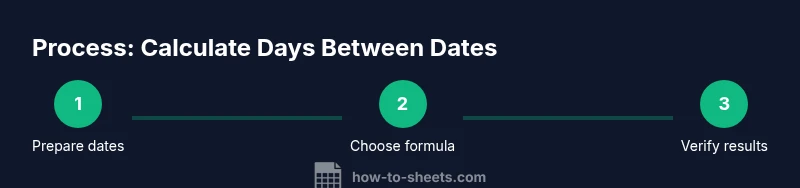
- 1
Prepare your date data
Label columns for start date and end date, and enter sample dates in date format. Ensure time portions are either removed or consistently handled. This setup is the foundation for all subsequent calculations.
Tip: Use data validation to enforce date entry and minimize errors. - 2
Choose the basic day-count method
Decide whether you need a simple calendar-day difference or a more explicit function. For many tasks, a quick difference using =B2-A2 suffices.
Tip: Refer to the dates as absolute references when creating templates. - 3
Implement DATEDIF for reliability
In a result cell, enter =DATEDIF(A2,B2,"D"). This is a robust way to count days that is compatible across locales and date orders.
Tip: If you swap A2 and B2, DATEDIF will show an error; keep A2 as the earlier date or wrap with IF(A2<=B2, ...). - 4
Count working days with NETWORKDAYS
Add =NETWORKDAYS(A2,B2) to return the number of business days between dates. Include a holidays range if you want to exclude holidays as well.
Tip: Use a named range for holidays to reuse across sheets. - 5
Customize weekends with NETWORKDAYS.INTL
If your workweek isn’t Mon-Fri, use =NETWORKDAYS.INTL(A2,B2, weekend, holidays). The weekend argument defines which days are non-working.
Tip: Test weekend strings like "0000011" before applying to large datasets. - 6
Handle times and partial days
If your dates include times, strip time components when counting full days with =INT(B2)-INT(A2) or wrap counts in a DATEVALUE.
Tip: Consistency is key: remove time for clean day counts when reporting milestones. - 7
Validate with edge cases
Test same-date, adjacent dates, reversed dates, and blanks to confirm your formulas handle all scenarios gracefully.
Tip: Use IFERROR to prevent your sheet from breaking when inputs are incomplete. - 8
Document and reuse
Add comments or a separate sheet with a quick cheatsheet and example formulas so teammates can reuse the setup.
Tip: Create a template row with named ranges to speed up deployments.
FAQ
What is the difference between using DAYS and DATEDIF for day counts?
DAYS(end, start) and DATEDIF(start, end, 'D') both return the number of days between dates, but DATEDIF supports other units (e.g., 'M' months, 'Y' years) and often handles edge cases more consistently across locales. For straightforward day counts, either will work.
DAYS and DATEDIF both count days, but DATEDIF supports more units if you need months or years.
How do I count working days between two dates with holidays?
Use =NETWORKDAYS(start_date, end_date, holidays). The holidays argument can be a range of dates. If your workweek differs, switch to NETWORKDAYS.INTL with a custom weekend string.
Use NETWORKDAYS with a holidays range, or NETWORKDAYS.INTL for custom weekends.
What if dates are entered as text?
Convert text to dates using DATEVALUE(text) or by reformatting the cells to a recognized date format. Text dates will not count correctly in arithmetic without conversion.
If dates are text, convert them with DATEVALUE before counting.
Can I count inclusive days (including both start and end dates)?
Yes. For calendar days, use =B2-A2+1. For working days, you can adjust with NETWORKDAYS and add 1 when both endpoints are working days, though it's often clearer to present two separate counts.
Add 1 to the difference for inclusive calendar days; adjust carefully for working days.
How do I handle time components in dates?
If times are present, strip them with INT(date) or DATEVALUE(date) before counting days to avoid partial-day issues.
Strip time parts with INT to count full days only.
What should I do if a value is blank in the date cells?
Wrap formulas with IF(A2="","", formula) or use IFERROR to return blanks instead of errors when inputs are missing.
Return blank results when inputs are missing to keep dashboards tidy.
Watch Video
The Essentials
- Use B2-A2 for quick day counts
- DATEDIF(A2,B2,'D') provides stable day counts
- NETWORKDAYS excludes weekends and holidays
- NETWORKDAYS.INTL supports custom weekends
- Strip time components when counting full days