Google Sheets Difference Formula: A Practical Guide
Learn how to calculate differences in Google Sheets using subtraction, ABS, and DATEDIF. This step-by-step guide covers numeric and date differences, common errors, and real-world examples for students, professionals, and small business owners.


With Google Sheets, you can compute differences between values using a simple subtraction formula. For numeric changes, use =B2 - A2 to get the difference between two cells, and wrap with ABS to return magnitudes if you need only positives. You can also measure date gaps with =DATEDIF(start, end, \"d\").
What is a difference formula in Google Sheets
A difference formula measures how one value compares to another. In many cases, you simply subtract a starting value from an ending value to see the change. This is common in budgeting to track expenditure growth, in forecasting to monitor performance, or in education to measure progress. The vast majority of use cases rely on a straightforward pattern: end value minus start value yields the delta. In Google Sheets, this is done with standard cell references like =B2 - A2. The key is understanding what you want to measure: absolute change, signed change, or duration. The phrase google sheets difference formula captures this concept, but the exact approach depends on data type (numbers vs dates) and how you want to present results (positive only, or with signs). In this guide, you’ll see practical examples and reusable templates to apply this across datasets. The How To Sheets team keeps the guidance grounded in real-world tasks rather than abstract theory.
Why difference formulas matter for data analysis
Difference formulas turn raw data into actionable insights by showing how values move over time or across categories. When you track monthly revenue, a simple difference formula reveals month-over-month growth or decline. For project timelines, calculating the delta between planned and actual dates highlights slippage. For academic settings, comparing test scores across terms helps identify trends. The google sheets difference formula approach also scales: a single subtraction pattern can be copied down dozens or hundreds of rows, turning a simple worksheet into a live dashboard. This is especially valuable for students organizing assignments, professionals managing client metrics, and small business owners who need quick, repeatable calculations. To keep results trustworthy, standardize the data types (numbers as numbers, dates as dates) and consider edge cases such as missing values or non-numeric inputs. With disciplined data practices, difference formulas become a reliable part of your analytic toolkit.
Basic numeric difference: subtraction
The simplest form of a difference formula is subtraction. If you record sales in column B and starting inventory in column A, the delta for each row is =B2 - A2. Copy this down to apply it across your entire data range. If the result is negative, that indicates a decrease relative to the start value; if positive, an increase. To keep the display clean, you can wrap the result in an IF to show 0 for negative deltas or to label the delta as “up” or “down.” Many users also place the formula in a dedicated Delta column and pin the header row for easy interpretation. This basic pattern forms the backbone of more complex scenarios, such as multi-step forecasts or comparisons across multiple periods. For data integrity, ensure cells contain numeric data or are coerced to numbers with VALUE, and avoid mixing text with numbers in the same column.
Absolute differences and handling negatives
Sometimes you only care about the magnitude of change, not the direction. In Google Sheets, the ABS function returns the absolute value, turning any negative delta into a positive one. Example: =ABS(B2 - A2). This is especially useful in dashboards where the focus is on amount of change rather than direction. You can combine ABS with IF to create conditional formats, such as highlighting changes that exceed a threshold. If you’re working with large datasets, consider wrapping the entire calculation in an IFERROR construct to gracefully handle blanks or non-numeric entries. For date differences, you can apply ABS to the result as well if you want a positive duration, though DATEDIF typically yields nonnegative values when end date is after the start date. The key idea is to choose magnitude or signed delta according to your analytical goal, not just personal preference.
Differences with dates: using DATEDIF
Date differences require a slightly different toolset. Google Sheets provides DATEDIF(start_date, end_date, unit) to measure days, months, or years between dates. A common pattern is =DATEDIF(A2, B2, "d") to get the number of days between two date cells. You can switch the unit to "m" for months or "y" for years. If you need fractional months, you may combine DATEDIF with a second calculation or use NETWORKDAYS for business days. When using DATEDIF, ensure both inputs are recognized as dates; if not, convert them with DATEVALUE or wrap the formula in IFERROR to catch invalid entries. For datasets that include missing dates, you can use IF to return a blank or a specific message rather than an error. Date diffs add a temporal dimension to your analyses, making it possible to track timelines, age of accounts, or project durations with precision.
Conditional differences: IF and IFERROR
Not all results should be shown verbatim. IF lets you tailor the delta based on business rules. For example, =IF(A2 = 0, "", B2 - A2) hides deltas when there is no starting value. IFERROR helps when inputs might be missing or malformed: =IFERROR(B2 - A2, "N/A"). You can also chain IF with ABS to display magnitude only when the delta crosses a threshold, for example, =IF(ABS(B2 - A2) > 1000, ABS(B2 - A2), 0). These constructs keep your sheet robust in the face of imperfect data. Remember to maintain consistency in data types and avoid mixing text with numbers in downstream charts or pivot tables. By combining conditional logic with subtraction or DATEDIF, you create flexible, business-ready difference analyses.
Practical examples: sales delta and budget changes
Consider a small business tracking monthly revenue. In column A, you have the prior month’s revenue; in column B, current month revenue. The delta per month is =B2 - A2. If you want the magnitude, =ABS(B2 - A2). For a project budget review, you might record planned costs in column A and actual costs in column B; apply =B2 - A2 to see overruns or savings. If you need a quick, non-breaking view, you can build a small template that auto-fills delta columns across months and includes a conditional highlight rule if delta exceeds a threshold. Integrate this with a simple chart to visualize changes over time. For teams that share sheets, consider protecting the delta cells with data validation to prevent accidental edits. This real-world usage highlights how a google sheets difference formula translates into tangible business insights.
Common pitfalls and how to avoid them
Relying on raw values without validation leads to errors. Ensure inputs are numeric or dates; use VALUE or DATEVALUE to coerce text. Blanks can produce 0 or #VALUE! errors depending on context, so consider IF to handle blanks gracefully. Mixing number formats (e.g., currency and numbers) can cause alignment issues; normalize formats before calculating. When using DATEDIF, ensure end date is not earlier than start date unless you intend negative durations; otherwise, you’ll get errors. If you’re combining multiple functions, test each component separately to isolate the cause of errors. Finally, document your formulas with comments or in a separate notes column so others can understand the logic behind your standpoint and decisions.
Scaling up with array formulas and templates
If you’re applying a difference formula across hundreds of rows, array formulas save time and reduce manual copying. For numeric deltas, you can use =ARRAYFORMULA(B2:B - A2:A) to calculate diffs for entire columns. For date differences, you can combine with DATEDIF in an array-safe manner, though you may need to use MAP or an alternative approach since DATEDIF doesn’t natively support array input in all versions. A robust approach is to place a single delta column and use relative references, then convert to an array-friendly version if you need a snapshot of the entire dataset. Finally, build a reusable template that includes delta calculations, error handling, and optional absolute magnitudes for quick deployment across new datasets.
Advanced techniques: combining difference formulas with VLOOKUP and FILTER
In advanced scenarios, you may need to compute a difference between two datasets that live in separate sheets or tables. A common pattern is to pull the end value with VLOOKUP or INDEX/MATCH and subtract the corresponding start value from another table. For example, =INDEX(EndTable!B:B, MATCH(id, EndTable!A:A, 0)) - A2 gives you the delta for a specific item. You can then wrap with IFERROR to handle missing IDs. If you’re building a dashboard, you can use FILTER to return deltas for a subset of items and combine with conditional formatting to highlight significant changes. Finally, consider using named ranges to make formulas more readable and scalable. This section demonstrates how a google sheets difference formula extends beyond simple row-by-row calculations into cross-table comparisons and dynamic reporting.
Tools & Materials
- Google Sheets(Web browser or mobile app access)
- Sample data (numbers or dates)(Two columns with start and end values)
- Optional: data validation(To ensure clean inputs)
Steps
Estimated time: 30-45 minutes
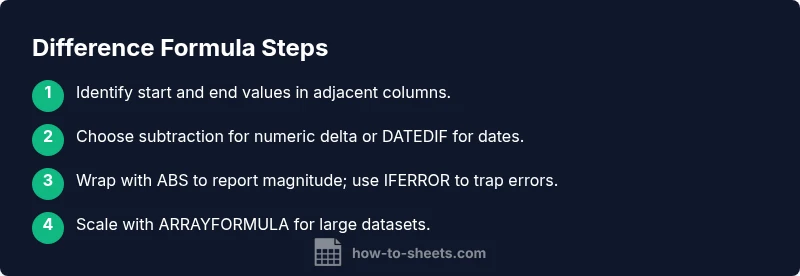
- 1
Prepare your data
Label columns clearly. Ensure start values are in column A and end values in column B, or adapt references as needed. This makes formulas easy to audit.
Tip: Use headers like Start and End to avoid confusion - 2
Enter the basic difference formula
In the Delta column, enter =B2 - A2 to compute the numeric change. Copy the formula down to apply across rows.
Tip: When copying, ensure relative references adjust correctly - 3
Add absolute value if needed
If you only want magnitude, wrap the formula with ABS: =ABS(B2 - A2).
Tip: ABS helps when direction is irrelevant - 4
Apply date differences
If you compare dates in A2 and B2, use =DATEDIF(A2, B2, \"d\"). Adjust unit to \"m\" or \"y\" as needed.
Tip: Ensure both inputs are valid dates - 5
Handle blanks and errors
Wrap with IFERROR to prevent #VALUE! errors from blanks or text: =IFERROR(B2 - A2, \"N/A\").
Tip: Consider returning blanks instead of text for cleaner dashboards - 6
Scale with arrays
For large datasets, use ARRAYFORMULA to compute across a range: =ARRAYFORMULA(B2:B - A2:A).
Tip: Ensure your range starts at the right row to avoid header conflicts
FAQ
What is a difference formula?
A difference formula computes the change between two values. In Sheets, this is usually a subtraction like =B2 - A2, and can be extended with ABS, IF, or DATEDIF for dates.
A difference formula calculates change between two values using subtraction, with optional enhancements.
How do I calculate date differences?
Use the DATEDIF function, for example =DATEDIF(start_date, end_date, \"d\") to get the number of days between two dates.
Use DATEDIF to measure days, months, or years between dates.
What about negative results?
If you want positive differences only, wrap the subtraction in ABS, e.g., =ABS(B2 - A2).
Use ABS to convert negative differences to positive magnitudes.
How can I handle blanks or text?
Use IFERROR or IF checks to catch non-numeric inputs and return a clean result.
Handle errors gracefully with IFERROR and input validation.
Can I apply this to a whole column?
Yes, write the formula in the first row and copy down, or use ARRAYFORMULA for fast, wide-range calculation.
You can apply it across many rows with ARRAYFORMULA.
What real-world tasks use differences?
Common tasks include tracking sales deltas, inventory changes, and project timeline gaps.
Great for tracking changes over time or categories.
Watch Video
The Essentials
- Learn the basic subtraction method for numeric differences
- Use ABS to report magnitude without sign
- Apply DATEDIF for date differences
- Guard against blanks with IFERROR
- Scale calculations with ARRAYFORMULA for large datasets