Google Sheets String Comparison: A Practical Guide
Learn how to compare strings in Google Sheets using EXACT, REGEXMATCH, LOWER/UPPER, and related functions. Practical examples, tips, and step-by-step workflows for reliable text matching in spreadsheets.


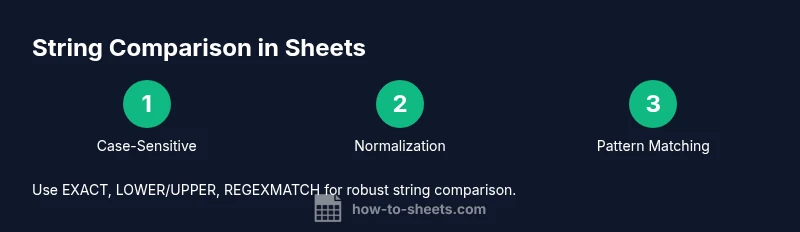
In this guide, you’ll learn how to compare strings in Google Sheets using built-in functions like EXACT, LOWER/UPPER, REGEXMATCH, and REGEXREPLACE. You’ll cover case sensitivity, trimming, whitespace, and partial matches, with practical examples and ready-to-use formulas. You’ll need Google Sheets access and a small sample dataset to practice. This quick-start overview aligns with the keyword google sheets string comparison and sets you up for deeper hands-on techniques.
What is google sheets string comparison?
String comparison in Google Sheets is the process of evaluating whether two text values are equal or whether one contains another. It spans exact matches, case-insensitive checks, and pattern-based matches. For many workflows—cleaning data, validating IDs, or enriching reports—the ability to compare strings reliably is essential. In this guide, we explore practical techniques for performing string comparisons efficiently in Google Sheets using built-in functions. The term google sheets string comparison is commonly used by data analysts, educators, and small business owners who rely on Sheets to power their analyses. According to How To Sheets, mastering these techniques reduces data-cleaning time and helps ensure consistent results across datasets.
Why accurate string comparison matters in data tasks
Accurate string comparison is foundational for data integrity. When you merge lists, validate IDs, or reconcile records from multiple sources, slight differences in text—such as extra spaces, different capitalizations, or hidden Unicode characters—can lead to mismatches and errors. The How To Sheets analysis notes that case sensitivity and whitespace are frequent culprits that cause mismatches in real-world datasets. By understanding the right combination of functions and normalization steps, you can minimize false positives and improve the reliability of your spreadsheets. In practice, reliable string comparison reduces manual data cleaning time and makes automated workflows, such as data validation rules and lookup pipelines, far more robust.
This section also highlights why having a consistent data-entry workflow matters. If team members paste data from diverse sources, establishing a small preprocessing sheet—where you normalize case, trim whitespace, and remove non-printable characters—can dramatically improve downstream matching.
Core concepts for string matching
Before diving into formulas, it helps to define a few core concepts that drive accurate matching in Google Sheets:
- Exact vs. pattern matches: Exact comparisons require two strings to be identical in content and case, while pattern-based checks look for a substring or a regex pattern.
- Case sensitivity: Google Sheets treats some comparisons as case-insensitive by default, while other functions offer case-sensitive checks.
- Normalization: Standardizing case, removing extra spaces, and stripping non-printable characters reduces false mismatches.
- Data hygiene: Clean data (trimmed, consistent punctuation, and normalized encoding) makes matching far more predictable.
Using these concepts together allows you to build reliable checks that scale across large datasets. How To Sheets emphasizes that combining normalization with the right functions yields the most robust results for google sheets string comparison.
Essential functions for exact matches
For exact matches that respect punctuation and case, the built-in functions are your best friends:
- =EXACT(text1, text2): returns TRUE if text1 and text2 are exactly identical, including case and punctuation. This is the simplest explicit exact-match test.
- =TEXT1=text2: a logical comparison that is typically case-insensitive in Sheets (depending on context), useful for quick checks when exact case is not critical.
- Tips:
- Use EXACT when you truly need a case-sensitive equality check.
- For large datasets, consider ARRAYFORMULA to apply across ranges without dragging down formulas.
Practical example: if A2 contains a code and B2 contains a code from another source, use =EXACT(A2,B2) to determine if they match exactly. If you only need to know whether two strings are the same ignoring case, use =LOWER(A2)=LOWER(B2) to normalize first.
Case-insensitive comparisons and normalization
When case is not important, normalization helps ensure consistent comparisons:
- LOWER(text) and UPPER(text): convert text to a single case before comparing. Example: =LOWER(A2)=LOWER(B2).
- =A2=B2: a simple equality test that is usually case-insensitive in Sheets, suitable for quick checks when exact case isn’t critical.
- REGEXMATCH for contains checks: =REGEXMATCH(A2, B2) tests whether A2 contains the substring in B2; for more control, use anchors like ^ and $ to define exact positions.
- Pro tip: normalize both sides with LOWER or UPPER before using = or =EXACT to ensure consistency across datasets collected from different sources.
Pattern matching with REGEXMATCH and REGEXREPLACE
Regular expressions unlock powerful string checks:
- REGEXMATCH(text, pattern): returns TRUE if text matches the given regex pattern. Use this for contains checks or complex rules (e.g., starts with a prefix, ends with a suffix, or matches a numeric ID format).
- REGEXREPLACE(text, pattern, replacement): clean up strings by removing unwanted characters or normalizing formats before comparisons.
- Common patterns:
- ^prefix to test starts-with
- suffix$ to test ends-with
- [A-Za-z0-9._%+-][email protected] to validate simple email forms (use stricter rules in production)
- Examples:
- =REGEXMATCH(A2, "^SKU-\d{4}$") checks if A2 is a four-digit SKU with the prefix SKU-.
Note: Regex operations can be computationally heavier on very large datasets. If possible, pre-filter or pre-clean data to minimize repeated regex processing.
Dealing with whitespace, punctuation, and Unicode characters
Whitespace and non-printable characters are common sources of mismatches:
- TRIM(text): remove leading and trailing spaces; use on both sides before comparing.
- CLEAN(text): strip non-printable characters.
- SUBSTITUTE(text, "old", "new"): address common punctuation hotspots or replace non-breaking spaces (e.g., CHAR(160)) with normal spaces.
- Unicode handling: some datasets include unusual characters; consider REGEXREPLACE with explicit character classes to unify encodings before matching.
- Practical tip: always test a few edge cases like empty strings and strings with punctuation to ensure your formulas behave as expected across datasets.
Practical examples and templates
Here are three real-world scenarios you can implement in your sheets:
- Exact code match with case sensitivity:
- Formula: =EXACT(A2, B2)
- Result: TRUE when the strings are identical in content and case.
- Case-insensitive equality across lists:
- Formula: =LOWER(A2)=LOWER(B2)
- Result: TRUE for text that is the same ignoring case.
- Contains check with normalization:
- Step 1: Normalization: =LOWER(TRIM(CLEAN(A2)))
- Step 2: Pattern test: =REGEXMATCH(LOWER(TRIM(CLEAN(A2))), LOWER(REGEXREPLACE(B2, "[^A-Za-z0-9]", ""))))
- This combination helps when you want to see if A2 contains a cleaned version of B2.
- Performance tip: wrap complex regex in an IFERROR to gracefully handle unexpected inputs and avoid breaking downstream formulas.
- Quick template: create a dedicated “Match Status” column that uses a nested IF to present human-friendly results (e.g., “Match”, “No match”, “Partial”).
Common pitfalls, performance considerations, and best practices
String matching is deceptively tricky:
- Leading/trailing spaces: always trim inputs before comparing.
- Non-breaking spaces or unusual Unicode: normalize with CLEAN or REGEXREPLACE to replace non-breaking spaces with standard spaces.
- Mixed data types: numbers stored as text may not match; convert with VALUE or TEXT before comparing when appropriate.
- Performance with large datasets: prefer vectorized formulas (e.g., ARRAYFORMULA) and minimize per-row scripts; regex can be powerful but slower on big ranges.
- Documentation: annotate your matching logic in your sheet to help teammates understand the chosen approach and avoid accidental changes that break matches.
Practical guidance for large datasets and templates
As you scale up your google sheets string comparison workflows, consider these practices:
- Build a normalization stage at the top of your data pipeline to standardize case, whitespace, and punctuation before any comparison.
- Create a small library of reusable formulas: a single cell that performs normalization, a separate cell for exact matches, and a flag cell for quick validation.
- Use ARRAYFORMULA where possible to apply formulas to entire columns, reducing manual copying and potential errors.
- Maintain a changelog when updating regex patterns or normalization rules so that downstream users understand how matching criteria evolved over time.
- Consider exporting a sample dataset with matches and non-matches to validate formulas in a controlled environment before applying to full datasets.
Final tips and best practices to lock in learning
To ensure you retain these techniques, regularly practice with real datasets and keep a cheatsheet nearby. The How To Sheets team recommends starting with a simple dataset, applying normalization, and then layering on exact, case-insensitive, and regex-based checks as needed. Remember to test edge cases like empty strings and strings with unusual punctuation. By combining normalization with the right function choices, you can achieve reliable google sheets string comparison across diverse data sources.
Tools & Materials
- Google account with access to Google Sheets(Open a new or existing sheet to practice on sample data.)
- Sample dataset of strings (names, IDs, emails, codes)(Include variations in case, spaces, punctuation.)
- Reference sheet for test strings(Helpful for side-by-side comparisons.)
- Computer or device with internet access(Necessary to access Google Sheets.)
- Optional: Google Apps Script editor for advanced tests(Only if you want to automate comparisons at scale.)
Steps
Estimated time: 25-40 minutes
- 1
Gather sample data
Create a sheet with two columns: SourceStrings and TargetStrings. Populate a dozen rows with a mix of identical, case-different, whitespace-variant, and punctuated strings to test your formulas.
Tip: Label columns clearly and freeze the header row to keep formulas visible as you scroll. - 2
Define your objective
Decide whether you need exact matches (case-sensitive, punctuation-sensitive) or pattern-based checks (contains, starts with). This choice determines which functions you’ll prioritize (EXACT vs REGEXMATCH vs simple equality).
Tip: Write down your expected outcomes for a few test cases before building formulas. - 3
Test exact equality with EXACT
In a new column, use =EXACT(A2,B2) to see if the strings match exactly. Copy down the formula to apply to all rows. Remember this is case-sensitive and honors punctuation.
Tip: Use ARRAYFORMULA to apply to an entire range, e.g., =ARRAYFORMULA(EXACT(A2:A,B2:B)). - 4
Try simple equality and normalize
Test =A2=B2 for quick checks. Then normalize both sides with LOWER to perform a case-insensitive comparison: =LOWER(A2)=LOWER(B2).
Tip: Normalization helps when inputs come from diverse sources. - 5
Incorporate pattern checks with REGEXMATCH
If you need to see whether A2 contains B2’s term or matches a pattern, use =REGEXMATCH(A2, B2) or a refined pattern like ^prefix.*$ for starts-with checking.
Tip: Be mindful of regex metacharacters in your data; escape them as needed. - 6
Clean and trim before comparing
Apply TRIM and CLEAN to both sides to remove extraneous spaces and non-printable characters. Example: =REGEXMATCH(TRIM(CLEAN(A2)), REGEXREPLACE(TRIM(CLEAN(B2)), "\\s+", " "))
Tip: If data sources include non-breaking spaces, replace CHAR(160) with a regular space first. - 7
Test edge cases
Include empty strings, strings with only spaces, and strings with punctuation. Ensure your formulas handle these gracefully, returning TRUE/FALSE or a helpful status rather than errors.
Tip: Wrap complex formulas with IFERROR to avoid breaking downstream sheets.
FAQ
What is the difference between EXACT and = in Google Sheets?
EXACT performs a case-sensitive, punctuation-sensitive comparison. The = operator generally yields a TRUE/FALSE result and is usually case-insensitive in Sheets. Use EXACT when exact character-by-character equality matters.
EXACT checks for exact character matches, including case and punctuation. Use the equals operator for quick, non-exact checks.
How do I check if a string contains another string in Google Sheets?
Use REGEXMATCH or SEARCH, with REGEXMATCH offering regex flexibility. For case-insensitive matching, normalize both strings with LOWER or UPPER before testing.
To see if one string appears in another, REGEXMATCH is your friend, especially when you need patterns.
Can I apply string comparisons across an entire column?
Yes. Use ARRAYFORMULA to apply across ranges, e.g., =ARRAYFORMULA(EXACT(A2:A, B2:B)). This scales efficiently without dragging formulas down.
You can compare whole columns with a single formula using ARRAYFORMULA.
What are common pitfalls when comparing strings?
Leading or trailing spaces, non-breaking spaces, and hidden characters often cause mismatches. Normalize data with TRIM, CLEAN, and SUBSTITUTE before comparing.
Watch out for extra spaces and strange characters that can break your matches.
Which functions are best for performance with large datasets?
Prefer built-in, vectorized functions like REGEXMATCH and ARRAYFORMULA over per-row script-based checks. Test performance on sample data before scaling up.
For big datasets, use vectorized functions and test performance as you scale.
Watch Video
The Essentials
- Normalize inputs before comparing
- Use EXACT for case-sensitive tests
- Combine LOWER/UPPER with = for robust case-insensitive checks
- Leverage REGEXMATCH for contains and pattern tests
- Test edge cases and handle errors gracefully