Google Sheets String Contains: A Practical Guide
Learn how to test if a cell contains a substring in Google Sheets using SEARCH, FIND, REGEXMATCH, and COUNTIF. Practical examples, formatting tips, and best practices to validate data.


You will learn how to test if a cell contains a substring in Google Sheets using functions like SEARCH, FIND, REGEXMATCH, and COUNTIF. The guide covers case sensitivity, multiple substrings, and how to apply checks in IF statements, conditional formatting, and data validation for cleaner data workflows. This quick answer sets you up for deeper steps below.
What does google sheets string contains mean in practice?
In Google Sheets, the notion of a string containing another string is a tiny but mighty tool for data cleaning and analysis. The specific phrase google sheets string contains describes the act of testing whether a piece of text includes a given substring. You can implement this with several built-in functions, depending on whether you need a simple yes/no, a result to drive a formula, or a pattern match. By mastering these options, students, professionals, and small business owners can filter lists, validate inputs, and route data through automations more reliably. According to How To Sheets, the most robust approach combines simple containment tests with pattern-based matching when you need flexibility, such as matching multiple substrings or ignoring case. This foundation sets you up to build stronger dashboards, cleaner data exports, and scalable templates that other teams can reuse. In practical terms, you’ll start by identifying the column or range to inspect, then pick a function that fits your need. As you read on, you’ll see concrete formulas and templates you can copy into your own sheets.
Core Functions for Containment
There are several built-in functions you can use to test whether a string contains a substring. Use SEARCH for a case-insensitive search; FIND for a case-sensitive search; REGEXMATCH when you want pattern-based matching; and COUNTIF with wildcards when evaluating ranges. Examples: =ISNUMBER(SEARCH("apple", A2)) returns TRUE if A2 contains apple, regardless of case. =ISNUMBER(FIND("Apple", A2)) returns TRUE only if Apple appears with the same capitalization. =REGEXMATCH(A2, "(?i)apple") is an explicit regex that ignores case. When working with ranges, you can use COUNTIF(B:B, "apple") to count cells containing the substring. These tools form a toolkit you can adapt for data cleaning, validation, and reporting.
Practical Examples You Can Try Today
Let’s look at concrete formulas you can drop into your sheet. Basic contains test with IF: =IF(ISNUMBER(SEARCH("apple", A2)), "Contains apple", "Does not contain"). This returns a clear yes/no message based on the presence of the substring regardless of case. For a case-sensitive check, use FIND: =IF(ISNUMBER(FIND("Apple", A2)), "Contains Apple (case-sensitive)", "No"). If you need to test for multiple substrings, REGEXMATCH with an alternation works well: =REGEXMATCH(A2, "(?i)apple|orange"). To count how many cells in a range contain a substring, use COUNTIF with a wildcard: =COUNTIF(A1:A100, "banana") > 0. You can also combine containment tests with IFERROR to gracefully handle blanks or errors.
Case Sensitivity, Wildcards, and Patterns
Understanding the difference between FIND and SEARCH is crucial: FIND is case-sensitive, while SEARCH ignores case. REGEXMATCH lets you define patterns with wildcards and alternations, such as (?-i) to control case behavior or (?i) to ignore it. When you only need to know if a substring exists in a single cell, a simple ISNUMBER wrapper around FIND/SEARCH often suffices. For multiple patterns, a single REGEXMATCH with an OR pattern is usually cleaner than multiple IF statements. Remember that wildcards like * in COUNTIF enable range checks, but they won’t work for exact text unless you control the scope.
Working with Ranges: COUNTIF, FILTER, and Array Formulas
If you want to assess many cells at once, COUNTIF and FILTER are your friends. COUNTIF(range, "substring") counts cells that contain the substring, while FILTER can extract rows where REGEXMATCH or SEARCH finds a match. For dynamic arrays, wrap tests in array-enabled formulas like =ARRAYFORMULA(IF(ISNUMBER(SEARCH("text", A2:A)), "Yes", "No")). These approaches help build dashboards that reflect real-time data without manual checks.
Performance, Edge Cases, and Troubleshooting
As datasets grow, be mindful of performance. Simple SEARCH and FIND are fast for single cells, but applying them across large ranges with ARRAYFORMULA can slow sheets. Use REGEXMATCH when you need pattern flexibility, but be aware that complex patterns can also slow down calculations. Edge cases include blank cells, text with leading/trailing spaces, and unexpected punctuation. A robust approach uses IFERROR to catch errors, TRIM to clean spaces, and consistent data types to minimize misreads.
Quick Start Template You Can Duplicate
Create a small starter sheet to practice containment checks:
- In A2: your sample text.
- In B2: =ISNUMBER(SEARCH("text", A2))
- In C2: =IF(B2, "Contains", "Does not contain")
- Copy formulas down the column to test multiple rows.
Use conditional formatting to highlight rows where A2 contains the substring by applying a rule like =REGEXMATCH(A2, "(?i)text"). This gives you a practical, repeatable workflow you can reuse in different projects.
Tools & Materials
- Google account with Google Sheets access(Needed to create and edit sheets for testing containment formulas)
- Sample dataset or test sheet(A column of text data to practice contains checks on (e.g., names, product codes))
- Reference sheet with formula examples(Optional, you can copy from the guide to accelerate learning)
- Internet connection(Necessary to access templates and online resources)
Steps
Estimated time: 20-35 minutes
- 1
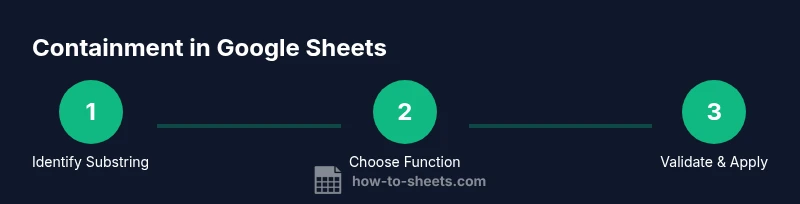
Identify the target substring and range
Choose the substring you want to search for (for example, the word
Tip: Write the substring in quotes in your formula to avoid syntax errors - 2
Choose the containment function
Decide between SEARCH or FIND for a single cell, or REGEXMATCH for patterns. Remember: FIND is case-sensitive, while SEARCH is not. REGEXMATCH lets you match complex patterns.
Tip: If you’re unsure about case, start with SEARCH and add FIND only if you need exact capitalization - 3
Create a basic test
Build a simple test to verify containment in a single cell, such as =ISNUMBER(SEARCH("apple", A2)). The result will be TRUE when the substring is present.
Tip: Wrap with ISNUMBER to convert the position result to a boolean - 4
Extend to multiple substrings
If you need to check for several substrings, use REGEXMATCH with an alternation like ("(?i)apple|orange"). This returns TRUE if any substring matches.
Tip: (?i) makes the pattern ignore case - 5
Apply across ranges
Use ARRAYFORMULA or COUNTIF to apply containment tests across a range. Example: =ARRAYFORMULA(IF(ISNUMBER(SEARCH("text", A2:A)), "Yes", "No")).
Tip: FOR COUNTIF, use wildcards: "*text*" for range-based counting - 6
Incorporate into conditional formatting
Highlight cells containing a substring by applying a custom formula rule such as =REGEXMATCH(A2, "(?i)text"). Ensure the range matches your selection.
Tip: Use absolute references when needed to lock the column - 7
Handle errors and blanks
Wrap tests with IFERROR to avoid #VALUE! or #N/A when encountering blanks or non-text data. Example: =IFERROR(ISNUMBER(SEARCH("text", A2)), FALSE).
Tip: IFERROR keeps your sheet clean and predictable - 8
Validate results and create a template
Confirm results against a known test set, then duplicate the formulas into new sheets or templates for reuse. Document the rules so teammates can apply the same logic.
Tip: Create a small glossary of substrings and their intended matches for consistency
FAQ
What is the difference between FIND and SEARCH in Google Sheets?
FIND is case-sensitive, meaning it distinguishes between uppercase and lowercase letters. SEARCH ignores case, treating Apple and apple as the same. Use FIND when capitalization matters, and use SEARCH for general containment checks.
FIND is case-sensitive, SEARCH is not. Use FIND for precise matches and SEARCH for flexible containment checks.
How can I test multiple substrings at once?
Use REGEXMATCH with a pattern like ("(?i)apple|orange") to detect either substring. The (?i) makes the match case-insensitive. This approach replaces long chains of IF statements with a single formula.
Use REGEXMATCH with an alternation like apple or orange to test multiple substrings at once.
Can I apply containment checks to a whole column for dashboards?
Yes. Use ARRAYFORMULA with your containment test to propagate results down the column, or use COUNTIF for simple range counts. This enables dynamic dashboards that update as data changes.
Yes, apply containment tests across a column with ARRAYFORMULA for dynamic dashboards.
What should I do if the substring is not found?
If the substring is missing, contain checks typically return FALSE. You can handle this with IF statements to display friendly messages or to route data differently in your workflow.
If not found, tests return FALSE; handle with IF for friendly messages.
Is there a way to ignore spaces and punctuation in tests?
You can preprocess text with TRIM and SUBSTITUTE to remove spaces or punctuation, or use a regex that ignores punctuation patterns. This makes containment checks more robust across imperfect data.
Preprocess with TRIM/SUBSTITUTE or regex to ignore spaces and punctuation.
What common errors should I watch for with these formulas?
Look out for #VALUE! when the input isn’t text, or #REF! if you reference invalid cells. Wrapping tests with IFERROR helps keep results clean and predictable.
Watch for #VALUE! and #REF!; use IFERROR to keep results clean.
Watch Video
The Essentials
- Master core functions: SEARCH, FIND, REGEXMATCH, and COUNTIF.
- Choose case-sensitive or -insensitive tests based on needs.
- Apply containment checks in IF statements and conditional formatting.
- Test across ranges with array formulas and COUNTIF for scalable workflows.