Google Sheets Test If Cell Is Not Empty: A Practical Guide
Learn how to test if a cell is not empty in Google Sheets with reliable formulas, tips for spaces and empty strings, and real-world examples for dashboards and data validation.


By the end of this guide, you will be able to reliably detect non-empty cells in Google Sheets. You’ll learn quick checks such as NOT(ISBLANK(A1)), A1<>"", and LEN(A1)>0, plus strategies for ranges, trailing spaces, and empty strings. Practical examples make it easy to apply in dashboards, filters, and data validation.
What "not empty" means in Google Sheets
In Google Sheets, a cell can be truly blank, contain spaces, or hold a formula that returns an empty string (""). When you perform a Google Sheets test if a cell is not empty, you must decide what counts as "not empty" for your workflow. Do spaces count as data? Should a formula that returns "" be treated as empty? These nuances matter for dashboards, filters, and conditional logic. For practical purposes, treat a cell as not empty when it contains any visible value, a non-space character, or a computed result from a formula. This foundation helps prevent false positives in downstream automation and reporting. According to How To Sheets, mastering these distinctions is essential for clean data pipelines and reliable reporting. It also sets the stage for more advanced checks like trimming spaces and ignoring truly blank results.
Core formulas to test non-empty cells
There are several reliable approaches, each with its own use case. The simplest is the direct comparison cell<>"" which works well for single cells. For more robust checks, use NOT(ISBLANK(cell)) which explicitly tests for non-blank status. LEN(cell)>0 is another common method, especially when you also want to guard against hidden characters. In practice, you’ll often combine these with TRIM to remove stray spaces, ensuring that a cell containing only spaces doesn’t slip through as non-empty. When evaluating across ranges, consider array-friendly patterns like COUNTIF(range, "<>") or FILTER to pull non-empty rows into a new view. These options give you flexibility for dashboards, data validation, and conditional formatting.
Handling spaces and empty strings
A frequent pitfall is cells that look empty but aren’t truly blank due to spaces or formulas returning an empty string (""). TRIM is invaluable here: TRIM(cell) removes leading and trailing spaces, leaving the actual content to test. LEN(TRIM(cell))>0 is a robust way to detect “meaningful” content. Be mindful that some formulas will produce an empty string and still cause ISBLANK to return FALSE. In such cases, LEN or TRIM-based tests are your best defense against misclassification.
Checking against a range: array-friendly approaches
When you need to know whether any cell in a range is not empty, you can extend the checks to ranges. For example, COUNTIF(range, "<>") returns the number of non-empty cells in that range, which you can compare to zero. Another pattern is to use FILTER to extract non-empty rows, then check if the resulting array is empty or not. For dashboards, you might use ISBLANK in combination with ARRAYFORMULA to apply the test across many rows without dragging formulas.
Using non-empty tests in dashboards and conditional formatting
Non-empty tests are especially useful for dynamic dashboards. You can use NOT(ISBLANK(A2)) or A2<>"" in conditional formatting rules to highlight rows with data, or to enable/disable elements in a custom layout. If you’re building a responsive sheet, pair non-empty checks with data validation to prevent blank submissions, and with FILTER to show only populated records in a summary view. These approaches help keep your data clean and your visuals accurate.
Practical examples you can copy
Copy-and-paste-ready patterns:
- Simple non-empty test for a single cell: NOT(ISBLANK(A2))
- Text presence, ignoring spaces: LEN(TRIM(A2))>0
- Direct non-empty check (alternative): A2<>""
- Non-empty in a range (count non-empty): COUNTIF(A2:A100, "<>")>0
- Return a message if non-empty: =IF(NOT(ISBLANK(A2)), "Has data", "Empty")
- Robust test for dashboards: =IF(LEN(TRIM(A2))>0, A2, "")
These patterns cover typical workflows—validation, filtering, and conditional formatting—without requiring complex scripting.
Common pitfalls and fixes
Common mistakes include assuming ISBLANK returns TRUE for cells with formulas, ignoring spaces, and overlooking cells that display nothing but still contain data. Always test with TRIM and LEN when your data may include spaces or empty strings. If performance is a concern on very large sheets, prefer built-in functions like COUNTIF over ROW-by-ROW IF logic, and minimize volatile formulas. How To Sheets recommends validating your approach on a small sample before scaling to full workbooks.
Quick scenario: test non-empty before aggregating
Scenario: You want to sum sales only from rows where the notes column is not empty. Steps: 1) Choose the test for non-empty notes (e.g., NOT(ISBLANK(E2:E100))). 2) Use this condition within SUMIF/SUMPRODUCT to include only rows with data. 3) If you need to count non-empty cells in a column, use COUNTIF(E2:E100, "<>"). 4) Validate results by manually inspecting several edge cases (spaces, empty strings, and blank cells).
Troubleshooting tips and best practices
- Always consider whether a cell contains a truly blank value or a formula result that looks empty.
- Use TRIM to normalize spaces before testing.
- Prefer COUNTIF or LEN-based checks for ranges to improve reliability and readability.
- Document the chosen approach within the sheet so teammates understand the logic.
Tools & Materials
- Google Sheets access (Google account)(Open a new or existing sheet in Google Sheets.)
- A test data sheet(Include cases with blanks, spaces, and formulas returning "" for realistic testing.)
- Reference formulas cheat sheet(Optional quick-reference for NOT(ISBLANK()), A1<>"", LEN(), TRIM(), and COUNTIF.)
- Internet-connected device(Needed to access Google Sheets and save changes.)
- Copy-ready example formulas(Optional pre-written formulas for quick testing in a new sheet.)
- Note-taking space(Record edge cases and observations as you test.)
Steps
Estimated time: 10-15 minutes
- 1
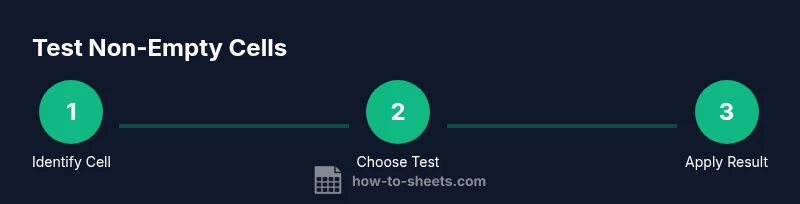
Identify target cell or range
Choose the cell or range you want to test for non-emptiness. Document whether you care about spaces or empty strings. This step sets the boundary for your formulas.
Tip: Start with a single cell (e.g., A2) to validate the basic test before scaling up. - 2
Test with NOT(ISBLANK(...))
Enter NOT(ISBLANK(A2)) in a helper cell or within your formula to verify non-emptiness. This approach handles truly blank cells and is explicit about the non-blank condition.
Tip: If A2 contains a formula that returns "", ISBLANK(A2) may be FALSE; use LEN or TRIM for robustness. - 3
Test with A2<>""
Use A2<>"" as a quick, readable check. It evaluates to TRUE when there is any non-empty content, including spaces and non-space characters.
Tip: Combine with IF to return friendly messages, e.g., =IF(A2<>"", "Filled", "Empty"). - 4
Trim spaces before testing
Apply TRIM to remove leading/trailing spaces, then test length. This handles cells that look empty but contain spaces.
Tip: Test with LEN(TRIM(A2))>0 for a robust check. - 5
Test across a range for dashboards
For ranges, use COUNTIF(A2:A100, "<>")>0 to detect any non-empty cells, or FILTER to extract non-empty rows for display.
Tip: Rely on aggregate tests rather than dragging single-cell checks through large ranges. - 6
Apply in conditional formatting
Create a rule that uses NOT(ISBLANK(A2)) or A2<>"" to highlight non-empty cells. This makes data presence visually obvious in dashboards.
Tip: Lock the range appropriately to avoid mis-highlighting as you extend formatting beyond the data area. - 7
Incorporate into data validation
If you want to prevent blank submissions, combine non-empty checks with data validation rules to reject empty inputs.
Tip: Provide a user-friendly message that explains why non-empty entries are required. - 8
Return meaningful results
Use IF with non-empty tests to display messages or carry values forward, e.g., =IF(NOT(ISBLANK(A2)), A2, "—").
Tip: This helps keep downstream formulas clean by replacing blanks with a placeholder. - 9
Test edge cases and verify
Create edge cases: spaces only, empty string from formulas, and truly blank cells. Verify all tests behave as expected.
Tip: Document edge cases you tested to prevent future confusion.
FAQ
What does NOT(ISBLANK(A1)) return when A1 has a space?
NOT(ISBLANK(A1)) returns TRUE if A1 contains a space, because a space is not blank. To ignore spaces, trim the value first (e.g., LEN(TRIM(A1))>0).
If A1 has a space, NOT(ISBLANK(A1)) is true; trim spaces first to avoid false positives.
How can I test for non-empty while ignoring spaces?
Use LEN(TRIM(A1))>0 to detect non-empty content after removing leading and trailing spaces. This catches cells that only contain spaces.
Trim then test length to ignore spaces when checking for non-empty.
Can I test if a whole column has any non-empty cells?
Yes. Use COUNTIF(A2:A, "<>")>0 to determine if any cell in the column contains data. This is efficient for dashboards.
Use COUNTIF to detect non-empty cells in a column quickly.
Why does a cell with a formula returning '' appear empty?
A formula can display nothing but still exist as content. LEN and TRIM tests help differentiate truly empty cells from empty strings.
An empty string from a formula is not truly blank; test with LEN and TRIM.
How do I apply non-empty tests in conditional formatting?
Create a conditional formatting rule using NOT(ISBLANK(A2)) or A2<>"" to highlight rows with data. Extend the range as needed.
Set a non-empty test in conditional formatting to highlight data-bearing cells.
Are there performance concerns for large ranges?
For very large datasets, prefer simple tests like COUNTIF over complex array formulas, and minimize volatile functions in critical sheets.
Keep non-empty checks simple to avoid slowing large sheets.
Watch Video
The Essentials
- Master both NOT(ISBLANK()) and <>"" checks.
- Use TRIM and LEN for robust non-empty tests.
- Apply tests to ranges for dashboards and filters.
- Account for formulas returning empty strings in your checks.