How to Do Subscript in Google Sheets: A Practical Guide
Learn practical methods to add subscripts in Google Sheets using Unicode characters, Rich Text formatting, and Apps Script with step-by-step examples.


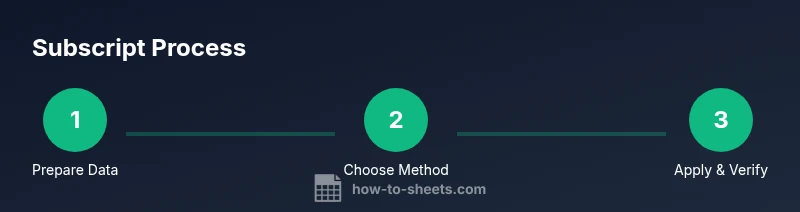
You will learn multiple reliable ways to create subscripts in Google Sheets: using Unicode subscript characters, applying Rich Text formatting to part of a cell, or automating the process with Apps Script. This quick guide outlines the simplest method first and then covers more flexible options for larger datasets.
Why Subscript Matters in Sheets
Subscripts provide a compact, readable way to display extended data such as chemical formulas, mathematical notations, or unit descriptors within a single cell. In Google Sheets, subscripts can enhance dashboards and reports by keeping content concise without sacrificing meaning. According to How To Sheets, practitioners find subscripts especially useful when presenting H2O, CO2, or other chemical identifiers alongside numeric data. The How To Sheets team also notes that consistent subscript usage reduces misinterpretation and improves print quality when exporting sheets to PDF. In this section, we explore when subscripts are most beneficial, what formatting options exist, and the trade-offs between manual edits, formulas, and automation. The goal is to give you practical, ready-to-apply approaches that scale from a single cell to larger datasets.
Method 1: Subscript with Unicode Characters
Unicode subscripts are precomposed characters that render as smaller digits or symbols next to your base text. This method works well for simple, static text like H₂O or CO₂ and is widely supported across fonts and platforms. To apply, replace each digit with its corresponding subscript symbol (₂ for 2, ₁ for 1, etc.). You can do this manually by editing the cell, or automatically with a formula. For example, if A2 contains H2O, you can enter =SUBSTITUTE(A2,"2","₂") in B2 to display H₂O with a subscript 2. For multiple digits, nest additional SUBSTITUTE calls: =SUBSTITUTE(SUBSTITUTE(A2,"0","₀"),"2","₂"). This method is fast, transparent, and does not require scripting. If you need to subscript negative numbers, extend the mapping to replace the minus sign with the subscript minus (₋). Keep in mind that the appearance depends on the font; some fonts may render subscripts differently or not at all when exported.
Method 2: Subscript Using Rich Text Formatting
Rich Text formatting lets you apply subscripts to just part of the text inside a single cell. This approach preserves the original content while visually lowering only the digits. Steps:
- Double-click the target cell to enter edit mode.
- Highlight the digits or characters you want to subscript.
- Use the toolbar to apply Subscript (Format > Text > Subscript) if available, or search for Subscript within the Format menu.
- Save the cell. This method is ideal for formulas or labels where you want a subset of characters to appear smaller. Note that not all Sheets versions expose Subscript in the UI, and some export formats may render subscripts inconsistently depending on the font. This approach also works best when you only need to subscript a few characters at a time.
Method 3: Subscript with Google Apps Script
Automation is for scale. With Apps Script, you can convert digits (and optional minus signs) to their subscript equivalents across a range, saving time on large sheets. Paste this script into Extensions > Apps Script and run it on the selected range:
function toSubscriptInRange() {
  const sheet = SpreadsheetApp.getActiveSheet();
  const range = sheet.getActiveRange();
  const map = {'0':'₀','1':'₁','2':'₂','3':'₃','4':'₄','5':'₅','6':'₆','7':'₇','8':'₈','9':'₉','-':'₋'};
  const values = range.getValues();
  for (let r = 0; r < values.length; r++) {
    for (let c = 0; c < values[r].length; c++) {
      if (typeof values[r][c] === 'string') {
        values[r][c] = values[r][c].replace(/[0-9-]/g, function(ch){ return map[ch]; });
      }
    }
  }
  range.setValues(values);
}
To use this script, save it, then run on a selected range. You can also add a simple custom menu to trigger the function from the Sheets UI. Apps Script is powerful for repeating tasks and makes large-scale subscript changes reliable and reproducible.
Quick Formula Approach: Nested Substitutions
If you prefer formulas over scripts, you can convert digits to subscripts with nested SUBSTITUTE calls. This approach works well for cells containing mixed text and numbers. Example for A2:
=SUBSTITUTE(SUBSTITUTE(SUBSTITUTE(SUBSTITUTE(SUBSTITUTE(SUBSTITUTE(SUBSTITUTE(SUBSTITUTE(SUBSTITUTE(SUBSTITUTE(A2,
"-","₋"),"0","₀"),"1","₁"),"2","₂"),"3","₃"),"4","₄"),"5","₅"),"6","₆"),"7","₇"),"8","₈"),"9","₉")
This nests ten replacements in a single formula, substituting digits and the minus sign when needed. For negative numbers, you must include the dash mapping (− or -) to its subscript counterpart. While this method is readable and portable, the formula gets long as you add more characters or numbers to subscript.
Practical Example: Converting a Sample Phrase
Consider A2 containing the text "H2O concentration is 3.5 g/L and CO2 is present." Using the nested SUBSTITUTE approach (or a single Apps Script function), you can produce a result like "H₂O concentration is ₃.₅ g/L and CO₂ is present." The rule of thumb is to target the digits and any signs that you want to subscript. In many cases, the goal is to make chemical formulas clear while preserving readable units. This section demonstrates how a small dataset transforms visually with subscripts and highlights how the output varies with font choice. If you’re sharing the sheet with teammates, confirm that the chosen method renders consistently across devices and export formats. Remember: the readability of subscript characters depends on font support and platform rendering.
Tips & Common Pitfalls
- Start with a duplicate copy of your data to avoid accidental loss of original values. - Unicode subscripts are widely supported, but font rendering may vary across systems; test in your environment. - Rich Text Subscript is convenient for selective characters but may not be available in all Sheets versions. - Apps Script scales well across large datasets; consider adding a custom menu for quick access. - If exporting to PDF or other formats, verify that subscripts render as expected. - Keep a clear record of which method you used so teammates can reproduce it consistently.
Accessibility and Cross-Platform Considerations
Subscripts rely on Unicode characters or formatting that may render differently across platforms and fonts. How To Sheets analysis shows that while Unicode subscripts (₀–₉, ₋) work widely, some fonts and PDF exports can alter their appearance. When sharing with others or embedding in reports, choose a method that remains legible across common fonts and devices. Rich Text formatting can offer precise control within a single sheet, but it may not survive when copying to other apps or exporting. For scalable workflows, Apps Script automation reduces manual steps and ensures consistency, but requires a bit more setup and maintenance. Always validate across the most common export formats used by your team.
Templates and Reuse
Create a subscript-friendly template by including a ready-made approach in a separate sheet or a template workbook. Store a sample data row with H2O or CO2, plus a prebuilt formula or Apps Script snippet, so new projects can start with the same foundation. Document the chosen method (Unicode, Rich Text, or Apps Script) to avoid confusion. If you’re working on multiple sheets, keep a single source of truth for subscripting—preferably a named range or small helper sheet that stores digit-to-subscript mappings. This makes onboarding new collaborators easier and reduces variances in formatting across your organization. How To Sheets recommends keeping a lightweight, clearly documented template to speed up future projects.
Advanced Cross-Sheet Workflows
For larger teams, you may need subscripts that span multiple sheets or even multiple Google Sheets files. Use Apps Script to reference ranges across sheets, and consider creating a dedicated formatting utility that can be called from any workbook. Named ranges or a shared library can standardize the digit-to-subscript mapping, so everyone benefits from the same results. In more complex workflows, combine Unicode substitutions for static text with Apps Script automation for dynamic data, ensuring consistency and reducing manual steps. This approach supports scalable data labeling in dashboards, reports, and research datasets while keeping your sheets readable and visually precise.
Tools & Materials
- Google Sheets account(Any Google account with Sheets access)
- Sample data in Google Sheets(Create a sheet with text that includes digits to subscript (e.g., H2O, CO2))
- Apps Script editor(Optional: use Extensions > Apps Script for automation)
- Unicode subscript characters(Copy/paste subscripts like ₀,₁,₂,₃ for manual substitution)
Steps
Estimated time: 30-40 minutes
- 1
Choose target text
Identify the cell or range where you want subscripts to appear. Start with a simple example (e.g., H2O) to validate your chosen method before applying it to a larger dataset.
Tip: Work on a duplicate sheet to avoid overwriting original data. - 2
Apply Unicode subscript (manual or formula)
If using Unicode, replace each digit with its subscript counterpart. For a single example, =SUBSTITUTE(A2,"2","₂"). For multiple digits, nest several substitutes.
Tip: Test one cell at a time to verify the result before dragging across rows. - 3
Try Rich Text Subscript
If available, enter edit mode in the cell and apply Subscript to the desired characters via the Format menu. This keeps the base text intact while lowering only the selected digits.
Tip: Not all fonts/export formats render this consistently. - 4
Automate with Apps Script
Open Extensions > Apps Script and paste the mapping script. Run it on a selected range to convert digits (and minus signs) to subscripts across many cells.
Tip: Add a custom menu to run the script with one click. - 5
Validate results
Check several cells for correct subscript rendering across different fonts and export formats. Confirm negative numbers render as intended if you included the minus sign map.
Tip: If something looks off, revert and adjust the mapping. - 6
Save as a template
Create a template workbook with your preferred method (Unicode, Rich Text, or Apps Script) to reuse in future projects.
Tip: Document the method used for future teammates. - 7
Edge-case handling
Account for different locales or decimal separators that may affect how digits appear next to text. Prepare to adjust for non-ASCII characters if needed.
Tip: Keep a small reference sheet with mappings for quick adjustments.
FAQ
Can I subscript text in any version of Google Sheets?
Subscript formatting is available in modern Sheets. If your version lacks the feature, use Unicode substitutions as an alternative.
Subscript is supported in recent Sheets; if not, use Unicode substitutions as a fallback.
How do I apply subscript to only part of the text in a cell?
Use Rich Text editing to select the portion you want subscripted, then apply Subscript from the Format menu. This affects only the selected text within the cell.
Highlight the characters you want, then choose Subscript from the Format menu.
Will subscripts render when exporting to PDF or other formats?
Subscripts generally render, but font support can vary by export target. Always test your exports.
Export results can vary depending on fonts; test PDFs or other formats.
Can I automate subscripting across a whole column?
Yes. Use Apps Script to process the entire range or a helper formula to automate repeated tasks.
You can automate across multiple cells with Apps Script or a formula.
Are Unicode subscripts reliable across platforms?
Unicode subscripts work broadly, but some fonts may not display them. Choose fonts with good Unicode support.
Most platforms handle Unicode subscripts well, but font support matters.
Watch Video
The Essentials
- Choose a method that fits your data and workflow
- Map digits to subscripts using Unicode characters for broad compatibility
- Test across fonts and export formats, especially for sharing
- Save as a template for reuse in future sheets