How to insert special characters in Google Sheets
Learn practical methods to insert special characters in Google Sheets, including symbols, emoji, and Unicode via keyboard shortcuts, symbol pickers, and formulas. A How To Sheets step-by-step guide for students, professionals, and small business owners.


You will learn practical, copy-paste-friendly methods to insert special characters in Google Sheets, including symbols, accented letters, and emoji. You’ll explore the built-in symbol picker, OS keyboard shortcuts, and the CHAR function with Unicode codes to keep your data accurate and searchable. This guide covers Windows, macOS, and Linux workflows so you can apply them immediately.
Why you might need special characters in Google Sheets
In many datasets you need symbols such as currency signs, degree marks, mathematical operators, or non-Latin letters. This guide explains how to insert special characters in google sheets and keep your data portable across platforms. Whether you copy from a source, use the built-in symbol picker, or generate characters with formulas, there are reliable workflows that work on Windows, macOS, and Linux. The key is to use methods that preserve data integrity when you sort, filter, or export your sheets. Below, you'll find practical steps, OS-specific tips, and common pitfalls to avoid when handling emoji, diacritics, or script characters in sheet cells.
Quick overview of methods you’ll learn
- Copy-paste from a source (character map, emoji picker, or online reference)
- Use Google Sheets’ built-in symbol options and special characters panel
- Generate characters with formulas (CHAR and Unicode codes) for dynamic data
- Ensure fonts and locale settings don’t break rendering across platforms
OS-specific inputs: Windows, macOS, and Linux
The way you access special characters varies by operating system. Windows users often rely on the Character Map or Alt codes, macOS users use the Emoji & Symbols viewer, and Linux users may switch between input methods or use Unicode entry. Regardless of OS, you can insert characters into Sheets by copying from a source or by typing through a formula. Plan for font compatibility, especially when you’re sharing sheets with teammates on different devices.
Using the CHAR function and Unicode codes in Google Sheets
Google Sheets supports the CHAR function to insert a character by its code point. For example, =CHAR(169) returns © and =CHAR(8217) returns ’. Unicode codes give you access to thousands of symbols, including currency, mathematical operators, and script characters. When using codes beyond the ASCII range, confirm the target font supports the glyph to avoid missing characters in your data. You can combine CHAR with other text using concatenation to build strings with a mix of plain text and symbols.
Inserting emoji and symbols in cells with data validation
Emoji and symbols can be useful in headers, labels, or status badges. Copy-paste from an emoji picker or a reliable source, then paste into the target cell. If your sheet relies on validation, consider restricting inputs to a set of allowed characters or ranges using custom formulas (for example, REGEXMATCH) to maintain data consistency while allowing the symbols you need.
Fonts, rendering, and cross-platform considerations
Not every font supports every symbol. When you insert characters in Google Sheets, test how they render on different machines or when exporting to other formats (CSV, Excel). If a character looks off, switch to a font with broader glyph coverage, such as Noto families, or adjust your document’s locale settings. Consistency in font choice helps ensure your symbols appear the same for collaborators across devices.
Troubleshooting common issues and edge cases
If a character won’t display, verify font support, confirm you’re using a valid Unicode code point, and ensure the cell isn’t formatted as a date or number (which can mask characters). For emoji, enable text wrapping and adjust row height so the glyph fits. When sharing, remind collaborators to use fonts that support the same glyphs to avoid missing symbols.
Authority sources
- Unicode and character standards provide the backbone for symbol rendering across platforms.
- Google Sheets help resources outline supported character input methods and formulas.
- Font resources discuss glyph coverage and cross-platform rendering to help you choose reliable typesets.
Tools & Materials
- Google Sheets access(Open a blank or existing spreadsheet.)
- Web browser(Chrome preferred; all modern browsers work.)
- Character source(Character Map (Windows) or Emoji & Symbols (macOS) or reliable online source.)
- Unicode code reference(Useful for non-ASCII characters.)
- Copy-paste workflow(Copy from the source and paste into Sheets.)
Steps
Estimated time: 15-25 minutes
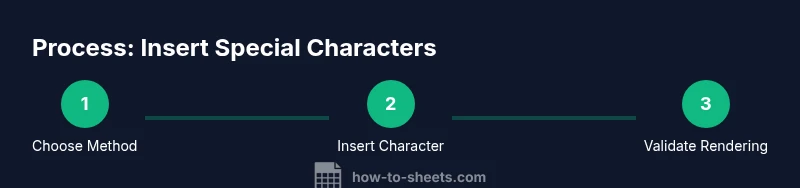
- 1
Open target cell
Navigate to the Google Sheets document and click the cell where you want the character to appear. Ensure the cell is in edit mode so you can insert text directly.
Tip: If the cell contains conflicting formatting, clear the cell format first. - 2
Decide your insertion method
Choose whether you will paste a character, use a symbol picker, or write a formula using CHAR to insert the character.
Tip: For repeatable insertions, prefer a formula so updates propagate automatically. - 3
Insert via symbol picker or copy-paste
If you’re using the symbol picker or a source, copy the character and paste it into the target cell. Verify alignment and font rendering.
Tip: Paste as plain text to avoid unintended formatting. - 4
Insert via Unicode with CHAR
Enter a formula like =CHAR(169) to insert ©, or =CHAR(8217) for ’. Adjust the code point as needed for other symbols.
Tip: Test multiple codes in a helper cell before applying widely. - 5
Combine with text if needed
Use concatenation to mix symbols with text, e.g., "Total: " & CHAR(8211) & " 100".
Tip: Use the CONCAT or TEXTJOIN functions for more complex strings. - 6
Validate and test across devices
Share the sheet with teammates and verify that the characters render similarly on different machines and fonts.
Tip: Consider using a font with broad glyph coverage to minimize discrepancies.
FAQ
Can I insert emoji into Google Sheets cells?
Yes. You can insert emoji by copying from an emoji picker or by using Unicode via the CHAR function. Rendering depends on the cell font and platform.
Yes—emoji can be inserted by copying or using Unicode with CHAR; font support matters.
What characters can be inserted with the CHAR function in Google Sheets?
CHAR accepts Unicode code points. For ASCII, codes 0–127 are reliable; higher codes cover extended symbols. Always test the result in your target font.
CHAR takes Unicode codes; start with ASCII and experiment with higher codes as needed.
Is there a limit to the number of characters in a cell when inserting special characters?
Google Sheets cells can hold long strings, but extremely long text or complex symbols may affect performance and rendering. Break long entries if needed.
There isn’t a fixed limit, but very long strings can slow things down.
Can I insert characters from non-Latin scripts, like Cyrillic or Chinese?
Yes. Unicode input or copy-paste from a source supports scripts like Cyrillic or Chinese. Ensure the chosen font supports the script for proper rendering.
Yes, you can input non-Latin characters; font support matters.
How do OS differences affect input methods for characters in Sheets?
Windows users may rely on Alt codes, while macOS users use the Emoji & Symbols viewer. Linux users vary by distribution, but Unicode entry remains possible.
OS affects method (Alt codes vs emoji viewer), but Unicode input works across platforms.
What’s the best practice for maintaining consistency across collaborators?
Standardize the input method in your team and use font sets with broad glyph coverage. Document the chosen approach in a sheet’s notes or README.
Standardize input methods and fonts to keep symbols consistent.
Watch Video
The Essentials
- Pick a primary insertion method and stick with it.
- CHAR is powerful for dynamic data but verify font support.
- Emoji and extended symbols require font testing across devices.
- Consolidate special characters with data validation where possible.
- Always test sharing environments for consistent rendering.