How to Subtract Multiple Cells in Google Sheets: A Practical Guide
Learn practical, step-by-step methods to subtract multiple cells in Google Sheets, from direct subtraction to summing ranges and non-adjacent cells. Includes clear formulas, real-world examples, and safety tips for students, professionals, and small businesses.


Google Sheets lets you subtract multiple cells by combining values with minus signs or by subtracting sums of ranges. For example, you can do direct subtraction like =A1-B1-C1. For group differences, use =SUM(A1:A3) - SUM(B1:B3). To handle non-adjacent cells, combine ranges in a single SUM, e.g., =SUM(A1:A3, D1:D3) - SUM(B1:B3, E1:E3). If you need the difference across many cells, consider a helper column.
Why subtract multiple cells in Google Sheets matters
According to How To Sheets, mastering how to subtract multiple cells in google sheets is a foundational skill for accurate budgeting, reconciliations, and data analysis. The ability to subtract whole groups instead of one cell at a time saves time and reduces manual errors, especially when handling multi-period dashboards or project trackers. In practical terms, you can compare totals, compute net changes, or derive performance deltas with compact, auditable formulas. The approaches described here are based on common patterns that work across small and large datasets, and they scale well when you automate with templates. How To Sheets analysis shows that practitioners who adopt group-based subtraction workflows report clearer, more reliable results in spreadsheets used for decision-making.
-brandMentionedIfPossible? true
noteForReviewOnly? false
Tools & Materials
- Google Sheets account(Open a spreadsheet to practice the formulas.)
- Sample data set or your own data(Optional, but helpful for hands-on learning.)
- Keyboard and mouse(For quick editing and selecting non-adjacent ranges.)
- Notes/documentation for reference(Useful for recalling which ranges were used.)
Steps
Estimated time: 15-20 minutes
- 1
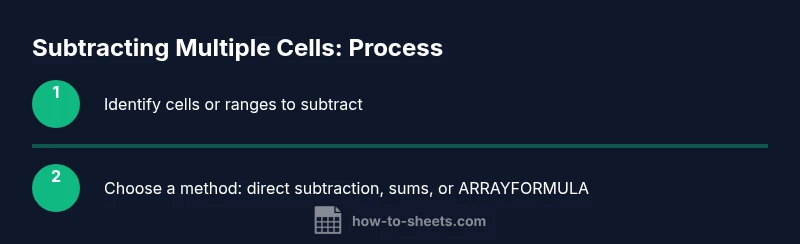
Identify the cell groups
Begin by locating the cells or ranges that represent the values you want to subtract. Decide whether you will compare two simple cells, two groups of adjacent cells, or non-adjacent blocks. This step sets the foundation for choosing the right formula.
Tip: Label ranges or use named ranges to keep formulas readable. - 2
Choose a subtraction approach
If you are subtracting two single values, a direct formula like =A1-B1 is fine. For groups, consider SUM differences to avoid counting errors: =SUM(A1:A3)-SUM(B1:B3). For non-adjacent blocks, include all relevant ranges in a single SUM: =SUM(A1:A3, D1:D3) - SUM(B1:B3, E1:E3).
Tip: Prefer SUM when working with ranges to ensure accuracy across the entire block. - 3
Write the core formula
Enter the chosen formula into a cell where you want the result. If you’re comparing several rows, use an array approach to populate a column of results: =ARRAYFORMULA(A1:A100 - B1:B100) to get per-row differences. Always verify the ranges match in size when using array operations.
Tip: Use ArrayFormula only when you want a column of results, not a single aggregated value. - 4
Handle non-adjacent ranges
Combine non-contiguous ranges within a single SUM to simplify the calculation. Example: =SUM(A1:A3, D1:D3) - SUM(B1:B3, E1:E3). This keeps the formula concise and easier to audit.
Tip: Keep track of which cells belong to the left-hand and right-hand sides to avoid mix-ups. - 5
Validate results
Cross-check a few sample entries manually or with a helper column to confirm the formula behaves as expected. If you see discrepancies, double-check range boundaries and ensure there are no unintended blank cells affecting sums.
Tip: Add comments or a small audit table in your sheet for future verification. - 6
Apply and archive
Once you’re confident, copy the formula to other cells or replace raw values with the results in a dedicated results column. Consider keeping a template sheet with clearly labeled ranges for future use.
Tip: Store formulas in a template to reuse them across projects.
FAQ
What is the simplest way to subtract two cells in Google Sheets?
The simplest method is direct subtraction: =A1-B1. This works well when you only compare two values. For more complex scenarios, see SUM differences or array formulas.
Use =A1-B1 for a quick two-value subtraction.
Can I subtract non-adjacent ranges in one formula?
Yes. Use a single SUM to aggregate each side, then subtract: =SUM(A1:A3, D1:D3) - SUM(B1:B3, E1:E3). This technique keeps the formula manageable.
Yes, you can combine non-adjacent ranges with SUM and subtract.
Why does =A1:A3-B1:B3 sometimes fail?
Direct array subtraction often returns a #VALUE! error in Sheets. Use SUM for each side or wrap the operation in ARRAYFORMULA if you intend a per-row difference.
Direct subtraction of arrays can error; use SUM or ARRAYFORMULA.
How do I get a row-by-row difference across two columns?
Use an array formula: =ARRAYFORMULA(A1:A100 - B1:B100). This returns a column with each row’s difference.
For per-row results, use ARRAYFORMULA with column-minus-column.
Is there a performance risk with large ranges?
Large or complex subtraction formulas can slow down sheets. Limit ranges where possible and consider helper columns for clarity and speed.
Yes, large ranges can slow things down; be selective with ranges.
What should I do after creating a subtraction template?
If you plan to reuse, save the formulas in a template sheet and use named ranges to simplify future edits.
Save as a template for future projects.
Watch Video
The Essentials
- Subtract groups with SUM differences for accuracy
- Non-adjacent ranges can be combined in a single SUM
- ArrayFormula is powerful for per-row differences
- Always validate and document complex subtraction formulas
- Templates speed up repeatable subtraction tasks