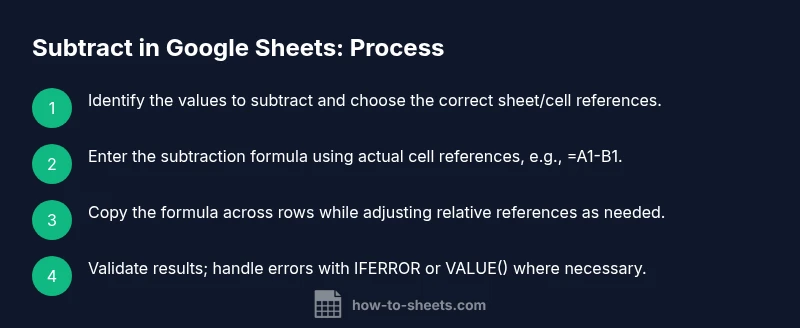
Subtract in Google Sheets: A Practical Step-by-Step Guide
Master subtracting numbers, dates, and ranges in Google Sheets with clear examples, practical formulas, and troubleshooting tips for reliable results.


This guide shows you how to subtract in google sheets using simple formulas and practical workflows. You’ll learn the core subtraction syntax, how to handle dates and times, how to subtract across rows, columns, and sheets, and how to validate results to avoid common errors. By the end, you’ll be able to build reliable difference calculations for budgets, schedules, and data analysis.
Why Subtraction Matters in Google Sheets
Subtracting numbers, dates, and logical values is one of the most common tasks in spreadsheets. Whether you’re tracking expenses, calculating remaining inventory, or measuring the difference between planned and actual figures, a correct subtraction formula keeps your data honest and actionable. In Google Sheets, subtraction uses the minus operator (-) between two values or cell references. The same principle applies whether you’re working in a simple two-cell difference or building a broader calculation across dozens of rows. The How To Sheets team notes that mastering this basic operation unlocks more advanced workflows, because nearly every financial model, deadline tracker, or project dashboard relies on accurate differences. As you learn subtract in google sheets, you’ll see how to adapt the approach to dates, times, or multi-cell ranges without introducing errors. The goal is clarity: every result should reflect a deliberate choice about what is being subtracted, from which source, and under what conditions.
I’ll walk you through practical, repeatable steps so you can apply subtraction confidently in a real-world worksheet. Each example uses a concrete dataset that mirrors common scenarios: expenses by category, hours worked vs. planned, and cumulative balances across weeks. By the end, you’ll know how to validate results, recognize when a simple subtraction isn’t enough, and avoid the most common pitfalls. According to How To Sheets, building a strong foundation in basic arithmetic paves the way for more advanced data analysis in Google Sheets. If you learn how to subtract in google sheets correctly, you’ll minimize mistakes and improve your worksheets across projects.
Basic Subtraction: The Core Formula
The most fundamental subtraction in Google Sheets uses the minus operator between two values or references to cells. The basic form is simple: =A1-B1. This will return the difference between the value in A1 and the value in B1. You can subtract a constant as well, for example =A1-5. If A1 contains a number, the result will be a number; if A1 or B1 contains non-numeric data, Google Sheets may return an error or a non-numeric result. For dates, subtracting two date values yields the number of days between them, because dates are stored as sequential numbers internally. A practical first exercise is to create a small table: list your actual hours in column A and planned hours in column B, then put =A2-B2 in column C to compute the daily difference. If you want a quick check, use IF to indicate positive or negative results, like =IF(A2-B2>=0, "On track", "Behind").
Subtract Across Rows and Columns
As you extend subtraction across many cells, understanding relative and absolute references becomes essential. If you drag a formula like =A2-B2 down a column, the references adjust automatically (A3-B3, A4-B4, etc.). To keep one side fixed while you copy across, use absolute references: =$A$2-B2 will keep A2 fixed while B2 changes as you fill across rows or columns. This is especially useful when you have a fixed baseline value to subtract from a set of dynamic figures. In more complex sheets, you might subtract across rows and columns, such as =SUM(A2:A10)-SUM(B2:B10) or even =A2:B2 - C2:D2 with array behavior. Remember, correct anchoring prevents accidental mis-referencing as your sheet grows.
Subtract Ranges and Aggregation with SUM
Subtracting ranges is a common pattern when you want to compare total spend, total hours, or cumulative values. You can subtract a sum of one range from another: =SUM(A1:A10) - B1. Conversely, subtract all values in a range from a single cell: =A1 - SUM(B1:B10). You can combine multiple sums: =SUM(A1:A5) - SUM(B1:B5). When ranges contain non-numeric data, wrap with VALUE() or use IFERROR to handle potential errors. The principle remains: subtract is a simple difference between aggregates or a difference between a single value and an aggregate.
For date ranges, you can still use SUM if dates are converted to numeric day counts, and you’ll get the total days difference between two sets of dates.
Subtracting Dates and Time Values
Because Google Sheets stores dates and times as serial numbers, subtracting them yields numeric day counts (or fractions for times). For example, =DATE(2026,3,15) - DATE(2026,3,1) returns 14, representing days between the two dates. Similarly, subtracting times yields a fraction of a day: =TIME(12,0,0) - TIME(9,30,0) results in 0.1875 days, which equals 4.5 hours. To express results in hours, multiply by 24: (TIME(12,0,0) - TIME(9,30,0)) * 24 = 4.5. If you store date-time values in a table, you can compute durations, countdowns, or deadline differences with the same subtraction logic discussed above.
Caution: ensure the cells are properly recognized as dates/times. Text formatted dates can appear as numbers but may not behave correctly in arithmetic without conversion.
Subtracting Across Sheets and Data Import
Subtraction across sheets is powerful when you split data by department or period. Reference cells in another sheet using the sheet name: =Sheet2!A1 - Sheet1!A1. You can chain multiple sheet references, or import values with IMPORTRANGE and then subtract: =IMPORTRANGE("spreadsheet_url","Sheet1!A1") - Sheet2!A1. When using cross-sheet formulas, ensure the external sources are accessible and that you’ve granted permission. If the data in the source sheet changes, your subtraction results update automatically, which is a core benefit of Google Sheets’ live linking. For stable dashboards, consider locking critical references with absolute references or consolidating data in a single sheet before performing heavy subtraction operations.
If you want to automate cross-sheet checks, you can pair subtraction with conditional formatting to highlight negative differentials automatically.
Handling Negative Results and Absolute References
Subtraction can yield negative numbers, which is often meaningful (e.g., actual spending exceeding budget). To display a clean indicator, you can use IF: =IF(A2-B2<0, -1*(A2-B2), A2-B2) or simply =A2-B2 and format the cell to display negative values with a specific color. If you plan to copy the formula across a range, absolute references help you fix the baseline values, while keeping the subtractands dynamic. For example, if A2 contains the actual value and B$2 contains the baseline across multiple rows, use =A2-B$2 and fill down. Testing formulas with sample data reduces surprises during live use, especially when your dataset grows.
One practical tip is to always verify the data type of your inputs: numeric values will subtract cleanly, whereas text or booleans may trigger errors. Where necessary, wrap with VALUE() or use N() to coerce inputs.
Common Mistakes and How to Avoid
Several frequent mistakes trip people up when subtracting in Google Sheets. First, ensure inputs are numeric; dates and times are numeric, but sometimes formatted as text, which can cause #VALUE! errors. Second, beware of mixed data types in ranges; a single non-numeric value can derail a whole range subtraction. Third, when copying formulas, understand relative vs absolute references to avoid unintentional shifts. Fourth, avoid subtracting the result of a function that returns text (like TEXT()) from a number without converting it back to a number. Finally, if you pull values from external sources with IMPORTRANGE, verify permissions and ensure the data is loaded before performing subtraction. Troubleshooting tips: use ISNUMBER(), VALUE(), or N() to diagnose non-numeric inputs and apply IFERROR to present fallback messaging.
Practical Templates and Use Cases
Let’s look at three concrete templates that demonstrate subtract in google sheets across common scenarios:
-
Template 1: Simple daily difference in expenses Formula: =C2 - D2 Use-case: Track actual spending (C) against planned (D). Copy down to apply to each category.
-
Template 2: Remaining budget after multiple charges Formula: =B2 - SUM(E2:E6) Use-case: Subtract a set of charges from a fixed budget value stored in B2. Extend as new charges appear.
-
Template 3: Hours vs plan across weeks Formula: =SUM(Hours!A2:A8) - SUM(Plan!B2:B8) Use-case: Compare total hours worked against planned hours for a project. Update ranges as weeks progress.
As you adopt these templates, keep your naming consistent and document to aid future maintenance. How To Sheets emphasizes keeping formulas readable and modular so colleagues can audit and adjust as needed.
Next Steps and Best Practices
To maximize reliability when subtracting in google sheets, establish a small internal standard:
- Always validate with a quick sanity check after entering new data.
- Use descriptive cell names or named ranges for important baselines.
- Prefer simple, modular formulas rather than complex nestings; break calculations into multiple helper columns if needed.
- Protect critical sheets or cells that feed subtraction to avoid accidental edits.
- Regularly audit your data types and date formats; convert text dates to real dates using DATEVALUE or VALUE as appropriate.
With these practices, subtraction remains a predictable, human-friendly operation that scales with your data. The How To Sheets team recommends combining subtraction with clear documentation and automated checks to maintain trust in your numbers across workbooks.
Tools & Materials
- Google account with Google Sheets access(Sign in to your Google account and open Google Sheets.)
- A dataset with numeric values(Include examples for single-cell, range, and date/time values.)
- Basic familiarity with formulas(Understanding relative vs absolute references helps with copying formulas.)
- Optional dataset templates(Use ready-made templates to practice subtraction workflows.)
- Access to external sheets (for cross-sheet examples)(Permits cross-sheet subtraction like =Sheet2!A1 - Sheet1!A1.)
Steps
Estimated time: 15-25 minutes
- 1
Open your sheet and identify the target cells
Open the Google Sheet containing the values you want to subtract and decide which cells will hold the result. Ensure both operands are numeric (or dates/times that can be subtracted).
Tip: Label your result column clearly (e.g., 'Difference (A-B)') to avoid confusion. - 2
Enter a simple subtraction formula
In the target cell, type =A1-B1 and press Enter. The difference will appear, and you can copy the formula to adjacent cells.
Tip: Use relative references when copying down or across to adjust automatically. - 3
Copy down or across to extend the calculation
Drag the fill handle (small square at the bottom-right of the cell) to apply the formula to neighboring cells. Check that references adjust as intended.
Tip: If you need one side fixed, switch to an absolute reference like =$A$1-B1. - 4
Subtract ranges using SUM
To subtract a range from a single value: =A1 - SUM(B1:B10). To subtract two ranges: =SUM(A1:A10) - SUM(B1:B10).
Tip: When both sides are sums, consider placing each sum in its own cell for readability. - 5
Subtract dates and times
Subtract date values with =Date1 - Date2 to get days; multiply by 24 to convert to hours when needed.
Tip: Format the result as number or duration to display the right unit. - 6
Subtract across sheets
Reference cells from other sheets: =Sheet2!A1 - Sheet1!A1. Ensure you have access to all referenced sheets.
Tip: Use named ranges or a summary sheet to simplify cross-sheet subtraction. - 7
Handle errors and negative results
If results may be non-numeric, wrap with IFERROR or ISNUMBER to handle gracefully.
Tip: Negative results are meaningful—format them with color to draw attention. - 8
Validate and document your formulas
Add notes or comments explaining what each subtraction represents and run spot-checks on a sample subset.
Tip: Document baselines and assumptions to ease future audits. - 9
Save, test, and iterate
After implementing the subtraction logic, test with edge cases and refresh data to confirm stability.
Tip: Version control: keep a backup snapshot before large changes.
FAQ
How do I subtract two cells in Google Sheets?
Place the difference in a target cell using a formula like =A1-B1. Ensure both A1 and B1 contain numeric values or dates.
You subtract two cells by typing =A1-B1 in the target cell, making sure both cells hold numbers or dates.
Can I subtract dates in Google Sheets?
Yes. Subtracting two dates returns the number of days between them. For durations, format results as numbers or use DATEDIF for specific units.
Yes. Subtract dates to get the number of days between them, and format the result as needed.
How do I subtract a range from a single value?
Use a formula like =A1 - SUM(B1:B10) to subtract all numbers in B1:B10 from A1.
Use =A1 minus the sum of the range, like A1 minus SUM(B1:B10).
How can I subtract across different sheets?
Reference cells from other sheets using SheetName!Cell, for example =Sheet2!A1 - Sheet1!A1. Ensure you have access to both sheets.
Reference both sheets, for example Sheet2!A1 minus Sheet1!A1.
What if I get a #VALUE! error when subtracting?
Check input types; convert text to numbers with VALUE() or use IFERROR to provide a fallback result.
If you see #VALUE!, make sure both inputs are numeric or dates, or handle it with VALUE() and IFERROR.
How do I display negative results clearly?
Negative results are often meaningful. Use formatting or conditional formatting to highlight them, and consider using IF to flip signs when necessary.
Negative results are normal—show them with color or formatting to make them stand out.
Watch Video
The Essentials
- Learn the A1-B1 subtraction baseline for quick wins
- Use SUM to subtract ranges and aggregates
- Dates and times subtract as numbers; convert when needed
- Anchor references with $ to copy safely
- Validate results and document your logic