Percentage Formula Google Sheets: A Practical Step-by-Step Guide
Learn practical, step-by-step methods to calculate percentages in Google Sheets with real-world examples, core formulas, and tips to ensure accuracy for students and professionals.


By the end, you’ll calculate percentages in Google Sheets using simple division, format results as percent, and apply them across ranges. You’ll learn relative vs. absolute references, common percent-change formulas, and practical examples for sales, grades, and survey data. This step-by-step guide shows exact formulas and formatting so you can trust your percentage results in any dataset.
Why percentage formula in Google Sheets matters
Percentages are a foundational tool for financials, reporting, and decision-making. In Google Sheets, getting percentages right means you can compare parts of a whole, track growth, and summarize results without manual calculations. The How To Sheets team found that many students and professionals waste time converting decimals by hand instead of using built-in division and formatting. When you know the core pattern—part divided by total, then formatted as a percent—you can quickly generate accurate figures across budgets, grades, conversion rates, and survey results. This simple capability powers clean dashboards and reliable reporting, which is why mastering percentage formulas is a practical skill for anyone working with data in Sheets.
Core concepts: decimals, percentages, and references
Before writing formulas, clarify two ideas: percentages are a scaled form of decimals, and cell references determine where a value comes from. In Sheets, a value like 0.25 represents 25%. Formatting the cell as percent displays 25% while the underlying value stays 0.25. Relative references (B2) adjust when you copy the formula to adjacent cells, while absolute references ($B$2) stay fixed. Understanding these concepts reduces errors when applying a percent formula to a column or an entire table. This knowledge also helps you combine percentages with other operations, such as summing categories or filtering data, to create dynamic percent-based reports.
Common percentage formulas you’ll use
Here are the core patterns you’ll apply in Google Sheets:
- Percent of a total: =Part/Total. Example: =B2/$B$10, then format as percent.
- Percentage of a subset: =Subset/Total, and anchor Total with $ for copies across rows.
- Percentage change: = (New-Old)/Old.
- Proportion across a range: =ARRAYFORMULA(PartRange/TotalRange) with careful alignment.
Tips: wrap calculations in IFERROR to handle divisions by zero, and ensure both numerator and denominator are numeric. When in doubt, test with small data slices first.
Apply percentages across ranges with ARRAYFORMULA
To avoid dragging formulas across dozens of cells, use ARRAYFORMULA to apply a percent pattern across a column. Example: =ARRAYFORMULA(IF(LEN(B2:B), B2:B / $C$1, "")) where C1 holds the total. Then format the resulting range as percent. This approach keeps your sheet fast and scalable, particularly for monthly dashboards or survey tallies.
Step-by-step example: from raw data to percent of total
Consider a simple sales table: Item in column A and Amount in column B. Put a Grand Total in cell D1 with =SUM(B2:B4). In column C, compute each item’s percent of total with =B2/$D$1 and copy down. Format C2:C4 as Percent. The result shows each item’s share of the total, updated automatically when you adjust B2:B4. This concrete example demonstrates the practical workflow for percent-of-total calculations.
Tips, pitfalls, and best practices
- Always format results as percent to avoid misinterpretation.
- Use absolute references ($) when copying formulas to lock the denominator.
- Check for zero denominators to avoid #DIV/0! errors with IFERROR or conditional logic.
- Use IF statements to handle empty rows gracefully, especially in dashboards that auto-expand.
Real-world scenarios: sales, grades, and surveys
In sales, percentages help show market share or quota attainment. In education, percentages convert raw scores into familiar grades. In survey analytics, percentages reveal response distributions. The same formula pattern applies: calculate a part, divide by the total, and format as percent. By practicing with these common scenarios you’ll quickly translate raw data into meaningful insights.
Quick-start checklist
- Prepare your dataset with a clear total or anchor cell.
- Write the percent formula for the first row (Part/Total).
- Copy the formula down and apply absolute references where needed.
- Format the results as Percent and validate edge cases (zeros, blanks).
- Test with a known example to confirm accuracy.
Tools & Materials
- Google Sheets (web or mobile app)(Any existing account; ensure you have editing access to the sheet)
- Sample dataset or real data(Columns for parts, totals, and optional extra fields)
- Total/denominator cell(A fixed cell (e.g., $D$1) to anchor percent calculations)
- Formatting controls(Percent format and optional conditional formatting for dashboards)
- IFERROR or IF statements(Use for robust error handling)
Steps
Estimated time: 25-40 minutes
- 1
Prepare your data
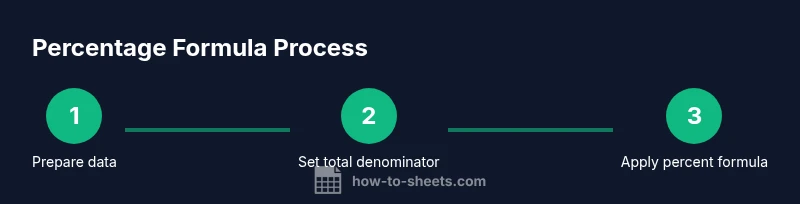
List your parts in one column and the corresponding amounts in the adjacent column. Ensure there is a clearly defined total denominator somewhere in your sheet.
Tip: Label your columns clearly (e.g., Item, Amount, Percent of Total) to avoid confusion later. - 2
Create the denominator
Add a cell that holds the total value you’ll divide by (e.g., =SUM(B2:B4)). This denominator should be fixed in formulas using absolute references.
Tip: Place the total in a separate cell like D1 and reference it as $D$1 in formulas. - 3
Enter the percent formula
In the first result cell, enter =B2/$D$1 (or your equivalent). This computes the fraction that represents the percent of total.
Tip: Format this first result cell as Percent to immediately see 25% instead of 0.25. - 4
Copy across the range
Drag the fill handle down to copy the formula for the rest of the items. The denominator reference remains fixed due to $D$1.
Tip: Double-click the fill handle to auto-fill when adjacent data ends. - 5
Validate and format
Check several rows manually to ensure percentages add up to 100% (or expected totals). Apply conditional formatting if you want visual cues for high/low shares.
Tip: Use IFERROR to gracefully handle blanks or missing data.
FAQ
What is the quickest way to convert decimals to percentages in Google Sheets?
Enter a decimal like 0.25 and use the Percent format to display 25%. The underlying value remains 0.25, which is essential when calculating further percentages. You can also multiply by 100 and append % if you prefer a numeric approach.
You can simply format the cell as Percent, which automatically shows 25% for 0.25.
How do I calculate the percentage of a subtotal within a column?
Compute the subtotal once, then divide each item by that subtotal. Example: =B2/$B$10 where B10 contains the subtotal. Use absolute references for the denominator when copying down.
Divide each item by the subtotal cell and format as percent.
Why does my percentage formula show #DIV/0!?
The error appears when the denominator is zero or blank. Ensure the denominator has a positive numeric value, or wrap the formula with IFERROR to return a friendly result.
The error means you divided by zero or left the denominator blank.
Can I apply a percentage formula to an entire column without copying?
Yes. Use ARRAYFORMULA to apply a percentage pattern across a column, for example: =ARRAYFORMULA(IF(LEN(B2:B), B2:B/$D$1, )). This updates automatically as data grows.
Use ARRAYFORMULA to fill an entire column without dragging.
How do I fix relative references when copying formulas across rows?
Lock the denominator with absolute references like $D$1. This keeps the denominator fixed while the numerator adjusts as you copy down.
Lock the denominator with $ signs to keep it fixed when copying.
What’s a good error-handling approach for mixed data?
Wrap formulas with IFERROR, e.g., =IFERROR(B2/$D$1, 0). This returns a safe 0 or blank instead of an error when data is missing.
Use IFERROR to avoid messy error messages with incomplete data.
Watch Video
The Essentials
- Calculate percentage as Part/Total
- Format cells as percent for clarity
- Use absolute references to fix denominators
- Apply IFERROR to handle edge cases
- Test calculations with real-world data