Rank in Google Sheets: A Practical Step-by-Step Guide
Learn how to rank data in Google Sheets with formulas, dynamic ranges, and dashboards. This How To Sheets guide covers RANK.EQ, RANK.AVG, sorting, and validation to help students, professionals, and small business owners rank in google sheets accurately.


Want to rank in google sheets and spot top performers fast? This guide teaches core ranking formulas, including when to use RANK.EQ vs RANK.AVG, and how to build a dynamic top‑n view. By the end, you’ll rank data accurately in Google Sheets and simplify reporting. According to How To Sheets, effective ranking saves time and boosts decision quality for students, professionals, and small business owners.
Why ranking in google sheets matters
Ranking data in Google Sheets is a powerful skill for students, professionals, and small business owners who want fast insight from their datasets. When you rank items, you can quickly see who leads, who lags, and where to focus effort. This is especially helpful in classroom grade sheets, sales trackers, or project dashboards. The phrase rank in google sheets describes the act of ordering values to reveal relative performance. By ranking data, you turn raw numbers into actionable stories that stakeholders can grasp in seconds.
According to How To Sheets, ranking data in Google Sheets helps teams compare performance at a glance and reduces manual sorting time. A well-structured ranking model also supports dynamic dashboards, so your results stay up to date as new data arrives. In practice, you’ll learn to rank in google sheets using built‑in formulas, validate results, and present top performers clearly. This section lays the foundation for the rest of the guide and sets expectations for how ranking will improve your reporting workflow.
How ranking formulas work in google sheets
Google Sheets offers several ways to rank values. The core functions are RANK.EQ and RANK.AVG, which assign a rank based on a numeric score. RANK.EQ assigns the same rank to ties; RANK.AVG returns the average rank for tied values. For ascending vs descending ranking, set the third argument to 0 for descending (largest first) or 1 for ascending.
To illustrate rank in google sheets:
- =RANK.EQ(B2, $B$2:$B$100, 0) returns the rank of B2 within B2:B100, with 0 indicating descending order.
- If you want ties to show distinct ranks, use =RANK.AVG(B2, $B$2:$B$100, 0) and copy down.
Beyond these, you can pair ranking with SORT or FILTER to generate a sorted list or to extract top-n items. Dynamic arrays like FILTER and SORT allow you to show rankings that automatically adjust as data changes. Remember to anchor your ranges with $ to keep references stable as you copy formulas down.
Data preparation for reliable rankings
Reliable ranking starts with clean data. Ensure your numeric scores are indeed numbers, not text. Remove or fill blanks, convert text values to numbers if needed, and standardize units (e.g., all percentages or all raw scores). Create a single identifier column for each row, because stable identifiers help you audit results when you share rankings with others. If your sheet includes headers, lock them in place and set your ranking range to exclude the header row. When you prepare data properly, rank in google sheets stays accurate even as new rows are added.
Real-world use cases: rank in google sheets across domains
You can apply ranking in google sheets across many scenarios. For students, rank scores in a test to reveal top performers and gaps in performance. For sales teams, rank reps by monthly sales to identify leaders and training needs. For operational tasks, rank requests by priority or impact to triage backlogs. In each case, combine a numeric score with a stable identifier, then apply a ranking formula to produce a clean, shareable ranking list.
Building a reliable ranking workflow: tips and checks
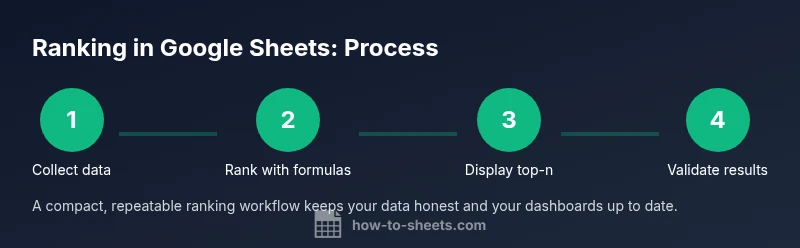
A solid ranking workflow uses a dedicated ranking column, consistent data ranges, and clear presentation. Start by choosing the right function (RANK.EQ for ties, RANK.AVG for unique ranks). Then build a ranking column with a stable data range and anchor references. Finally, publish a top-n view with a dynamic sort and optional filters. As data updates, your ranking should refresh automatically, so your dashboard remains current.
In practice, you’ll often pair ranking with conditional formatting to highlight ranks. Use a separate header row for ranking labels like "Rank" and ensure your top items display prominently. For large datasets, consider using named ranges and array formulas to optimize performance.
Common mistakes and how to fix them
Common mistakes include forgetting to anchor ranges, mixing data types (numbers stored as text), and ignoring blanks or errors in the ranking column. Another pitfall is not handling ties consistently, which can mislead readers about relative performance. To fix these, always use absolute references in your ranges, convert data to numbers, and apply IFERROR to catch errors. Finally, test your ranking on a small sample before applying it to a full dataset to ensure the results match your expectations.
Tools & Materials
- Google Sheets account(Needed to access Sheets and save formulas)
- Dataset in Google Sheets(Ensure numeric scores exist in a single column with a unique identifier)
- Ranking formulas (RANK.EQ, RANK.AVG)(Accessibility: Insert into a helper column)
- Top-n view and formatting(Optional: conditional formatting to highlight ranks)
Steps
Estimated time: 30-45 minutes
- 1
Prepare your data
Identify the column with numeric scores and a distinct identifier for each row. Clean any text numbers, remove blanks, and ensure the data range contains only numeric values for ranking. This baseline helps rank in google sheets stay accurate as you update data.
Tip: Keep a separate reference column for identifiers to help audit rankings. - 2
Choose the ranking function
Decide whether to use RANK.EQ for ties or RANK.AVG to assign a unique rank for tied scores. This choice determines how you interpret the results when multiple rows share the same score.
Tip: If you expect ties and want reproducible results, start with RANK.EQ and adjust if needed. - 3
Enter the ranking formula in a helper column
In the first data row of the helper column, enter a ranking formula such as =RANK.EQ(B2, $B$2:$B$100, 0). Copy the formula down the column to apply ranking to all rows.
Tip: Anchor the range with $ to keep references fixed when you copy the formula. - 4
Copy and anchor formulas
Verify that copied formulas reference the correct range and that all rows display a rank. If new rows are added, ensure they automatically calculate by extending the range or using dynamic ranges.
Tip: Use a named range for the score column to simplify maintenance. - 5
Create a top-n view
Use SORT or FILTER to present a dynamic top-n list, for example =SORT(FILTER(A2:B100, B2:B100>0), 2, FALSE) to show the top performers by score.
Tip: Combine with INDEX to display only the first five ranked items. - 6
Enhance with formatting and checks
Apply conditional formatting to highlight ranks (e.g., top 5). Add IFERROR around formulas to catch errors and maintain a clean view.
Tip: Test with edge cases (ties, blanks, and large datasets) to ensure robustness.
FAQ
What is the difference between RANK.EQ and RANK.AVG?
RANK.EQ assigns the same rank to identical scores (ties). RANK.AVG returns the average of the possible ranks for tied scores, providing a unique ranking value for each row. Choose based on whether you want ties to share a rank or be separated.
RANK.EQ gives the same rank to ties, while RANK.AVG gives a unique average rank for tied values.
Can I rank across multiple columns?
Yes. Create a helper column that computes a combined score from multiple columns (e.g., a weighted average), then apply a ranking formula to that helper column.
You can rank across multiple columns by first creating a combined score, then ranking that score.
How do I rank text categories?
Ranking works on numbers. Map categories to numeric scores (for example, using VLOOKUP or CHOOSE) before ranking. This lets you rank qualitative data by a quantitative proxy.
Rankings require numbers; convert text to numbers first, then rank.
How can I keep rankings up to date automatically?
Place ranking formulas in a range that expands with new rows or use dynamic ranges. Google Sheets recalculates automatically as data changes.
Ranking updates automatically when the data changes.
What should I do about blanks or errors in the data?
Use IFERROR to catch errors and treat blanks as missing data. Normalize data input to reduce blanks and ensure consistent ranking results.
Handle blanks and errors with IFERROR and consistent data input.
Watch Video
The Essentials
- Rank data quickly with built-in functions.
- Choose the right ranking function for ties.
- Anchor ranges to keep formulas stable.
- Create a dynamic top-n view for dashboards.