Fix Google Docs: A Practical Step-by-Step Guide
Discover practical, step-by-step methods to fix Google Docs issues—from slow loading to formatting glitches—with actionable steps and expert tips from How To Sheets.


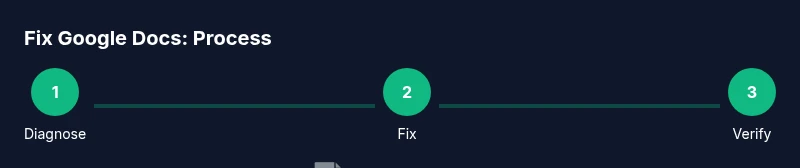
This guide shows you how to fix Google Docs issues quickly and reliably. You’ll diagnose the problem, follow proven steps from basic refreshes to cache clearing, extension checks, and offline testing, and verify resolution. How To Sheets recommends a methodical approach to minimize downtime and protect your work during critical editing sessions. Expect a repeatable workflow you can reuse whenever problems pop up.
Fix Google Docs: What It Means to Troubleshoot
Fixing google docs, as a concept, means restoring normal operation after issues that disrupt editing, loading, or formatting. The goal is not to guess but to isolate the root cause and apply targeted fixes. According to How To Sheets, a structured troubleshooting routine reduces downtime and protects your work from data loss. A repeatable process helps students, professionals, and small business owners alike handle unexpected glitches without panic. In this guide you’ll learn a practical framework that covers connectivity, browser health, account status, and document-specific settings. You’ll also find prevention tips to reduce recurrence. By following the plan, you can resolve most problems quickly and minimize downtime during important editing sessions.
Common Google Docs Issues You Might Face
Many users encounter slow-loading documents, intermittent syncing, missing images, and formatting glitches that seem to appear out of nowhere. Some issues stem from browser compatibility, extensions, or unstable internet connections, while others relate to Google’s service status or document permissions. In collaborative environments, users may also experience conflicting edits or version history confusion. Understanding these common issues helps you target the right fix rather than applying generic checks. This section outlines typical symptoms and the likely culprits, so you can prioritize actions and reduce wasted time.
Quick Diagnostic Checklist
A rapid first-pass check can save you from chasing phantom problems. Start by verifying your internet connection is stable and that Google Docs is not experiencing a known outage (Google Workspace Status can be consulted). Then confirm you’re signed in with the correct account and that you have edit permissions for the document. If issues persist, note any error messages, document URLs, and whether the problem occurs on multiple devices or browsers. A concise symptom log makes it easier to reproduce and verify fixes later. Finally, consider whether the issue is project-wide or document-specific, as this changes the remediation approach.
Step-by-Step Troubleshooting Path
A disciplined troubleshooting path reduces guesswork and leads to durable fixes. Follow a logical sequence: confirm service status, refresh the page, and check for local causes before escalating. This approach minimizes data loss risk and ensures you can recover quickly. The plan below mirrors a practical workflow used by many teams, including How To Sheets’ own testing routines. You’ll start with quick wins and progress to deeper checks if needed. While you’re at it, document each action for future reference and to speed up recovery if the issue returns.
Step 1: Verify Internet Access and Google Service Status
Begin with a reliable internet connection and verify that Google Docs is not down for everyone. Load other websites to test connectivity, and check Google Workspace Status for any outages that might affect Docs, Drive, or Sheets. If a service incident is reported, you’ll know to wait for Google to fix the issue or switch to a temporary workaround. If access appears fine but Docs is still flaky, move on to local checks. This upfront check saves you from chasing issues that aren’t specific to Google Docs.
Step 2: Refresh, Reopen, and Re-authenticate
Sometimes the simplest fix is the most effective: refresh the page, close the browser tab, and reopen Google Docs. If problems persist, sign out of your Google account and sign back in to refresh authentication tokens. This action can resolve signed-in session problems that cause syncing delays or permission errors. If you’re part of a managed workspace, confirm your account hasn’t been suspended or restricted by an admin.
Step 3: Clear Cache, Disable Extensions, and Test in Incognito
Browser cache and extensions can interfere with Google Docs rendering and performance. Clear your browser cache and cookies for a clean slate, then disable extensions that modify content or networks. Reopen Docs and test in an incognito/private window to rule out extensions as the culprit. If the issue disappears in incognito, gradually re-enable extensions to identify the bad actor. This method keeps your regular workspace productive while isolating root causes.
Step 4: Cross-Platform Testing and Offline Mode
To determine if the problem is browser- or device-specific, try accessing the same document on another device or in a different browser. If available, enable offline mode and confirm that edits sync when you reconnect to the internet. Cross-platform testing reveals whether the issue is tied to a local setup or part of a broader service problem. If offline mode works but online editing does not, focus on network settings or Google account permissions.
Prevention and Next Steps
After resolving the immediate issue, adopt a proactive stance to reduce future problems. Keep your browser up to date and minimize extensions that affect networking or content rendering. Regularly clear cache on a scheduled basis and use a single source of truth for documents to avoid conflicts. Maintain a simple backup routine and leverage version history wisely to recover from accidental changes. The How To Sheets team recommends documenting your troubleshooting steps so you can repeat success next time.
Tools & Materials
- Stable internet connection(Ensure you can load basic web pages to confirm connection quality)
- Updated web browser(Chrome/Edge/Firefox/Safari with latest version)
- Clear cache and cookies plan(Know how to clear browser data for your chosen browser)
- Google account access(Sign in to the correct account with edit permission)
- Incognito/private mode(Helpful for diagnosing extension interference)
- Alternative device or browser(Useful for cross-platform testing)
Steps
Estimated time: 30-60 minutes
- 1
Identify the issue clearly
Observe symptoms, capture error messages, and note when the problem occurs. Define whether it’s loading, editing, or formatting related. A precise problem statement guides effective fixes.
Tip: Record the exact error text and the URL of the affected document. - 2
Check internet and Google service status
Test other sites to confirm connectivity and review the Google Workspace Status page for outages. If services are down, skip local fixes and wait for Google to restore service.
Tip: If you see a service incident, follow the official status updates before trying fixes. - 3
Refresh, reopen, and re-authenticate
Reload the document, close and reopen the browser, and sign out sign back in to refresh session tokens. This often clears transient authentication issues.
Tip: Use a fresh sign-in to avoid stale credentials. - 4
Clear cache and disable extensions
Clear browser cache and cookies, disable extensions that affect content or networks, then retry Google Docs in a private window to isolate the cause.
Tip: Re-enable extensions one by one to identify the culprit. - 5
Test in incognito/private mode
Open Google Docs in an incognito/private window to rule out the impact of cached data and extensions. If it works, the issue is likely extension-related.
Tip: If it fails in incognito, the problem is more likely with account or document settings. - 6
Cross-platform testing and offline mode
Try the same document on another device or browser, and test offline mode to verify syncing behavior when reconnected. This helps isolate device-specific problems.
Tip: Note any differences across platforms to guide fixes. - 7
Document-specific checks
If a single document is problematic, review sharing permissions, ownership, and version history. Create a copy to determine if the issue is document-bound.
Tip: Compare permissions with collaborators to confirm access levels.
FAQ
What is the first thing I should try if Google Docs won’t load?
Start with a quick check of your internet connection and the Google Workspace Status page. If there’s an outage, wait for it to clear. Otherwise, refresh the page and try a new session.
First, check your internet and Google’s status, then refresh and retry.
Why does Google Docs keep freezing or move slowly?
Common causes include browser extensions, outdated browsers, or heavy documents. Try incognito mode to rule out extensions and ensure your browser is up to date.
Extensions or old browsers often cause freezes; test in incognito to confirm.
Can Google Docs work offline, and is it reliable?
Yes, Google Docs supports offline editing. Ensure offline mode is enabled in you Google Drive settings and that the document is synced when back online.
Offline mode is possible; enable it and verify syncing when online again.
Should I disable all extensions to fix issues?
Disabling extensions helps identify a culprits. Re-enable them one by one to pinpoint the problematic one.
Disable extensions to test; re-enable one by one to find the offender.
What should I do if a document itself is the problem?
Check document permissions, ownership, and version history. Create a copy to test whether the issue is with the file or the account.
If the issue is document-specific, check permissions or copy the doc to test.
Is it safe to clear browser cache and cookies?
Clearing cache is generally safe and can resolve many rendering issues. Save any critical work before clearing data.
Clearing cache is usually safe and often fixes problems, just save first.
Watch Video
The Essentials
- Identify the exact issue with precise symptoms
- Test across browsers/devices to isolate causes
- Apply targeted fixes in a logical order
- Verify results and document the resolution
- Prevent recurrence with maintenance and best practices