Fix Google Docs Not Working on iPad: Step-by-Step Troubleshooting
Urgent guide to fix google docs not working on ipad. Follow a step-by-step diagnostic flow, quick fixes, and safe workarounds to restore productivity on your iPad.


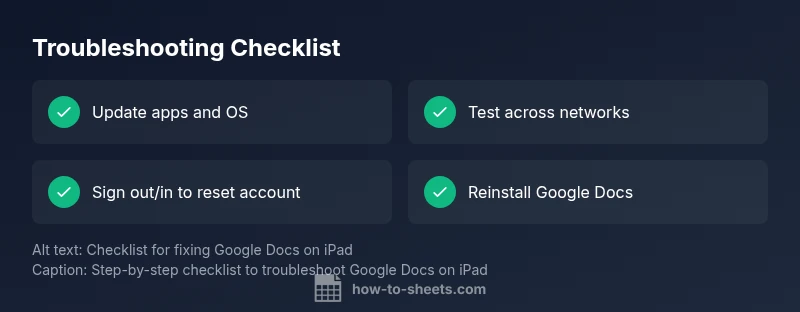
Quick fix steps: 1) Check your internet connection and VPN. 2) Close and reopen Google Docs. 3) Update Google Docs and iPadOS to the latest versions. 4) Sign out of your Google account and back in. 5) If needed, reinstall the Google Docs app. For a full diagnosis, use the flow below.
Common causes of google docs not working on ipad
When you run into issues with google docs not working on ipad, the root causes are usually related to software compatibility, outdated apps, or network problems. The most common scenario is an outdated Google Docs app that struggles to run on the current iPadOS. In some cases, a mismatch between the iPad’s OS version and the app’s requirements leads to crashes, freezes, or failure to load documents. Another frequent culprit is unstable network connectivity, especially if you rely on VPNs, corporate networks, or restrictive Wi‑Fi. Additionally, Google account permissions, storage limits, or Drive sync problems can prevent documents from loading or syncing properly. From the perspective of How To Sheets, systematic updates and version checks solve the majority of incidents. If you’re dealing with persistent errors, start by verifying versions, then work through a layered set of checks that escalate only as needed. The goal is to restore reliable access to your documents without data loss, preserving your workflow and deadlines.
Key takeaway: Start with the simplest explanation — an update or a connectivity issue — before assuming a deeper failure.
Check your internet connection and app status
Connectivity is the backbone of cloud-based apps like Google Docs. If your ipad is on a flaky network, you’ll experience slow loading, stuck edits, or failure to sync. Begin by testing both Wi‑Fi and cellular data to determine if the issue is network-specific. Disable any VPNs temporarily and try again, as VPNs can introduce latency or block Google services intermittently. Check Google Workspace Status if available to confirm there are no service outages affecting Docs. On the device, toggle Airplane mode on and off to refresh network state. If the problem is network-related, you’ll likely see improvement after switching networks. If the issue remains even on a steady connection, proceed to the next steps. How To Sheets’s analysis shows that a simple network reset solves many intermittent problems.
Pro tip: Keep a secondary data connection in your pocket (eSIM or personal hotspot) for troubleshooting without losing access to your work.
Verify Google account and app permissions
Sometimes the problem isn’t the device but the account state. Make sure you’re signed into the correct Google account that owns or has access to your documents. Signs of account mismatch include missing files, access errors, or unexpected prompts to sign in. Check that Google Drive is accessible and that the Docs app has permission to access Drive and local storage if needed. If you’re part of an organization, ensure your account isn’t restricted by admin settings or two‑step verification that blocks sign-in on the iPad. Re-signing in often resolves permission-related roadblocks and re‑establishes a clean sync with Drive.
How To Sheets note: Account issues are frequently overlooked, but they’re usually quick to fix with a sign‑out/sign‑in cycle.
Troubleshoot app issues on iPad: app version, OS compatibility, cache
The next layer involves the software stack itself. Ensure both iPadOS and Google Docs are updated to the latest versions supported by your device. Outdated OS or app versions are common sources of instability, especially after other updates. If updates are already applied, consider reinstalling Google Docs to clear hidden caches and reset internal storage states. When you reinstall, make sure you have access to any documents saved offline or in Drive, so no data is lost. If the issue persists after a clean install, test with a fresh document to rule out file-specific issues. In some cases, you may also reset network settings or forget and reconnect to your Wi‑Fi network as part of a broader wipe of misbehaving caches.
Practical tip: Always back up important documents before reinstalling apps to prevent accidental data loss.
Workarounds and recovery options
If the core app continues to misbehave on iPad, there are reliable workarounds that keep you productive. Use Google Docs via Safari or another supported browser to edit documents temporarily while you troubleshoot the app. Alternatively, open documents directly in Google Drive’s web interface if available. Export options (e.g., DOCX or PDF) let you keep working offline and then re-import once the Docs app is stable again. Consider enabling offline access for Google Docs in Drive settings so you can continue working when the internet is flaky. These approaches maintain your momentum while the root issue is being resolved.
Note: Workarounds are not permanent fixes but essential if you have tight deadlines.
When to contact support and how to collect logs
If you’ve exhausted basic fixes and the problem persists, it’s time to contact support. Prepare a concise report including device model, iPadOS version, Google Docs app version, Wi‑Fi type, and whether the issue occurs with all documents or a single file. Include screenshots or screen recordings of any error messages. Collect logs or export diagnostic data if available. If you’re inside an organization, involve your IT admin to check policy restrictions. When you escalate, reference your recent updates, reinstall attempts, and the diagnostic flow you followed. This structured information accelerates resolution with Google Support or your device vendor’s help desk.
From How To Sheets perspective: a clear, reproducible report shortens response times and reduces back-and-forth questions.
Closing reminder: prevention and best practices
To minimize future disruptions, keep your iPadOS and Google Docs app up to date, maintain stable network settings, and enable automatic updates where possible. Regularly clear caches after major updates, verify sign-in status, and keep Drive permissions in good standing. Store critical documents in Drive rather than relying on device storage alone to avoid data loss during app reinstallations. By following a proactive maintenance routine, you’ll reduce downtime and protect your productivity across devices.
Steps
Estimated time: 40-60 minutes
- 1
Check versions
Confirm Google Docs and iPadOS are up to date. If updates are pending, install them and restart your iPad.
Tip: Automatic updates can prevent these issues in the future. - 2
Test network
Switch between Wi-Fi and cellular data, disable VPN, and check if the problem persists on both networks.
Tip: A stable connection is often the simplest fix. - 3
Refresh your account
Sign out of your Google account on the iPad, then sign back in. Reopen Google Docs and test with a new document.
Tip: Ensure you have access rights to the document you’re testing. - 4
Clear app caches
If available, clear the cache for Google Docs or reinstall the app to reset storage and temporary files.
Tip: Back up essential docs to Drive first. - 5
Try a browser workaround
Open Docs in Safari or another supported browser to verify if the issue is app-specific.
Tip: Browser-based editing can bridge the gap during app issues. - 6
Check for service outages
Look for Google Workspace service status and iPadOS advisories that may affect Docs.
Tip: Occasional service outages affect many users at once. - 7
Escalate if needed
If problems persist after all steps, contact Google Support with your diagnostic flow and device details.
Tip: Provide logs and steps you’ve completed to speed up resolution.
Diagnosis: App loads slowly or shows errors when editing in Google Docs on iPad
Possible Causes
- highOutdated Google Docs app
- highOutdated iPadOS version or compatibility issue
- mediumPoor network connection or VPN interference
- lowAccount sign-in or permission problem
Fixes
- easyUpdate Google Docs to the latest version from the App Store
- easyUpdate iPadOS to the latest version and restart the device
- easyTest on a different network (Wi-Fi vs cellular) or disable VPN
- easySign out of Google account and sign back in, then re-open Docs
- mediumDelete and reinstall Google Docs to clear caches
FAQ
What is the first thing I should try when Google Docs isn’t working on my iPad?
Start with a quick network check and update the Apps. If unresolved, sign out/in of your Google account and try again. This covers most common cases.
First try checking your connection and updating apps; if needed, sign out and back in.
Why does Google Docs crash after an iPadOS update?
Some updates introduce compatibility issues. Ensure both iPadOS and Google Docs are on the latest supported versions, then restart.
Crashes after an update are common; update both OS and Docs and restart.
Can I edit Google Docs on iPad without the app?
Yes, use Google Docs in Safari or another browser as a temporary workaround while the app issues are resolved.
Yes, you can edit in Safari while the app gets fixed.
Is data lost if I uninstall Google Docs on iPad?
Uninstalling typically doesn’t delete documents stored in Drive; ensure Drive sync is enabled before reinstalling.
Documents stay in Drive if you’re syncing; but back up anything you’re editing locally.
How can I check if Google Drive sync is causing issues?
Open Google Drive, confirm recent file activity, and verify that your files show up on the web version as expected.
Check Drive on the web to confirm your files sync properly.
When should I contact Google support or Apple support?
If the issue remains after following the diagnostic flow, contact Google Support for Docs issues or Apple Support for device-related problems.
If unresolved after troubleshooting, reach out to Google or Apple support.
Watch Video
The Essentials
- Update apps and OS to fix most issues
- Test across networks to isolate connectivity problems
- Sign out/in to reset account permissions
- Use browser-based edits as a safe workaround
- Escalate with a clear diagnostic flow if unresolved