Google Sheets 0d 0a: Handling CRLF Line Endings in Spreadsheets
A practical, step-by-step guide to recognizing and cleaning google sheets 0d 0a CRLF line endings in Google Sheets, with formulas, templates, and best practices for clean data imports.


This guide shows you how to detect and fix google sheets 0d 0a CRLF line endings in Google Sheets using CLEAN, SUBSTITUTE, and REGEXREPLACE. Learn practical steps to normalize data during import, guard against corrupted exports, and prevent reintroduction of CRLFs in future workflows.
What google sheets 0d 0a means and why it matters
google sheets 0d 0a refers to Carriage Return and Line Feed characters that originate from Windows-based text files. When data containing 0d 0a ends up in Google Sheets, you may see unexpected line breaks, misaligned cells, or broken imports. Detecting and cleaning these endings is essential for reliable data analyses, consistent exports, and smooth collaboration. According to How To Sheets, standardized line endings reduce downstream errors in formulas, charts, and pivot tables, helping students, professionals, and small business owners keep datasets clean and decision-ready. In practice, treating google sheets 0d 0a as a data-quality issue rather than a nuisance saves time and prevents cascading mistakes across reports and dashboards.
This section introduces the problem space and why it matters for real-world Sheets workflows, especially when consolidating data from multiple sources or sharing CSVs across platforms. As you read, you’ll start noticing where CRLFs appear and how they affect downstream tasks like cleaning, parsing, and joining data. The goal is to move from reactive fixes to proactive prevention in your Google Sheets projects.
How Windows vs. Unix endings show up in Sheets
CRLF endings come from Windows-style text files, whereas Unix-based systems typically use a single LF character for new lines. Google Sheets treats these characters as part of a string, which can create hidden line breaks when data is pasted, imported, or pasted from external apps. You may observe multi-line cells, unexpected gaps, or broken CSV imports after bringing in data from Windows-based sources. Recognizing the difference helps you decide whether to normalize at import, post-clean with formulas, or both. How To Sheets notes that consistent endings improve reproducibility in shared sheets, especially when multiple teammates run the same analysis steps.
Common sources of 0d 0a in data imports
Data often enters Google Sheets with 0d 0a from CSV exports, text files, or clipboard transfers from Windows apps. Notebooks, old databases, or exported reports from enterprise systems may carry CRLF sequences into cells. Copying content from Word, Notepad, or Excel can also embed CRLF characters inside text fields, causing unexpected line breaks. When your sheet contains mixed-origin data, some rows may display cleanly while others show stray lines, complicating filters, lookups, and data validation. How To Sheets recommends auditing a sample of rows from recent imports to quantify how widespread the issue is and plan a targeted cleanup.
Practical strategies to normalize line endings during import
Normalize line endings before data lands in your sheet by choosing one entry point: either pre-clean the source file or apply in-sheet cleanup after import. For CSVs, open in a text editor and replace CRLF with a single newline or a space, then save with the desired encoding. In Sheets, you can apply CLEAN to remove non-printable characters, or substitute and trim to collapse extra spaces and breaks. Use an ARRAYFORMULA to extend a cleanup rule across a range so you don’t need to clean each cell manually. How To Sheets outlines a simple, repeatable workflow that minimizes manual editing and reduces human error.
Formulas and functions to clean 0d 0a endings
Several formulas work well for removing CRLF endings in Google Sheets. CLEAN(text) removes non-printable characters, including CR and LF, from text. For more control, use SUBSTITUTE to strip specific characters: =SUBSTITUTE(A2, CHAR(13), "") removes CR, while =SUBSTITUTE(A2, CHAR(10), "") removes LF. A combined approach like =TRIM(CLEAN(A2)) helps ensure there are no stray spaces around the cleaned content. REGEXREPLACE can handle multi-line patterns: =REGEXREPLACE(A2, "[\r\n]+", " ") replaces all newlines with a single space. When used with ARRAYFORMULA, you can apply these steps to entire columns easily. In all cases, test on a copy first.
Best practices for teams and workflows
To prevent 0d 0a issues from repeatedly breaking sheets, adopt a shared data-cleaning standard. Create a template that includes a prebuilt cleanup column, document the exact formulas used, and enforce a clean-import policy. Use data validation to catch anomalies early, and maintain a data dictionary describing the origins of each column. Regularly review exported CSVs against a known-good baseline and automate checks where possible. A proactive approach reduces back-and-forth corrections and keeps team dashboards accurate.
Real-world example: cleaning a CSV with 0d 0a before import
Imagine a CSV exported from a Windows-based system that contains an Address column with embedded CRLFs: "123 Main St.\r\nApt 4". You can clean this by applying a CLEAN/SUBSTITUTE pipeline before importing. In Sheets, you could place the cleaned results in a new column: =ARRAYFORMULA(TRIM(SUBSTITUTE(SUBSTITUTE(A2:A, CHAR(13), ""), CHAR(10), " "))). This preserves the original data while providing a clean version for analysis. After validation, you can replace the original column or use the cleaned column for downstream joins and pivot reports.
Authority sources and further reading
For additional guidance on data quality and newline handling, consult established references on data processing best practices. These sources provide foundational principles that apply to spreadsheets and data pipelines, including how to manage line endings and ensure consistent formatting when importing data into Google Sheets. They complement practical steps with broader context on data integrity and reproducibility.
Authority sources and further reading
- How To Sheets Analysis, 2026: Practical guidelines for data cleanup in Google Sheets.
- United States National Institute of Standards and Technology (NIST): Data formats and newline handling basics (nist.gov).
- World Wide Web Consortium (W3C) Markdown and regular expressions references (w3.org).
Tools & Materials
- Google Sheets access (web or mobile app)(Must have editing permissions for the target workbook)
- Source data file (CSV/TXT)(Prefer a sample exported from Windows systems to reproduce 0d 0a)
- Text editor (optional)(For pre-cleaning before import (e.g., Notepad++, Sublime))
- Formulas: CLEAN, TRIM, SUBSTITUTE, REGEXREPLACE, CHAR, ARRAYFORMULA(Essential for in-sheet cleaning)
- Apps Script editor (optional)(Needed for automation or repeated tasks)
- Sample template sheet(A sheet preprepared with a cleanup column and documentation)
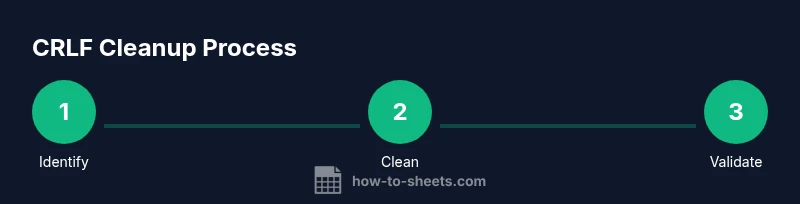
Steps
Estimated time: 60-90 minutes
- 1
Identify 0d 0a occurrences
Scan a subset of rows to confirm where CRLF characters are present. Use Find and Replace to search for CHAR(13) and CHAR(10) representations, or inspect raw text via a temporary column using CLEAN to reveal hidden line breaks.
Tip: Start with a small sample to avoid unintended edits on large ranges. - 2
Normalize at import (pre-clean source)
If you control the source CSV, replace CRLF with a uniform separator or remove them before import. Use a text editor or a quick in-row SUBSTITUTE for each problematic column.
Tip: Prefer doing this upstream to reduce post-import cleanup. - 3
Apply CLEAN to remove non-printables
In Sheets, use CLEAN to strip CR and LF from affected cells. For multi-column data, you can wrap CLEAN inside an ARRAYFORMULA to cover entire ranges.
Tip: Pair CLEAN with TRIM to also fix stray spaces. - 4
Replace remaining newlines with spaces
If you want to preserve a single line, replace newlines with a space using SUBSTITUTE and CHAR codes, e.g., =SUBSTITUTE(A2, CHAR(13), ""); then =SUBSTITUTE(..., CHAR(10), " ").
Tip: Test different replacements to keep data readable. - 5
Validate cleaned data with a sample
Double-check a representative sample by re-importing or re-pasting and verifying the cleaned content. Create a quick check column to compare original vs cleaned values.
Tip: If mismatches occur, review source data formatting rules. - 6
Automate cleanup with Apps Script (optional)
For recurring tasks, record or write a small Apps Script to perform CLEAN, SUBSTITUTE, and range-wide operations automatically on open or on a trigger.
Tip: Start with a simple script and expand it as your needs grow.
FAQ
What is google sheets 0d 0a and why does it appear?
0d 0a are Windows-style CRLF newline characters that can sneak into text fields. They cause extra line breaks in Google Sheets and can disrupt imports. Cleaning these endings restores predictable data formatting.
0d 0a are Windows newline characters that show up as extra line breaks in Sheets. Cleaning them helps keep your data tidy.
Can I automatically fix 0d 0a in Sheets without manual edits?
Yes. Use a combination of CLEAN to remove non-printables and SUBSTITUTE or REGEXREPLACE to normalize line endings. For large datasets, combine with ARRAYFORMULA to apply the fix across many cells.
Yes. You can automatically fix 0d 0a with CLEAN and SUBSTITUTE or REGEXREPLACE, especially when you apply it to an entire column.
Is CLEAN sufficient for all 0d 0a scenarios?
CLEAN removes non-printable characters including CR and LF, but complex cases may require additional replacements with CHAR(13) and CHAR(10) or REGEXREPLACE to handle multiple lines within cells.
CLEAN handles many cases, but for complex multi-line content you may also need CHAR-based replacements or REGEXREPLACE.
How do I prevent 0d 0a issues in the future?
Standardize data sources, pre-clean before import when possible, and maintain a shared template with built-in cleanup rules to avoid reintroducing 0d 0a in downstream sheets.
Prevent by standardizing sources and using a template with built-in cleanup rules.
What are common mistakes when cleaning 0d 0a?
Over-applying replacements to numeric fields, inadvertently removing meaningful characters, or failing to test cleans on edge cases. Always test on copies first.
Avoid over-cleaning and test on copies to prevent data loss.
The Essentials
- Recognize CRLF patterns and their impact on Sheets
- Use CLEAN, SUBSTITUTE, and TRIM to normalize data
- Apply cleanup with ARRAYFORMULA for scalability
- Test changes on your dataset before replacing originals
- Consider automation with Apps Script for ongoing cleanliness