How to Get and Use a Google Sheets API Key
Learn to generate, restrict, and securely use a Google Sheets API key with practical, step-by-step guidance for students, professionals, and small teams.


In this guide, you’ll learn how to obtain a Google Sheets API key, understand when to use it vs. OAuth, and implement basic security and testing. You’ll get a concise, actionable path to create, restrict, and test your key for safe integration with Sheets data.
What is the Google Sheets API key and why you might need it
A Google Sheets API key is a project-scoped credential that allows your application to access public Sheets data and perform non-user-specific requests to the Sheets API. It is not a substitute for user authorization when you need to access private spreadsheets. The How To Sheets team notes that API keys are best for server-to-server scenarios or simple read operations where user consent isn’t required. When you work with private data, OAuth 2.0 or service accounts are typically required to grant access securely. Understanding the distinction between an API key and OAuth helps you choose the right credential for the job and avoid exposing sensitive data. This clarity saves time and reduces security risks for students, professionals, and small business owners using Google Sheets with external apps.
Getting started: prerequisites and access enablement
To begin, you need a Google account and access to the Google Cloud Console. Create or select a project, enable the Sheets API, and ensure you have permission to manage credentials within the project. It’s also wise to set up basic project organization: naming conventions, a dedicated dev project, and a separate prod project. Billing is not always required for low-volume usage, but you should be prepared to enable it if your quotas increase. As emphasized by How To Sheets, planning access controls early helps prevent accidental exposure and protects your data from misuse. Keep notes of project IDs and an audit trail of who creates keys and what they’re used for.
How to create a Google Cloud project and enable the API
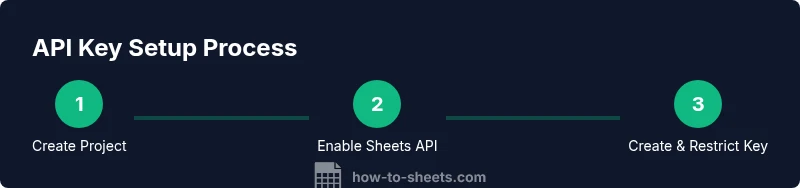
Start by opening the Google Cloud Console, create a new project or select an existing one, and give it a descriptive name. Navigate to the API Library, search for Google Sheets API, and enable it for your project. After enabling, go to the Credentials page to create the credential type you need. This sequence—project creation, API enablement, and credential setup—is the foundation for secure integration. The process is straightforward, and following it step-by-step helps maintain a clean security posture from the outset.
Generating an API key for Google Sheets
From the Credentials page, click Create credentials and choose API key. A key string is generated immediately. Rename the key to something meaningful (e.g., “SheetAppDevKey”). It’s crucial to keep the key secret and avoid embedding it directly in client-side code. At this stage you should also decide on basic restrictions and note your project context for future auditing. How To Sheets recommends documenting the purpose and scope of each key to simplify maintenance and security reviews.
Securing and restricting your API key
A secure key isn’t enough; you must restrict it. Start by applying application restrictions (HTTP referrers for web apps, IP addresses for server apps) and restrict the key to the Google Sheets API only. This reduces the risk if the key leaks. Regularly rotate keys and implement quotas or alerts to detect unusual usage. For teams, adopt a policy that keys used in production differ from those in development, and never share keys in public repositories or client-side code. This approach aligns with general security best practices and protects your organization’s data.
Using the API key in a Google Sheets API request
To use the key, attach it as a query parameter in requests to the Sheets API: https://sheets.googleapis.com/v4/spreadsheets/{spreadsheetId}/values/{range}?key=YOUR_API_KEY. Test with a simple public spreadsheet to verify basic access. In production, consider routing requests through a secure proxy and never exposing the key in client-side apps. Remember that some operations require OAuth 2.0, so plan your integration accordingly and document the exact endpoints your app uses.
Common pitfalls and troubleshooting
Common mistakes include exposing API keys in front-end code, failing to restrict the key, and assuming all Sheets operations can be performed with a key alone. If you hit quota or access errors, verify that you’re using the correct API and that quotas haven’t been exhausted. Review error messages for hints and ensure your requests conform to the Sheets API’s expected parameters. If issues persist, consult the Google Cloud Console’s API Dashboard and enablement logs to pinpoint where the problem originates. How To Sheets emphasizes starting with a minimal, testable setup and iterating with secure practices.
Alternatives to API keys: OAuth 2.0 and service accounts
API keys are useful for certain public data scenarios, but private data access or write operations typically require OAuth 2.0. For server-to-server integrations, a service account with domain-wide delegation can be appropriate. These alternatives provide more robust security and user-consent management. In practice, many teams combine OAuth for user-specific actions with API keys for read-only background tasks. Understanding these options helps you design a scalable, compliant integration strategy.
Best practices for teams and governance
Establish a documented policy for key creation, rotation, and revocation. Use separate keys for development, staging, and production environments, and implement automated tests that never leak keys. Monitor logs for abnormal activity and set up alerts to catch misuse early. Regularly audit keys, permissions, and endpoints, and keep your team informed about security guidelines. The How To Sheets team recommends a governance-first approach to avoid surprises as projects scale.
Tools & Materials
- Google account(Needed to access Cloud Console and Sheets API.)
- Access to Google Cloud Console(Required to manage projects and credentials.)
- Project in Google Cloud(Use a descriptive name; separate dev/prod if possible.)
- Billing (optional but recommended for higher quotas)(Enable if you anticipate higher usage.)
- API key hardware/software test environment(Test API calls in a controlled environment.)
- Basic code editor or HTTP client(Use to run curl or small scripts for testing.)
Steps
Estimated time: 30-60 minutes
- 1
Create or select a Google Cloud project
Open the Cloud Console, create a new project or select an existing one. Note the project ID and organization context to keep things organized. A clear project boundary helps with permissions and auditing.
Tip: Use a descriptive name that references your app or team. - 2
Enable the Google Sheets API for the project
Navigate to the API Library, search for Google Sheets API, and enable it for your chosen project. Enabling the API is required before you can request credentials.
Tip: If you’re planning to use multiple Google APIs, enable them all in the same project to simplify access control. - 3
Create an API key (Credentials → Create credentials → API key)
Open Credentials, select API key, and copy the generated key. Rename it to a descriptive label that matches its use case (e.g., SheetAppDevKey).
Tip: Store the key securely and avoid hardcoding in client-side code. - 4
Restrict the API key to safe usage
Apply application restrictions (HTTP referrers or IP addresses) and limit the key to only the Google Sheets API. This reduces risk if the key leaks.
Tip: Implement separate keys for development and production. - 5
Test the API key with a basic request
Make a minimal request to a public spreadsheet to confirm basic access works. Verify the response format and error handling before integrating into an app.
Tip: Use a sandboxed spreadsheet to avoid exposing real data. - 6
Monitor usage and rotate keys periodically
Set up quotas, alerts, and a rotation policy. Regular reviews help catch abuse and keep data secure.
Tip: Automate reminders for rotation and review.
FAQ
What is a Google Sheets API key?
A Google Sheets API key is a project-scoped credential that identifies your app to the Sheets API for non-user-specific requests. It is not a replacement for user authorization when accessing private spreadsheets. Use API keys for public data or server-side scenarios and switch to OAuth 2.0 when accessing private data.
An API key identifies your app to Google Sheets for non-private data. For private data, you’ll typically use OAuth 2.0.
Is API key required for reading public Sheets?
Reading public Sheets can be done with an API key, but if your app needs to access private data or perform write operations, OAuth 2.0 or a service account is needed. Always assess your data sensitivity before choosing a credential.
API keys can access public data, but private data requires OAuth or a service account.
How do I restrict my API key to improve security?
Apply application restrictions (HTTP referrers for web, IP addresses for server apps) and limit the key to the Google Sheets API. Regularly rotate keys and use separate keys for development and production.
Restrict the key to allowed apps and APIs, rotate regularly, and separate dev from prod keys.
Can I embed an API key in client-side apps safely?
Embedding keys in client-side apps is risky. Use restrictions, proxy your requests, or implement server-side calls where possible to keep keys secure.
Avoid exposing keys in client apps; restrict and proxy requests when you can.
What are alternatives to API keys for Sheets access?
OAuth 2.0 is the standard for user-based access, and service accounts work well for server-to-server interactions. These options provide better security and user consent management.
OAuth 2.0 and service accounts are often better for private data and automated servers.
How can I monitor quotas and errors for my API key?
Use the Google Cloud Console API Dashboard to track usage, quotas, and errors. Set up alerts to notify your team of anomalies and potential abuse.
Check the API dashboard for quotas and errors, and enable alerts.
Watch Video
The Essentials
- Obtain and restrict an API key before use.
- Know when to use API keys vs OAuth for Sheets access.
- Securely test and monitor your key to prevent leaks.
- Plan development and production keys separately for safer deployments.