Google Sheets Autofill: A Practical Step-by-Step Guide
Learn practical, step-by-step methods to use google sheets autofill effectively. This guide covers patterns, sequences, data validation, and best practices for faster data entry in real-world tasks.


With google sheets autofill you can quickly extend patterns, copy values, and propagate formulas across adjacent cells. You'll learn when to use drag fill, double-click fill, and custom lists, plus how to control references to keep data accurate. This quick answer highlights the essential steps and outcomes so you can start speeding up data entry right away.
What is google sheets autofill?
Autofill in Google Sheets is a powerful feature that lets you quickly copy data, formulas, and formatting across rows or columns. By dragging the fill handle, you can extend a sequence, repeat a value, or propagate a formula with adjusted references. Using google sheets autofill correctly can dramatically speed up data entry and reduce manual errors. This capability is especially useful when you work with repetitive tasks, such as populating dates, numbering, or applying a standard formula across many rows. Remember that autofill respects the underlying pattern: if the pattern changes, Google Sheets will adjust or stop filling as appropriate. For teams and students, mastering google sheets autofill lays a solid foundation for scalable spreadsheets and templates. According to How To Sheets, consistent autofill practices lead to fewer mistakes and faster workflows.
Patterns and sequences that autofill handles
Google Sheets autofill can extend simple sequences (1,2,3), dates (Jan 1, Jan 2), weekdays (Mon, Tue...), and even text patterns like A,B,A,B when you combine with custom lists. The key is to provide an initial example in the first cells, select them, and use the fill handle to propagate the pattern down or across. If the pattern is recognized, Sheets will continue it automatically; if not, you may need to adjust or create a custom list. For mathematical sequences, start with the first two values (e.g., 5 and 7) to create a linear pattern; autofill will continue with 9, 11, etc. In cases where the pattern isn't obvious, consider using formulas or a helper column to define the logic, then drag or copy the results with google sheets autofill to the target range. How you structure patterns directly affects how reliably google sheets autofill can replicate them.
Getting ready: prerequisites and data setup
Before using google sheets autofill, ensure your data is organized with a clear starting pattern, minimal blank cells in the pattern, and consistent data types. If you're filling dates, times, or numbers, establish the starting values in adjacent cells and choose the correct orientation (down vs across). Turn on smart fill or enable advanced options if available in your Sheets version. Have a working template that demonstrates the intended pattern so you can test autofill on a small range before applying it to a larger dataset. This helps prevent accidental overfill or misalignment and keeps your sheet predictable when multiple collaborators use it. How To Sheets emphasizes consistency as a pillar of reliable autofill practice.
How to use the drag-fill handle effectively
To use the drag-fill handle, click a cell that contains your starting data, move the cursor to the bottom-right corner until you see the small square, then drag across or down to fill. Release to apply. For longer ranges, double-click the fill handle to fill down to the last contiguous data in the adjacent column. If you see a pop-up options icon, you can choose to fill without formatting or fill formatting only. Practical example: create a sequence of numbers in column A, then in column B copy a formula that depends on A using google sheets autofill to propagate automatically. This approach keeps data patterns intact while saving substantial manual effort.
Filling formulas with relative and absolute references
When autofilling formulas, relative references adjust automatically (A1 becomes A2, B2 becomes B3). To lock a reference, use absolute references with dollar signs ($A$1) so the reference remains fixed across fills. Mixed references like $A1 or A$1 provide partial anchoring. Use this to apply the same calculation across many rows without rewriting formulas. A common pattern: place a calculation in row 1 and fill down; ensure your absolute references point to constants (rates, tax brackets) while relative references point to the changing data. If you need to fill across columns with the same row reference, carefully anchor just the row, not the column.
Handling dates, times, and custom lists
Filling dates works well when you start with a date and a second cell showing the next date; Google Sheets autofill recognizes daily increments. For weeks, months, or quarterly dates, specify the pattern by selecting the two initial dates or use the fill options to adjust step size. Custom lists let you extend non-numeric patterns (like Mondays or project codes) by adding the list to Google Sheets settings and then using the fill handle. If a pattern is not present in the built-in suggestions, you can create a helper column to generate the sequence via a formula, then copy that result with google sheets autofill to the target range.
Common pitfalls and troubleshooting autofill
One frequent issue is irregular data types, such as mixing numbers with text; autofill may stop or produce unexpected results. Merged cells or hidden rows can break the fill pattern, so unmerge or unhide before filling. Blanks within a pattern often disrupt auto-fill; fill the pattern across a complete range or fill only the intended area. If drag-fill doesn't work, try selecting the starting cells and using Edit > Fill > Down, or use the keyboard shortcut Ctrl+D (Cmd+D on Mac). For dates and times, verify regional settings don’t misinterpret day/month order. Finally, remember to check the conditional formatting rules, which can apply during fill and influence visual results.
Best practices for consistent autofill across your sheet
Create a dedicated column for patterns and formulas used with google sheets autofill, so your primary data remains pristine. Document your patterns in a separate sheet or a notes column to make maintenance easier. When sharing sheets, explain autofill expectations to collaborators to avoid inconsistent fills. Use data validation to constrain inputs and reduce fill errors. Periodically review large autofill operations to confirm the results match the intended logic. Finally, combine autofill with named ranges and array formulas when possible to maintain readability and scalability.
Real-world scenarios: budgeting, scheduling, and inventories
In budgeting, use google sheets autofill to extend line-item totals and apply uniform tax or discount rates across rows. For scheduling, autofill can populate weekday sequences and shift codes, ensuring consistency. In inventory tracking, autofill helps replicate product IDs and unit prices while formulas compute totals. The key is to design reliable starting patterns and keep your data types consistent so google sheets autofill remains predictable as you scale. This approach reduces manual data entry and lowers the risk of formula drift over time.
Limitations and advanced features worth exploring
Autofill isn’t a substitute for every manual input; some complex logic requires formulas or scripts. Google Sheets may handle patterns differently than Excel in edge cases, especially with irregular data gaps. For users seeking automation, consider combining autofill with array formulas, named ranges, and Apps Script to automate repetitive tasks. Keep an eye on performance if you fill very large ranges with formulas. Regularly back up your sheet to prevent data loss during large fills.
Tools & Materials
- Computer or mobile device with internet access(Chrome or latest browser; sign in to Google account)
- Google Sheets access(Have a sample sheet to practice patterns)
- Keyboard and mouse(For precise selections and shortcuts)
- Practice dataset(Small, clean data showcasing patterns (dates, numbers, text))
- Reference templates or How To Sheets guide(Optional: for benchmarking and templates)
Steps
Estimated time: 60-90 minutes
- 1
Open the sheet and identify pattern
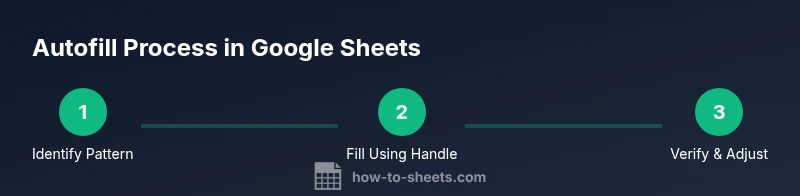
Open your Google Sheet and locate the starting pattern you want to extend with google sheets autofill. Ensure adjacent cells contain data that defines the intended direction (down or across). This step ensures Autofill continues predictably.
Tip: Confirm the pattern is visible in at least two starting cells to train Sheets on the rule. - 2
Enter initial values or formulas
Type the first value (or formula) that demonstrates the desired pattern in the target column or row. If you are filling a formula, include any necessary relative references for dynamic results.
Tip: If filling a formula, start with the simplest case to verify the relative references behave as expected. - 3
Drag-fill to extend the pattern
Click the fill handle (small square at the bottom-right of the selection) and drag to cover the range you want to fill. Release to apply. Check that the fill matches your intended pattern.
Tip: Use the fill handle along the edge for rapid extension, and watch for a small auto-fill options icon to adjust formatting. - 4
Double-click fill for large ranges
If you have a long column with contiguous data on the left, double-click the fill handle to automatically fill down to the last row with data beside it. This is a huge time-saver for large datasets.
Tip: Ensure adjacent columns provide enough data for Sheets to determine the fill extent. - 5
Adjust references with absolute anchors
When copying formulas with google sheets autofill, decide which parts stay constant. Use $A$1 to lock a reference or A1 to keep it relative. This keeps constants intact while allowing changing data to flow.
Tip: Plan your anchors before filling to avoid post-fill corrections. - 6
Validate results and fix anomalies
After filling, scan the range for misalignments or unexpected values. Correct any patterns that didn’t propagate as intended, and re-run the fill if needed.
Tip: Sort or filter to quickly spot rows that don’t fit the pattern. - 7
Use Fill options and shortcuts
Experiment with Fill Down/Fill Right from the Edit menu or keyboard shortcuts (Ctrl+D/Ctrl+R) to speed up repetitive fills. The quick keyboard actions can dramatically reduce mouse usage.
Tip: Remember to toggle 'Fill without formatting' if you want to preserve destination styles.
FAQ
What is google sheets autofill and how does it work?
Autofill in Google Sheets extends patterns, copies values, and propagates formulas across adjacent cells. It works by recognizing the starting pattern and applying it to the target range. If the pattern is clear, autofill will replicate it with minimal manual input.
Autofill copies data and formulas across cells by recognizing the pattern you start with. If the pattern is clear, it will extend it automatically.
Can I autofill dates and times in Google Sheets?
Yes. Start with a date (and optionally a second date to define the increment), then use the fill handle to extend daily, weekly, or monthly sequences. Be mindful of regional date formats when interpreting the result.
You can autofill dates and times by starting with dates and dragging the fill handle to extend the sequence.
How do I fill formulas without changing references?
Use absolute references (with $) for constants while keeping relative references for changing data. Decide which parts should anchor and apply the fill to propagate the formula correctly.
Use absolute references for constants and keep others relative so the formula fills correctly.
Why isn’t autofill working in my sheet?
Common causes include merged cells, non-contiguous data, or patterns with blanks. Unmerge, fill a complete range, and verify pattern continuity. If needed, use the Fill Down option from the menu or the Ctrl+D shortcut.
If autofill isn't working, check for merged cells or gaps in the pattern and try Fill Down from the menu or with Ctrl+D.
What are best practices for large autofill operations?
Plan starting patterns carefully, validate results, and consider splitting very large fills into smaller blocks. Use data validation and named ranges to maintain readability and reliability as your sheet grows.
For large autofill tasks, plan patterns, validate results, and use data validation to keep things reliable.
Watch Video
The Essentials
- Start with a clear pattern and test on a small range
- Use drag-fill and double-click-fill for efficiency
- Master relative vs absolute references for formulas
- Validate results and adjust patterns as needed
- Combine autofill with data validation for reliability