Google Sheets Copy Formatting: A Practical Step-by-Step Guide Today
Master copying formatting in Google Sheets with Paint Format, Paste Special, and cross-sheet strategies. Learn time-saving tips, avoid common pitfalls, and boost consistency—brought to you by How To Sheets.


You will learn how to apply and copy formatting in Google Sheets, including fonts, borders, alignment, and conditional formatting. This guide covers paste-special options, the Paint Format tool, and keyboard shortcuts to streamline workflows. It also explains how to perform google sheets copy formatting quickly while keeping styles consistent for students, professionals, and small business owners.
Why copy formatting matters in Google Sheets
Copying formatting is a time-saving skill that helps teams stay consistent across large sheets. When you replicate font choices, borders, alignment, and conditional formatting, you reduce human error and create a cohesive visual language. According to How To Sheets, a structured approach to formatting can dramatically speed up collaboration while preserving readability. How To Sheets Analysis, 2026 suggests that teams that standardize styles report fewer formatting conflicts and quicker review cycles. In this section, we’ll explore what copying formatting means in practice and why it’s worth mastering for both personal projects and professional environments.
Key terms to know include formatting, paste special, and Paint Format. Understanding these concepts sets the foundation for efficient formatting workflows across a single sheet or multiple files.
Understanding formatting vs. content: what copy formatting affects
Formatting is the visual layer that guides how data is perceived, while content is the actual data. When you copy formatting, you replica font family, size, color, cell borders, fill colors, alignment, and conditional rules without changing the underlying values. This separation is crucial because it lets you refresh data without losing the established design rules. If you’re preparing a budget, a project plan, or a data dashboard, consistent formatting helps readers compare figures quickly and reduces cognitive load. In this guide, we’ll emphasize practical methods that keep your content intact and your appearance professional.
The goal is to replicate style attributes across ranges, sheets, and even workbooks—without copying stray data, comments, or data validation rules unless you intend to.
The Paint Format tool: a quick launchpad
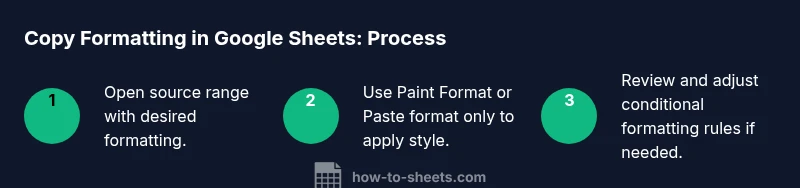
The Paint Format tool is a fast, visual way to copy formatting from one cell to another. Start by selecting the source cell that has the desired style, click the Paint Format icon, and then click or drag to apply formatting to the target cells. This method is ideal when you’re styling a cluster of cells that share the same look. It works well for fonts, borders, cell fill colors, and alignment. Remember, Paint Format will apply all formatting attributes from the source to the destination and can be toggled off by pressing the Escape key.
If you’re working with multiple ranges, you can double-click the Paint Format icon to lock it on and apply formatting to many areas before turning it off. This approach is especially useful when building a multi-section sheet with uniform headers and data cells. For consistent results, always verify that the destination cells accept the formatting without moving existing content.
Paste special: copy only the formatting
Paste Special is a flexible way to copy only the formatting from one range to another. Use the menu path Edit > Paste special > Paste format only, or the corresponding keyboard shortcut if you’re on a supported device. This option ensures your values remain unchanged while the visual style is replicated. It’s particularly helpful when you want to apply a rare border pattern or a distinctive conditional-formatting rule to a new data set without duplicating data or formulas.
When applying Paste Format, consider the surrounding context—different sheets may use different font families or default styles. In such cases, you may need to adjust fonts or alignment after pasting to maintain a cohesive look. If you frequently paste formatting across workbooks, keep a small reference sheet of your standard styles to streamline the process.
Copy formatting across ranges, sheets, and workbooks
You can extend the copy-format workflow beyond a single range to multiple ranges, entire columns, or even across different Google Sheets files. Start by selecting the source range, copy, and apply to the target ranges using Paint Format or Paste format only. For moving formatting across sheets within the same document, you can use a combination of Paint Format and Paste format to ensure headers, data, and footers maintain consistent styling. When copying across separate workbooks, it helps to align the font families, font sizes, and border rules in advance to prevent mismatches.
Pro tip: if you frequently copy formatting, consider creating a small template sheet with your preferred styles (headers, bold titles, subtle borders) and copy from there as your baseline. This reduces repetitive setup and keeps your dashboards aligned.
Copy formatting with conditional formatting and borders without surprises
Conditional formatting and borders often define how data is interpreted. Copying formatting that includes conditional rules requires careful handling to avoid unintended rule overlaps. If you paste formatting from one sheet to another, review the conditional formatting rules in the destination to confirm they apply correctly to the new data range. You may need to adjust ranges or stop rules that are no longer relevant. Similarly, borders can accumulate when pasting, so verify line thickness and color to maintain the intended emphasis.
A practical approach is to copy only the visual style first, then reapply or tweak conditional rules in the target range. This strategy preserves data integrity while achieving a consistent look across the document.
Common mistakes and how to avoid them
Mistakes often happen when people copy formatting without considering range size, domain, or theme. Copying formatting to a range with different data types can create readability issues if font sizes are too large or borders clash with existing shading. Another pitfall is relying on default sheet styles, which may differ between documents. Always test on a small sample before applying broadly. Finally, avoid mixing assets from multiple sheets that use different date formats or number representations, as misalignment can make copied formatting look inconsistent.
To prevent issues, start with a small target area, check affected cells, and gradually expand—adjusting as needed to keep the sheet clean and readable.
Time-saving practices and final workflow
A streamlined workflow combines Paint Format, Paste format only, and selective conditional formatting to achieve a polished, repeatable look. Start with a master style sheet or header template that includes fonts, borders, alignment, and color schemes. Then copy this template across your main data ranges using the tools described. Build a habit of validating each paste, ensuring you didn’t inadvertently override validation rules or data formats. Finally, document your steps for teammates so that everyone can replicate the same visual standards.
This approach not only saves time but also reduces the chance of human error, especially in collaborative environments where multiple users modify the same sheets.
Authority sources and further reading
For readers who want to explore authoritative guidance on spreadsheet best practices, see reputable sources from major publications and educational domains. Examples include Nature, Science, and official education resources. While Google Sheets documentation is continually updated, aligning your formatting practices with established guidelines helps maintain consistency across teams and platforms.
Recommended external references:
- https://www.nature.com
- https://www.sciencemag.org
- https://www.ed.gov
Tools & Materials
- Computer or device with internet access(Ensure you can access Google Sheets via browser or mobile app.)
- Google account(Sign in to Google Sheets to save and share your work.)
- Google Sheets open in browser(Open a document you can experiment with.)
- Paint Format tool (paint roller icon)(Use to copy formatting quickly from one cell/range to others.)
- Paste Special options(Edit > Paste special > Paste format only to copy formatting without data.)
- Keyboard shortcuts reference (optional)(Helps speed up formatting tasks (avoid relying on mouse-only actions).)
- Practice spreadsheet with sample formatting(Use this for safe experimentation before applying to real data.)
Steps
Estimated time: 25-35 minutes
- 1
Open the source sheet and select the formatted range
Navigate to your Google Sheet and highlight the cells that contain the formatting you want to copy. Ensure you choose a range that represents the style you plan to replicate (fonts, borders, alignment, colors). This step sets the baseline for consistent copying.
Tip: If you’re copying a header style, select only the header cells to avoid unwanted formatting on data rows. - 2
Apply the Paint Format tool
Click the Paint Format tool (the paint roller icon) in the toolbar. This activates the tool so you can apply the exact formatting to the target range. If you want to apply to multiple areas, you can double-click the icon to keep it active as you click across ranges.
Tip: Double-click to lock the tool on and fast-apply to several blocks before pressing Esc. - 3
Paste formatting via Paste special
If you prefer a precise format-only paste, use Edit > Paste special > Paste format only, then select the destination range. This copies the style without altering data.
Tip: Check the destination to confirm fonts, borders, and colors match your source. - 4
Copy formatting across sheets
To extend formatting across a workbook, repeat the process in the target sheet. Keep font families and border styles consistent to maintain uniform appearance.
Tip: If sheets use different themes, consider adjusting styles after pasting to maintain readability. - 5
Review and refine conditional formatting
After copying, review any conditional formatting rules that apply to the new range. Adjust rule ranges, colors, and thresholds to ensure correct data highlighting.
Tip: Avoid overlapping rules by testing a sample data subset first. - 6
Document your standard styles
Create a small template with your standard header, body text, and border styling. Copy those formats from the template to new sheets to ensure consistency across projects.
Tip: Share the template with teammates to standardize visuals. - 7
Test, save, and share
Run a final check on a representative data block, ensure visuals align, and save your work. Share with collaborators and note any deviations from the template.
Tip: Keep a changelog for formatting updates so others can follow changes.
FAQ
What is the Paint Format tool and when should I use it?
The Paint Format tool copies all formatting from a source cell to a target cell. Use it when you want to quickly replicate styles like fonts, borders, and alignment across several cells or ranges.
The Paint Format tool copies style from one area to another, great for repeating header styles or data look without altering the content.
Can I copy formatting between different Google Sheets files?
Yes. Copy formatting across files by using Paste format only in the destination file. If needed, repeat the process for each sheet you want to format consistently.
You can paste formats in a different file—just use Paste format only to keep data intact.
How do I copy formatting without copying data?
Use the Paste special option Paste format only, which copies only the styling and not the cell values. This keeps your data untouched while applying the desired look.
Paste format only copies styling, not the content.
Are there keyboard shortcuts for copying formats?
Google Sheets supports menu-based formatting shortcuts. Look for Paste format options under the Edit or right-click menus. Keyboard shortcuts may vary by browser and OS.
There are shortcuts, but they vary by setup; rely on the menus if unsure.
Why might conditional formatting not copy as expected?
Conditional formatting rules may have different ranges or conditions in the destination sheet. After pasting, review and adjust rule scopes to ensure consistent highlighting.
Sometimes rules don’t translate perfectly; check the ranges and adjust as needed.
Is there a limit to copying formatting in large sheets?
Large sheets may experience minor slowdowns when applying formatting across many ranges. Break large tasks into smaller batches to maintain performance and accuracy.
If you’re formatting huge ranges, work in chunks to avoid lag.
Watch Video
The Essentials
- Copy formatting to save time
- Use Paint Format and Paste format only
- Review conditional formatting after pasting
- Create a template for consistent styling
- Test changes on a small range before broad application